VideoObject schema: get your videos indexed and appearing in video rich results
Module 6: Technical SEO, Structured Data & Rich Snippets for Wix | Lesson 75 of 683 | 50 min read
By Michael Andrews, Wix SEO Expert UK
VideoObject schema helps Google understand, index, and display video content embedded on your Wix site in video rich results, video carousels, Google Video search, and Google Discover. Video content is increasingly important for SEO, and Google is giving more SERP real estate to video results. If your Wix site embeds YouTube videos, self-hosted videos, or any video content, VideoObject schema significantly increases the chance of those videos appearing in prominent video search features. This lesson covers the complete VideoObject specification, integration with YouTube and other platforms, key moments markup for video chapters, and strategies for maximising video visibility.
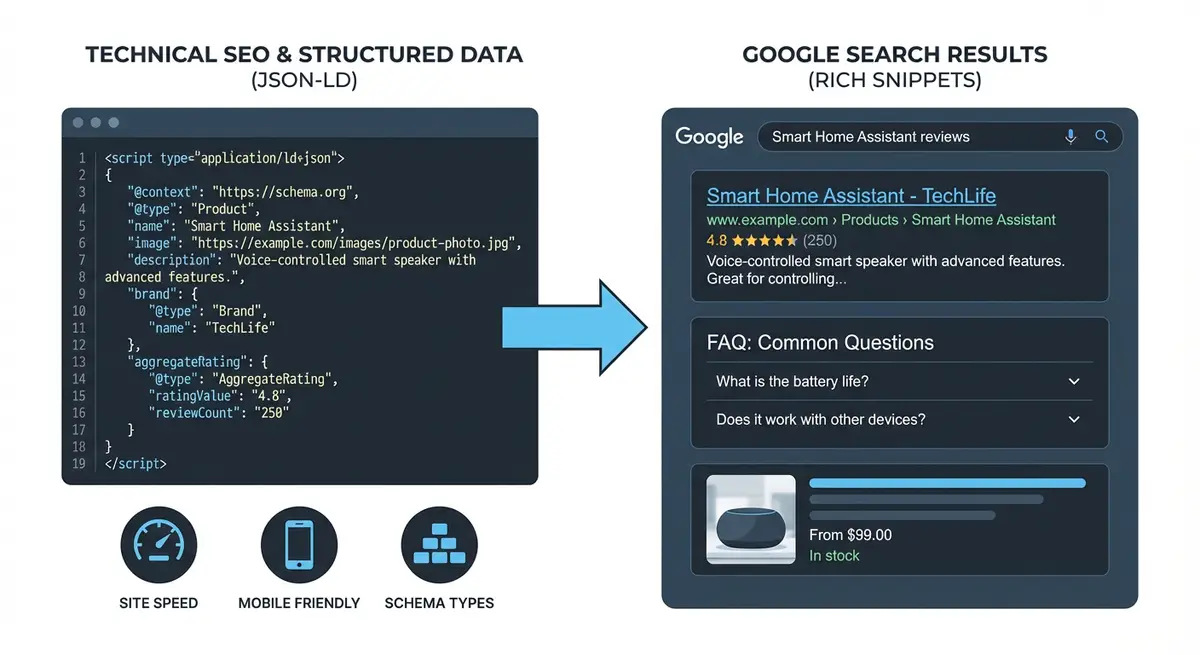
What Video Rich Results Look Like
- Video thumbnails in organic search: a video thumbnail appears next to your regular search listing.
- Video carousel: a horizontally scrollable set of video cards for video-related queries.
- Google Video tab: your video appears in the dedicated Video search tab.
- Key moments: specific timestamps within your video that users can jump to directly from search.
- Google Discover: video content can surface in the Discover feed.
- Mobile video preview: auto-playing video previews on mobile search results.
When to Add VideoObject Schema
- Blog posts with embedded YouTube tutorial videos.
- Product pages with demonstration or unboxing videos.
- Service pages with explainer videos.
- Landing pages with promotional or testimonial videos.
- Course lesson pages with instructional videos.
- Portfolio pages with project walkthrough videos.
- FAQ pages with video answers to common questions.
Essential VideoObject Properties
- name (required): the video title. Should match the visible video title on the page.
- description (required): a clear description of the video content. At least 1-2 sentences.
- thumbnailUrl (required): URL to the video thumbnail image. At least 1200px wide recommended.
- uploadDate (required): when the video was published, in ISO 8601 format.
- duration (recommended): video length in ISO 8601 duration format (e.g., PT12M30S).
- contentUrl (recommended): the direct URL to the video file.
- embedUrl (recommended): the URL of the embeddable player page.
- publisher (recommended): the organisation that published the video.
- interactionStatistic (optional): view count for the video.
- hasPart (optional): key moments/chapters within the video.
VideoObject Schema for YouTube Embeds
Most Wix sites embed YouTube videos. Here is the complete schema template optimised for YouTube integration.
<script type="application/ld+json">
{
  "@context": "https://schema.org",
  "@type": "VideoObject",
  "name": "How to Add Schema Markup to Your Wix Website",
  "description": "A step-by-step tutorial showing how to add JSON-LD structured data to any Wix page using the Custom Code feature. Covers Organization, FAQ, and Article schema.",
  "thumbnailUrl": "https://img.youtube.com/vi/YOUR_VIDEO_ID/maxresdefault.jpg",
  "uploadDate": "2026-01-15T08:00:00+00:00",
  "duration": "PT12M30S",
  "contentUrl": "https://www.youtube.com/watch?v=YOUR_VIDEO_ID",
  "embedUrl": "https://www.youtube.com/embed/YOUR_VIDEO_ID",
  "interactionStatistic": {
    "@type": "InteractionCounter",
    "interactionType": "https://schema.org/WatchAction",
    "userInteractionCount": "1500"
  },
  "publisher": {
    "@type": "Organization",
    "name": "Your Business Name",
    "logo": {
      "@type": "ImageObject",
      "url": "https://yoursite.com/logo.png"
}
  }
}
</script>
YouTube Thumbnail URL Patterns
YouTube provides automatic thumbnails at predictable URLs. Use these to get the thumbnail without downloading it.
- Max resolution: https://img.youtube.com/vi/VIDEO_ID/maxresdefault.jpg
- High quality: https://img.youtube.com/vi/VIDEO_ID/hqdefault.jpg
- Medium quality: https://img.youtube.com/vi/VIDEO_ID/mqdefault.jpg
- Standard quality: https://img.youtube.com/vi/VIDEO_ID/sddefault.jpg
- Default: https://img.youtube.com/vi/VIDEO_ID/default.jpg
- Always try maxresdefault first. If it returns a grey placeholder, the video does not have a max-res thumbnail: use hqdefault instead.
Duration Formatting
Video duration uses ISO 8601 format, the same as HowTo totalTime.
- PT30S = 30 seconds
- PT5M = 5 minutes
- PT5M30S = 5 minutes 30 seconds
- PT12M30S = 12 minutes 30 seconds
- PT1H = 1 hour
- PT1H15M = 1 hour 15 minutes
- PT2H30M45S = 2 hours 30 minutes 45 seconds
Key Moments (Video Chapters)
Key moments allow Google to display timestamp links in search results, letting users jump directly to specific sections of your video. This is especially valuable for long tutorial videos.
{
  "@context": "https://schema.org",
  "@type": "VideoObject",
  "name": "Complete Wix SEO Tutorial",
  "uploadDate": "2026-01-15",
  "duration": "PT45M",
  "thumbnailUrl": "https://img.youtube.com/vi/VIDEO_ID/maxresdefault.jpg",
  "contentUrl": "https://www.youtube.com/watch?v=VIDEO_ID",
  "hasPart": [
    {
      "@type": "Clip",
      "name": "Introduction to Wix SEO",
      "startOffset": 0,
      "endOffset": 180,
      "url": "https://www.youtube.com/watch?v=VIDEO_ID&t=0"
    },
    {
      "@type": "Clip",
      "name": "Setting Up Meta Tags",
      "startOffset": 180,
      "endOffset": 600,
      "url": "https://www.youtube.com/watch?v=VIDEO_ID&t=180"
    },
    {
      "@type": "Clip",
      "name": "Adding Schema Markup",
      "startOffset": 600,
      "endOffset": 1200,
      "url": "https://www.youtube.com/watch?v=VIDEO_ID&t=600"
    },
    {
      "@type": "Clip",
      "name": "Submitting to Google",
      "startOffset": 1200,
      "endOffset": 2700,
      "url": "https://www.youtube.com/watch?v=VIDEO_ID&t=1200"
    }
  ]
}- startOffset: the time in seconds where the clip begins.
- endOffset: the time in seconds where the clip ends.
- url: a link to the video at the specific timestamp (add &t=SECONDS to YouTube URLs).
- name: a clear, descriptive title for each video chapter.
- Key moments can also come from YouTube chapters if you add timestamps in the video description.
Multiple Videos on One Page
If a page contains multiple embedded videos, add VideoObject schema for each video, either as separate script tags or combined in a @graph array.
{
  "@context": "https://schema.org",
  "@graph": [
    {
      "@type": "VideoObject",
      "name": "First Video Title",
      "thumbnailUrl": "https://img.youtube.com/vi/VIDEO1_ID/maxresdefault.jpg",
      "uploadDate": "2026-01-15",
      "contentUrl": "https://www.youtube.com/watch?v=VIDEO1_ID"
    },
    {
      "@type": "VideoObject",
      "name": "Second Video Title",
      "thumbnailUrl": "https://img.youtube.com/vi/VIDEO2_ID/maxresdefault.jpg",
      "uploadDate": "2026-02-20",
      "contentUrl": "https://www.youtube.com/watch?v=VIDEO2_ID"
    }
  ]
}
Combining VideoObject with Article Schema
For blog posts that include video content, combine VideoObject with BlogPosting schema to get both article and video rich results.
{
  "@context": "https://schema.org",
  "@graph": [
    {
      "@type": "BlogPosting",
      "headline": "How to Speed Up Your Wix Site",
      "author": { "@type": "Person", "name": "Your Name" },
      "datePublished": "2026-01-15",
      "video": {
        "@type": "VideoObject",
        "name": "Wix Speed Optimisation Tutorial",
        "thumbnailUrl": "https://img.youtube.com/vi/VIDEO_ID/maxresdefault.jpg",
        "uploadDate": "2026-01-15",
        "duration": "PT15M",
        "contentUrl": "https://www.youtube.com/watch?v=VIDEO_ID"
      }
    }
  ]
}
Adding VideoObject Schema to Wix: Step-by-Step
Complete implementation process
- List all pages on your Wix site that contain embedded videos.
- For each video, gather: title, description, upload date, duration, and video ID.
- Get the YouTube thumbnail URL using the pattern: https://img.youtube.com/vi/VIDEO_ID/maxresdefault.jpg.
- Calculate the video duration and format in ISO 8601 (PT12M30S).
- Create the VideoObject JSON-LD using the template above.
- If the video has chapters, add hasPart with Clip objects for each chapter.
- Validate at search.google.com/test/rich-results.
- In Wix Dashboard, go to Settings > Custom Code.
- Add the validated JSON-LD to the specific page containing the video.
- Set placement to Head.
- Publish and test the live URL.
- Check Google Search Console > Video Indexing report for video discovery.
- For pages with multiple videos, include all videos in the schema.
Self-Hosted Video Schema
If you host videos on your own domain (not YouTube), the schema is slightly different.
- contentUrl: the direct URL to the video file (e.g., https://yoursite.com/videos/tutorial.mp4).
- embedUrl: if you have an embeddable player page.
- thumbnailUrl: must be a separate image file, not generated from the platform.
- You must provide either contentUrl or embedUrl for Google to index the video.
- Self-hosted videos may be harder for Google to index than YouTube videos.
Common VideoObject Schema Mistakes
- Using a thumbnail URL that returns a 404 or grey placeholder.
- Missing uploadDate (required by Google).
- Incorrect duration format (must use ISO 8601 PT format).
- Not including either contentUrl or embedUrl.
- Schema for a video that is not actually visible or playable on the page.
- Using generic placeholder thumbnails instead of actual video thumbnails.
- Not updating schema when videos are removed from the page.
- Missing description property.
- Key moments with incorrect startOffset/endOffset values.
Video SEO Best Practices Beyond Schema
- Embed the video above the fold so Google identifies it as primary content.
- Add a text transcript below the video for additional keyword relevance.
- Use descriptive video file names and titles with target keywords.
- Create a video sitemap if you have more than 10 pages with video content.
- Ensure videos load quickly: use lazy loading for videos below the fold.
- On YouTube, optimise the video title, description, and tags for the same keywords.
- Link from the YouTube video description back to the page on your Wix site.
How to Optimise Your YouTube Videos for Maximum Wix Video Rich Results
Getting video rich results requires both valid VideoObject schema and well-optimised video content. Use this process to maximise your video visibility in Google Search.
Complete YouTube video optimisation for rich results on Wix
- On YouTube Studio, ensure each video has a descriptive title that includes your primary keyword. This title should match or closely align with the name field in your VideoObject schema.
- Write a detailed video description on YouTube (minimum 250 words): include a summary of the video content, timestamps for each section, a link back to your Wix page, and relevant keywords naturally.
- Add YouTube chapters by starting your description with "0:00 Introduction" and listing each section with its start timestamp. This enables automatic key moments in Google Search.
- Upload a custom thumbnail to YouTube: use a 1280x720px image with clear readable text and a compelling visual. This becomes the thumbnailUrl in your VideoObject schema.
- On your Wix page, embed the video above the fold in a prominent position so Google identifies it as primary content rather than supplementary material.
- Create the VideoObject JSON-LD using the YouTube video ID: set thumbnailUrl to https://img.youtube.com/vi/YOUR_VIDEO_ID/maxresdefault.jpg and embedUrl to https://www.youtube.com/embed/YOUR_VIDEO_ID.
- Include the duration in ISO 8601 format (e.g., PT12M30S for 12 minutes 30 seconds). Check the YouTube video time display to get the exact duration.
- If your video has chapters (timestamps in description), add hasPart with Clip objects for each chapter with exact startOffset and endOffset values in seconds.
- Validate the complete schema at search.google.com/test/rich-results with zero errors.
- In Wix Dashboard, go to Settings > Custom Code, add the VideoObject JSON-LD to the specific page containing the video, set placement to Head, publish, and check Google Search Console > Video Indexing to monitor discovery.
The properties Google needs
Video is one of the schema types that still pays you back, because Google shows video rich results in the main results, in the Video tab, in Images and in Discover, and the markup is how it reliably works out what your video is and where it sits on the page. The three properties it must have are the name, the thumbnailUrl pointing at a real accessible image, and the uploadDate in full ISO format. After that, add the description, either a contentUrl to the video file or an embedUrl to the player, and the duration written the ISO way, for example PT1M54S for one minute fifty four.
Two features worth having
Two features are worth knowing about. Key moments, the clickable chapters under a video result, come either from Clip markup or from SeekToAction, and the video needs to be at least thirty seconds long with the timings deep linking into it. And if you ever livestream, the LIVE badge comes from BroadcastEvent markup. Neither is essential, but they make your result take up more room and pull more clicks.
The mistakes that quietly cost people the rich result are reusing the same name across several videos, pointing thumbnailUrl at an image Google cannot fetch or that is blocked, and writing the date or duration in the wrong format. Each of those is enough on its own for Google to skip the enhancement. Test the page in the Rich Results Test, then watch the Videos report in Search Console for anything Google flags. For the Wix side of getting videos embedded and marked up properly, see Video SEO on Wix with YouTube and Wix Video.
Was this lesson useful?
It takes 1 minute to tell me. The course is free and I want to keep it that way, and your feedback shows me what is working and helps other people find it.
This lesson on VideoObject schema: get your videos indexed and appearing in video rich results is part of Module 6: Technical SEO, Structured Data & Rich Snippets for Wix in The Most Comprehensive Complete Wix SEO Course in the World (2026 Edition). Created by Michael Andrews, a Wix Marketplace Legend Partner with 14 years of hands-on experience, 800 completed Wix SEO projects and 456 verified five-star reviews.