How to add JSON-LD schema markup to any Wix page using Custom Code
Module 6: Technical SEO, Structured Data & Rich Snippets for Wix | Lesson 66 of 683 | 50 min read
By Michael Andrews, Wix SEO Expert UK
This is the most technically important lesson in the entire course. Every structured data type covered in subsequent lessons relies on this foundation: how to add JSON-LD code to your Wix site using the Custom Code feature. Master this process once, and you can implement any schema type on any page of your Wix site. This lesson covers the step-by-step process, site-wide vs page-specific deployment, common errors and fixes, advanced techniques like nesting multiple schema types, and a troubleshooting guide for when things go wrong.
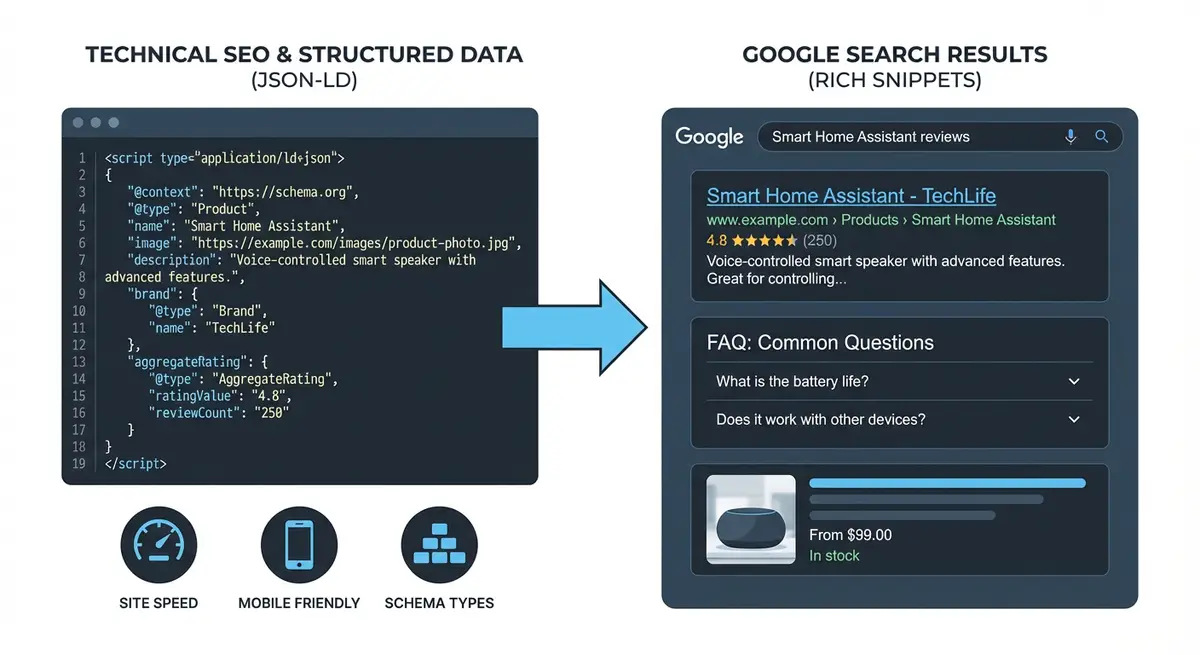
Finding Custom Code in Wix
Navigate to Custom Code in Wix
- Log in to your Wix Dashboard (not the Editor).
- Click Settings in the left sidebar.
- Scroll down to "Advanced" and click "Custom Code".
- You will see options for adding code to: Head, Body Start, Body End.
- For SEO schema markup, always use the "Head" section.
- You can also access page-level custom code from the Wix Editor: click on the page, open SEO settings, and find the custom code section.
Site-Wide vs Page-Specific Schema
Understanding when to use site-wide vs page-specific deployment is critical. Using the wrong scope wastes schema potential or creates errors.
- Site-wide (All Pages): use for Organization or LocalBusiness schema that describes your entire business.
- Page-specific: use for FAQ schema on a service page, Product schema on a product page, Event schema on an event page.
- Exclusion: use "All pages except" to exclude specific pages. Example: apply Article schema to all blog posts except the blog index page.
- Never apply page-specific schema site-wide. FAQ schema for one page should not appear on every page.
- Multiple schema blocks can exist on the same page. A service page might have Organization schema (site-wide) plus FAQPage schema (page-specific).
Adding Your First JSON-LD Block
Step-by-step: adding schema to Wix
- Write your JSON-LD code or generate it using a tool like technicalseo.com/tools/schema-markup-generator.
- Validate the code first: paste the JSON (without script tags) into validator.schema.org to check for syntax errors.
- Then test for rich result eligibility: paste the complete code (with script tags) into search.google.com/test/rich-results using the "code snippet" option.
- Fix any errors shown in validation before proceeding.
- In your Wix Dashboard, go to Settings > Advanced > Custom Code.
- Click "+ Add Custom Code".
- Name the code snippet descriptively (e.g., "Homepage Organization Schema" or "Service Page FAQ Schema").
- In the code field, paste your complete JSON-LD code wrapped in <script type="application/ld+json"> tags.
- Under "Add Code to Pages", choose "All Pages" for site-wide schema or "Choose specific pages" for page-specific schema.
- Under "Place Code in", choose "Head".
- Click Apply.
- Publish your Wix site.
- Test the live published URL at search.google.com/test/rich-results to confirm the schema appears correctly.
The JSON-LD Template Structure
<!-- Basic structure -->
<script type="application/ld+json">
{
  "@context": "https://schema.org",
  "@type": "Organization",
  "name": "Your Business Name",
  "url": "https://www.yourdomain.com"
}
</script>

<!-- With nested objects -->
<script type="application/ld+json">
{
  "@context": "https://schema.org",
  "@type": "LocalBusiness",
  "name": "Your Business",
  "address": {
    "@type": "PostalAddress",
    "streetAddress": "123 Your Street",
    "addressLocality": "Your City",
    "postalCode": "AB1 2CD"
  }
}
</script>

<!-- With arrays -->
<script type="application/ld+json">
{
  "@context": "https://schema.org",
  "@type": "Organization",
  "name": "Your Business",
  "sameAs": [
    "https://facebook.com/yourbusiness",
    "https://linkedin.com/company/yourbusiness",
    "https://twitter.com/yourbusiness"
  ]
}
</script>
Combining Multiple Schema Types on One Page
Many pages benefit from multiple schema types. A service page might have Organization schema (site-wide) plus FAQPage schema (page-specific) plus BreadcrumbList schema (page-specific). You have two options for combining:
Option 1: Separate Script Blocks (Recommended)
Add each schema type as a separate <script> block. This is cleaner, easier to maintain, and easier to debug. Each block is independent.
Option 2: @graph Array
Combine multiple schema types in a single <script> block using the @graph property. This is more advanced but creates explicit relationships between entities.
<script type="application/ld+json">
{
  "@context": "https://schema.org",
  "@graph": [
    {
      "@type": "Organization",
      "name": "Your Business"
    },
    {
      "@type": "FAQPage",
      "mainEntity": [
        {
          "@type": "Question",
          "name": "Your question?",
          "acceptedAnswer": {
            "@type": "Answer",
            "text": "Your answer."
          }
        }
      ]
    }
  ]
}
</script>
Troubleshooting Common Errors
Syntax Errors
- Missing comma between properties: every property except the last must have a comma after the closing quote or bracket.
- Unclosed brackets or braces: every { must have a matching }, every [ must have a matching ].
- Missing quotes around property values: all string values must be in double quotes.
- Trailing comma after the last property: JSON does not allow a comma after the final item.
- Fix: paste your JSON into jsonlint.com to find and fix syntax errors before adding to Wix.
Rich Results Test Errors
- "Missing field required": a property Google requires is absent. Check Google's documentation for required properties.
- "Invalid value": the format is wrong (e.g., date not in ISO 8601 format, URL missing https://).
- "Unparsable structured data": the JSON-LD has a syntax error. Use jsonlint.com to debug.
- "Not eligible for rich results": the schema type is valid but Google does not show rich results for this page type.
Schema Not Appearing After Publishing
Debugging missing schema
- View the page source (right-click > View Page Source) and search for "application/ld+json". If not found, the code was not added correctly.
- Check Wix Custom Code settings: is the code applied to the correct page?
- Verify the code is set to "Head" placement.
- Ensure you have published the site after adding the code. Custom Code changes only take effect after publishing.
- Check for JavaScript errors on the page that might prevent the code from rendering.
- Clear your browser cache and test again.
Schema Management Best Practices for Wix
- Keep a spreadsheet documenting every schema snippet: page, type, date added, last tested.
- Name your Custom Code snippets descriptively so you can find and edit them easily.
- Test every page quarterly with the Rich Results Test to catch issues early.
- When you update page content, update the corresponding schema (especially dateModified, prices, and descriptions).
- When you add new pages, add schema as part of the page creation checklist.
- When you remove or redirect pages, remove the associated schema code.
Using Schema Generators vs Writing Code Manually
- Schema generators (technicalseo.com, Merkle) are excellent for beginners. They produce valid JSON-LD from form inputs.
- Manual coding gives more control over advanced properties and nested objects.
- Recommendation: use generators for your first 2-3 schema implementations, then transition to manual coding as you understand the syntax.
- Always validate generator output. Some generators produce outdated or incomplete code.
- AI tools (ChatGPT, Claude) can generate schema code from prompts, but always validate the output.
Essential Tools for This Lesson
- Google Rich Results Test: Test your schema implementation on live URLs or code snippets
- Schema Markup Validator: Detailed schema validation against Schema.org specifications
- JSONLint: Validate JSON syntax to find missing commas, brackets, and other errors
- Technical SEO Schema Generator: Generate JSON-LD from form inputs without writing code
- Merkle Schema Generator: Another popular schema generator with support for multiple types
- SEO Fix in a Box: My Wix app. Free to install, it scans your site and shows what needs fixing, and paid plans write the fixes from your own Google searches
Two clean ways to add it
There are two clean ways to add JSON-LD to a Wix site, and it is worth being deliberate about which you use so you do not end up with the same schema twice. The first is the site wide Custom Code area, under Settings and then Custom Code, where you paste a script into the Head. That is right for anything that belongs on every page, like your Organization or LocalBusiness block. The second is the per page route: the Advanced SEO panel on each page has a Structured Data Markup field, which is the tidy place for markup that only applies to that one page, like an Event or a Product.
The two rules that keep you safe
Whichever route you take, JSON-LD is the format Google prefers, and it always goes inside a script tag with the type set to application slash ld plus json. Two rules keep you out of trouble. Only mark up things that are actually visible on the page, because marking up content a visitor cannot see is against Google's guidelines. And watch for duplication, because Wix already generates some schema for certain page types, so adding your own on top can leave two competing blocks.
The habit that saves you every time is to test after you publish, not before. Run the live URL through Google's Rich Results Test to confirm the markup is valid and eligible, then use URL Inspection in Search Console to check Google can fetch and read it. If something is flagged, the fixes are in Fixing schema errors and warnings, and if you want the plain English of what all of this is first, start with What structured data is.
Was this lesson useful?
It takes 1 minute to tell me. The course is free and I want to keep it that way, and your feedback shows me what is working and helps other people find it.
This lesson on How to add JSON-LD schema markup to any Wix page using Custom Code is part of Module 6: Technical SEO, Structured Data & Rich Snippets for Wix in The Most Comprehensive Complete Wix SEO Course in the World (2026 Edition). Created by Michael Andrews, a Wix Marketplace Legend Partner with 14 years of hands-on experience, 800 completed Wix SEO projects and 456 verified five-star reviews.