Wix Studio 2: A Hands-On SEO First Look
By Michael Andrews | Published: 2026-11-02 | Updated: 2026-11-02 | 9 min read
I opened Wix Studio 2 before its launch and went straight to the SEO settings. The new page SEO checklist, clearer indexing warnings, the SEO and GEO dashboard, and the short list I would check on day one.
Wix showed me Studio Two ahead of its official launch, so I did what I always do with a new editor. I ignored the pretty bits and went straight to the SEO settings. You will see it called both Wix Studio Two and Wix Studio 2.
This is a first look, not a full review. I opened a test site, clicked through the SEO panels and changed nothing. Everything below is what I actually saw on screen. Where something was still loading or unclear, I say so.
What Studio Two looks like
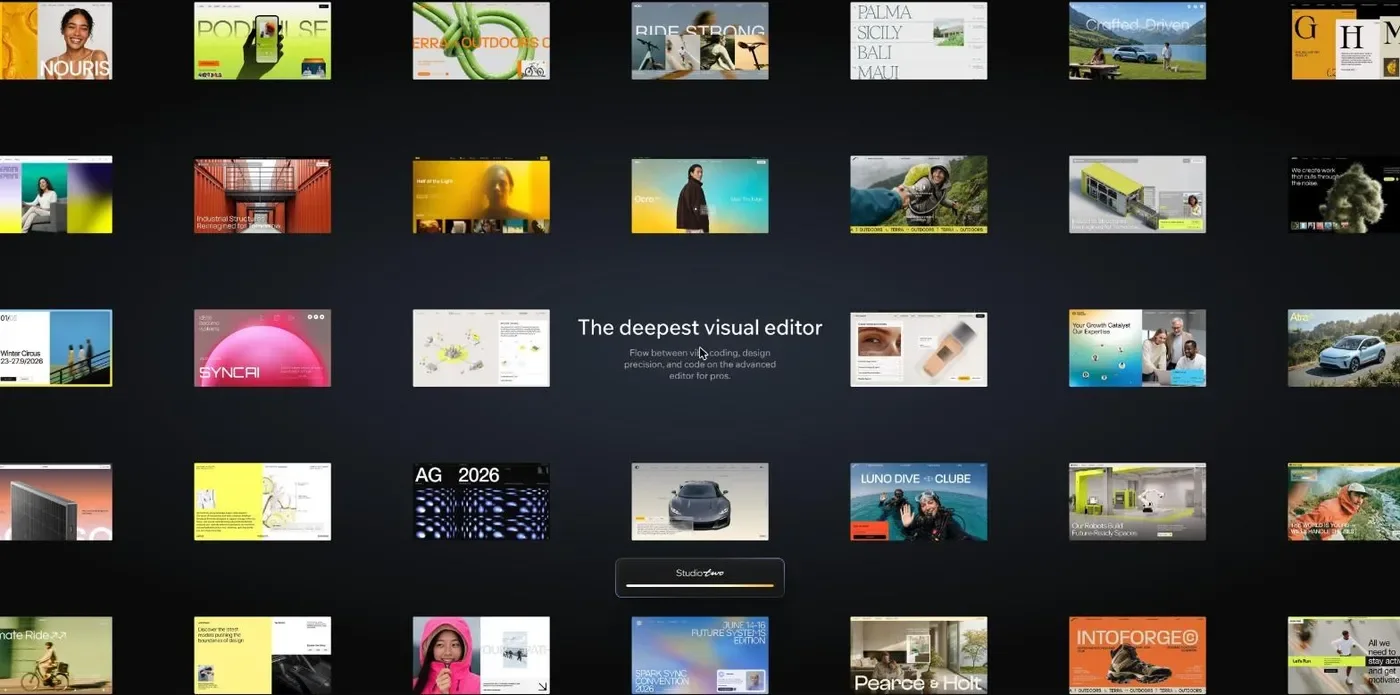
The first thing you notice is the loading screen. Wix calls Studio Two its deepest visual editor, where you flow between vibe coding, design precision and code.
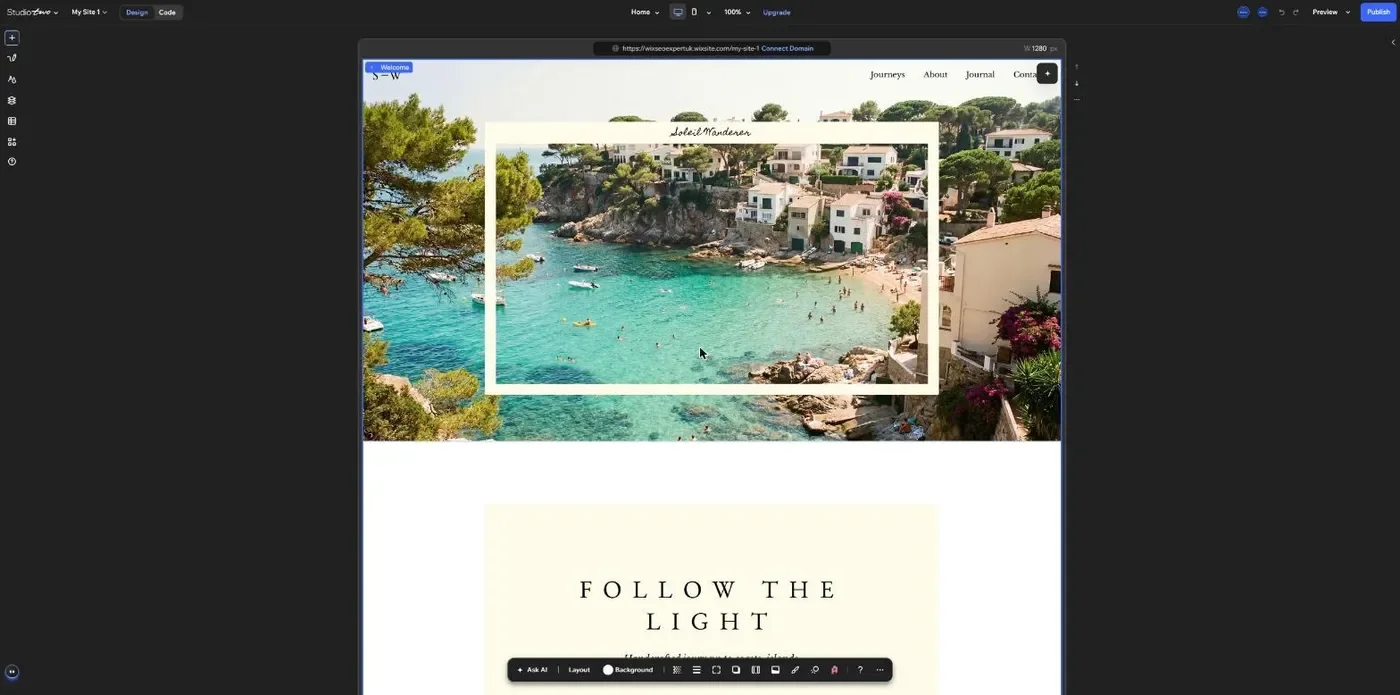
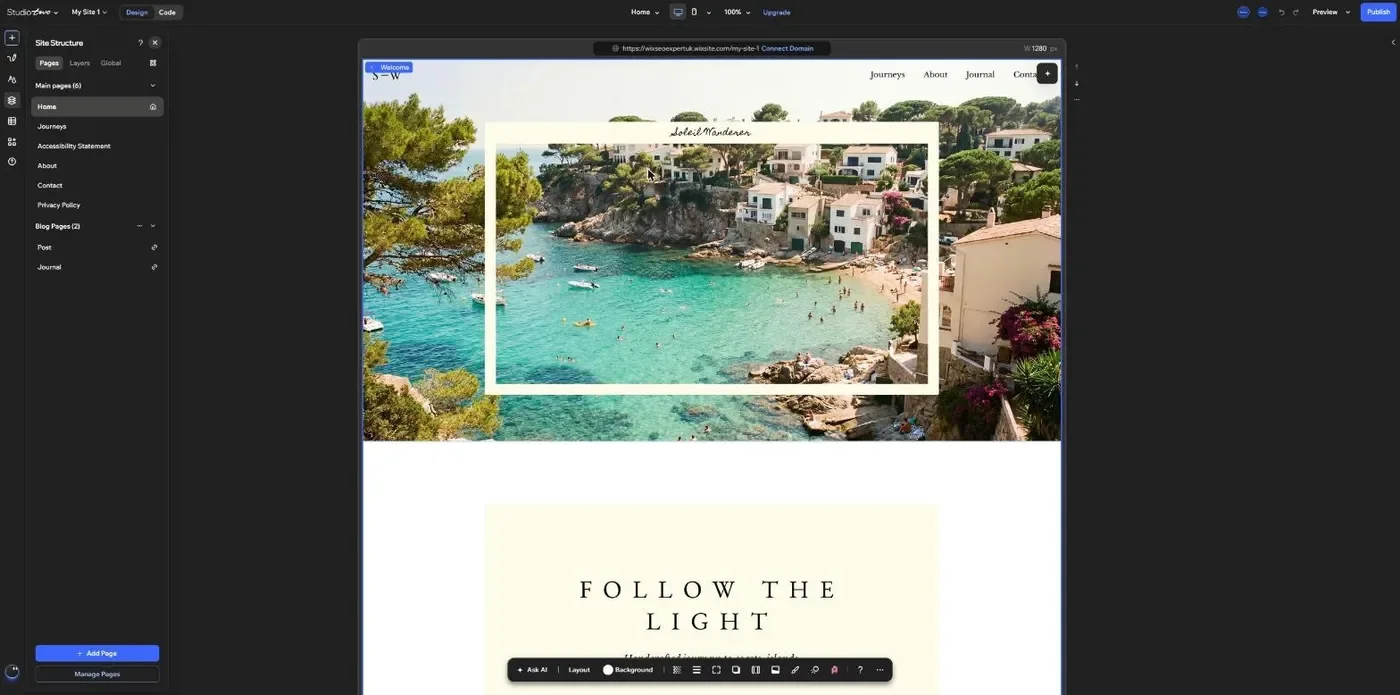
Once inside, the layout will feel familiar if you already use Wix Studio. There is a narrow toolbar down the left, the canvas in the middle and a floating toolbar that appears when you select something. Across the top sit a Design and Code switch, the page picker, device views, Preview and Publish.
The left toolbar holds Add Elements, Draw Element, Site Styles, Site Structure, CMS, your blog and Help. There is also a button for Aria, the built-in AI assistant.
Where the SEO settings live now
In Studio Two you reach a page's SEO through Site Structure. Open the Pages list, click the three dots next to a page and choose SEO and accessibility. That menu splits into three: SEO, Social share and Accessibility.
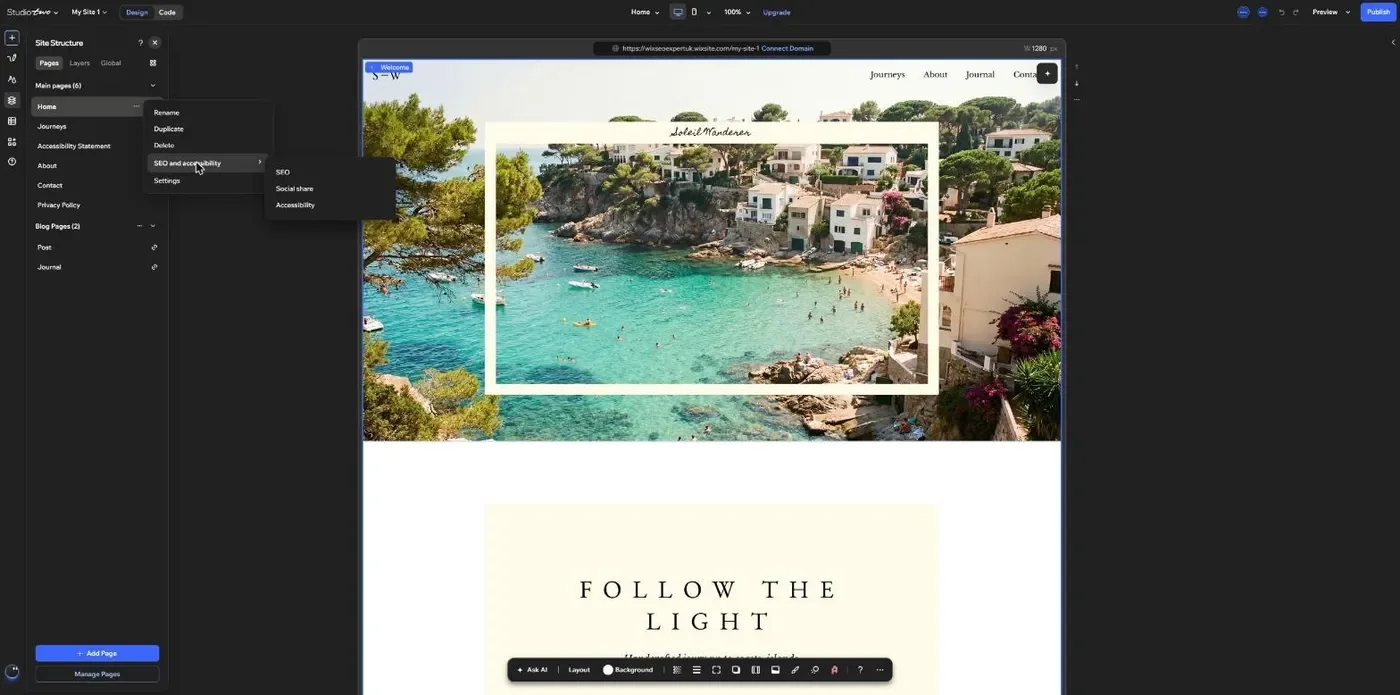
I like that accessibility now sits right next to SEO. The two overlap far more than most people think, and alt text is the obvious example.
The new page SEO checklist
Click SEO and you get a panel for every page on the site, with a Google preview at the top. Under it is a checklist with red and green markers:
- Add a focus keyword
- Add title tag
- Add meta description
- Let search engines index this page
- Verify page URL
- Organize heading structure
- Add focus keyword to main heading (H1)
- Add focus keyword to H2/H3
- Add focus keyword to a paragraph
- Add alt text to image
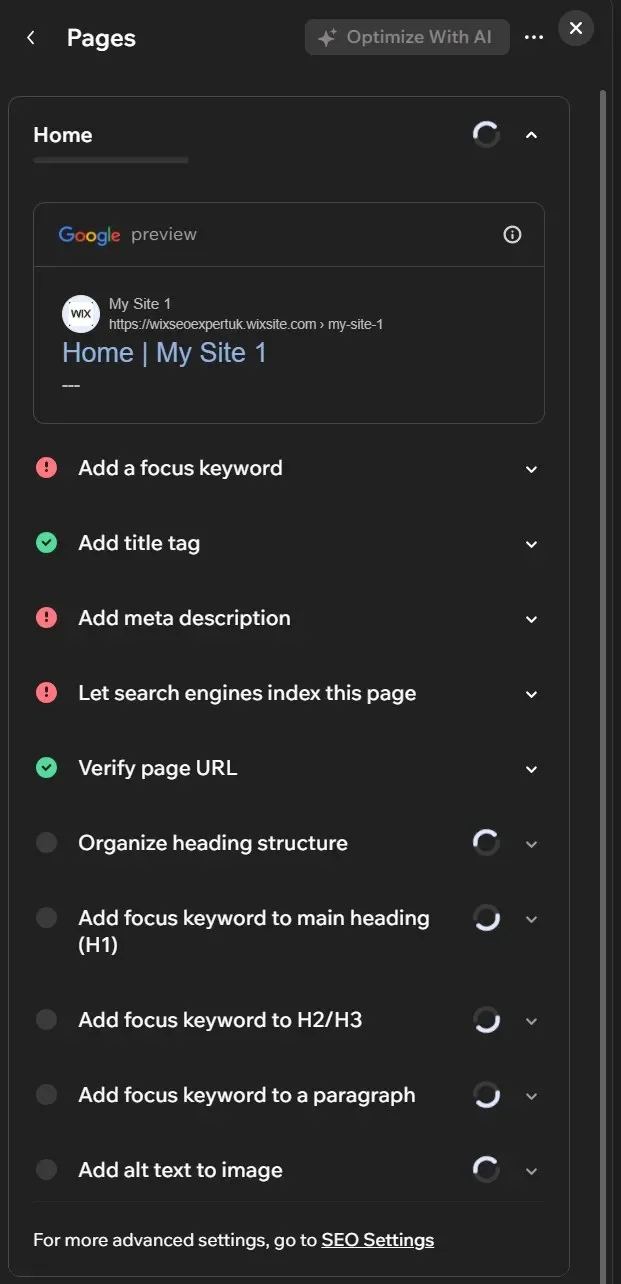
There is an Optimize With AI button at the top of the panel, and a menu option to scan the site again. At the bottom, a link sends you to the full SEO Settings for anything more advanced.
On my test site, the first five checks loaded straight away. The five content checks, from heading structure down to alt text, were still spinning when I left. That may simply be because this is a pre-launch build. I will check again after launch.
Expert Tip: A word of caution on focus keywords. A checklist that wants the same keyword in your H1, your H2s and a paragraph is a useful prompt, not a ranking formula. Write for the person searching first. Google has been clear for years that it does not reward stuffing one phrase into every heading.
If you have used Wix Harmony, this will look familiar
Studio Two's page SEO panel feels very close to the SEO checklist in Wix Harmony. Both give every page its own list of tasks, from focus keyword and title to meta description and alt text. Both lean on Aria for AI help.
The difference is the audience. Harmony is built for owners who want AI to do most of the work. Studio Two puts the same checklist inside the advanced editor for designers and agencies. If you already know the Harmony checklist, you will find your way around Studio Two's SEO panel quickly. My Harmony SEO checklist lesson walks through it step by step.
Indexing warnings are much clearer
This was the change I liked most. My test site has indexing switched off, and Studio Two told me so in plain English. A bold warning said the whole site is not indexable and will not show in search results, with a Turn On Indexing button right there.
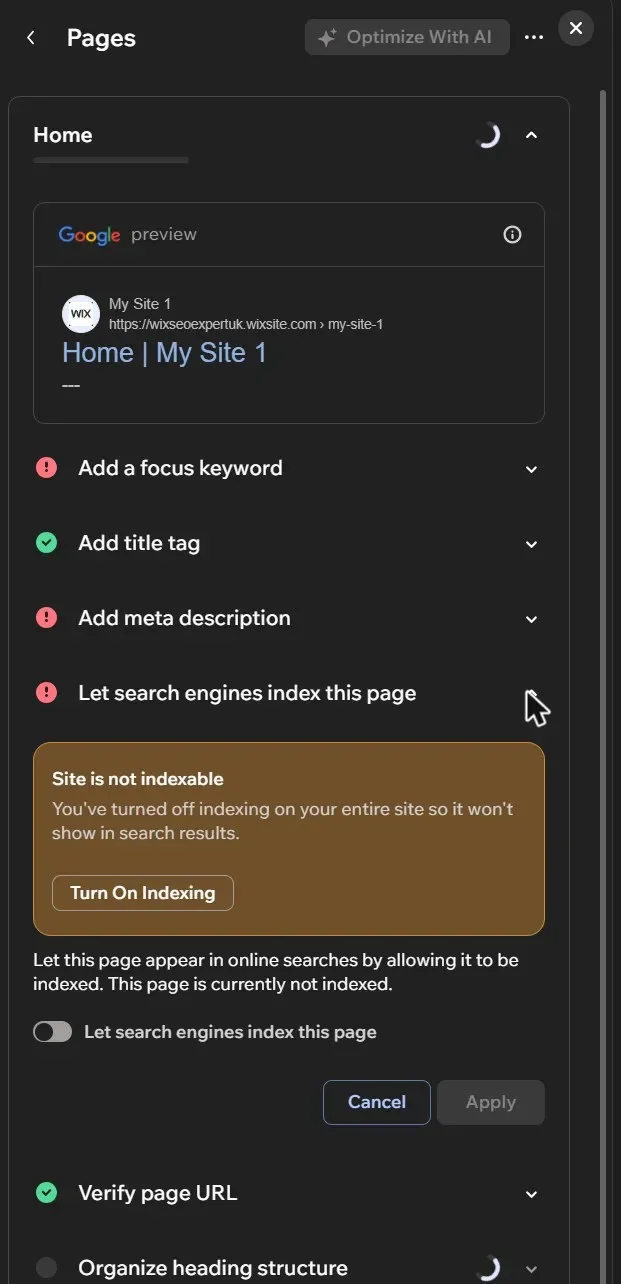
I have lost count of the Wix sites I have taken over where nobody realised a page, or the whole site, was hidden from Google. Putting that warning inside the page SEO panel, rather than burying it in settings, will save people real money. If your site is already live and missing from Google, my guide to why a Wix site is not indexing covers the other causes.
Manage Pages: SEO, sharing and accessibility in one place
Studio Two also has a full screen Manage Pages view. Pick a page and a Settings panel opens on the right. It shows the page URL, who can access it, then three cards: SEO, Accessibility and Social share.
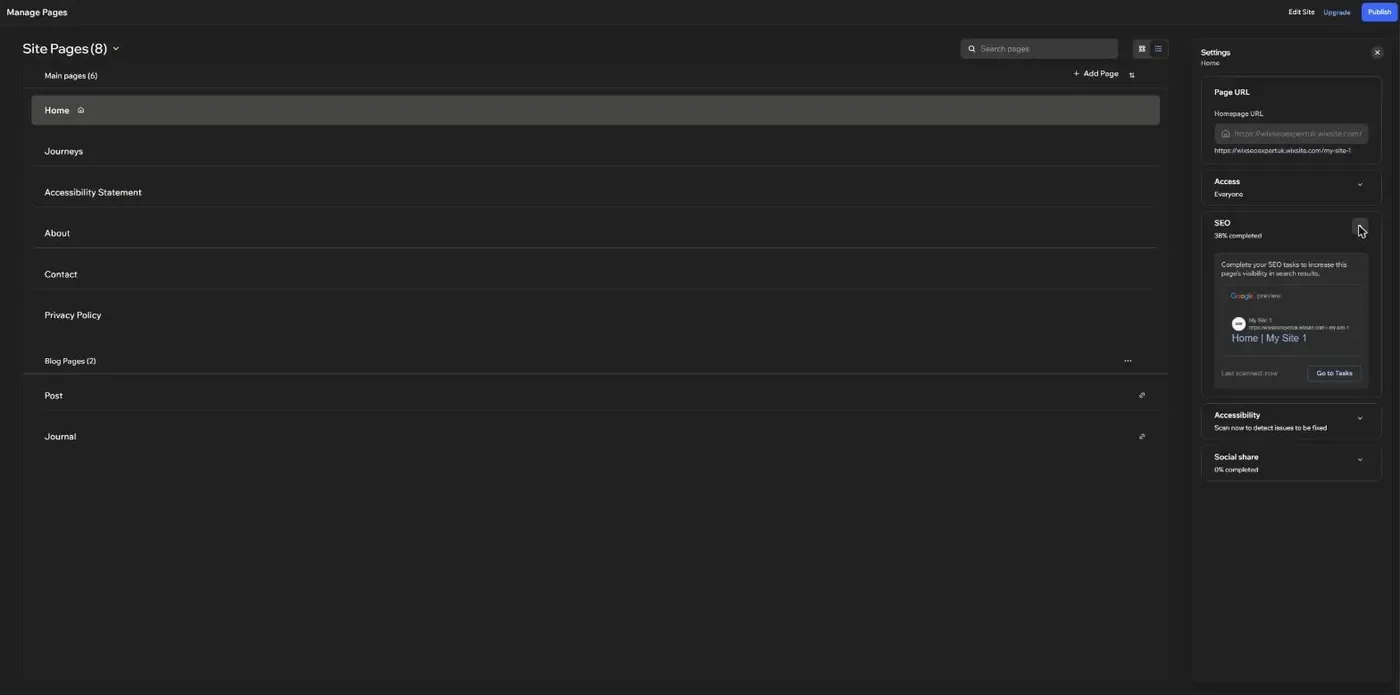
The SEO card gives each page a score. My test home page showed "38% completed", with a Google preview, a last scanned time and a Go to Tasks button. That button takes you back to the checklist above.
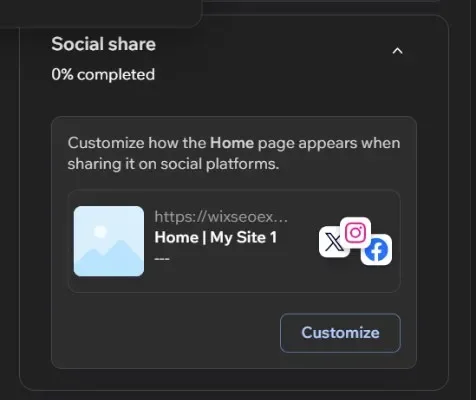
The Social share card works the same way. Mine showed "0% completed", with a preview of how the page looks when shared on X, Instagram and Facebook. A Customize button lets you change how the page appears when it is shared.
The Accessibility card offers a scan to find issues. I did not run it, as I was only looking, but it is good to see it sitting beside SEO.
Headings: check your tags, not just your styles
When you select a text box, the floating toolbar shows its text style. The list runs from Heading 1 to Heading 6, then Paragraph 1, each with its font size.
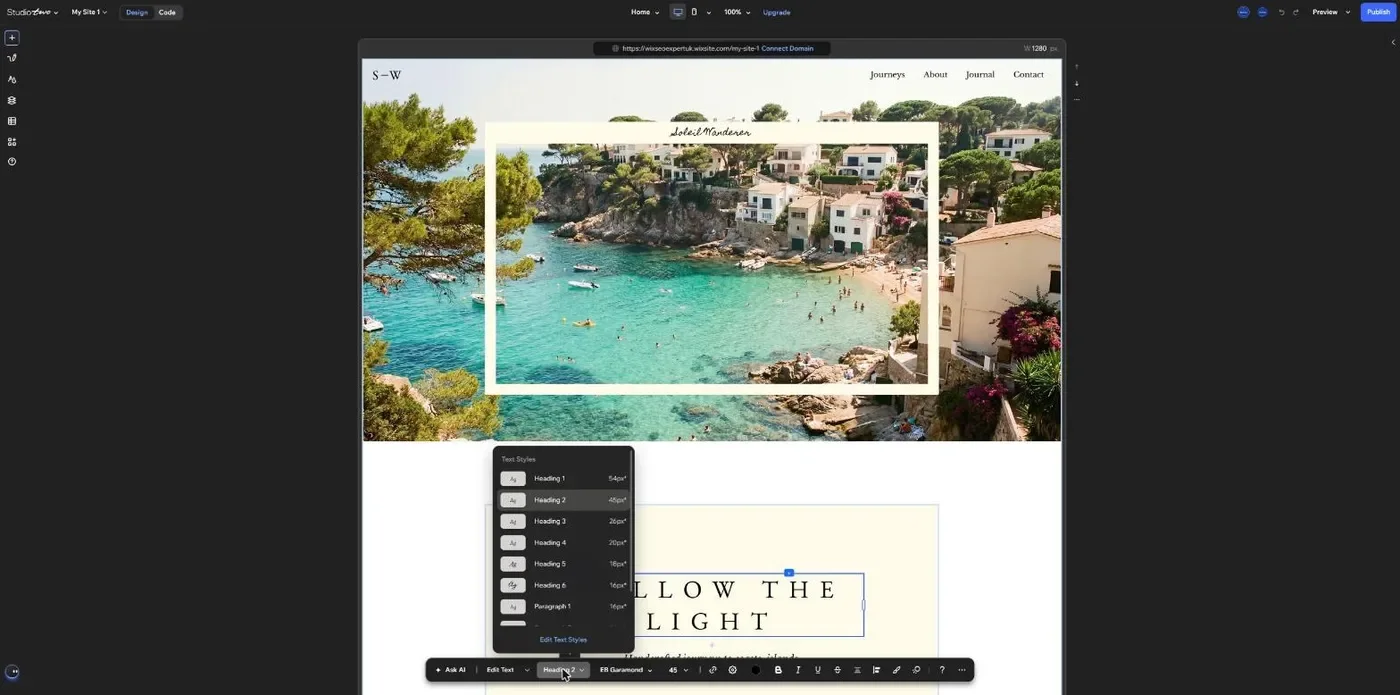
This is where I would ask people to slow down. A text style controls how a heading looks. What matters for SEO is the actual heading tag in the page code, and the two are not always the same thing.
My advice is the same as for Wix Studio today. Keep one H1 per page and use H2s for your main sections. Then check the published page rather than trusting the editor. The new Organize heading structure check should help here once it loads.
The Code tab
Switch from Design to Code and Studio Two offers three starting points. You can create a custom component, a data source or a function library. Wix describes this tab as showing only your own custom code files.
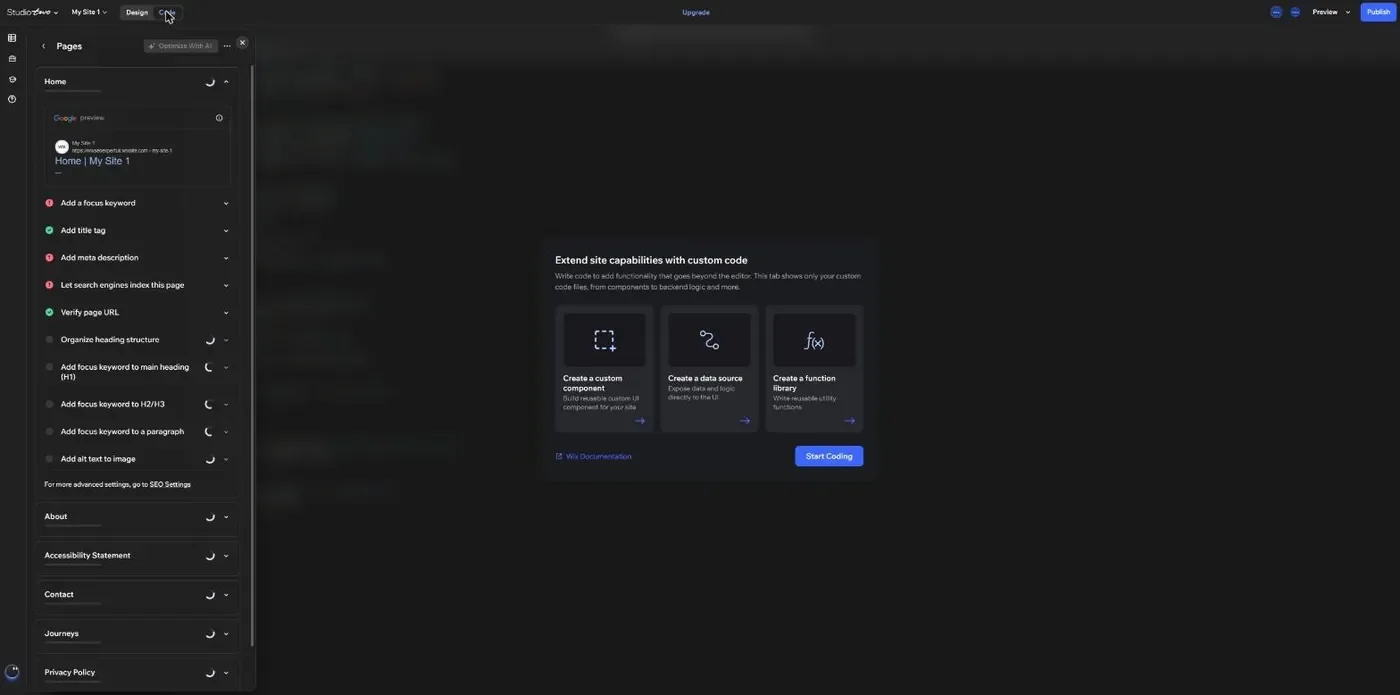
For most small business owners this tab will never matter. For developers and agencies it opens the door to custom components, data sources and shared functions.
Asking Aria about SEO
I asked Aria, the built-in assistant, what it could help with for SEO, and told it not to change anything. It replied with a step by step route to the SEO panel above. That covers titles, meta descriptions, heading structure with AI help, and alt text.
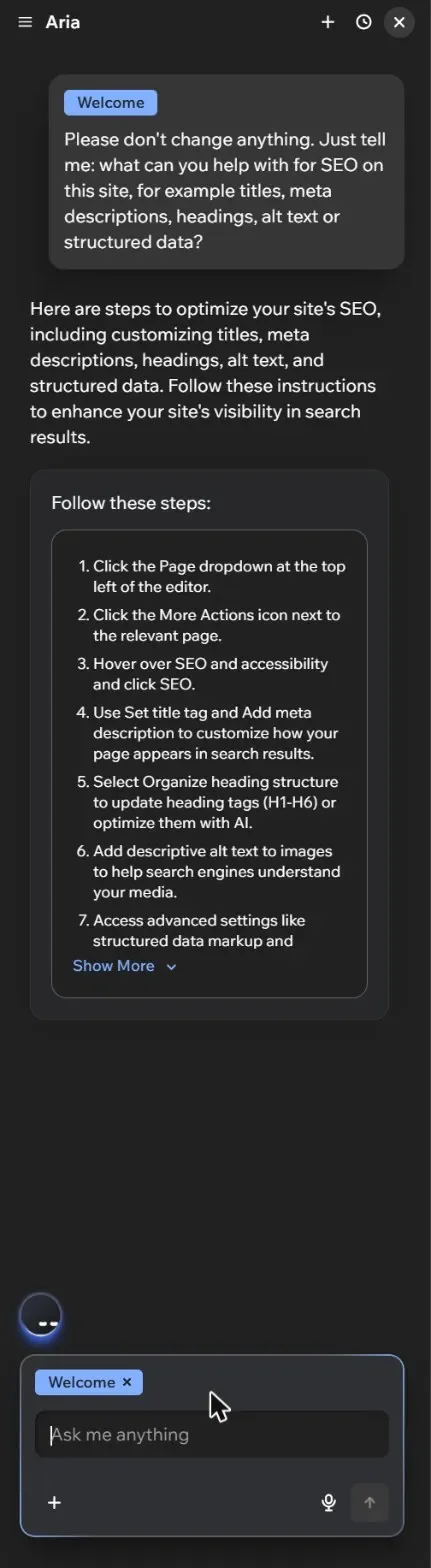
It also pointed me to the dashboard SEO Settings for structured data markup and custom meta tags. So for now, the advanced work still lives where it always has.
The dashboard SEO Settings, now under SEO and GEO
So I followed Aria's advice and opened the dashboard. The first thing I noticed was the name. The marketing menu now says "SEO & GEO", not just SEO. GEO means being found and quoted by AI answer engines, so Wix is clearly thinking beyond Google.
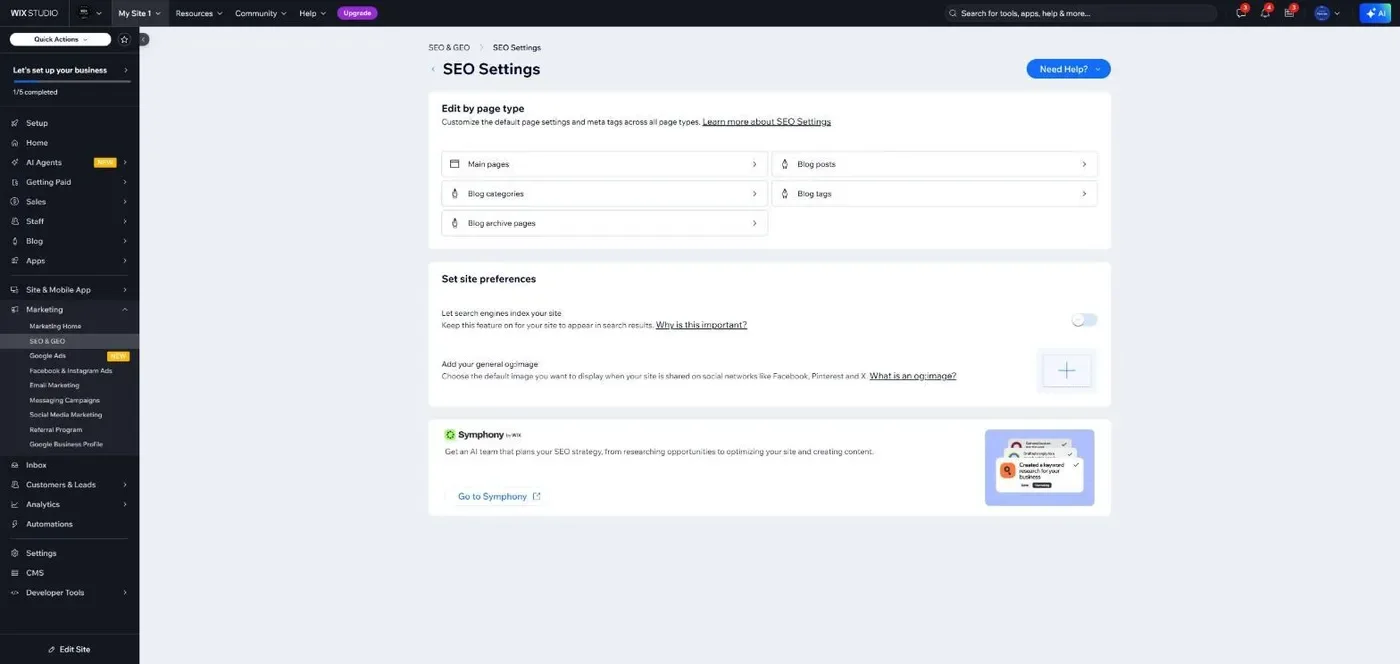
The SEO Settings page itself has three parts:
- Edit by page type, with separate settings for main pages, blog posts, blog categories, blog tags and blog archive pages.
- Site preferences, with the switch that lets search engines index the whole site, and your default og:image for social sharing.
- A card for Wix Symphony, which Wix describes as an AI team that plans your SEO strategy.
If you are weighing up Symphony, my Symphony by Wix review covers what it does and where it falls short.
Open Main pages and you get a table of every page. It lists the page URL, focus keyword, title tag, meta description and whether the page can be indexed. This is the quickest way to spot gaps across a site.
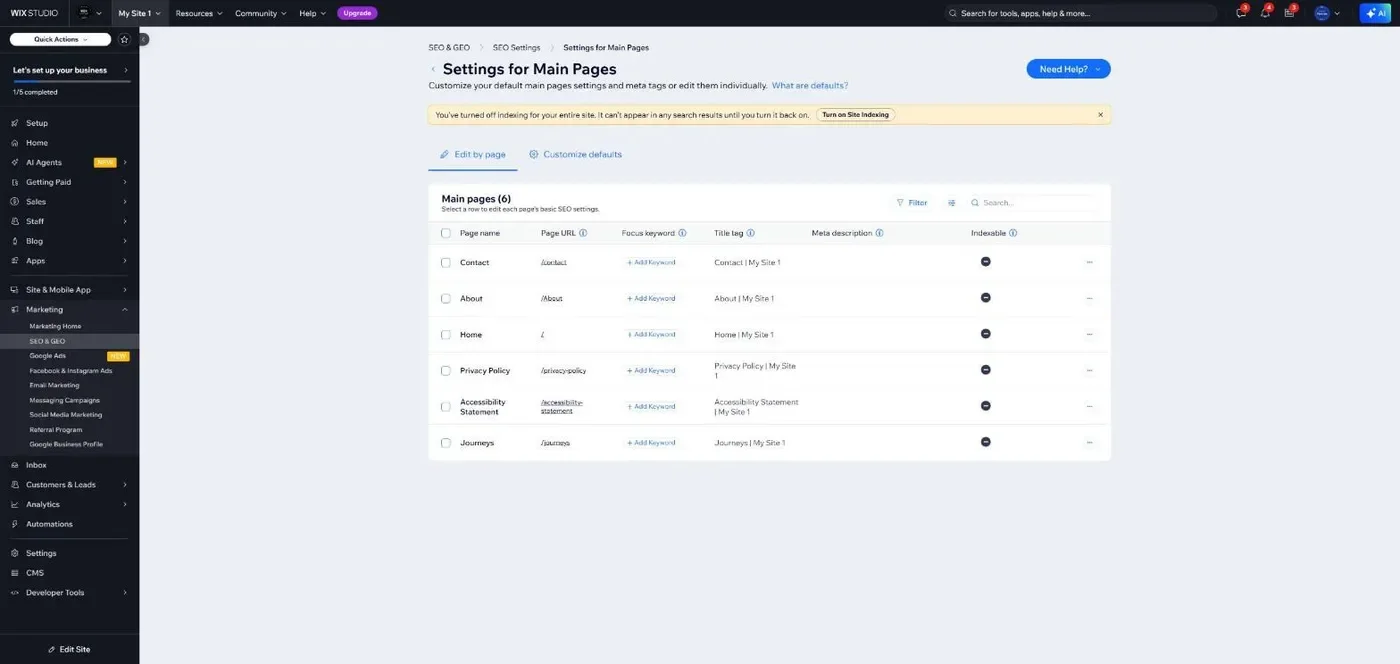
On my test site it told me plenty at a glance. Every title followed the default pattern of page name, then site name, such as "Contact | My Site 1". Every meta description was empty. No page had a focus keyword. That is exactly what a new site looks like before anyone touches the SEO.
The Customize defaults tab is where the advanced settings live. It has five sections:
- Basics and social share
- Page URL, which covers URL structure and 404 pages
- Structured data markup
- Robots meta tag
- Additional meta tags, which Wix marks as for experts only
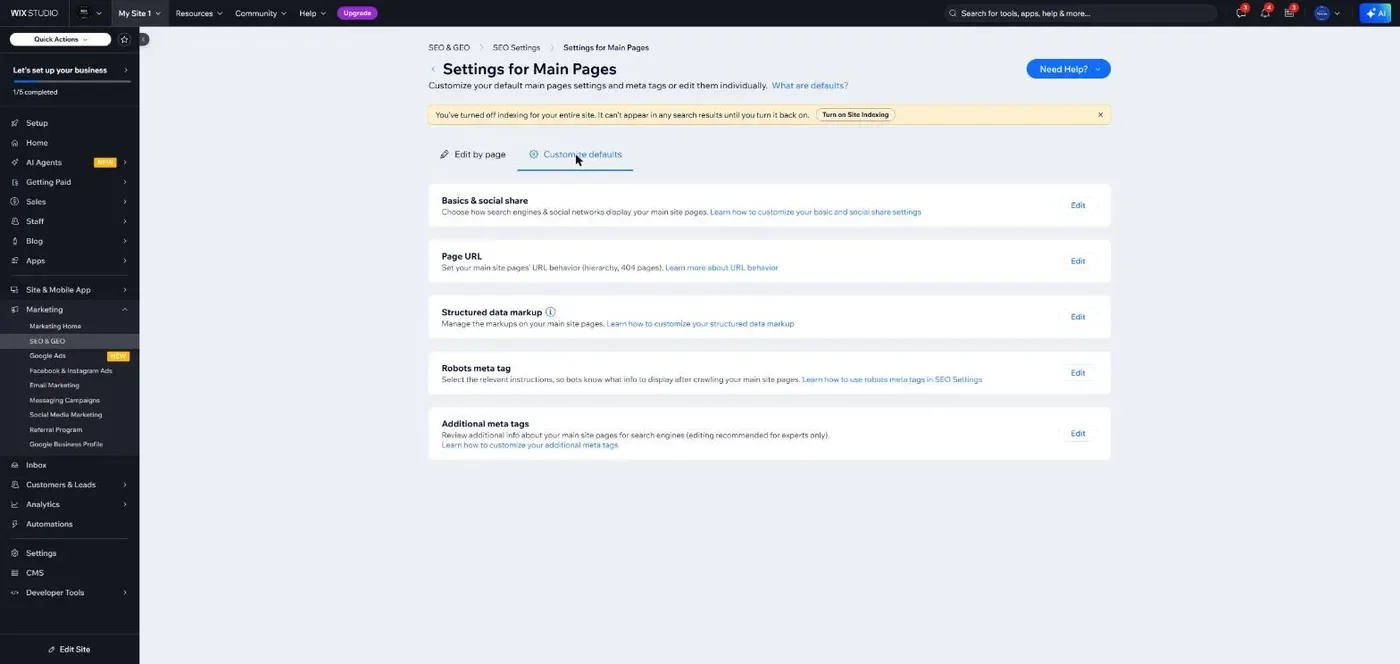
Wix describes these as the default settings for all main pages. You can still edit pages one at a time, and Wix's own note points you to the Edit by page tab to customise markup page by page.
The site-wide indexing warning showed here too, with a Turn on Site Indexing button. So whether you are in the editor or the dashboard, Wix now makes it hard to miss. My Wix SEO Settings guide covers page type settings, Edit by page and structured data in more detail.
What has not changed
The fundamentals are the same as ever. Every page still needs a clear, unique title tag and a meta description written for humans. Headings still need a sensible order. Images still need alt text that describes them. And none of it helps if indexing is switched off.
If you already follow my Wix Studio SEO guide, almost all of it carries straight over. The main difference is where you click.
What I would check on day one
If you move a site into Studio Two after launch, here is my short list:
- Open the Main pages table in SEO Settings and look for empty meta descriptions and default titles.
- Open the page SEO panel for every page and clear the red markers that matter.
- Make sure site indexing is on, and no important page is set to not be indexed.
- Check each page has one H1 in the published code, not just one Heading 1 style.
- Add alt text to every meaningful image.
- Check your structured data is still in place in the dashboard SEO Settings.
- Submit your sitemap again in Google Search Console and Bing Webmaster Tools.
My honest thoughts so far
For everyday SEO, Studio Two is a tidy-up rather than a revolution. The page SEO checklist is clear and sits where you work, and the indexing warning is the best change I saw.
But much of it is not new. The checklist works much like the one in Wix Harmony. The advanced settings still live in the dashboard, which is the same SEO Settings area every Wix site uses. So you still work in two places.
Some of it was not ready either. The five content checks never finished loading on my test site. I cannot yet say whether they are any good.
I would also be careful with the focus keyword checks. Used blindly, they push you towards repeating one phrase everywhere, which does not help anyone.
None of this changes what good SEO looks like. It just makes the basics harder to forget. I will give a fuller verdict once Studio Two is officially launched.
Want to go deeper?
My free course already covers the differences between Wix Studio and the Classic Editor. I will add Studio Two notes as Wix releases more detail. If you are using Wix's newer AI builder, my Wix Harmony SEO guide covers that side too.
I will update this post after the official launch with anything that changes. If you would like me to look at your Wix site in the meantime, ask for a free audit.
Fix your Wix SEO from your dashboard
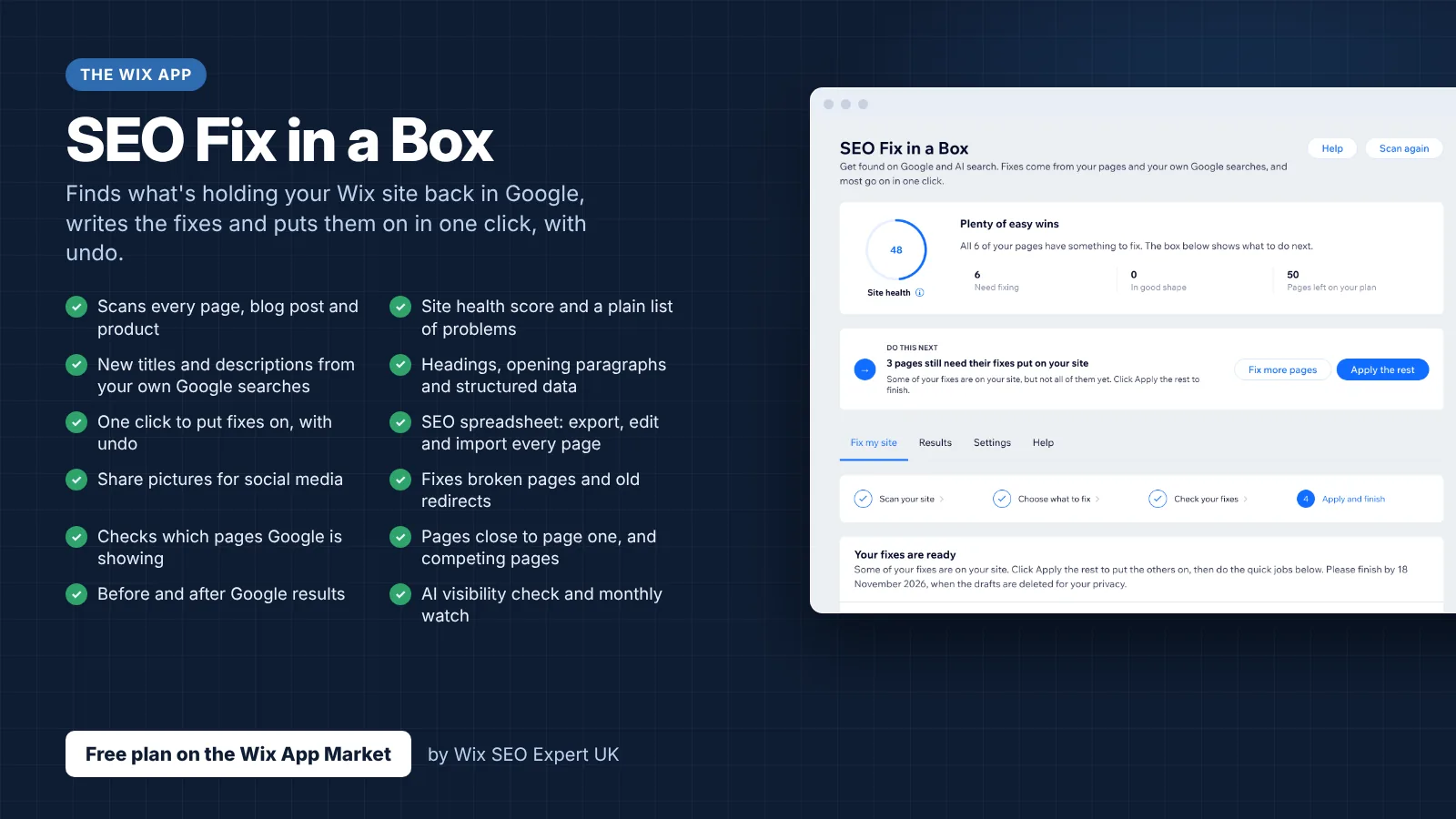
SEO Fix in a Box scans every page, writes your fixes from your own Google searches and puts them on in one click, with undo. Start on the free plan.
Want this sorted on your own Wix site?
I have worked only on Wix for 14 years. Get SEO Fix in a Box on the Wix App Market to find and fix what is holding your site back, or see my packages and prices if you would rather I did it all for you.
Frequently Asked Questions
Where are the SEO settings in Wix Studio 2?
Open Site Structure, click the three dots next to a page and choose SEO and accessibility, then SEO. That opens the page SEO checklist with a Google preview. Advanced settings are in the dashboard under SEO and GEO, then SEO Settings.
Does Wix Studio 2 have an SEO checklist?
Yes. Every page gets a checklist covering focus keyword, title tag, meta description, indexing, page URL, heading structure, keyword placement and image alt text, with red and green markers.
Where do I add structured data in Wix Studio 2?
Structured data markup is in the dashboard SEO Settings. Choose a page type such as Main pages, then the Customize defaults tab for every page of that type, or the Edit by page tab for a single page.