Wix Website Not on Google? Causes and Fixes

By Michael Andrews | Published: 2026-08-17 | Updated: 2026-11-01 | 14 min read
Your Wix site is live but Google cannot find it. This guide walks through every reason a Wix page fails to index, from accidental noindex tags and blocked robots.txt rules to thin content and sitemap errors, with exact steps to diagnose and fix each one.
Key Takeaways
- Google does not index every page automatically: publishing a Wix site does not guarantee Google will crawl or index it. You must verify your site is discoverable, has a submitted sitemap, and contains no blocking directives.
- The most common Wix indexing blocker is an accidental noindex tag or a site still set to "not visible to search engines" in Wix SEO settings. This single toggle prevents every page from appearing in Google.
- Google Search Console's URL Inspection tool is the definitive diagnostic: it shows whether a URL is indexed, when it was last crawled, and the exact reason Google excluded it.
- Thin or duplicate content is a growing reason for non-indexation: Google's helpful content system deprioritises pages with little original value. Pages under 300 words with no unique insight are increasingly left out of the index.
- Crawling can take anywhere from a few days to a few weeks according to Google's own documentation. Requesting indexing via the URL Inspection tool does not guarantee instant inclusion.
If your Wix website is not on Google, something is stopping Google from finding or indexing it. The usual causes are a site set to hidden, a noindex tag on the page, or no sitemap in Search Console. A brand new site can also simply need more time.
You have built your Wix website, published every page, and waited. Days pass. Weeks pass. You search for your business name on Google and nothing appears. Your site is invisible. This is one of the most common problems Wix site owners bring to me, and in almost every case the cause is identifiable and fixable. This guide covers every reason a Wix site fails to appear in Google search results, ordered from the most common causes to the least common, with exact steps to diagnose and resolve each one.
How Google Indexing Actually Works (and Why Wix Sites Are Not Exempt)
Google discovers pages through three mechanisms: following links from already-indexed pages, reading XML sitemaps, and processing direct URL submissions via Search Console. When Googlebot finds a URL, it downloads the page content (crawling), processes and renders the JavaScript (rendering), then decides whether to store the page in its index (indexing). Publishing a page on Wix completes none of these steps. Your page exists on the web, but Google may not know about it yet, or may have found it and decided not to index it.
According to Google's own documentation on recrawling, "crawling can take anywhere from a few days to a few weeks." There is no way to force immediate indexing. Understanding this process is essential before diagnosing why your pages are missing.
Key Takeaway: Publishing a page is not the same as getting it indexed. Indexing requires Google to discover your URL, crawl it, render it, evaluate it, and then choose to store it.
Cause 1: Your Wix Site Is Set to "Not Visible" to Search Engines
This is the single most common reason Wix sites fail to index and the easiest to fix. Wix has a site-level SEO visibility toggle that, when turned off, injects a noindex meta tag into every page on your site. This tells Google explicitly not to index any of your content.
How to Check and Fix
- Log into your Wix Dashboard
- Go to Settings in the left menu
- Click SEO (or SEO Settings)
- Look for the option labelled "Let search engines index your site" or similar
- Ensure the toggle is ON (enabled)
- If it was off, turn it on and republish your site
- Submit your homepage URL via the URL Inspection tool in Google Search Console
Common Mistake: If this toggle was off, every page on your site has been sending a noindex signal to Google. After turning it on, allow two to four weeks for Google to recrawl and begin indexing your pages.
Cause 2: Individual Pages Have Noindex Tags
Even if your site-level visibility is correct, individual Wix pages can have their own noindex settings. Wix allows you to control indexing per page through the page SEO settings panel. A page set to noindex will not appear in Google regardless of how good its content is.
How to Check and Fix
- In the Wix Editor, click on the page you want to check
- Open the page's SEO settings (sometimes called "SEO basics" or found under the page menu)
- Look for an option related to search engine visibility or "noindex"
- Ensure the page is set to be indexed
- Repeat for every important page on your site
- For Wix blog posts: check the SEO settings within the blog post editor as well. Blog posts have their own noindex toggle
Expert Tip: Use Google Search Console's URL Inspection tool to verify. Paste in any page URL and it will tell you whether Google sees a noindex tag. This is the definitive check: it shows exactly what Googlebot encountered.
Cause 3: Your Sitemap Has Not Been Submitted
Wix automatically generates an XML sitemap at yourdomain.com/sitemap.xml. This sitemap lists all published, indexable pages on your site. However, Wix does not automatically submit this sitemap to Google Search Console. Without a submitted sitemap, Google relies entirely on link discovery to find your pages, which is slower and less reliable for new sites.
How to Submit Your Sitemap
- Go to Google Search Console (search.google.com/search-console)
- Select your property (your Wix site)
- In the left menu, click Sitemaps
- In the "Add a new sitemap" field, enter: sitemap.xml
- Click Submit
- Google will confirm receipt and begin processing your sitemap
- Check back after a few days. The status should show "Success" with the number of discovered URLs
If the sitemap shows errors, the most common Wix-specific issues are: the sitemap URL is incorrect (make sure you use your live domain, not your free Wix subdomain), or the sitemap returns a 404 because the site is not yet published.
Cause 4: Your Site Is Brand New and Google Has Not Found It Yet
Brand-new websites with no backlinks from other sites are effectively invisible to Google's crawlers. Google discovers new pages primarily by following links from pages it already knows about. If no external site links to yours, Google has no path to discover it unless you manually submit it.
How to Accelerate Discovery for a New Site
- Submit your sitemap in Google Search Console (see Cause 3 above)
- Use the URL Inspection tool to request indexing of your homepage
- Create a Google Business Profile and link it to your website. This creates a backlink from a Google-owned property
- Share your site on established social media profiles (LinkedIn, Facebook business page). These create discoverable links
- Get listed in relevant business directories that are already indexed
- Ask partners, suppliers, or professional associations to link to your site from theirs
For context: Google's documentation states that crawling "can take anywhere from a few days to a few weeks." For a brand-new domain with no external links, the homepage typically appears within one to four weeks after sitemap submission. Interior pages take longer.
Cause 5: Crawl Errors Are Blocking Googlebot
Crawl errors occur when Googlebot attempts to access your page and encounters a problem. On Wix sites, the most common crawl errors are 404 (page not found), server errors (5xx), and redirect loops. Each one prevents the affected page from being indexed.
How to Find and Fix Crawl Errors
- In Google Search Console, go to the Pages report (previously called Index Coverage)
- Look at the "Not indexed" section. This shows every URL Google tried to crawl but could not index
- Filter by reason: "Not found (404)" shows deleted or mistyped URLs
- Filter by "Server error (5xx)" shows pages that failed to load when Googlebot visited
- Filter by "Redirect error" shows pages caught in redirect chains or loops
- For 404s: either restore the missing page, or set up a 301 redirect to the closest relevant page
- For server errors: check if the page loads correctly in your browser. If it does, the error may have been temporary. Request a re-crawl via the URL Inspection tool
- For redirect errors: simplify your redirects. Each URL should redirect directly to its final destination, not through a chain of intermediate URLs
| Crawl Error | What It Means | Wix-Specific Fix |
|---|---|---|
| 404 Not Found | The page no longer exists at this URL | Check if you renamed or deleted the page in Wix. Set up a URL redirect in Wix Dashboard > SEO > URL Redirect Manager |
| Server Error (5xx) | The server failed to respond when Googlebot visited | Usually temporary on Wix's hosted infrastructure. Re-request indexing. If persistent, contact Wix support |
| Redirect Error | The URL redirects in a loop or through too many hops | Review your URL redirects in Wix. Remove chains where A redirects to B which redirects to C. Point A directly to C |
| Soft 404 | The page loads but its content suggests it should be a 404 | This often happens with empty Wix pages or placeholder pages. Add substantial content or delete the page entirely |
| Blocked by robots.txt | Your robots.txt file tells Google not to crawl this URL | Wix manages robots.txt automatically. Check yourdomain.com/robots.txt in your browser to verify no important paths are blocked |
Cause 6: Thin or Duplicate Content
Google's helpful content system evaluates whether pages provide genuine value to searchers. Pages with very little text, pages that substantially duplicate content from other pages on your site, or pages that offer no original insight are increasingly left out of the index entirely. This is reported in Search Console as "Crawled, currently not indexed."
On Wix sites, thin content issues commonly appear on: service pages with only a heading and a contact form, blog posts that are very short, category or tag archive pages with no unique introductory text, and portfolio pages with images but no descriptive text.
How to Fix Thin Content
- Audit every page that Search Console reports as "Crawled, currently not indexed"
- For each page, ask: does this page answer a specific question or serve a specific purpose that no other page on my site covers?
- If the answer is no, either merge the page's content into a more comprehensive page, or expand it with original, useful information
- Service pages should describe what the service includes, who it is for, how it works, and what the outcome is, not just a title and a form
- Blog posts should provide depth: original analysis, specific examples, step-by-step instructions, or expert perspective. A blog post that merely summarises what other sites already say will struggle to earn indexation
- Set thin pages you cannot improve to noindex so they do not dilute your site's quality signals
Key Takeaway: "Crawled, currently not indexed" is Google telling you it found your page, read it, and decided it was not worth including. The fix is always content quality, not technical settings.
Cause 7: Canonical Tag Issues
A canonical tag tells Google which version of a page is the "main" version. If your canonical tag points to a different URL than the page itself, Google will index the canonical URL instead and ignore the current page. Wix sets canonical tags automatically, but issues can arise when pages are duplicated, when URL parameters create alternate versions, or when you have manually set an incorrect canonical.
How to Diagnose
- In Google Search Console, use the URL Inspection tool on the page that is not indexing
- Look at the "Google-selected canonical" field. This shows which URL Google considers the canonical
- If the Google-selected canonical is different from the page you inspected, Google is consolidating these two URLs and only indexing one
- In Wix, check the page's SEO settings for any manually set canonical URL
- Remove any incorrect canonical overrides and let Wix set the canonical automatically
- If two pages have very similar content, Google may choose one as canonical and ignore the other. The fix is to differentiate the content or merge the pages
Cause 8: Your Domain Is Not Connected Properly
Wix sites on the free plan use a subdomain like username.wixsite.com/sitename. Google will index these, but they carry less authority than a custom domain. If you have connected a custom domain but the connection has issues (DNS not propagated, SSL certificate errors, domain pointing to the wrong server), Googlebot will encounter errors when trying to crawl your site.
How to Verify Your Domain Connection
- Visit your site in a browser using your custom domain. The page should load without certificate warnings
- Check that both www and non-www versions of your domain work and one redirects to the other
- In Wix Dashboard, go to Settings > Domains and confirm your domain status shows "Connected"
- In Google Search Console, make sure your property uses your custom domain, not your wixsite.com subdomain
- If you recently connected a domain, allow 24 to 48 hours for DNS propagation before expecting Google to crawl successfully
Cause 9: JavaScript Rendering Delays
Wix sites are built with JavaScript and rely on server-side rendering to deliver content to Googlebot. Wix's infrastructure handles this automatically. Unlike self-hosted JavaScript sites, Wix pre-renders pages so Googlebot sees the full HTML. However, if you have added custom third-party scripts that inject critical content via JavaScript after page load, that content may not be visible to Google during its initial crawl.
How to Check What Google Sees
- In Google Search Console, use the URL Inspection tool
- Click "Test Live URL" to see the rendered HTML Google receives
- Click "View Crawled Page" then "Screenshot" to see the visual render
- Compare the screenshot to your actual page. If content is missing from the screenshot, Google cannot see it
- For content injected by third-party scripts: consider adding the content directly in the Wix editor instead of relying on external JavaScript
The Diagnostic Checklist: Check These in Order
When a Wix page is not indexing, work through this checklist from top to bottom. Each step rules out one category of problem.
- Is the site-level SEO visibility toggle enabled? (Wix Dashboard > Settings > SEO)
- Does the specific page have noindex set? (Page SEO settings in the Wix Editor)
- Has the sitemap been submitted to Google Search Console? (Search Console > Sitemaps)
- What does the URL Inspection tool report? (Paste the URL and check the status)
- Are there crawl errors for this URL? (Search Console > Pages report)
- Is the canonical tag correct? (URL Inspection > Google-selected canonical)
- Does the page have enough original content? (Read the page objectively. Would it help a searcher?)
- Is the custom domain connected and loading without errors? (Visit your domain in a browser)
- Has enough time passed? (New sites need days to weeks for initial indexation)
Check every page at once
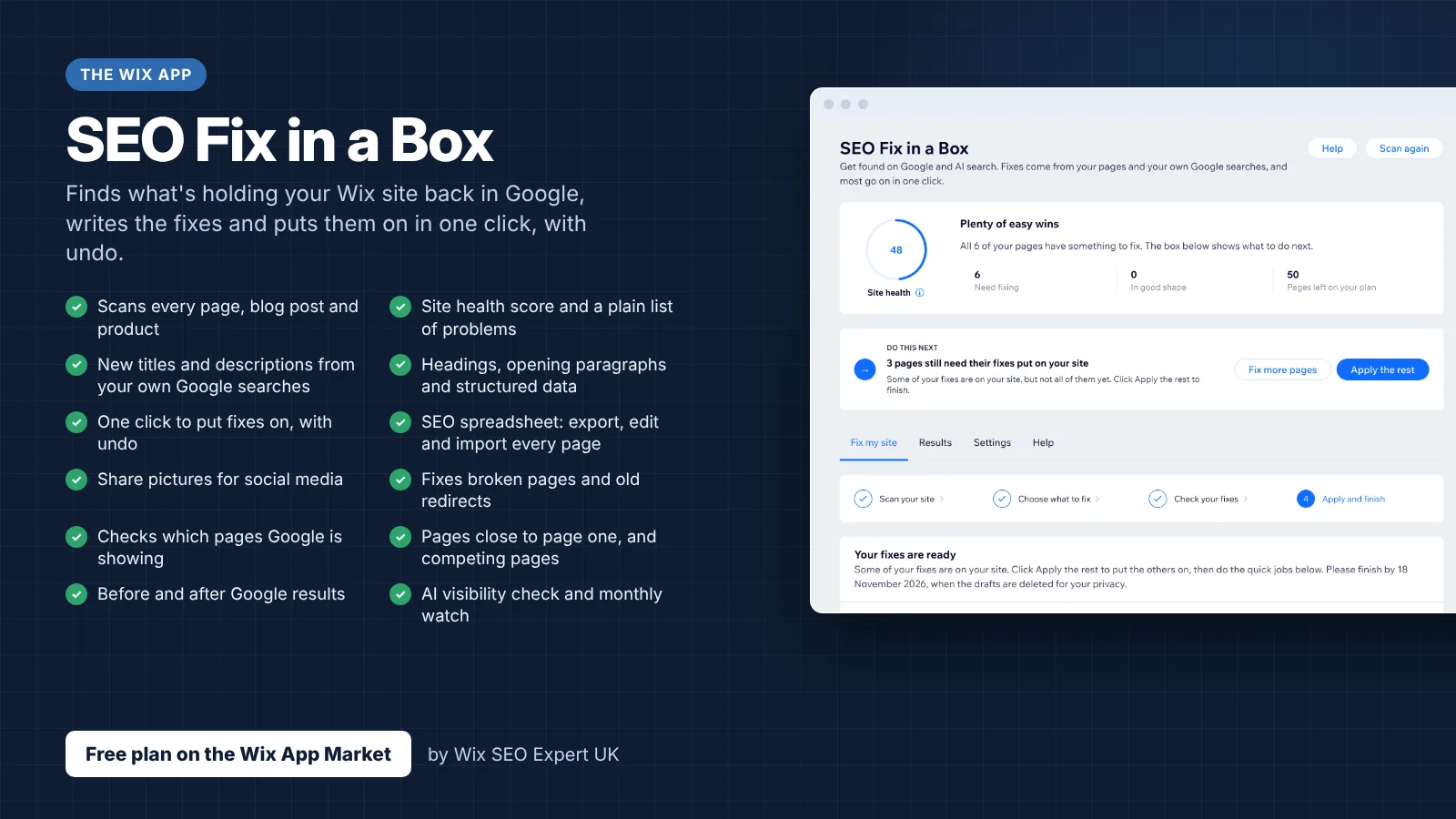
Going through URL Inspection one page at a time is slow on a bigger site. My app, SEO Fix in a Box, asks Google about each of your important pages. Then it tells you in plain words why any page is missing.
It is the same check as Search Console, and nothing on your site changes. Connect Search Console in the app first. On the paid plan it can also ask Google to look at missing pages again in one click. See how SEO Fix in a Box works.
How Long Should You Wait Before Worrying?
Google's documentation on recrawling states that "crawling can take anywhere from a few days to a few weeks." Based on working with Wix sites for over a decade, here is a realistic timeline.
| Scenario | Expected Indexing Time | What to Do If It Takes Longer |
|---|---|---|
| Brand-new Wix site, sitemap submitted, no backlinks | One to four weeks for homepage | Build at least three to five external links and resubmit via URL Inspection |
| New page on an established Wix site | Two to fourteen days | Check URL Inspection for errors. If "Discovered, currently not indexed," the page is in the queue |
| Updated content on an already-indexed page | Three to ten days | Use URL Inspection to request re-indexing after the update |
| Page previously indexed but now missing | Should not happen without cause | Check for accidental noindex, deletion, or a manual action in Search Console |
Common Mistake: Submitting a re-crawl request multiple times for the same URL will not speed up the process. Google processes these requests on its own schedule. Focus on content quality and link building instead of resubmitting.
When to Escalate: Signs of a Deeper Problem
If your pages are indexed but still not ranking, see why your Wix site is not ranking on Google.
Most Wix indexing issues resolve with the steps above. However, some situations require more investigation.
- Manual action: Check Search Console > Security & Manual Actions. A manual action means Google has penalised your site for violating its guidelines. This requires remediation and a reconsideration request
- Sudden drop in indexed pages: If many pages disappear from the index at once, check for a site-wide noindex, a robots.txt change, or a domain-level issue
- Persistent "Crawled, currently not indexed" across high-quality pages: This can indicate a site-wide quality issue. Google may be limiting how many pages it indexes from your domain
- Pages indexed on the old Wix subdomain but not on your custom domain: This is a domain connection or redirect issue. The old subdomain should 301-redirect to your custom domain
Fix your Wix SEO from your dashboard
SEO Fix in a Box scans every page, writes your fixes from your own Google searches and puts them on in one click, with undo. Start on the free plan.
Want this sorted on your own Wix site?
I have worked only on Wix for 14 years. Get SEO Fix in a Box on the Wix App Market to find and fix what is holding your site back, or see my packages and prices if you would rather I did it all for you.
Frequently Asked Questions
How long does it take Google to index a new Wix site?
According to Google's documentation, crawling can take anywhere from a few days to a few weeks. For a brand-new Wix site with no backlinks, expect the homepage to appear within one to four weeks after submitting a sitemap in Google Search Console. Interior pages may take longer depending on content quality and internal link structure.
Why is my Wix site not showing up on Google at all?
The most common cause is the Wix SEO visibility toggle being set to hide your site from search engines. Go to Wix Dashboard > Settings > SEO and check that your site is set to be visible. Other causes include accidental noindex meta tags, a missing or errored sitemap, the site being too new for Google to have discovered it, or the domain having no external links pointing to it.
Can I force Google to index my Wix site immediately?
No. You can request indexing via the URL Inspection tool in Google Search Console, but Google processes requests on its own schedule. Submitting a request multiple times will not speed up the process. The most reliable way to accelerate indexing is to submit an XML sitemap, build backlinks from already-indexed sites, and ensure your pages have original, valuable content.
Does Wix automatically submit my sitemap to Google?
Wix generates an XML sitemap automatically at yourdomain.com/sitemap.xml. However, Wix does not submit it to Google Search Console for you. You need to connect your site to Google Search Console and submit the sitemap URL manually under Sitemaps > Add a new sitemap.
What does "Crawled, currently not indexed" mean in Search Console?
This means Google found and downloaded your page but decided not to add it to its search index. Common reasons include thin content (not enough original text), duplicate content (the page is too similar to another indexed page), or Google determining the page does not provide enough value to searchers. The fix is to improve the content quality, add original information, and ensure the page serves a distinct purpose from other pages on your site.
Summary
A Wix site not indexing on Google is almost always caused by one of nine issues: the SEO visibility toggle is off, individual pages have noindex, the sitemap is not submitted, the site is too new, crawl errors are blocking Googlebot, the content is too thin, canonical tags are misconfigured, the domain connection has problems, or JavaScript-injected content is invisible to the crawler. Work through the diagnostic checklist above in order, fix each issue you find, then allow Google the time it needs to recrawl.