Google Search Console: 10 features every Wix user must know
Module 15: Wix Analytics & SEO Reporting | Lesson 168 of 683 | 57 min read
By Michael Andrews, Wix SEO Expert UK
Most Wix users who have Google Search Console set up only ever look at one report, Performance, and miss nine other features that are equally powerful. This lesson covers the ten most important GSC features with specific guidance on how to use each for your Wix site, including advanced filtering techniques, troubleshooting common Wix indexing issues, and building a weekly workflow that extracts maximum value from the free data Google provides.
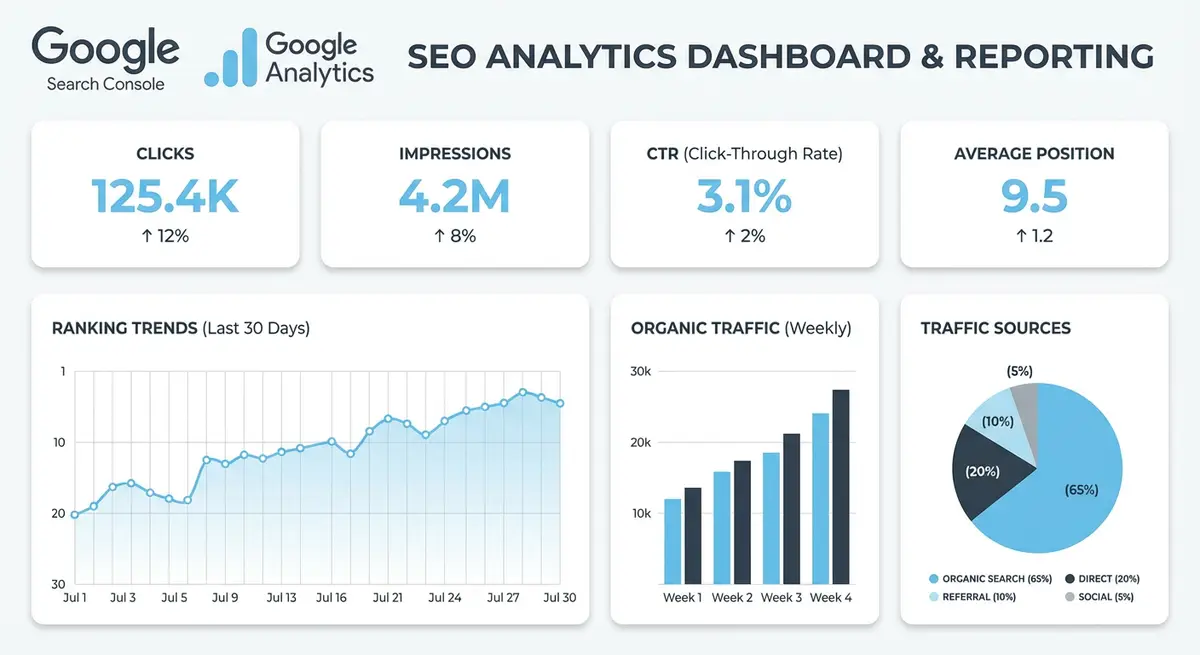
1. Performance Report: The Foundation of Search Intelligence
The Performance report shows total clicks, impressions, average CTR, and average position. Set the date range to Last 3 Months and group by Query to see which keywords drive traffic. Group by Page to see which pages perform best. Sort by Impressions (not Clicks) to find pages that appear in search but get few clicks, these need better title tags and meta descriptions.
Advanced Performance Filtering for Wix Sites
The Performance report becomes dramatically more useful when you combine filters. Apply a Query filter containing your brand name, then click Compare to add a filter that excludes your brand name. This splits your data into branded and non-branded traffic, the single most important segmentation in SEO reporting. Non-branded traffic measures your true organic reach beyond people who already know your business.
Use the Regex filter option for pattern matching. For a Wix site targeting multiple services, create a regex pattern like "plumber|plumbing|boiler|heating" to view all queries related to a specific service cluster. This reveals keyword gaps within topic areas and helps you identify which service categories are underperforming relative to others.
- Filter by Country to see performance in your target market versus international traffic that may not convert
- Filter by Search Appearance to isolate traffic from rich results such as review snippets, product results or video results
- Use the Device filter to compare mobile versus desktop rankings, critical for local service businesses
- Export data monthly to Google Sheets using the Export button to build a historical archive beyond GSC 16-month retention
- Compare year-over-year data by selecting the same month in the previous year to account for seasonality
- Use the New vs Known filter to identify keywords where you recently started appearing in results
2. URL Inspection Tool: Real-Time Indexing Intelligence
Enter any URL from your Wix site to see its exact indexing status, when it was last crawled, and whether Google can render the page correctly. Use this after publishing new content to request immediate indexing, do not wait weeks for Googlebot to discover new pages organically.
Understanding the URL Inspection Results Panel
The URL Inspection tool returns several data points that most users ignore. The Crawl section shows the HTTP response code Google received, whether the page was fetched successfully, and whether any resources were blocked. The Indexing section reveals whether the page has a canonical override, whether it was discovered via sitemap or internal link, and the specific reason if it is not indexed. The Enhancements section shows structured data validation results for that specific URL.
For Wix sites specifically, pay attention to the "Page fetch" status. Wix uses JavaScript rendering, so if GSC shows the page was fetched but not rendered, there may be a JavaScript issue preventing Google from seeing your content. Click "View Crawled Page" to see the HTML and rendered versions. Compare them to ensure all your visible content appears in both views.
3. Coverage and Pages Report
The Pages report (formerly Coverage) shows every page on your Wix site categorised as: Valid (indexed), Error (not indexed due to a technical problem), Warning (indexed but with potential issues), and Excluded (intentionally or unintentionally not indexed). Review the Errors section first, these are pages that should be indexed but are not.
Common Wix Coverage Errors and Their Solutions
- Crawled, currently not indexed: Google crawled the page but decided the content was not valuable enough. Add more unique, in-depth content to the page before requesting reindexing.
- Discovered, currently not indexed: Google knows the URL exists but has not crawled it yet. Improve internal linking from high-authority pages and submit the URL via URL Inspection.
- Redirect error: A redirect chain or loop is preventing Google from reaching the final page. Check your Wix URL redirects in Dashboard > SEO > URL Redirect Manager.
- Soft 404: The page returns a 200 status code but Google considers it functionally empty. This often happens with Wix dynamic pages that have no content loaded. Ensure all dynamic pages have sufficient content.
- Server error (5xx): Temporary server issues. If persistent, contact Wix support as this indicates a hosting problem.
- Blocked by robots.txt: Check your Wix robots.txt file for unintended Disallow rules blocking important pages.
- Excluded by noindex: Verify that you have not accidentally added a noindex tag in page SEO settings.
4. Core Web Vitals Report
This report shows real-world field data for your Wix site Core Web Vitals, LCP, INP, and CLS, based on actual user visits. Unlike PageSpeed Insights which gives lab data, this is how your site actually performs for real visitors. Fix all pages showing as "Poor" before working on "Needs Improvement" pages.
Interpreting Core Web Vitals for Wix Specifically
Wix sites have specific Core Web Vitals patterns. LCP is typically influenced by hero images and above-the-fold content loading. INP (Interaction to Next Paint) can be affected by custom Wix apps and third-party integrations. CLS shifts commonly occur from late-loading images, pop-ups, and dynamically injected content like cookie consent banners. The report groups URLs into clusters of similar pages, so fixing the underlying issue on one page often resolves it for the entire group.
Note that Core Web Vitals data requires a minimum threshold of real user visits to appear. New Wix sites or pages with very low traffic may show "Not enough data" in this report. In that case, use PageSpeed Insights lab data as a proxy while you build traffic to generate field data.
5. Manual Actions Report
Check this every single week without fail. If Google has penalised your Wix site for spam, unnatural links, or other violations, it appears here. A manual action means your site may be completely absent from search results until you fix the issue and submit a reconsideration request.
Common Manual Actions Affecting Wix Sites
The most common manual actions on Wix sites are "Unnatural links to your site" (caused by buying backlinks or negative SEO attacks) and "Thin content with little or no added value" (caused by auto-generated or doorway pages). User-generated spam can also trigger penalties if you have a Wix blog with unmoderated comments. If a manual action appears, the report specifies which pages or site-wide issues are affected and what you need to fix before submitting a reconsideration request.
6. Links Report: Your Complete Backlink Profile
The Links report provides two critical views: External Links showing which sites link to you and which of your pages are most linked, and Internal Links showing how your Wix pages link to each other. External links reveal your backlink profile strength, while internal links highlight structural weaknesses in your site architecture. Pages with very few internal links are harder for Google to discover and rank.
Mining the Links Report for SEO Opportunities
- Check Top Linked Pages to identify which content naturally attracts backlinks, then create more content in the same format
- Review Top Linking Sites to find domains that link to you frequently and may be open to linking to new content
- Look at Top Linking Text to see what anchor text other sites use, this reveals how others perceive your brand
- Internal links sorted descending shows your most connected pages, sorted ascending reveals orphaned or weakly linked pages
- Compare your external link count monthly to track link acquisition velocity
7. Sitemaps: Controlling What Google Discovers
The Sitemaps section shows submission status and any errors with your Wix XML sitemap. Wix automatically generates and updates your sitemap at yourdomain.com/sitemap.xml. Submit this URL here if you have not already. Monitor the "Discovered URLs" count to ensure it matches the number of pages you expect to be indexed. A large discrepancy suggests sitemap issues or pages being excluded.
8. Removals: Temporary URL Suppression
The Removals tool lets you temporarily hide URLs from Google search results for approximately six months. Use this when you need to urgently remove a page from search while you fix it, such as a page showing incorrect pricing, confidential information, or outdated content. This is not a permanent solution, combine it with a noindex tag or 301 redirect for permanent removal.
9. Enhancements: Rich Results and Structured Data
The Enhancements section monitors structured data validation across your Wix site. Each enhancement type (FAQ, Product, Breadcrumb, Article) has its own sub-report showing valid items, items with warnings, and items with errors. Fix errors first, as they prevent rich results entirely. Warnings may still earn rich results but should be addressed to ensure long-term eligibility.
10. Search Appearance: Feature-Specific Performance
Search Appearance shows which special search features your Wix pages appear in: review snippets, breadcrumb trails, sitelinks, and video results. Filter the Performance report by Search Appearance to see the click-through rate for each feature type. Pages with structured data that feeds AI systems (like FAQ schema) may see indirect benefits through improved AI citation visibility.
Essential Tools for This Lesson
- Google Search Console: Free tool from Google for monitoring search performance
- PageSpeed Insights: Lab data for Core Web Vitals when field data is unavailable
- Rich Results Test: Validate structured data on individual pages
- URL Inspection API: Programmatic access to indexing requests for larger sites
- SEO Fix in a Box: My Wix app. Free to install, it scans your site and shows what needs fixing, and paid plans write the fixes from your own Google searches
How to Set Up Google Search Console Correctly for Your Wix Site
How to set up Google Search Console correctly for your Wix site
- Step 1: Go to search.google.com/search-console and sign in with your Google account. Click Add Property and enter your domain to begin the verification process.
- Step 2: Choose the Domain property type (rather than URL prefix) and copy the DNS TXT record that Google provides. The Domain property captures all subdomains and both HTTP and HTTPS versions of your site.
- Step 3: In your Wix Dashboard, go to Domains > Manage DNS and add a new TXT record. Paste the Google-provided TXT record value into the appropriate field and save the DNS change.
- Step 4: Return to Google Search Console and click Verify. DNS propagation can take up to 24 hours, so if verification fails immediately, wait a few hours and try again before troubleshooting further.
- Step 5: Once verified, submit your Wix sitemap. Go to Sitemaps in GSC and enter your sitemap URL in the format yourdomain.com/sitemap.xml. Click Submit and monitor the status to confirm Google processes it successfully.
- Step 6: Set up email alerts for Manual Actions. In GSC, go to Settings > Associations and configure email notifications so you are immediately alerted if Google issues a manual penalty against your site.
- Step 7: Connect GSC to GA4 for combined reporting. In GA4, go to Admin > Property Settings > Service Account Links and follow the prompts to link your verified Google Search Console property. This unlocks the organic search queries report in GA4.
- Step 8: Add all versions of your domain as properties if applicable. Create separate GSC properties for www.yourdomain.com and yourdomain.com so you can monitor both. Verify both point to the same canonical version to avoid split data.
- Step 9: Request indexing for your five most important pages using the URL Inspection tool. Enter each key page URL, check the indexing status, and click Request Indexing to fast-track crawling for your highest-priority content.
- Step 10: Set up a GSC weekly digest email via Dashboard > Marketing & SEO > SEO Tools > Go to Google Search Console > Settings to receive a regular performance summary, download the Google Search Console mobile app for on-the-go monitoring, check the Coverage report for any Excluded pages that should be indexed and investigate their exclusion reasons, and create a recurring monthly calendar task to review the Performance report specifically for new keyword opportunities that have emerged.
Complete How-To Guide: Mastering Google Search Console for Your Wix Site
This step-by-step guide walks you through a complete weekly Google Search Console workflow that extracts maximum SEO value from every feature.
How to use Google Search Console to improve your Wix site rankings
- Step 1: Log in to Google Search Console and verify your Wix site is connected. If not, go to search.google.com/search-console, add your property using the URL prefix method with your full Wix domain, and verify via the HTML tag method by pasting the meta tag into Wix Dashboard > Settings > Custom Code > Head.
- Step 2: Open the Performance report and set the date range to Last 28 Days with comparison to the Previous 28 Days. Note whether total clicks and impressions are increasing or decreasing. Record these figures in your tracking spreadsheet.
- Step 3: Click the Pages tab in the Performance report and sort by Impressions descending. Identify pages with high impressions but low CTR (below 3%). These pages rank but fail to attract clicks, meaning they need better title tags and meta descriptions.
- Step 4: For each low-CTR page identified, go to your Wix Editor, open the page SEO settings, and rewrite the title tag to be more compelling and the meta description to include a clear call to action. Use the formula: [Primary Keyword] - [Unique Value Proposition] | [Brand].
- Step 5: Switch to the Queries tab and filter by non-branded queries using a regex filter that excludes your brand name. Sort by Impressions to find your highest-visibility non-branded keywords and note which pages they point to.
- Step 6: Use the URL Inspection tool to check your most recently published Wix page. Enter the URL, review the indexing status, check for any rendering issues, and if it shows "URL is not on Google" click Request Indexing to fast-track crawling.
- Step 7: Navigate to the Pages section and filter by "Not indexed." Review each error type systematically. For Crawled but not indexed pages, evaluate content quality. For Discovered but not indexed pages, add internal links from authoritative pages.
- Step 8: Check the Core Web Vitals report under Experience. If any pages show as Poor for mobile, note the specific URLs and issues (LCP, INP or CLS). Group similar URLs and fix the underlying issue that affects the entire cluster.
- Step 9: Go to Security and Manual Actions and confirm no manual actions are listed. Check the Security Issues section as well to ensure your Wix site has not been compromised. Do this every single week without exception.
- Step 10: Check the Sitemaps section and confirm your Wix sitemap shows as Success with a recent read date. Compare the Discovered URLs count with your actual page count. If there is a large discrepancy, investigate which pages are missing.
- Step 11: Open the Links report and review Top Linking Sites. Note any new domains linking to your Wix site this month. Check Internal Links sorted ascending to find pages with fewer than 3 internal links and add contextual links from related content.
- Step 12: Check the Enhancements section for any structured data errors. Click into each enhancement type and fix validation errors on your highest-traffic pages first. Use the Rich Results Test to verify fixes before requesting reindexing.
- Step 13: Review Search Appearance in the Performance report to see which rich result types generate the most clicks. If pages with FAQ schema perform well, add FAQ schema to more informational pages for improved AI citation visibility.
- Step 14: Export your Performance data to Google Sheets by clicking the Export button. Create a monthly archive sheet so you can track trends over time beyond the 16-month data retention limit in GSC. Use conditional formatting to highlight significant changes.
- Step 15: Create a brief weekly summary noting: total clicks trend (up/down/stable), top 3 keywords gaining impressions, any new indexing errors found, manual action status, and the one highest-priority fix identified for the coming week. This 5-minute summary keeps your SEO progress visible and accountable.
Was this lesson useful?
It takes 1 minute to tell me. The course is free and I want to keep it that way, and your feedback shows me what is working and helps other people find it.
This lesson on Google Search Console: 10 features every Wix user must know is part of Module 15: Wix Analytics & SEO Reporting in The Most Comprehensive Complete Wix SEO Course in the World (2026 Edition). Created by Michael Andrews, a Wix Marketplace Legend Partner with 14 years of hands-on experience, 800 completed Wix SEO projects and 456 verified five-star reviews.