Service schema and ProfessionalService schema for Wix Bookings
Module 18: Wix Bookings, Hotels & Service Business SEO | Lesson 209 of 683 | 28 min read
By Michael Andrews, Wix SEO Expert UK
Wix Bookings does not add Service schema or ProfessionalService schema automatically. This means Google only understands your services from the text content on the page. By adding explicit schema markup, you tell Google the exact service name, description, price, duration and provider, dramatically improving how your booking pages appear in search results.
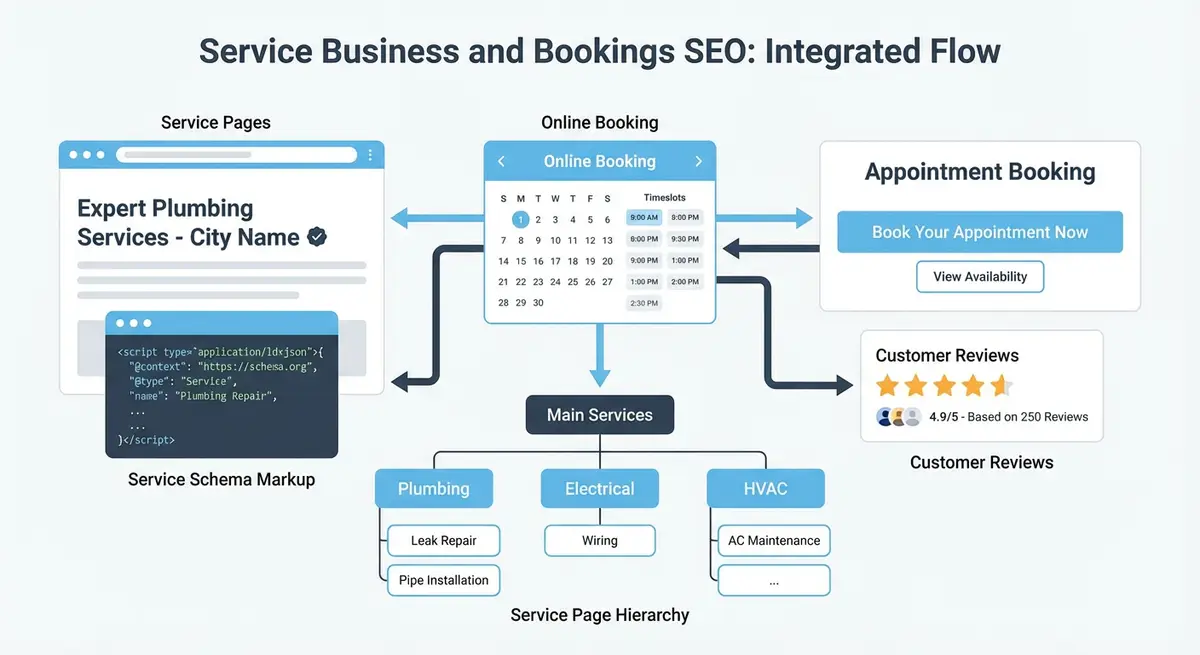
Service Schema for Booking Pages
{
  "@context": "https://schema.org",
  "@type": "Service",
  "name": "Deep Tissue Massage - 60 Minutes",
  "description": "Professional deep tissue massage therapy targeting chronic muscle tension and pain relief",
  "provider": {
    "@type": "LocalBusiness",
    "name": "Your Clinic Name",
    "address": {
      "@type": "PostalAddress",
      "streetAddress": "123 High Street",
      "addressLocality": "Manchester",
      "postalCode": "M1 1AA"
    }
  },
  "offers": {
    "@type": "Offer",
    "price": "65.00",
    "priceCurrency": "GBP",
    "availability": "https://schema.org/InStock"
  },
  "areaServed": {
    "@type": "City",
    "name": "Manchester"
  }
}
ProfessionalService Schema
ProfessionalService is the appropriate schema type for licensed professionals: therapists, psychologists, counsellors, dentists, lawyers, accountants. It extends LocalBusiness and signals to Google that your business involves professional expertise and credentials.
Essential Resources
- Wix Bookings Help Centre: Official Wix Bookings documentation and setup guides
- Google Business Profile Help: Manage your business listing for local search visibility
- Schema.org Service Type: Service schema reference for structured data markup
- Google Search Console: Monitor your site performance and indexing in Google Search
Adding Duration and Availability
For appointment-based businesses, you can add the duration of each service and real-time availability indicators. While Google does not display these as rich results yet, they provide additional context that AI engines and future search features may use.
How to Add Service and ProfessionalService Schema to Wix Bookings Pages Step by Step
How to Add Service and ProfessionalService Schema to Wix Bookings Pages Step by Step
- Step 1: Open Google Rich Results Test and test an existing Wix Bookings service page URL to see which schema types currently exist and which are missing.
- Step 2: Note which schema types are already present on the page and identify any gaps, particularly the absence of Service or ProfessionalService schema.
- Step 3: Open Wix Editor and go to Settings > Advanced > Custom Code to access the custom code injection area.
- Step 4: Choose "Head" as the position and "Specific Pages" as the scope so you can target individual service pages rather than applying schema site-wide.
- Step 5: Write JSON-LD Service schema with: @type set to Service, name matching the exact service name as it appears on the page, description of 150 or more words, provider object including name, address, and telephone, areaServed, and offers object with price and priceCurrency.
- Step 6: For licensed practitioners, use @type: ProfessionalService instead of Service, and additionally include: knowsAbout listing your specialisations, hasCredential referencing your professional registration, and makesOffer.
- Step 7: Paste the JSON-LD into the Custom Code head section, wrapped in script tags with type="application/ld+json", and assign it only to that specific service page.
- Step 8: Validate the schema in Google Rich Results Test by pasting the page URL and checking for errors or warnings.
- Step 9: Request re-indexing of each service page via Google Search Console URL Inspection tool after deploying the schema.
- Step 10: Repeat the process for each service page, then monitor the "Enhancements" section in GSC for new rich result eligibility within 2-4 weeks.
Complete How-To Guide
This step-by-step guide walks you through creating, implementing and validating Service schema and ProfessionalService schema on your Wix Bookings pages so that Google understands your services, pricing, location and credentials.
How to Add Service and ProfessionalService Schema to Wix Bookings Pages
- Step 1: Decide which schema type applies to each service. Use "Service" for general services (massage, cleaning, tutoring) and "ProfessionalService" for licensed professionals (therapists, lawyers, accountants, dentists). List each service alongside its correct schema type.
- Step 2: Gather the required data for each service: exact service name, full description (matching the page content), price, currency, duration, provider business name, full address, phone number and any relevant credentials or licences.
- Step 3: Create a JSON-LD script for your first service page. Start with the @context and @type fields, then add the "name" property matching your exact service title as it appears on the page, and a "description" matching the first paragraph of your service description.
- Step 4: Add the "provider" object using @type "LocalBusiness" (or "ProfessionalService" if applicable). Include your business name, full PostalAddress with streetAddress, addressLocality, addressRegion and postalCode, plus your telephone number and website URL.
- Step 5: Add the "offers" object with @type "Offer", the exact price as a string, priceCurrency (e.g., "GBP" or "USD"), and set availability to "https://schema.org/InStock" if the service is currently bookable.
- Step 6: Include the "areaServed" property using @type "City" or "GeoCircle" to specify the geographic area where you provide the service. For mobile services, list multiple areas using an array.
- Step 7: For ProfessionalService schema, add additional properties: "hasCredential" to list professional qualifications, "knowsAbout" for areas of expertise, and "memberOf" for professional body memberships such as BACP or HCPC.
- Step 8: Add the duration of each service using the "duration" property in ISO 8601 format. For a 60-minute session, use "PT60M". For 90 minutes, use "PT1H30M". This helps Google and AI engines understand your service offering.
- Step 9: In your Wix Dashboard, go to Settings > Custom Code (or use the Wix Editor's "Add Custom Code" option under Dev Mode). Click "Add Custom Code", paste your JSON-LD script wrapped in <script type="application/ld+json"> tags, set it to load in the Head, and critically, set it to apply only to the specific service page URL.
- Step 10: Repeat steps 3-9 for each individual service page. Do not use identical schema across multiple pages; each page must have unique name, description, price and URL values that match the actual page content.
- Step 11: Validate each page's schema using Google's Rich Results Test (search.google.com/test/rich-results). Paste the service page URL, run the test, and check for errors or warnings. Fix any issues such as missing required fields or mismatched data.
- Step 12: Also validate using Schema.org's validator (validator.schema.org) for a more detailed check. This tool catches structural issues that the Google tool may not flag.
- Step 13: After deploying schema to all service pages, request re-indexing of each page in Google Search Console using the URL Inspection tool. This prompts Google to re-crawl and process your new structured data.
- Step 14: Monitor the "Enhancements" section in Google Search Console over the following 2-4 weeks. Look for your Service schema to appear under the relevant enhancement type, and address any new errors that Google reports.
Essential Resources
- Schema.org Service: Official reference for Service structured data markup
- Schema.org ProfessionalService: Schema type for licensed professionals and credentialed services
- Google Rich Results Test: Validate your Service and ProfessionalService schema markup
- Schema Markup Validator: Deep validation of structured data against the full Schema.org vocabulary
Was this lesson useful?
It takes 1 minute to tell me. The course is free and I want to keep it that way, and your feedback shows me what is working and helps other people find it.
This lesson on Service schema and ProfessionalService schema for Wix Bookings is part of Module 18: Wix Bookings, Hotels & Service Business SEO in The Most Comprehensive Complete Wix SEO Course in the World (2026 Edition). Created by Michael Andrews, a Wix Marketplace Legend Partner with 14 years of hands-on experience, 800 completed Wix SEO projects and 456 verified five-star reviews.