Wix Bookings page speed optimisation and mobile UX for service businesses
Module 18: Wix Bookings, Hotels & Service Business SEO | Lesson 212 of 683 | 20 min read
By Michael Andrews, Wix SEO Expert UK
Wix Bookings pages tend to be heavier than standard Wix pages because they load calendar widgets, staff images, pricing components and the booking form itself. Each of these elements adds JavaScript and network requests. This lesson covers the specific speed optimisation techniques for booking-heavy Wix pages.
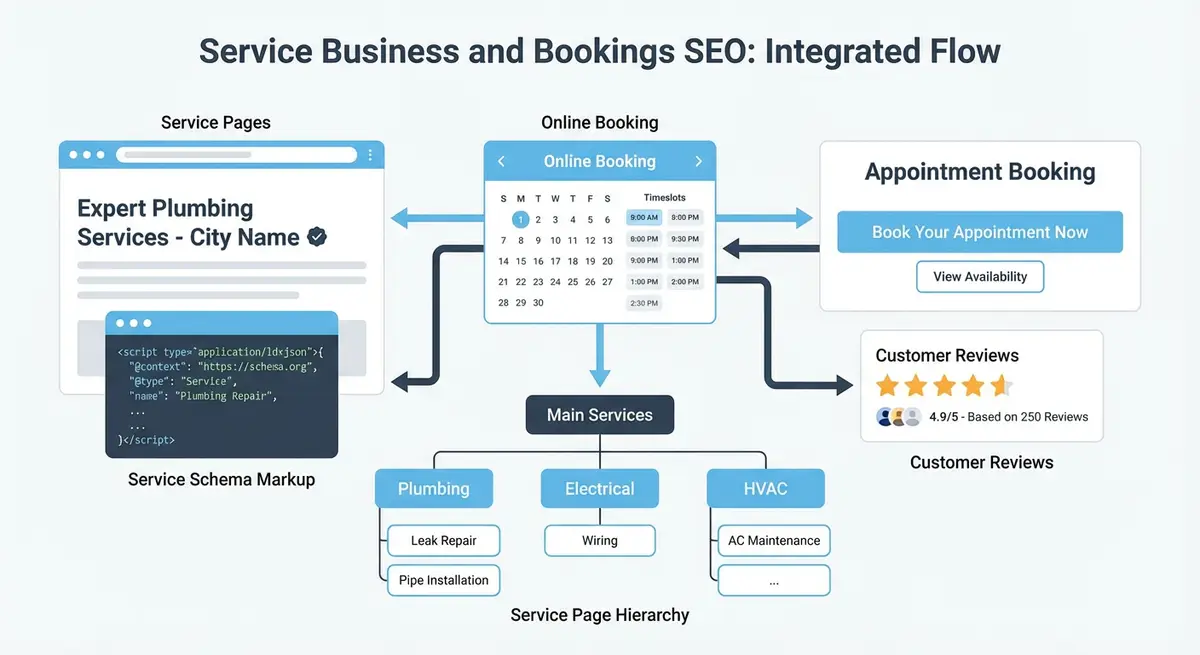
Common Speed Issues on Wix Bookings Pages
- Large staff headshot images that are not compressed or resized
- Calendar widget loading on initial page load even when it is below the fold
- Multiple Wix Apps installed that add scripts to every page, including booking pages
- Gallery sections with 10+ high-resolution images above the booking section
- Third-party review widgets that load external JavaScript
Optimisation Techniques
Speed fixes for Wix Bookings pages
- Compress all staff and service images to WebP format before uploading
- Limit service page galleries to 3-4 images maximum
- Remove any Wix Apps from booking pages that are not essential
- Move testimonials to a separate component that lazy-loads
- Test each booking page individually in PageSpeed Insights
Mobile UX Standards for Booking Pages
Google expects all interactive elements (buttons, form fields, date pickers) to have a minimum touch target of 48x48 pixels with at least 8 pixels of spacing between them. Wix Bookings generally meets these requirements, but custom styling can sometimes reduce button sizes below the minimum. Test on a real phone with your thumb, not just in the Wix mobile preview.
Complete How-To Guide
Essential Resources
- Wix Bookings Help Centre: Official Wix Bookings documentation and setup guides
- Google Business Profile Help: Manage your business listing for local search visibility
- Schema.org Service Type: Service schema reference for structured data markup
- Google Search Console: Monitor your site performance and indexing in Google Search
This step-by-step guide takes you through a complete speed and mobile UX audit of your Wix Bookings pages, with specific fixes for the most common performance bottlenecks that affect both search rankings and booking conversion rates.
How to Speed-Optimise and Improve Mobile UX on Wix Bookings Pages
- Step 1: Run every Wix Bookings service page through Google PageSpeed Insights (pagespeed.web.dev) individually. Record the mobile performance score, Largest Contentful Paint (LCP), Interaction to Next Paint (INP), Cumulative Layout Shift (CLS) and Total Blocking Time (TBT) for each page in a spreadsheet.
- Step 2: Check the Core Web Vitals report in Google Search Console under Experience > Core Web Vitals. Identify which booking page URLs are listed as "Poor" or "Needs Improvement" and prioritise those for optimisation.
- Step 3: Audit all images on your booking pages. In the Wix Media Manager, check the file size and dimensions of every staff photo, service image and gallery image used on booking pages. Any image over 200KB needs to be compressed. Re-upload images in WebP format at the exact dimensions they display on the page.
- Step 4: Reduce the number of images on each service page. Limit service page galleries to 3-4 images maximum. Remove decorative images that do not add informational value. Each image adds a network request and increases LCP.
- Step 5: Review all installed Wix Apps by going to your Wix Dashboard > Apps > Manage Apps. Identify which apps load JavaScript on your booking pages. Remove or disable any apps that are not essential to the booking flow, such as chat widgets, pop-up tools or analytics tools that duplicate functionality.
- Step 6: Check for third-party review widgets (Elfsight, EmbedSocial, etc.) that load external JavaScript. If they are slowing your booking pages, consider replacing them with static testimonial text that you update manually. The speed improvement is often worth the trade-off.
- Step 7: Optimise the above-the-fold content on each booking page. Ensure the hero image is compressed, the service title and description load immediately, and the booking CTA is visible without waiting for JavaScript. Move heavy elements like image galleries and video embeds below the fold.
- Step 8: Test the complete booking flow on a real mobile device (not the Wix mobile preview or Chrome DevTools). Start from a Google search result, tap through to your service page, select a date and time, fill in the booking form and complete the booking. Note any friction points: small buttons, overlapping elements, slow calendar loads or difficult-to-tap date pickers.
- Step 9: Check that all touch targets on mobile meet the minimum 48x48 pixel size with 8 pixels of spacing. In the Wix Editor mobile view, select each button and form field and verify its dimensions. Increase the size of any elements that are too small for comfortable thumb tapping.
- Step 10: Review Cumulative Layout Shift on your booking pages by watching the page load on mobile in slow motion (use Chrome DevTools > Performance > Screenshots). Identify any elements that shift position as the page loads, particularly around the booking button. Fix layout shifts by setting explicit dimensions for images and ad containers.
- Step 11: Implement lazy loading for content below the fold. In the Wix Editor, any image galleries, testimonial sections or additional content blocks that are not visible on initial page load should be set to load on scroll rather than on page load. This reduces initial page weight significantly.
- Step 12: Test your booking pages on a slow 3G connection using Chrome DevTools > Network > Slow 3G throttling. If your booking page takes more than 5 seconds to become interactive on a throttled connection, you need to remove more heavy elements or simplify the page structure.
- Step 13: Set up a monthly performance monitoring routine. Re-test each booking page in PageSpeed Insights on the first of every month and record the scores. Performance can degrade over time as you add content, install new apps or Wix pushes platform updates.
- Step 14: Check real user performance data in CrUX (Chrome User Experience Report) available at pagespeed.web.dev by toggling to "Field Data". This shows how your actual visitors experience your booking pages, which matters more than lab scores. If field data shows poor performance, prioritise fixes over new features.
- Step 15: After making all speed improvements, request re-indexing of your booking pages in Google Search Console. Google re-evaluates Core Web Vitals on re-crawl, and improved scores can lead to ranking improvements within 2-4 weeks.
Essential Resources
- Google PageSpeed Insights: Test Core Web Vitals and get specific speed fix recommendations for booking pages
- Google Search Console: Monitor Core Web Vitals performance across your Wix Bookings pages
- WebP Converter: Compress and convert images to WebP format before uploading to Wix
Was this lesson useful?
It takes 1 minute to tell me. The course is free and I want to keep it that way, and your feedback shows me what is working and helps other people find it.
This lesson on Wix Bookings page speed optimisation and mobile UX for service businesses is part of Module 18: Wix Bookings, Hotels & Service Business SEO in The Most Comprehensive Complete Wix SEO Course in the World (2026 Edition). Created by Michael Andrews, a Wix Marketplace Legend Partner with 14 years of hands-on experience, 800 completed Wix SEO projects and 456 verified five-star reviews.