Wix Cookie Consent banner: setup, configuration and best practices
Module 14: Privacy, GDPR & Cookie Consent for SEO on Wix | Lesson 162 of 683 | 22 min read
By Michael Andrews, Wix SEO Expert UK
The Wix Cookie Consent banner is your primary tool for managing visitor consent under GDPR and other privacy laws. A properly configured consent banner protects you legally while minimising the impact on user experience and SEO metrics. A poorly configured one either fails compliance or destroys your analytics data and increases bounce rates.
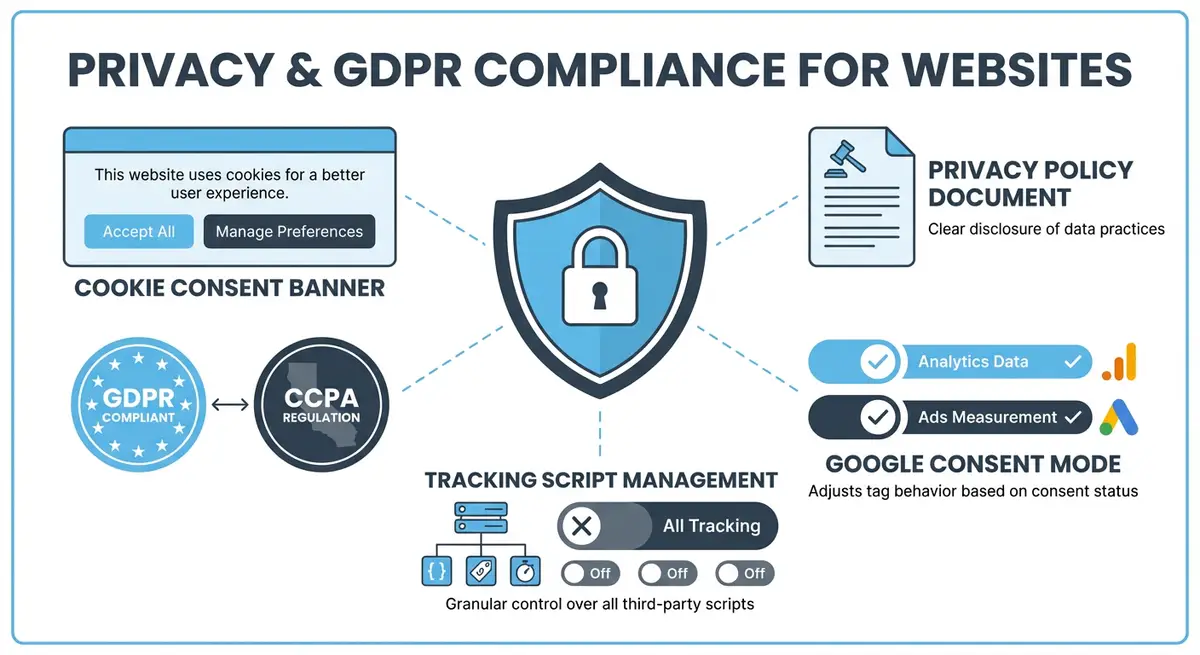
Enabling the Wix Cookie Consent Banner
How to activate cookie consent on Wix
- Go to your Wix Dashboard and navigate to Settings > Privacy & Cookies.
- Enable the Cookie Consent Banner toggle.
- Select the compliance mode: GDPR (opt-in required) or CCPA (opt-out allowed).
- Choose which regions require the consent banner to appear.
- Save and publish your changes.
Cookie Categories Explained
- Essential cookies: required for basic site functionality. These do not need consent and cannot be disabled. Includes Wix session cookies and security tokens.
- Functional cookies: enable features like chat widgets, saved preferences and personalisation. Users should be able to opt in or out.
- Analytics cookies: Google Analytics, Wix Analytics and similar tracking tools. Require explicit opt-in consent under GDPR.
- Marketing cookies: Facebook Pixel, Google Ads remarketing, affiliate tracking. Require explicit consent and are the most sensitive category.
Banner Design Best Practices
Your consent banner should be clearly visible without being obstructive. Bottom-of-screen banners perform better than pop-up modals for user experience. Use plain language, not legal jargon. Offer a clear Accept All button and an equally prominent Manage Preferences option. Avoid dark patterns like making the reject option tiny or hidden. Google penalises intrusive interstitials and a badly designed consent banner qualifies.
Impact on Page Speed and CLS
Cookie consent banners inject HTML into the page and can cause Cumulative Layout Shift if not configured properly. The Wix native banner is optimised to minimise CLS, but custom consent solutions added via third-party code can create significant layout shift issues. Always test your CLS score with the consent banner active using Google PageSpeed Insights.
Complete How-To Guide: Configuring the Wix Cookie Consent Banner
This guide walks you through setting up a fully compliant, user-friendly cookie consent banner on your Wix site that satisfies GDPR requirements while preserving as much analytics data as possible.
How to configure Wix cookie consent for maximum compliance and minimal data loss
- Step 1: Go to your Wix Dashboard > Settings > Privacy & Cookies. Enable the Cookie Consent Banner if it is not already active.
- Step 2: Select your compliance mode. For sites with EU or UK visitors, choose GDPR mode which requires opt-in consent before any non-essential cookies fire.
- Step 3: Configure regional settings. Set the banner to appear for visitors from the EU, UK and California at minimum. You can set it to appear globally for maximum compliance.
- Step 4: Customise the banner text. Replace the default legal language with clear, plain English that explains what cookies do and why you use them. Keep it under three sentences.
- Step 5: Ensure both Accept All and Manage Preferences buttons are equally visible and accessible. Do not make the reject option smaller, less prominent or harder to find.
- Step 6: Categorise every third-party script on your site. Go to Settings > Custom Code and assign each script to the correct consent category: essential, functional, analytics or marketing.
- Step 7: Test that scripts only fire after consent is granted. Open your Wix site in an incognito browser window, open DevTools Network tab, and verify that GA4 and other tracking requests only appear after clicking Accept.
- Step 8: Style the banner to match your Wix site design. Use your brand colours and fonts so it feels native to the site rather than an intrusive overlay.
- Step 9: Position the banner at the bottom of the screen as a non-blocking bar rather than a full-screen modal. This minimises bounce rate impact and avoids Google's intrusive interstitial penalties.
- Step 10: Test Cumulative Layout Shift with the banner active. Run your homepage through PageSpeed Insights and check that the CLS score remains under 0.1.
- Step 11: Test on mobile devices. Ensure the consent banner does not cover critical content or navigation elements on small screens and that the buttons are large enough to tap easily.
- Step 12: Document your consent banner configuration including which scripts are assigned to which categories. Store this in your compliance log for regulatory reference.
Essential Resources
- Cookiebot: Scan your site for cookies and generate compliant consent banners
- Google PageSpeed Insights: Test CLS impact of your cookie consent banner on page performance
- ICO Cookie Guidance: UK regulatory guidance on cookie consent requirements
- SEO Fix in a Box: My Wix app. Free to install, it scans your site and shows what needs fixing, and paid plans write the fixes from your own Google searches
Was this lesson useful?
It takes 1 minute to tell me. The course is free and I want to keep it that way, and your feedback shows me what is working and helps other people find it.
This lesson on Wix Cookie Consent banner: setup, configuration and best practices is part of Module 14: Privacy, GDPR & Cookie Consent for SEO on Wix in The Most Comprehensive Complete Wix SEO Course in the World (2026 Edition). Created by Michael Andrews, a Wix Marketplace Legend Partner with 14 years of hands-on experience, 800 completed Wix SEO projects and 456 verified five-star reviews.