Google Consent Mode v2: implementation on Wix
Module 14: Privacy, GDPR & Cookie Consent for SEO on Wix | Lesson 164 of 683 | 28 min read
By Michael Andrews, Wix SEO Expert UK
Google Consent Mode v2 is now required for running Google Ads in the EU and EEA, and strongly recommended for GA4. It bridges the gap between privacy compliance and data collection by sending anonymised, cookieless pings to Google even when a visitor declines consent. This allows Google to model conversions and traffic patterns without violating privacy regulations. On Wix, the implementation requires careful configuration.
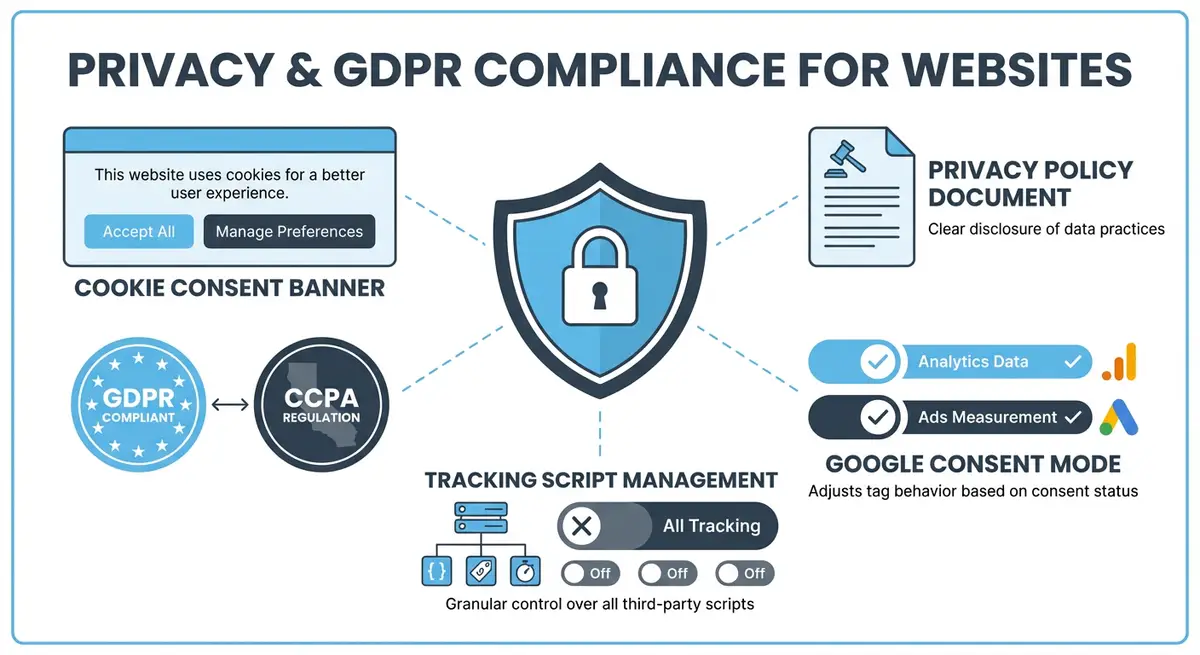
How Consent Mode v2 Works
The consent mode data flow
- Visitor lands on your Wix site. Consent Mode defaults all consent signals to denied.
- Your Wix Cookie Consent banner appears. Google tags wait for consent status.
- If the visitor accepts cookies, consent signals update to granted and full tracking fires.
- If the visitor declines, consent signals remain denied but cookieless pings are sent.
- These pings contain no personal data but tell Google a pageview or conversion occurred.
- Google uses machine learning to model the behaviour of non-consenting visitors.
Consent Mode v2 Consent Types
- analytics_storage: controls whether analytics cookies (GA4) are allowed. When denied, GA4 sends cookieless pings instead.
- ad_storage: controls whether advertising cookies (Google Ads, remarketing) are allowed.
- ad_user_data: NEW in v2. Controls whether user data can be sent to Google for advertising purposes.
- ad_personalization: NEW in v2. Controls whether personalised advertising is allowed.
- functionality_storage: controls functional cookies like language preferences.
- personalization_storage: controls personalisation cookies.
- security_storage: controls security-related cookies. Should always be granted.
Basic vs Advanced Consent Mode
Basic mode only fires Google tags after consent is granted. No data at all is collected from non-consenting visitors. Advanced mode fires tags in a restricted state before consent, sending cookieless pings that enable data modelling. Advanced mode recovers significantly more data and is Google's recommended approach, but some privacy advocates consider it controversial.
Implementation on Wix
Wix's native Cookie Consent banner has built-in support for Consent Mode v2 when used with Google Tag Manager. The Wix consent banner communicates consent status to GTM, which then passes the correct consent signals to all Google tags. You configure the consent signal mapping in GTM rather than in Wix directly.
Complete How-To Guide: Implementing Google Consent Mode v2 on Wix
This guide walks you through the complete Consent Mode v2 implementation on your Wix site using Google Tag Manager and the Wix native cookie consent banner.
How to set up Google Consent Mode v2 on your Wix website
- Step 1: Ensure your Wix Cookie Consent banner is enabled and configured. Go to Wix Dashboard > Settings > Privacy & Cookies and verify it is active with GDPR compliance mode selected.
- Step 2: Set up a Google Tag Manager container if you do not have one. Go to tagmanager.google.com, create an account and container, and copy the container code.
- Step 3: Add the GTM container code to your Wix site. In Wix Dashboard > Settings > Custom Code, add the GTM head code to the Head section and the body code to the Body - start section. Set both to load on all pages.
- Step 4: In GTM, go to Admin > Container Settings and enable Consent Mode. This tells GTM to respect consent signals from your Wix cookie banner.
- Step 5: Create a Consent Initialization trigger in GTM. Go to Triggers > New > Trigger Type > Consent Initialization. This fires before any other tags and sets default consent to denied.
- Step 6: Add a Consent Initialization tag that sets all consent defaults to denied. Create a new tag using the Google tag (gtag.js) template with default consent set to: analytics_storage=denied, ad_storage=denied, ad_user_data=denied, ad_personalization=denied.
- Step 7: Configure the consent update mechanism. When the Wix cookie consent banner receives acceptance, it must trigger a GTM dataLayer push that updates consent signals to granted. Test this by accepting cookies and checking the GTM debugger for consent update events.
- Step 8: Choose Advanced Consent Mode for maximum data recovery. In your default consent tag, ensure that Google tags fire in restricted mode (cookieless pings) when consent is denied rather than not firing at all.
- Step 9: Update all existing Google tags in GTM (GA4, Google Ads, etc.) to use the built-in consent checks. In each tag's settings, configure the Required Consent to match the appropriate consent types.
- Step 10: Test the complete implementation using GTM Preview mode. Visit your Wix site, decline all cookies, and verify in the GTM debugger that tags fire in consent-denied restricted mode rather than full tracking mode.
- Step 11: Verify in GA4 real-time reports that cookieless pings are being received. You should see some data appearing even from non-consenting sessions after enabling Advanced Consent Mode.
- Step 12: Check the Google Ads interface for consent mode diagnostics. Go to Tools > Diagnostics and verify that consent signals are being received correctly for your Wix site traffic.
- Step 13: Monitor GA4 data modelling activation. After sufficient data collection with Consent Mode active, GA4 will begin showing modelled data alongside observed data in your reports. This typically takes 2-4 weeks.
Essential Resources
- Google Tag Manager: Configure Consent Mode v2 triggers and consent signal mapping
- Cookiebot: CMP with built-in Google Consent Mode v2 integration
- Google Consent Mode Documentation: Official Google documentation for Consent Mode implementation
- SEO Fix in a Box: My Wix app. Free to install, it scans your site and shows what needs fixing, and paid plans write the fixes from your own Google searches
Was this lesson useful?
It takes 1 minute to tell me. The course is free and I want to keep it that way, and your feedback shows me what is working and helps other people find it.
This lesson on Google Consent Mode v2: implementation on Wix is part of Module 14: Privacy, GDPR & Cookie Consent for SEO on Wix in The Most Comprehensive Complete Wix SEO Course in the World (2026 Edition). Created by Michael Andrews, a Wix Marketplace Legend Partner with 14 years of hands-on experience, 800 completed Wix SEO projects and 456 verified five-star reviews.