Wix Login How-To 2026

By Michael Andrews | Published: 2026-08-20 | Updated: 2026-08-20 | 11 min read
A comprehensive, step-by-step guide to logging in to your Wix account in 2026. Covers every sign-in method including email and password, Google, Facebook, Apple, SSO, the Wix Owner mobile app, two-factor authentication setup, password resets, account recovery, and troubleshooting the most common Wix login problems.
Logging in to Wix is the first step to managing your website, updating content, checking analytics, and running your online business. Whether you are signing in for the first time or troubleshooting a login problem, this guide covers every method available in 2026. From email and password authentication to social logins, single sign-on (SSO), the Wix Owner mobile app, and two-factor authentication (2FA), every step is documented with clear instructions sourced directly from Wix official support documentation.
Wix powers over 250 million websites worldwide, making secure and reliable account access essential for millions of site owners, editors, and collaborators, Wix Platform Scale (Source: Wix.com)
How to Log In to Your Wix Account
There are several ways to sign in to your Wix account. The method you use depends on how you originally created your account and what security settings you have enabled. Below is every login method available on the Wix platform in 2026.
Method 1: Sign In with Email and Password
The most common way to log in to Wix is with the email address and password you used when you created your account. If you have since changed your email address or password in your Wix Account Settings, use your current credentials instead of the original ones.
- Go to wix.com in your web browser
- Click the Log In button in the top-right corner of the page
- Enter the email address associated with your Wix account and click Continue with Email
- Enter your password in the password field
- Click Log In to access your Wix Dashboard
Once signed in, you will be taken directly to your Wix Dashboard where you can manage your sites, domains, billing, analytics, and all other account settings. If you have multiple websites, they will all appear under the My Sites section.
Method 2: Sign In with Google
If you created your Wix account using Google sign-in, or if you have linked a Google account in your Wix Account Settings, you can log in with a single click using your Google credentials.
- Go to wix.com and click Log In
- Click Continue with Google
- Select your Google account from the list or enter your Google email address
- Authorise Wix to access your Google account if prompted
- You will be redirected to your Wix Dashboard automatically
Key Takeaway: Social logins (Google, Facebook, Apple) use the authentication provided by the social platform. Your Wix password is not required when using these methods. You can manage which social logins are connected in your Wix Account Settings under the Social Logins section.
Method 3: Sign In with Facebook
Facebook login works the same way as Google login. If your Wix account is linked to your Facebook account, click Continue with Facebook on the Wix login page, authorise access if prompted, and you will be signed in to your Wix Dashboard. According to Wix official documentation, you can enable or disable Facebook login at any time from your Account Settings page.
Method 4: Sign In with Apple
Apple sign-in is available for users who created their Wix account using an Apple ID or who have linked their Apple account in Account Settings. Click Continue with Apple on the login page and authenticate using your Apple ID credentials, Face ID, or Touch ID depending on your device.
Method 5: Sign In with SSO (Single Sign-On)
Single sign-on (SSO) is available to certain Wix users, typically those on enterprise plans or within organisations that have configured SSO through their IT department. If your organisation uses SSO, you will see an SSO option on the Wix login page. According to Wix support documentation, if you believe you should have SSO access but do not see the option, you should contact your organisation's IT administrator.
- Go to wix.com and click Log In
- Click Log in with SSO
- Enter your organisation email address
- You will be redirected to your organisation's identity provider to authenticate
- After successful authentication, you will be returned to your Wix Dashboard
Method 6: Sign In via the Wix Owner App (Mobile)
The Wix Owner app allows you to manage your Wix website from your smartphone or tablet. It is available on both iOS (App Store) and Android (Google Play). The app gives you access to your dashboard, analytics, customer communications, orders, bookings, and basic site editing capabilities while on the go.
- Download the Wix Owner app from the App Store (iOS) or Google Play (Android)
- Open the app and tap Log In
- Sign in using your email and password, or use Google, Facebook, or Apple sign-in
- If you have two-factor authentication enabled, complete the verification step
- Select your website from the list to access its mobile dashboard
The Wix Owner app also supports push notification-based two-factor authentication, making it one of the most convenient and secure ways to verify your identity when logging in from a desktop browser.
What You Can Access After Logging In
Once you have successfully logged in to your Wix account, you have access to several key areas of the platform. Understanding where to find what you need will save you time and help you manage your website more efficiently.
The Wix Dashboard
The Wix Dashboard is your website's control panel. From here you can view site analytics, manage domains, update billing and subscription details, access your inbox, view orders and bookings, manage site members, and configure SEO settings. If you have multiple Wix websites, use the My Sites tab to switch between them. The Dashboard is also where you access the Wix SEO tools built into the platform, including the SEO Wiz, Site Inspection tool, and the Google Search Console integration.
The Wix Editor
To make design or content changes to your website, you need to enter the Wix Editor. After logging in and selecting your site from the Dashboard, click Edit Site to launch the drag-and-drop editor in a new browser tab. The Editor gives you full control over your site's layout, pages, text, images, apps, and design elements. For advanced users, Wix Studio provides additional design capabilities and developer tools.
Wix Studio
Wix Studio is the professional-grade editor available at studio.wix.com. It offers advanced responsive design controls, custom CSS, Velo by Wix for adding custom code, and collaboration features for teams and agencies. If your site was built with Wix Studio, you will need to log in at studio.wix.com or select your Studio site from the standard Wix Dashboard.
How to Set Up Two-Factor Authentication (2FA) on Wix
Two-factor authentication adds an extra layer of security to your Wix account. Even if someone obtains your password, they cannot access your account without the second verification step. Wix supports several 2FA methods, and enabling at least one is strongly recommended for all account holders.
According to Wix official support documentation, the following two-factor authentication methods are available in 2026:
- Wix Owner App push notifications: Receive a push notification on your phone through the Wix Owner app and tap to approve or deny the login attempt
- SMS verification: Receive a one-time verification code via text message to your registered phone number
- Phone call verification: Receive an automated phone call with your verification code as an alternative to SMS
- Authenticator app: Use an authenticator app such as Google Authenticator, Authy, or Microsoft Authenticator to generate time-based one-time passwords (TOTP)
- Email verification code: Receive a one-time code to your registered email address
How to Enable 2FA on Your Wix Account
- Log in to your Wix account and go to Account Settings
- Scroll to the 2-Step Verification section
- Click Enable next to your preferred verification method
- Follow the on-screen instructions to register your phone number, link the Wix Owner app, or scan the QR code with your authenticator app
- Complete the verification test to confirm your 2FA setup is working
- Save your changes
You can have multiple 2FA methods enabled simultaneously. This is recommended because it gives you a backup verification method if your primary method is unavailable, for example if you lose access to your phone.
Troubleshooting Wix Login Problems
Login problems are one of the most common issues Wix users face. The following section covers every major login problem and its solution, based on Wix official troubleshooting guides and common user-reported issues.
I Forgot My Wix Password
If you cannot remember your password, Wix provides a straightforward password reset process. According to the Wix Help Centre, the steps are:
- Go to the Wix login page at wix.com and click Log In
- Enter your email address and click Continue with Email
- Click Forgot Password? below the password field
- Enter your email address and click Send
- Check your email inbox (and spam/junk folder) for the password reset link from Wix
- Click the link and create a new password
- Return to the login page and sign in with your new password
Key Takeaway: Password reset emails from Wix can sometimes end up in your spam or junk folder. If you do not receive the email within a few minutes, check those folders first. Also ensure your email inbox is not full, as a full inbox will prevent delivery.
I Forgot Which Email I Used for Wix
If you cannot remember which email address you used to create your Wix account, go to the Wix login page and click Forgot Email? or I can't access my login email. Wix will attempt to help you recover your account. If you have a recovery phone number set up, Wix can send a verification code to that number to help you regain access. If you do not have a recovery phone number, you may need to submit a Wix Account Recovery form.
I Cannot Access My Email Address
If you no longer have access to the email address associated with your Wix account (for example, if you lost access to an old work email), you will need to go through the Wix account recovery process. This involves verifying your identity through alternative means such as a recovery phone number. The steps according to Wix support are:
- Go to the Wix login page and click Log In
- Select I can't access my login email
- Enter the email address associated with your Wix account
- Click Continue and answer the security questions
- Select Send me a code to my phone number ending with XXXX and click Next
- Enter the one-time verification code sent to your phone
- Create a new password and click Save New Password
Two-Factor Authentication (2FA) Is Not Working
If you are unable to complete the two-factor verification step during login, try the following troubleshooting steps:
- Switch to an alternative 2FA method: If SMS is not working, try using the authenticator app or Wix Owner app push notification instead
- Check your phone signal: SMS codes require mobile network coverage. If you are in an area with poor signal, switch to an authenticator app which works offline
- Disable your VPN: Some users report that VPN connections can interfere with 2FA verification. Try disconnecting your VPN and logging in from your normal IP address
- Sync your authenticator app clock: Time-based one-time passwords (TOTP) require your device clock to be accurately synchronised. Go to your phone's settings and ensure automatic date and time is enabled
- Contact Wix Account Recovery: If none of the above methods work, email accountrecovery@wix.com with your account email address and explain that you are unable to complete 2FA verification
Browser-Related Login Issues
Sometimes login problems are caused by your web browser rather than your Wix account. If you are entering the correct credentials but still cannot sign in, try the following browser troubleshooting steps:
- Clear your browser cache and cookies: Stored data can sometimes conflict with the login process. Clear your cache and cookies, then try logging in again
- Try a different browser: If you normally use Chrome, try Firefox, Edge, or Safari to rule out browser-specific issues
- Disable browser extensions: Some browser extensions, particularly ad blockers and privacy tools, can interfere with login forms. Try disabling extensions temporarily
- Try an incognito or private browsing window: This rules out issues caused by cached data or extensions
- Check your internet connection: A slow or unstable connection can cause login timeouts. Ensure you have a stable connection before attempting to sign in
Managing Your Social Logins on Wix
Wix allows you to connect and disconnect social login providers at any time from your Account Settings. This means you can add Google, Facebook, or Apple sign-in to an existing email-based account, or disconnect a social login if you no longer use that platform. According to the Wix Help Centre, managing social logins is straightforward:
- Log in to your Wix account
- Go to Account Settings
- Scroll to the Social Logins section
- Click Enable next to the social account you want to connect (Google, Facebook, or Apple)
- Sign in to the social account and authorise Wix to use it for login
- To disconnect a social login, click Disable next to the relevant account
Even if you disable a social login, you can still access your Wix account using your email address and password. It is good practice to always have an email and password set up as a fallback login method.
Wix Login Security Best Practices for 2026
Your Wix account controls your website, your business data, your customer information, and your online presence. Keeping it secure is essential. The following best practices will help you protect your account from unauthorised access.
- Use a strong, unique password: Your Wix password should be at least 12 characters long and include a mix of uppercase letters, lowercase letters, numbers, and special characters. Do not reuse passwords from other accounts
- Enable two-factor authentication: As described above, 2FA adds a critical second layer of protection. Enable at least two verification methods so you have a backup
- Keep your recovery phone number updated: If you change your phone number, update it in your Wix Account Settings immediately. An outdated recovery number can lock you out of your account
- Review your social login connections regularly: Disconnect any social accounts you no longer use to reduce your attack surface
- Use a password manager: Tools like 1Password, Bitwarden, or LastPass can generate and store strong unique passwords for every account, eliminating the risk of password reuse
- Check for account activity: Review your Wix account periodically for any unexpected changes, new collaborators, or unfamiliar login activity
- Be cautious of phishing emails: Wix will never ask for your password via email. If you receive a suspicious email claiming to be from Wix, do not click any links. Go directly to wix.com and log in there instead
How Wix Login Relates to Your Website SEO
While logging in to Wix does not directly affect your search rankings, your ability to access your Wix Dashboard and Editor is essential for maintaining and improving your website's SEO performance. Every SEO task, from updating meta titles and descriptions to submitting your sitemap to Google Search Console, adding schema markup, managing internal links, and publishing new content, requires you to be logged in to your Wix account.
If you are locked out of your Wix account for an extended period, your website cannot be updated. Outdated content, missing structured data, unfixed technical SEO issues, and stale pages can all lead to ranking declines over time. This makes account security and reliable login access a foundation of good SEO practice.
For a comprehensive guide to optimising your Wix website for search engines after logging in, see the Complete Wix SEO Course which covers 68 modules and 683 lessons across every aspect of Wix SEO. You can also explore the full range of SEO services available from Michael Andrews, the UK's Wix Marketplace Legend Partner.
Wix Login Methods Compared
| Login Method | Speed | Security Level | Requirements | Best For |
|---|---|---|---|---|
| Email and password | Standard | Basic (high with 2FA) | Wix account email and password | All users |
| Google sign-in | Fast | High (inherits Google security) | Google account linked to Wix | Users with Google accounts |
| Facebook sign-in | Fast | High (inherits Facebook security) | Facebook account linked to Wix | Users with Facebook accounts |
| Apple sign-in | Fast | Very high (Face ID/Touch ID) | Apple ID linked to Wix | Apple device users |
| SSO | Fast | Enterprise-grade | Organisation SSO configuration | Enterprise and team accounts |
| Wix Owner app | Fast | High (biometric option) | Wix Owner app installed | Mobile users and site managers |
Step-by-Step: Recovering a Locked Wix Account
If all standard login and recovery methods have failed and you are completely locked out of your Wix account, Wix provides an account recovery process. This is the last resort for regaining access when you cannot use your password, email, social logins, or 2FA methods.
- Go to the Wix login page and attempt to sign in
- Click Forgot Password? and then I can't access my login email
- Follow the prompts to attempt recovery via your registered phone number
- If phone recovery is unavailable, click the link to submit a Wix Account Recovery form
- Provide as much identifying information as possible: your account email, site URLs, billing details, and any other verification information Wix requests
- Alternatively, email accountrecovery@wix.com directly with your account details and a description of the problem
- Wix support will review your request and respond with further instructions or restored access
Account recovery can take several business days depending on the complexity of the case. To avoid needing account recovery in the future, always keep your recovery phone number and email address up to date, and enable multiple 2FA methods.
Wix Member and Visitor Login vs Owner Login
It is important to distinguish between logging in as the site owner and logging in as a site member or visitor. This guide focuses on owner login, the account you use to build and manage your website. Site member login is different: it is the login system you set up for your website visitors using Wix's Members Area feature.
Site members sign in through a login page on your published website, not through wix.com. As the site owner, you configure member login options, approval settings, and member permissions from your Wix Dashboard under the Members Area settings. Members can sign in using email and password or through social logins (Google, Facebook, Apple) that you enable in your site's member settings. The Spaces by Wix and Fit by Wix member apps also allow members to sign in and engage with your content on mobile devices.
Need help optimising your Wix website after logging in? Get in touch for a free SEO consultation, or start learning with the Complete Wix SEO Course covering 68 modules and 683 lessons.
Fix your Wix SEO from your dashboard
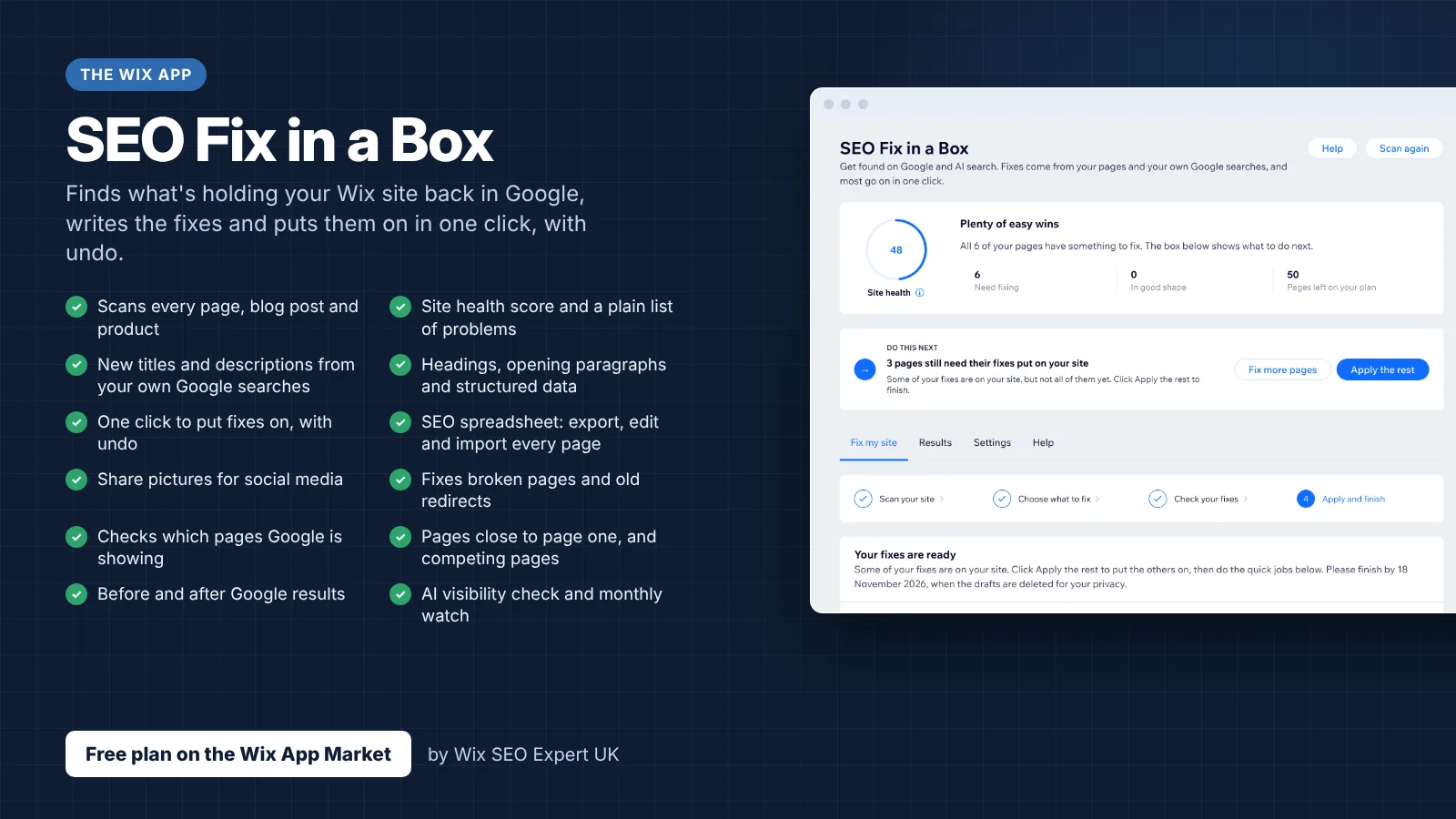
Wix SEO Fix in a Box scans every page, writes your fixes from your own Google searches and puts them on in one click, with undo. Start on the free plan.
Want this sorted on your own Wix site?
I have worked only on Wix for 14 years. Get Wix SEO Fix in a Box on the Wix App Market to find and fix what is holding your site back, or see my packages and prices if you would rather I did it all for you.
Frequently Asked Questions About Wix Login
Frequently Asked Questions
How do I log in to my Wix account?
Go to wix.com and click Log In in the top-right corner. Enter your email address, click Continue with Email, then enter your password and click Log In. Alternatively, use Google, Facebook, Apple, or SSO sign-in if your account is linked to one of these services.
What is the URL to log in to Wix?
The Wix login page is located at wix.com. Click the Log In button in the top-right corner of the homepage. You can also go directly to users.wix.com/signin to access the login form.
How do I reset my Wix password?
On the Wix login page, enter your email address and click Continue with Email. Then click Forgot Password below the password field. Enter your email and click Send. Check your inbox for the password reset link from Wix, click it, and create a new password.
Can I log in to Wix with Google, Facebook, or Apple?
Yes. Wix supports social login with Google, Facebook, and Apple. On the login page, click the corresponding button (Continue with Google, Continue with Facebook, or Continue with Apple) and authenticate with your social account. You can manage which social logins are connected in your Wix Account Settings.
What is two-factor authentication on Wix and how do I enable it?
Two-factor authentication (2FA) adds an extra verification step when you log in. After entering your password, you must verify your identity using a second method such as an SMS code, authenticator app, Wix Owner app push notification, or email code. Enable it in your Wix Account Settings under the 2-Step Verification section.
How do I log in to Wix on my phone?
Download the Wix Owner app from the App Store (iOS) or Google Play (Android). Open the app, tap Log In, and sign in with your email and password or a social login method. The app gives you access to your dashboard, analytics, and basic site management tools on mobile.
What should I do if I cannot receive my 2FA verification code?
First try switching to an alternative verification method such as an authenticator app or the Wix Owner app. If SMS is not working, check your phone signal and disable any VPN. If no method works, contact accountrecovery@wix.com with your account email address for manual recovery assistance.
What is the difference between Wix owner login and Wix member login?
Owner login is the account you use to build and manage your website through wix.com or the Wix Owner app. Member login is the sign-in system for visitors to your published website, configured through the Members Area feature in your Wix Dashboard. They are separate systems with different login pages.
Can I use SSO to log in to Wix?
SSO (Single Sign-On) is available to certain Wix users, typically those on enterprise plans or within organisations that have configured SSO. If you believe you should have SSO access, contact your IT administrator. The SSO option appears on the Wix login page when available.
How do I access the Wix Editor after logging in?
After logging in to your Wix account, you will see your Dashboard. Click on your website name under My Sites, then click Edit Site to launch the Wix Editor in a new browser tab. From there you can make design and content changes to your website.