Google Search Console: complete Wix connection walkthrough
Module 2: How to Set Up Your Wix Site for Maximum SEO | Lesson 12 of 683 | 50 min read
By Michael Andrews, Wix SEO Expert UK
Google Search Console is the single most important free tool in your Wix SEO toolkit. It is the only tool that shows you exactly what Google sees when it looks at your site: which keywords bring traffic, which pages have indexing issues, how your Core Web Vitals perform with real users, and whether Google has penalised your site. Not using GSC is like driving with your eyes closed. This lesson goes far beyond basic setup: it covers every report, every feature, and every advanced technique that will make GSC your daily SEO command centre.
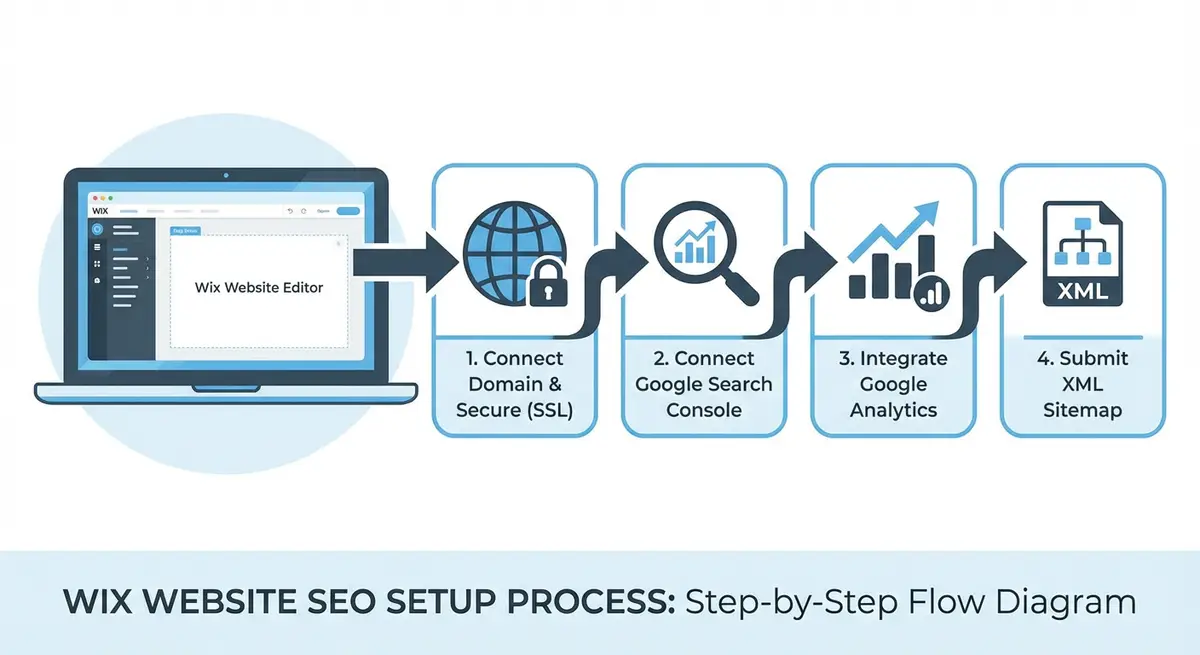
What Google Search Console Actually Does
GSC is not an analytics tool like Google Analytics. It does not track visitor behaviour on your site. Instead, it shows you how your site performs in Google Search itself: which queries trigger your pages, where you rank, how often people click, and what technical issues Google has found. Think of GA4 as showing what happens after someone arrives on your site, and GSC as showing what happens before they arrive.
- Performance data: Which search queries show your pages, your average ranking position, click-through rates, and total clicks from organic search.
- Indexing status: Which pages Google has indexed, which it has excluded, and the specific reason for each exclusion.
- Core Web Vitals: Real-user performance data for LCP, CLS, and INP across your entire site.
- Manual actions: Whether Google has applied any manual penalties to your site (critical to check regularly).
- Security issues: Whether Google has detected malware, hacked content, or social engineering on your site.
- Links: Which external sites link to you, which of your pages get the most links, and what anchor text is used.
- Sitemaps: Status of your submitted sitemaps and how many URLs have been discovered and indexed.
- URL Inspection: Detailed information about any specific URL, including indexing status, rendered HTML, and the ability to request re-indexing.
Setting Up GSC for Your Wix Site
Method 1: Direct Wix Integration (Recommended)
Connect GSC through Wix directly
- In your Wix Dashboard, go to Marketing & SEO > Google Search Console
- Click "Connect to Google Search Console"
- Sign in with the Google account you want to manage your GSC property
- Wix automatically adds the HTML verification tag to your site and verifies ownership
- Return to GSC at search.google.com/search-console to confirm your property is verified
- This method is the simplest and most reliable for Wix sites
Method 2: Manual HTML Tag Verification
Manual verification steps for Wix
- Go to search.google.com/search-console and click "Add property"
- Choose "URL prefix" property type and enter your full site URL including https://
- Select "HTML tag" as your verification method
- Copy the full meta tag code Google provides (starts with <meta name="google-site-verification")
- In your Wix Dashboard, go to Marketing & SEO > SEO > Site Verification
- Paste the meta tag code into the Google Search Console verification field
- Click Save in Wix, then return to GSC and click "Verify"
- You should see "Ownership verified" confirmation
Method 3: Domain Property (Advanced)
A Domain property covers all subdomains and protocols (http, https, www, non-www) in one property. This requires DNS verification at your domain registrar. It is more comprehensive than URL prefix properties but slightly more complex to set up.
Domain property verification
- In GSC, click "Add property" and choose "Domain" type
- Enter your domain without protocol (just yourdomain.com)
- GSC provides a TXT DNS record to add at your domain registrar
- Log into your registrar and add the TXT record to your DNS settings
- Wait for DNS propagation (up to 48 hours)
- Return to GSC and click "Verify"
The GSC Reports You Must Master
Performance Report: Your SEO Dashboard
The Performance report is the most important report in GSC. It shows four critical metrics for your organic search presence: Total Clicks (visits from search), Total Impressions (times your pages appeared in search results), Average CTR (percentage of impressions that resulted in clicks), and Average Position (your average ranking across all queries). Check this report at least weekly.
How to use the Performance report effectively
- Open GSC > Performance > Search Results
- Set the date range to "Last 28 days" for current performance, or "Last 16 months" for trend analysis
- Enable all four metrics by clicking on each: Clicks, Impressions, CTR, Position
- Click the "Queries" tab to see which search terms trigger your pages. Sort by Impressions to find high-impression, low-click keywords that need CTR improvement.
- Click the "Pages" tab to see which pages get the most organic traffic. These are your most valuable pages.
- Use the "Countries" tab to verify traffic is coming from your target geographic market.
- Use the "Devices" tab to compare mobile vs desktop performance. If mobile CTR is significantly lower, your mobile snippets need improvement.
- Add filters to isolate specific pages or query patterns: click "+ New" filter to narrow the data.
- Export data to a spreadsheet for deeper analysis and month-over-month comparison.
- Look for "striking distance" keywords: queries where you rank positions 5-15. These are the easiest to push to page 1 with targeted optimisation.
Pages Report (Index Coverage)
The Pages report (formerly Coverage report) shows the indexing status of every URL Google knows about on your Wix site. It is divided into "Indexed" pages and "Not indexed" pages, with specific reasons for each exclusion.
How to use the Pages report
- Open GSC > Indexing > Pages
- Note the total number of indexed pages vs not indexed pages
- Click on "Not indexed" to see the breakdown by reason
- Check for "Excluded by noindex tag": these are pages you or Wix has told Google not to index. Verify each one is intentionally excluded.
- Check for "Crawled - currently not indexed": Google crawled these pages but chose not to index them. This usually indicates thin content. Plan to improve these pages.
- Check for "Discovered - currently not indexed": Google knows about these pages but has not crawled them yet. Add more internal links to increase their priority.
- Check for "Duplicate without user-selected canonical": Google found duplicate content and chose a canonical. Verify the correct version is indexed.
- Check for "Server error (5xx)": these indicate technical problems. Contact Wix support if you see persistent server errors.
- Create an action plan for each issue type, starting with the most impactful (noindex on important pages, server errors).
Core Web Vitals Report
This report shows real-user performance data for your entire site, grouped by "Good", "Needs improvement", and "Poor" URLs. It is based on the Chrome User Experience Report (CrUX) data, which is the same data Google uses for ranking. Check this monthly.
Links Report
The Links report shows both external links (backlinks from other sites) and internal links (links within your own site). The external links data is one of the most reliable free backlink data sources available.
How to use the Links report
- Open GSC > Links
- Under "External links", click "More" to see all linking sites
- Review the top linking pages: are they relevant, high-quality sites?
- Check "Top linked pages" to see which of your pages attract the most backlinks
- Under "Internal links", review which pages have the most and fewest internal links. Pages with few internal links may be underperforming.
- Look for any suspicious or spammy external links that could harm your site. If found, consider using the Disavow tool (advanced, use with caution).
- Export the data for your link building records and competitor analysis.
Manual Actions and Security Issues
These two reports should always be clean (showing zero issues). A manual action means a Google human reviewer has penalised your site for violating Google's guidelines. A security issue means Google has detected malware or hacked content. Check these reports monthly.
URL Inspection Tool: Your Page-Level Diagnostic
The URL Inspection tool is the most powerful individual feature in GSC. It tells you everything about how Google sees a specific page, and lets you request re-indexing after making changes.
How to use URL Inspection effectively
- Enter any URL from your Wix site in the URL Inspection bar at the top of GSC
- Wait for the inspection to complete (usually 10-30 seconds)
- Check the main status: "URL is on Google" (indexed) or "URL is not on Google" (not indexed)
- If indexed, review: canonical URL, mobile usability, rich results, and last crawl date
- Click "View Tested Page" to see the rendered HTML and screenshot
- Compare the screenshot to your actual page to verify all content is visible to Google
- Click the "HTML" tab to search for specific text in the rendered source
- If the page is not indexed, read the reason and follow the fix guidance
- Click "Request Indexing" to prompt Google to re-crawl the page within 24-48 hours
- After making changes to any page, always use URL Inspection to request re-indexing
Setting Up GSC Alerts and Notifications
Configure GSC email alerts
- In GSC, click the Settings gear icon in the left sidebar
- Click "Email preferences"
- Enable notifications for: Manual actions, Security issues, Coverage issues, and Performance anomalies
- These alerts ensure you are immediately notified of critical problems
- Set a weekly calendar reminder to log in and check reports even if no alerts fire
Linking GSC with Google Analytics 4
Linking GSC with GA4 combines search performance data with on-site behaviour data, giving you a complete picture of the organic search journey from query to conversion.
How to link GSC and GA4
- Open GA4 at analytics.google.com
- Go to Admin (gear icon) > Product links > Search Console links
- Click "Link" and select your GSC property
- Choose the web stream to associate with
- Complete the linking process
- In GA4, go to Reports > Acquisition > Google organic search traffic to see combined data
- This allows you to see GSC query data alongside GA4 engagement and conversion data
Google Search Console is the only tool that gives you data directly from Google about how Google sees your site. Every other SEO tool estimates and approximates. GSC data is the ground truth. Make it the first thing you check every Monday morning.
Once Search Console is connected, the next lesson to read is Wix SEO Dashboard and Google Search Console explained, which walks through every panel and what your clicks and impressions mean.
Essential Resources
- Google Search Console: The primary interface for monitoring how Google crawls and indexes your Wix site
- Wix SEO Setup Checklist: Official Wix guide including how to verify your site with Google Search Console
- Google Search Console Help Centre: Official documentation for every GSC feature, report, and troubleshooting step
- Bing Webmaster Tools: Submit your Wix sitemap to Bing for additional search engine visibility
- SEO Fix in a Box: My Wix app. Free to install, it scans your site and shows what needs fixing, and paid plans write the fixes from your own Google searches
Was this lesson useful?
It takes 1 minute to tell me. The course is free and I want to keep it that way, and your feedback shows me what is working and helps other people find it.
This lesson on Google Search Console: complete Wix connection walkthrough is part of Module 2: How to Set Up Your Wix Site for Maximum SEO in The Most Comprehensive Complete Wix SEO Course in the World (2026 Edition). Created by Michael Andrews, a Wix Marketplace Legend Partner with 14 years of hands-on experience, 800 completed Wix SEO projects and 456 verified five-star reviews.