Wix SEO Wiz How to Use
By Michael Andrews | Published: 2026-08-20 | Updated: 2026-08-20 | 13 min read
The definitive guide to using the Wix SEO Wiz (SEO Setup Checklist) in 2026. Step-by-step instructions for creating your personalised SEO plan, choosing keywords, connecting to Google Search Console, verifying your site, submitting your sitemap, and using the SEO Assistant and Site Inspection tools to monitor your Wix website's search performance.
The Wix SEO Wiz, now officially called the SEO Setup Checklist, is the built-in search engine optimisation tool that every Wix website owner should use before anything else. It creates a personalised, step-by-step SEO plan tailored to your business, your location, and your target keywords. This guide covers every feature of the Wix SEO Wiz in 2026, from initial setup and keyword selection to connecting Google Search Console, verifying your site, submitting your sitemap, using the SEO Assistant for on-page auditing, and monitoring your indexing status with the Site Inspection tool. Every instruction is sourced from official Wix support documentation and verified for accuracy.
The Wix SEO Setup Checklist is available on all Wix Premium plans and supports connection to Google Search Console for direct site verification and sitemap submission, Platform Availability (Source: Wix Help Centre)
What Is the Wix SEO Wiz?
The Wix SEO Wiz is a guided SEO setup tool built directly into the Wix platform. Wix has rebranded it as the SEO Setup Checklist, but many users still refer to it by its original name. It analyses your business information and generates a personalised checklist of SEO tasks you need to complete to help your website appear in Google search results.
According to Wix official documentation, the SEO Setup Checklist is "a step-by-step checklist designed to help you improve your site's search engine optimization (SEO) based on your business's information and your keywords. It also lets you connect and verify your site with Google so that your site appears in search engine results." The checklist is free to create, but connecting to Google Search Console requires a Wix Premium plan and a connected domain.
The SEO Wiz is not a magic button that instantly ranks your website. It is a structured starting point that ensures you complete the foundational SEO tasks that every website needs. Think of it as a pre-flight checklist: it does not fly the plane, but it makes sure nothing critical is missing before take-off. For ongoing SEO optimisation, you will need to go beyond the checklist with proper keyword research, content strategy, technical SEO, and link building.
How to Access the Wix SEO Wiz
The SEO Setup Checklist is located in the SEO & GEO section of your Wix dashboard. Here is how to find it:
- Log in to your Wix account at wix.com and select your website
- In the left-hand sidebar of your dashboard, click SEO & GEO (previously called Marketing & SEO)
- Scroll down to the Tools and settings section
- Click SEO Setup Checklist
- If this is your first time, click Get Started to begin creating your personalised checklist
Key Takeaway: If you do not see SEO & GEO in your dashboard sidebar, look for Marketing & SEO instead. Wix periodically updates the dashboard layout and naming, but the tool remains in the same location. You can also search for "SEO Setup Checklist" in the dashboard search bar.
Step-by-Step: Creating Your SEO Checklist
Creating your personalised SEO Checklist takes approximately five minutes. The process involves entering your business details, selecting your service area, and choosing your target keywords. Here is the complete process based on Wix official documentation:
Step 1: Enter Your Business or Site Name
When you click Get Started, the first screen asks "What's Your Business or Site Name?" Enter the name of your business or website exactly as it appears on your site. According to Wix, you should keep this consistent with the name displayed on your website. This name is used to generate your personalised checklist and is referenced in certain SEO recommendations.
Step 2: Select Your Service Area
Next, select whether you serve customers from a physical location or online. This determines whether the checklist includes local SEO tasks such as setting up a Google Business Profile and adding local schema markup.
- Physical location: Choose this if you have a shop, office, or any premises where customers visit. You can add up to five physical addresses, and you can edit them later if you relocate or open new locations
- Online: Choose this if you operate entirely online with no physical premises. The checklist will focus on general SEO tasks rather than local SEO
Step 3: Add Your Target Keywords
This is the most important step in the SEO Wiz setup. You are asked to enter keyword phrases that describe your business and what it offers. According to the Wix Help Centre, your keywords should follow these guidelines:
- Keywords should be 2 to 4 words long (e.g. "wedding photographer London" rather than just "photographer")
- You can initially add up to 3 keyword phrases during setup, and later increase this to up to 5 keywords from the SEO Setup Checklist settings
- Press Enter to separate each keyword phrase
- Click See examples to view good and bad keyword examples provided by Wix
- Click Find high performing keywords to access Wix's built-in keyword research tool for suggestions
- You can change your keywords at any time from the SEO & GEO dashboard
Choosing the right keywords is critical because the SEO Wiz uses them to generate your personalised checklist. If you choose keywords that are too broad or too competitive, the checklist will still be generated but your chances of ranking for those terms will be lower. For detailed guidance on choosing the right keywords for your Wix website, see the Complete Wix SEO Course.
Step 4: Review Your Personalised Checklist
After entering your keywords and clicking Next, Wix generates your personalised SEO Checklist in seconds. The checklist contains a series of tasks organised in a logical order. Each task has clear instructions and a completion checkbox. The typical checklist includes tasks for adding meta titles and descriptions to your homepage, connecting your site to Google Search Console, submitting your sitemap, verifying your site with Google, and optimising your page content for your chosen keywords.
How to Connect Your Wix Site to Google Search Console
One of the most important tasks in the SEO Setup Checklist is connecting your Wix site to Google Search Console (GSC). This allows Google to discover your site, index your pages, and report any issues. According to Wix, you must have a Premium plan and a connected domain to complete this step.
Prerequisites for Google Search Console Connection
- A Wix Premium plan (any paid plan works)
- A custom domain connected to your site, either purchased from Wix or transferred from another domain host
- Your site must be published (draft sites cannot be verified)
Connecting via the SEO Setup Checklist
The SEO Setup Checklist provides a guided, three-step process for connecting to Google Search Console. According to the official Wix Help Centre article on connecting your site to Google:
- Open the SEO Setup Checklist from your SEO & GEO dashboard
- Find the Connect to Google task and click on it
- Click Connect to Google and sign in with the Google account you want to use for Search Console
- Grant Wix permission to manage your Search Console property
- Wix will automatically verify your site and submit your sitemap to Google
- Once complete, the task will be marked as done in your checklist
This automated process replaces the manual steps of adding meta tags, verifying ownership, and submitting sitemaps that were previously required. Wix handles all of it in a single click once you authorise the connection.
Manual Verification Alternative
If you prefer to verify your site manually, or if the automatic connection is not working, you can add a Google Search Console verification meta tag directly in your Wix SEO settings. According to the Wix Help Centre:
- Go to Google Search Console (search.google.com/search-console) in a new tab
- Add your domain as a new property and select the URL prefix method
- Copy the HTML meta tag provided by Google
- In your Wix dashboard, go to SEO & GEO then Tools and settings then Site Verification
- Click on Google Search Console to expand the section
- Paste the meta tag and click Save
- Return to Google Search Console and click Verify
Wix notes that "when you manually verify your site with Google, you don't need to connect your site in your SEO Setup Checklist. If the step is marked as not completed in your checklist, you can ignore it." For a complete walkthrough of Google Search Console setup for Wix, see the Google Search Console setup guide.
Understanding the SEO & GEO Dashboard
The SEO & GEO dashboard in Wix is the central hub for all your website's search optimisation settings. It goes far beyond the SEO Wiz checklist and contains tools that you will use on an ongoing basis. Here is an overview of what you will find in the dashboard:
- SEO Setup Checklist: Your personalised SEO plan (the SEO Wiz)
- SEO Assistant: A sitewide auditing tool that identifies SEO issues across your entire site, categorised by severity (critical, high, medium, low)
- SEO Settings: Page-type-level SEO settings for customising meta tags, URL patterns, and structured data defaults for each page type (homepage, blog posts, product pages, booking services, etc.)
- Site Verification: Where you add verification meta tags for Google Search Console, Bing Webmaster Tools, Pinterest, and Yandex
- Robots.txt Editor: Allows you to customise your robots.txt file to control which pages search engine crawlers can access
- URL Redirect Manager: Create and manage 301 redirects to preserve SEO equity when URLs change
- Sitemap: View and manage your automatically generated XML sitemap
How to Use the Wix SEO Assistant
The Wix SEO Assistant is a more advanced tool than the SEO Setup Checklist. While the checklist is a one-time setup process, the SEO Assistant provides ongoing, real-time auditing for both individual pages and your entire website. According to Wix, the SEO Assistant is available in two forms:
Sitewide SEO Assistant
The sitewide SEO Assistant panel appears at the top of your SEO & GEO dashboard. It scans your entire website and identifies potential issues that could impact your visibility in search results. Issues are categorised by severity (critical, high, medium, low) so you can prioritise the most impactful fixes first. This is the best place to start when you are unsure what to work on next for your SEO.
Page-Level SEO Assistant
The page-level SEO Assistant is accessible from the SEO Settings panel when editing specific page types including Wix Blog posts, Wix Stores product pages, and Wix Bookings service pages. It provides a list of optimisations specific to that page, clearly indicating whether you have implemented each recommendation. It also shows the page's current Google index status via the integrated Site Inspection tool.
Using the Wix Site Inspection Tool
The Site Inspection tool is integrated into the Wix dashboard and allows you to check whether individual pages on your site have been indexed by Google, directly from within Wix. This tool pulls data from Google Search Console, so your site must be connected to GSC for it to work.
You can access the Site Inspection tool from the page-level SEO Assistant or directly from the SEO & GEO dashboard. It shows the current indexing status, any crawl errors, and the last time Google crawled the page. If a page is not indexed, you can request indexing directly from the Wix dashboard without needing to open Google Search Console separately.
Customising Your Wix SEO Settings Beyond the SEO Wiz
The SEO Wiz gets you started, but Wix provides granular SEO settings for every page type on your site. According to the Wix Help Centre, you can customise SEO settings at two levels:
Edit by Page Type (Defaults)
In your SEO & GEO dashboard under SEO Settings, you can set default SEO patterns for each page type. For example, you can set a default meta title pattern for all blog posts such as "{postTitle} | {siteName}" which will automatically apply to every new blog post. This saves time and ensures consistency across your site. Available page types include your homepage, static pages, blog posts, product pages, booking services, events, and more.
Edit by Page (Individual Overrides)
For any individual page, you can override the default settings with custom meta titles, meta descriptions, SEO-friendly URLs, canonical URLs, Open Graph tags, structured data, and more. To access page-level SEO settings, open the page in the Wix Editor, find the Page Settings panel, and select the SEO tab. According to Wix, this is where you have the most control over how each page appears in search results.
Wix SEO Wiz vs Manual SEO: What the Checklist Does and Does Not Do
| SEO Task | SEO Wiz Covers It? | Manual Action Needed? |
|---|---|---|
| Business name setup | Yes | No |
| Target keyword selection | Yes (up to 5) | Yes, for deeper keyword research |
| Google Search Console connection | Yes (automated) | Only if automatic fails |
| Site verification with Google | Yes (automated) | Only if manual preferred |
| Sitemap submission | Yes (automated) | No |
| Homepage meta title and description | Yes (guided) | Refine for best performance |
| Individual page meta tags | No | Yes, manually for each page |
| Image alt text optimisation | No | Yes, manually for each image |
| Internal linking strategy | No | Yes, requires planning |
| Content creation and optimisation | No | Yes, ongoing effort |
| Backlink building | No | Yes, requires outreach |
| Technical SEO auditing | Partially (SEO Assistant) | Yes, for advanced issues |
| Schema markup and structured data | No | Yes, requires custom setup |
| Local SEO (Google Business Profile) | Partially (prompts setup) | Yes, full GBP optimisation |
| Core Web Vitals optimisation | No | Yes, requires technical work |
How to Update Your Keywords in the SEO Wiz
Your initial keyword choices are not permanent. Wix allows you to view, add, remove, and update your SEO Setup Checklist keywords at any time. According to the Wix Help Centre article on viewing and updating keywords:
- Go to the SEO Setup Checklist in your site's dashboard
- Click the Edit details icon next to Keywords
- Add new keywords or delete existing keywords in the keywords field
- Click Save to update your checklist
You can have up to five keywords in your checklist. Wix recommends reviewing your keywords periodically, especially if your business focus changes, you launch new products or services, or you notice that certain keywords are not driving traffic. For help choosing the right keywords, Wix provides a built-in keyword research tool and recommends reading their article on using keywords on your site's pages.
Adding Multiple Locations to Your SEO Checklist
If your business has multiple physical locations, the SEO Wiz supports adding up to five addresses. This is important for local SEO because each location can have its own Google Business Profile and local search presence. To add or edit locations, go to your SEO Setup Checklist, click the Edit details icon next to your business addresses, and add, remove, or update your addresses. Each address will generate location-specific SEO recommendations in your checklist.
What to Do After Completing the SEO Wiz
Completing the SEO Setup Checklist is the beginning, not the end, of your SEO journey. Once every task is marked as complete, your site has the foundational SEO in place. But ranking on Google requires ongoing work. Here is what you should focus on next:
- Optimise your content for SEO: As Wix recommends, "optimize your content for SEO to help your site rank higher in search results." This means writing unique, high-quality content that includes your target keywords naturally
- Review the SEO Assistant regularly: Check the sitewide and page-level SEO Assistant for new recommendations and issues
- Monitor Google Search Console: Track which keywords bring traffic, identify indexing issues, and monitor your click-through rates
- Add schema markup: Implement structured data for rich results. See the Wix schema markup guide for details
- Build internal links: Connect related pages on your site to help search engines understand your site structure and distribute link equity
- Create a content strategy: Publish regular blog posts, guides, and resources that target your keywords and attract backlinks
- Build quality backlinks: Earn links from relevant, authoritative websites through outreach, guest posting, and creating linkable assets
- Audit your site periodically: Use the free SEO analyser to check for issues that need attention
Wix SEO Wiz Requirements and Limitations
Before using the Wix SEO Wiz, it is important to understand what is required and where its limitations lie:
- Free Wix plans: You can create the SEO checklist on a free plan, but you cannot connect to Google Search Console without a Premium plan and custom domain
- Domain requirement: A custom domain (either purchased from Wix or transferred from another registrar) must be connected before Google verification works
- Indexing timeline: Wix states that "it can take some time for Google to index your site's pages and display them in search results." This can range from a few days to several weeks depending on your site's authority and content
- Keyword limitations: The checklist accepts up to 5 keywords, which is sufficient for initial setup but not for comprehensive keyword strategy across a large site
- No competitor analysis: The SEO Wiz does not analyse your competitors or tell you how difficult your target keywords are to rank for
- No backlink tools: The checklist does not include any link building features or backlink monitoring
- Content quality is your responsibility: The SEO Wiz helps with technical setup but cannot write or evaluate the quality of your content
Wix SEO Tools: The Complete Ecosystem
The SEO Wiz is just one part of Wix's growing suite of SEO tools. Understanding how all the tools work together will help you get the most from the platform. Here is how the main tools relate to each other:
| Tool | Purpose | Access Location |
|---|---|---|
| SEO Setup Checklist (SEO Wiz) | One-time personalised SEO setup plan | SEO & GEO > Tools and settings > SEO Setup Checklist |
| SEO Assistant (Sitewide) | Ongoing sitewide SEO health monitoring | SEO & GEO dashboard (top panel) |
| SEO Assistant (Page-level) | Per-page SEO auditing and recommendations | Page Settings > SEO tab (in Editor) |
| Site Inspection Tool | Check Google indexing status per page | SEO & GEO or Page SEO Assistant |
| SEO Settings | Default and per-page meta tags, URLs, structured data | SEO & GEO > Tools and settings > SEO Settings |
| Site Verification | Add verification tags for Google, Bing, Pinterest, Yandex | SEO & GEO > Tools and settings > Site Verification |
| URL Redirect Manager | Create and manage 301 redirects | SEO & GEO > Tools and settings > URL Redirect Manager |
| Robots.txt Editor | Customise crawler access rules | SEO & GEO > Tools and settings > Robots.txt |
| Sitemap | View and manage XML sitemap | SEO & GEO > Tools and settings > Sitemap |
For a comprehensive overview of every Wix SEO tool and how to use them, see the Wix SEO Tools complete guide. For hands-on training, the Complete Wix SEO Course covers 68 modules and 683 lessons spanning every aspect of Wix search optimisation.
Need expert help with your Wix SEO beyond the SEO Wiz? Get in touch for a free consultation, explore the full range of Wix SEO services, or start learning with the Complete Wix SEO Course.
Fix your Wix SEO from your dashboard
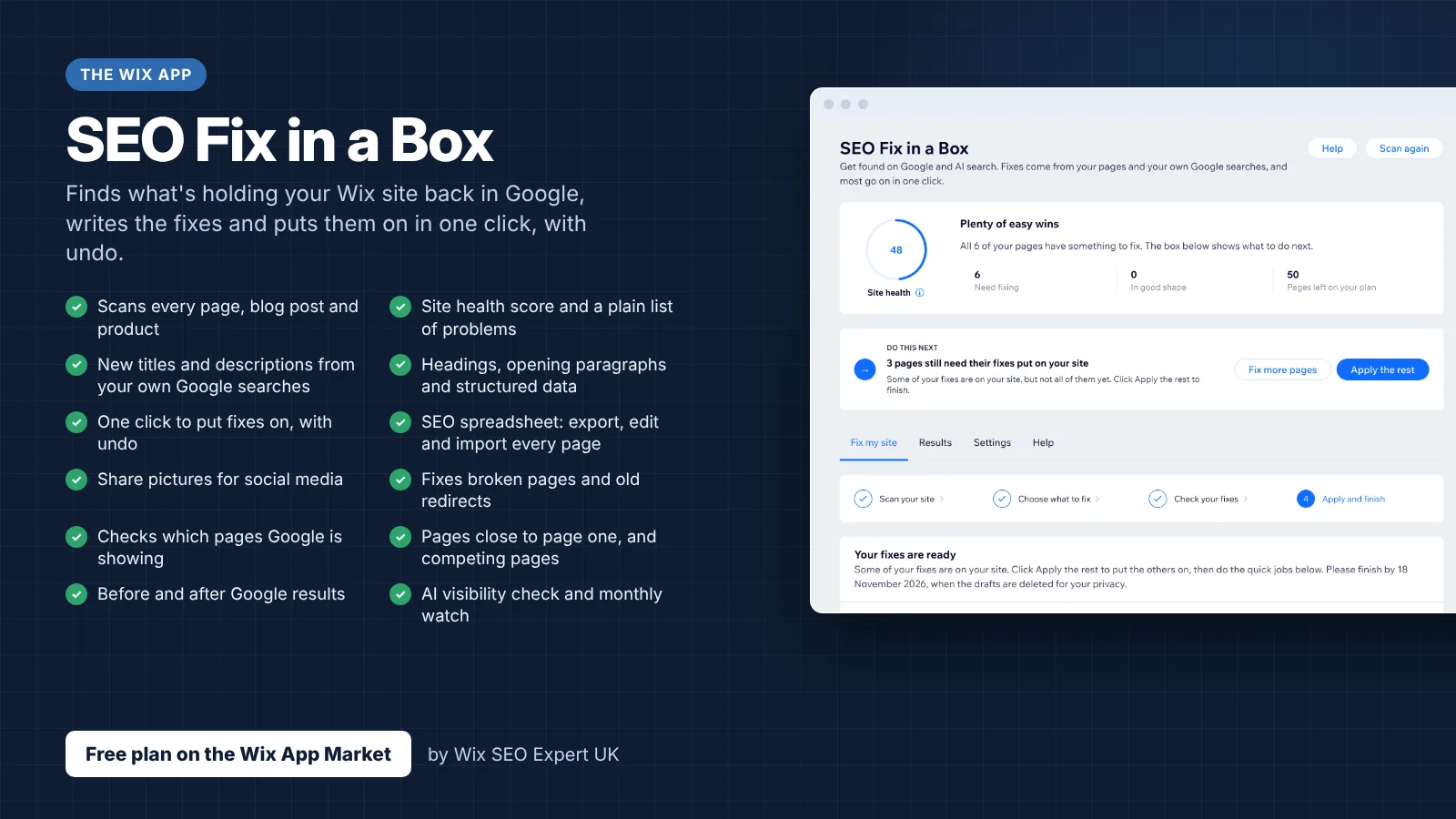
Wix SEO Fix in a Box scans every page, writes your fixes from your own Google searches and puts them on in one click, with undo. Start on the free plan.
Want this sorted on your own Wix site?
I have worked only on Wix for 14 years. Get Wix SEO Fix in a Box on the Wix App Market to find and fix what is holding your site back, or see my packages and prices if you would rather I did it all for you.
Frequently Asked Questions About the Wix SEO Wiz
Frequently Asked Questions
What is the Wix SEO Wiz?
The Wix SEO Wiz, now called the SEO Setup Checklist, is a built-in tool that creates a personalised step-by-step SEO plan for your Wix website. It guides you through entering your business name, selecting your service area, adding target keywords, connecting to Google Search Console, verifying your site, and submitting your sitemap. It is available from the SEO & GEO section of your Wix dashboard.
Is the Wix SEO Wiz free to use?
Creating the SEO checklist is free on all Wix plans. However, connecting your site to Google Search Console, which is one of the most important steps, requires a Wix Premium plan and a custom domain connected to your site. Without this, Google cannot verify and index your site through the checklist.
How do I access the Wix SEO Wiz in 2026?
Log in to your Wix dashboard, click SEO & GEO in the left sidebar, scroll to Tools and settings, and click SEO Setup Checklist. If you are using the checklist for the first time, click Get Started. If you have already created a checklist, your existing tasks and progress will be displayed.
How many keywords can I add to the SEO Wiz?
You can initially add up to 3 keyword phrases when creating your checklist, and later increase this to up to 5 keywords from the SEO Setup Checklist settings. Wix recommends keywords that are 2 to 4 words long. You can update your keywords at any time.
Does the Wix SEO Wiz automatically rank my site on Google?
No. The SEO Wiz helps you complete foundational SEO tasks such as connecting to Google Search Console and optimising your homepage meta tags, but it does not guarantee rankings. Ranking on Google requires ongoing work including quality content, backlinks, technical optimisation, and consistent SEO effort over time.
What is the difference between the SEO Wiz and the SEO Assistant?
The SEO Wiz (SEO Setup Checklist) is a one-time setup tool that creates your initial SEO plan. The SEO Assistant is an ongoing auditing tool available at both the sitewide and page levels that identifies current SEO issues and provides prioritised recommendations. The SEO Assistant runs continuously and updates as you make changes to your site.
Can I use the SEO Wiz on a free Wix plan?
You can create your SEO checklist on a free plan, but the most critical step, connecting to Google Search Console, requires a Premium plan and a connected custom domain. Without Google Search Console, Google may still find your site through other means, but the process is slower and you have no control or visibility over indexing.
How long does it take for Google to index my site after using the SEO Wiz?
Wix states that "it can take some time for Google to index your site's pages and display them in search results." This typically ranges from a few days to several weeks. New sites with no backlinks or authority may take longer. You can check the indexing status of individual pages using the Site Inspection tool in your Wix dashboard.
Where do I find the Wix SEO Wiz?
The SEO Wiz is located at SEO & GEO, then Tools and settings, then SEO Setup Checklist in your Wix site dashboard. In some dashboard versions it may appear under Marketing & SEO. You can also search for "SEO Setup Checklist" in the dashboard search bar to find it directly.
Can I change my SEO Wiz keywords after setting them up?
Yes. Go to your SEO Setup Checklist, click the Edit details icon next to Keywords, add or remove keywords, and click Save. You can have up to 5 keywords and change them as often as needed. Wix recommends reviewing keywords periodically, especially when your business focus changes.
What is the Wix Site Inspection tool?
The Site Inspection tool checks whether individual pages on your Wix site have been indexed by Google. It shows the current indexing status, crawl errors, and the last crawl date. You can also request that Google re-index a page directly from the tool. It requires your site to be connected to Google Search Console.
Do I still need an SEO expert after using the Wix SEO Wiz?
The SEO Wiz handles foundational setup but does not cover advanced SEO work such as in-depth keyword research, competitor analysis, content strategy, link building, technical auditing, schema markup implementation, or ongoing optimisation. For businesses that want to rank competitively, working with a Wix SEO specialist provides the strategic depth and ongoing support that the automated checklist cannot.