The Complete Guide to Wix Page Speed in 2026, and How to Fix It
By Michael Andrews | Published: 2026-08-25 | Updated: 2026-08-25 | 18 min read
A slow Wix site is rarely one problem. It is usually several small things adding up. This guide is built from real diagnostic work on real sites, not generic advice. It covers what actually slows Wix down, how to diagnose it properly, and what to fix first.
A slow Wix site is not usually one problem. It is several small things adding up. I have spent real time this year diagnosing exactly this, on my own site and on client sites, so this guide is built from what I have actually found working, not generic advice. If you have ever run your Wix site through PageSpeed Insights and felt confused or discouraged by the score, this guide will help you understand what is actually happening, what matters, and what to fix first.
Why Wix page speed matters beyond user experience
The obvious reason to care about page speed is that visitors leave slow sites. Research consistently shows that the longer a page takes to load, the higher the bounce rate. But there is a second, less obvious reason that matters specifically for SEO: Google uses Core Web Vitals as a ranking signal.
I want to be honest about what that actually means, though. Google has confirmed that Core Web Vitals (LCP, CLS, and INP) are part of their page experience ranking signals. But they have also been clear that content relevance and quality remain far more important. A fast page with irrelevant content will not outrank a slower page with excellent content. Core Web Vitals function more as a tiebreaker: when two pages are roughly equal in content quality, the faster one gets the edge.
Where page speed has a more direct and measurable impact is on user behaviour. A Wix site that loads in under two seconds keeps visitors engaged. A site that takes four or five seconds to feel interactive loses a significant percentage of visitors before they ever see the content. This affects your bounce rate, your time-on-page metrics, and your conversion rate, all of which indirectly influence how Google perceives the quality of your site over time.
The practical takeaway is this: you should care about Wix page speed, but you should care about it proportionally. Spending weeks chasing a perfect lab score while neglecting your content is the wrong priority. Getting your Core Web Vitals into the "good" range, then focusing your energy on content and links, is the right one.
What actually slows a Wix site down
After diagnosing performance issues on dozens of Wix sites this year, the same culprits come up repeatedly. Here is what I have actually found causing the slowdowns, ranked roughly by how often I encounter each one.
Oversized and unoptimised images
This is the single most common issue. Wix does automatically convert images to WebP or AVIF and serves responsive sizes, but it cannot fully compensate for an image uploaded at 5000 by 4000 pixels when it only displays at 800 by 600. The original file still needs to be fetched and processed. I regularly find Wix sites where the hero image alone accounts for over half the total page weight.
Video backgrounds
Video backgrounds look impressive but they are one of the heaviest elements you can add to a Wix page. Even with Wix's built-in optimisation, a video background loads a substantial media file that competes with everything else on the page for bandwidth. On mobile connections, this delay is amplified significantly. I have seen video backgrounds add two to three seconds to perceived load time on mobile devices.
Too many installed apps
Every Wix app you install adds its own JavaScript and CSS to your pages. Some apps add external network requests as well, reaching out to third-party servers during page load. The individual overhead of each app might seem modest, but the compounding effect of five, eight, or twelve apps running simultaneously is significant. I have measured sites where removing three unused apps improved LCP by over a second.
Excessive custom fonts
Wix allows you to use custom fonts, but each font family and weight you add requires an additional file download. Loading three or four font families with multiple weights each adds meaningful overhead. Wix recommends limiting yourself to one or two font families with two to three weights maximum, and that recommendation is well founded.
Complex page layouts with many sections
Wix pages with twenty or thirty sections, each containing multiple elements, strips, columns, and nested containers, require more rendering work than simpler layouts. This is not unique to Wix; any platform slows down with sufficiently complex layouts. But because Wix makes it easy to add sections, it is easy to end up with pages that are far more complex than they need to be.
How to properly diagnose the problem before fixing anything
This is the section most Wix page speed guides skip or rush through, and it is the most important part. Before you change anything on your site, you need to understand what is actually happening for your visitors. And that means understanding the difference between lab data and field data, because they often tell completely different stories.
Lab data versus field data: this distinction changes everything
When you enter your URL into PageSpeed Insights, the tool shows you two distinct types of measurement. At the top of the page, if your site has enough traffic, you will see a section headed "Discover what your real users are experiencing." This is field data: real measurements collected from Chrome users who actually visited your site over the previous 28 days. Below that, you will see a "Diagnose performance issues" section with a performance score out of 100. This is lab data: a simulated test run by Lighthouse on a throttled connection.
These two measurements frequently disagree, and understanding why is critical to making good decisions about your site.
The lab test simulates a mid-range mobile device on a throttled 4G connection. It is deliberately pessimistic. It represents roughly the worst-case scenario for how your page might load. This is useful for identifying potential issues, but it does not represent what most of your visitors actually experience.
The field data, by contrast, reflects your actual visitor mix. If most of your visitors are on desktop with fast broadband connections, your field data will reflect that. If you serve a primarily mobile audience in an area with slower connectivity, your field data will reflect that instead.
In my own testing this year, I have seen pages score 35 to 45 in the Lighthouse lab simulation while passing all three Core Web Vitals in the field data with comfortable margins. The lab test was flagging the page as problematic; the real users were experiencing it as fast. This is not unusual for Wix sites with primarily desktop audiences.
Expert Tip: Google uses field data, not lab scores, as its ranking signal. If your field data shows all three Core Web Vitals in the "good" range, your page is performing well for ranking purposes, regardless of what the lab score says. Do not make disruptive changes to a page that is already passing in the field.
Where to find your field data
There are three reliable places to check your real-world Core Web Vitals performance:
- Google Search Console, Core Web Vitals report: this groups all your pages by status (good, needs improvement, poor) and shows which specific metric is causing issues. This is the most actionable view for prioritising fixes.
- PageSpeed Insights, field data section: enter any URL and look at the "Discover what your real users are experiencing" panel at the top. This shows LCP, INP, CLS, and other metrics with their 75th percentile values. If this section is missing, your page does not have enough traffic for Chrome to have collected data.
- Chrome UX Report (CrUX): the underlying dataset that powers both of the above. You can query it directly through BigQuery or use the CrUX Dashboard for historical trends. This is more advanced but useful for tracking changes over time.
When to trust the lab score instead
Lab data is still valuable in specific situations. If your site is new and does not have enough traffic for field data to appear, the lab test is your only measurement. If you are testing changes before publishing them, the lab test lets you compare before and after. And the diagnostic section of Lighthouse (the opportunities and diagnostics lists) gives you specific, actionable recommendations for what to improve, even when your field data is already passing.
The key is to use lab data directionally, not as a verdict. A low lab score points you toward potential issues to investigate. Your field data tells you whether those issues are actually affecting your visitors.
Fixing image-related slowdowns
Images are typically the largest resources on any Wix page, so they deserve focused attention. Here is what Wix handles automatically and what you need to do yourself.
What Wix does for you
- Automatic format conversion: Wix converts uploaded images to WebP or AVIF depending on browser support, which are significantly smaller than JPEG or PNG at equivalent quality.
- Responsive sizing: Wix generates multiple size variants of each image and serves the appropriate one based on the visitor's screen size and device pixel ratio.
- Lazy loading: images below the initial viewport are lazy loaded, meaning they only start downloading when the visitor scrolls near them. This prevents offscreen images from competing with above-the-fold content.
- CDN delivery: all images are served through Wix's global CDN, which delivers them from servers geographically close to each visitor.
- Low-quality image placeholders: Wix generates small, blurred placeholder images that display immediately while the full image loads, reducing perceived loading time.
What you need to do yourself
- Upload at sensible dimensions: if your image displays at 800 pixels wide, uploading a 6000-pixel-wide original forces unnecessary processing. Resize before uploading when the source file is dramatically larger than needed.
- Watch your hero image: the largest image visible when the page first loads (your hero image, banner, or main photo) is almost always your LCP element. This image needs to load as quickly as possible, and its file size has a direct impact on your most important Core Web Vital.
- Avoid decorative images above the fold: every image in the initial viewport competes for bandwidth. Decorative backgrounds, icon strips, and accent images that appear before the main content all delay the loading of your most important visual element.
- Use the Wix image settings: in the Wix editor, you can adjust image quality settings. For most photographs, the default settings are appropriate. For large hero images, ensuring the focal point is set correctly helps Wix crop intelligently for different screen sizes.
What Largest Contentful Paint actually means and how to improve it
LCP is the Core Web Vital that measures how long it takes for the largest visible element in the viewport to render. On most Wix pages, this is either the hero image or the main heading text. Google considers LCP "good" when it happens within 2.5 seconds, "needs improvement" between 2.5 and 4 seconds, and "poor" above 4 seconds.
LCP is typically the metric where Wix sites struggle most in lab tests, and it is also the metric where the lab-versus-field distinction matters most. A Wix page might report an LCP of 4.5 seconds in the Lighthouse simulation (which throttles the connection heavily) while real visitors on broadband experience an LCP of 1.8 seconds.
The core principle for improving LCP is straightforward: ensure the largest visible element loads as early as possible rather than waiting behind other resources. In practice, this means:
- Identify your LCP element: run PageSpeed Insights and look at the "Largest Contentful Paint element" diagnostic. It tells you exactly which element on the page is being measured. On most Wix sites, this is the hero image or a large text heading.
- Reduce competition above the fold: every resource that loads before your LCP element delays it. If you have a complex header with multiple images, an animation library, and a cookie consent banner all loading before the hero image, each one pushes LCP later. Simplifying what loads in the initial viewport directly improves LCP.
- Avoid lazy loading the LCP element: lazy loading is excellent for offscreen images but counterproductive for the largest visible element. The LCP image needs to start loading immediately, not wait until it scrolls into view. In my own testing, ensuring the LCP element is prioritised early rather than deferred made the single largest measurable difference to performance.
- Consider replacing video backgrounds with static images on key landing pages: if your homepage hero is a video background, your LCP will be the video poster frame or the first frame of the video, both of which load significantly slower than a well-optimised static image.
The pattern I have seen most often on client sites is an LCP element that is not being prioritised. The image exists on the page and will eventually load, but the browser is spending its initial bandwidth on other resources first: fonts, app scripts, analytics, and offscreen images that are not yet visible. Reorganising what loads first, even without changing the content itself, consistently improves LCP. This is one area where understanding how a browser prioritises resources pays real dividends, and it is covered in depth in the site speed optimisation lesson in the free Wix SEO course.
Apps, embeds, and third-party scripts
Third-party code is one of the most underestimated performance drains on Wix sites. Every app, widget, and embed you add to your site introduces external resources that the browser must download, parse, and execute. Unlike your page content, which is served from Wix's CDN, these third-party resources often come from separate servers with their own latency characteristics.
The compounding effect
One app adding 50 milliseconds of overhead is invisible. Five apps each adding 50 to 150 milliseconds creates a cumulative delay of 250 to 750 milliseconds, which is very much visible. This is the pattern I encounter most frequently: no single app is "the problem," but the collection of apps together creates a meaningful performance impact.
Common high-impact third-party elements
- Live chat widgets: these typically load a full JavaScript application, often including their own framework, on every page of your site. If live chat is essential for your business, keep it. If you added it experimentally and rarely use it, the performance cost is not justified.
- Social media feed embeds: Instagram, Facebook, and Twitter feed embeds load substantial JavaScript and make multiple network requests to the social platform's servers. A static screenshot or a simple link to your social profiles is dramatically lighter.
- Multiple analytics tools: Google Analytics is relatively lightweight. Adding a second or third analytics platform (Hotjar, Mixpanel, Facebook Pixel, and others simultaneously) compounds the overhead meaningfully.
- Pop-up and notification apps: apps that display pop-ups, banners, or notification bars typically load on every page even when they are not being displayed, adding overhead site-wide.
How to audit your apps
Go to your Wix dashboard and review every installed app. For each one, ask: is this app actively contributing to my business goals? If you installed a testimonials app six months ago but never set it up, it is still loading its scripts on your pages. Remove it. If you have two apps serving overlapping purposes, keep the better one and remove the other. A quarterly app audit is one of the simplest maintenance tasks you can do for your site's performance.
What Wix itself does automatically, and what it does not
One of the most common sources of confusion about Wix page speed is not knowing where Wix's automatic optimisations end and your responsibility begins. Here is an honest breakdown, verified against Wix's own current documentation and my own testing.
What Wix handles for you
- Image format conversion and responsive sizing (WebP, AVIF, multiple size variants)
- Lazy loading of offscreen images and media
- Global CDN delivery for all site assets
- Automatic code splitting and JavaScript bundling
- Server-side rendering for initial page loads
- Browser caching headers for static assets
- HTTP/2 and HTTP/3 support for faster multiplexed connections
- Automatic SSL/TLS for all sites
- Low-quality image placeholders during loading
What Wix does not handle for you
- Choosing which element loads first (resource prioritisation for your specific layout)
- Limiting the number of apps and their combined overhead
- Deciding whether a video background is worth the performance cost on a given page
- Controlling how many custom fonts and weights are loaded
- Reducing the complexity of your page layout (number of sections, nested elements)
- Removing unused apps, widgets, or code
- Setting appropriate image dimensions before uploading
- Deciding which pages need performance optimisation most urgently
The important point here is that Wix's infrastructure is genuinely fast. The platform's CDN, rendering pipeline, and automatic optimisations are competitive with any modern website builder. The performance issues I encounter on Wix sites are almost always caused by decisions made within the editor: content choices, app installations, and design complexity. These are things you can control, and fixing them does not require custom code or developer expertise.
Fix your Wix SEO from your dashboard
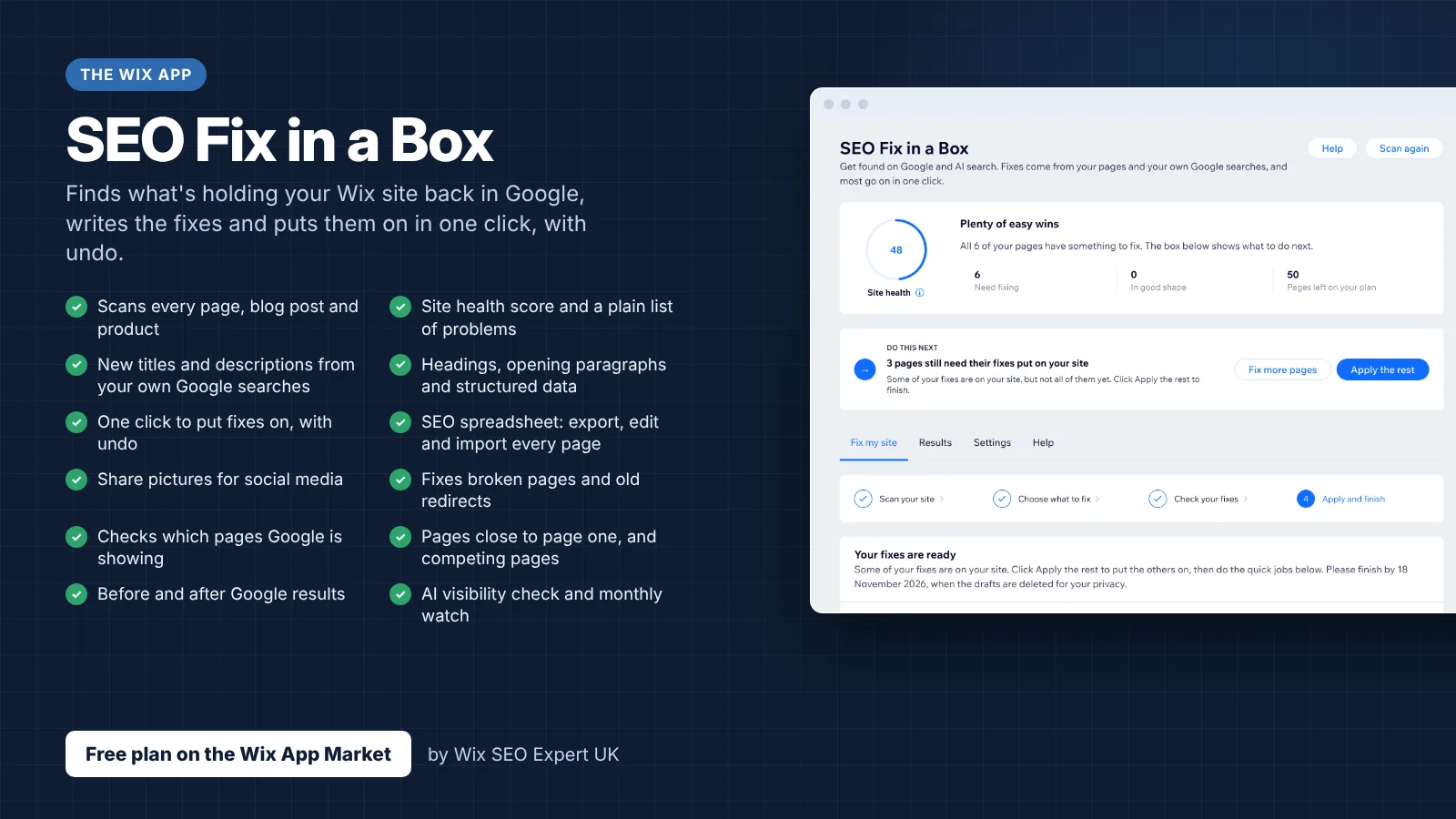
Wix SEO Fix in a Box scans every page, writes your fixes from your own Google searches and puts them on in one click, with undo. Start on the free plan.
Want this sorted on your own Wix site?
I have worked only on Wix for 14 years. Get Wix SEO Fix in a Box on the Wix App Market to find and fix what is holding your site back, or see my packages and prices if you would rather I did it all for you.
Frequently Asked Questions
Why is my Wix site slow?
The most common causes are unoptimised images that have not been resized for their display context, too many third-party apps installed, video backgrounds on landing pages, and excessive custom fonts. It is rarely one single problem. In my experience, most slow Wix sites have three or four of these issues happening simultaneously, each adding a fraction of a second that compounds into a noticeably sluggish experience.
Does Wix automatically optimise images?
Yes. Wix automatically converts uploaded images to modern formats like WebP and AVIF, serves them through a CDN, and generates responsive sizes for different screen widths. It also lazy loads images that are below the fold. However, Wix cannot fix an image that was uploaded at far larger dimensions than needed, and it does not control the priority of which image loads first on the page. You still need to upload sensibly sized images and be aware of which image is your largest visible element.
What is a good page speed score for a Wix site in 2026?
Focus on your Core Web Vitals field data rather than a single PageSpeed Insights score. Google uses real user data, not lab scores, as its ranking signal. A Wix site where real visitors experience LCP under 2.5 seconds, CLS under 0.1, and INP under 200 milliseconds is performing well. A lab score of 60 on mobile does not necessarily mean your site is slow for actual visitors if your field data passes all three thresholds.
Do apps and embeds slow down a Wix site?
Yes, significantly. Every app you install on Wix adds its own JavaScript, CSS, and sometimes external network requests. I have seen sites drop from a passing Core Web Vitals score to a failing one simply by installing three or four apps that each add modest overhead. Social media feed embeds, live chat widgets, and analytics plugins beyond the basics are the most common offenders. Audit your installed apps regularly and remove any you are not actively using.
Does page speed affect Google rankings?
Yes, but honestly. Google has confirmed that Core Web Vitals are a ranking signal, but they are one signal among many. A fast site with thin content will not outrank a slower site with excellent, relevant content. Page speed is best understood as a tiebreaker: when two pages are roughly equal in content quality and relevance, the faster one has an edge. The real impact of poor speed is on user experience, bounce rates, and conversion, which indirectly affect rankings through engagement signals.
What is the difference between PageSpeed Insights and real user data?
PageSpeed Insights runs two types of analysis. The lab data section runs a simulated test using Lighthouse, throttling the connection to mimic a mid-range mobile device on a slow network. The field data section (when available) shows real measurements from Chrome users who visited your site over the previous 28 days. These often disagree substantially. A page can score 45 in the lab simulation while passing all Core Web Vitals in the field data. Google uses the field data for ranking, not the lab score.
Can I improve page speed without custom code?
Absolutely. The majority of Wix page speed improvements require no code at all. Removing unused apps, replacing video backgrounds with static images, reducing the number of fonts loaded, properly sizing images before uploading, and simplifying page layouts are all changes you can make directly in the Wix editor. These typically have a larger impact than any code-based optimisation because they address the root causes rather than trying to optimise around them.
How do I check my site's Core Web Vitals?
The most reliable place is Google Search Console, under the Core Web Vitals report. This shows field data grouped by status: good, needs improvement, or poor. For individual page testing, use PageSpeed Insights and focus on the field data section at the top (labelled "Discover what your real users are experiencing"). If your site does not have enough traffic for field data, the lab data gives a directional indication but should not be treated as definitive.
Does switching to Wix Studio improve page speed?
Wix Studio uses a more modern rendering infrastructure than the classic Wix Editor, with improved CSS delivery and enhanced CDN performance. Sites built on Wix Studio generally produce better baseline performance scores. However, switching platforms does not fix fundamental issues like oversized images, excessive apps, or heavy page layouts. If your classic Wix site is slow because of content and design choices, a Studio rebuild will be faster at the infrastructure level but will still be slow if those same choices carry over.
Should I use a third-party speed optimisation app on Wix?
Be cautious. Some speed optimisation apps available in the Wix App Market can provide genuine improvements, particularly for image compression. However, any app you install adds its own code weight, which partially offsets its benefits. In my testing, the most effective approach is to fix the root causes first: remove unused apps, optimise images, simplify layouts. Only consider a speed app after you have done everything you can natively, and test your scores before and after installation to confirm it actually helps.