CourseInstance and Course structured data for Wix Online Programs
Module 59: Wix Online Programs SEO | Lesson 625 of 683 | 35 min read
By Michael Andrews, Wix SEO Expert UK
Google has a specific structured data type for educational courses: Course schema with CourseInstance for specific scheduled offerings. In January 2024, Wix added native CourseInstance structured data support for Online Programs, meaning Wix automatically applies schema markup that can make your course pages eligible to appear as rich results in Google search.
The Difference Between Course Schema and CourseInstance Schema
Course schema describes the educational offering itself - the subject, description, and provider. CourseInstance schema describes a specific run of that course with a start date, end date, delivery mode, and pricing. For a self-paced online course, CourseInstance may not have fixed dates but should include the courseMode (online) and the offer price.
How Wix Applies CourseInstance Schema Automatically
When you publish an Online Program on Wix, the platform automatically generates Course and CourseInstance schema based on the programme details you have entered: programme name, description, price, and learning mode. This schema is injected into the page source without any manual code. Your job is to ensure the programme details you enter are complete and accurate to produce quality schema.
Key Schema Properties to Populate in Your Programme
- Programme name: the schema name property - use your keyword-rich programme title
- Description: the schema description - write 150-300 words covering what learners will achieve
- Provider: your business or instructor name with sameAs links to your social profiles
- CourseMode: "online" for digital programmes, "onsite" for in-person, "blended" for hybrid
- Offers: the programme price, currency, and availability status
- inLanguage: the language of course instruction
Step-by-step: How to verify and optimise CourseInstance schema on your Wix Online Programs pages
- Open your Wix dashboard and navigate to Apps > Online Programs, then open the programme you want to check.
- Ensure the programme details are fully completed: programme name, description (150-300 words), pricing, and delivery mode.
- Publish or update the programme so the latest details are live on your site.
- Copy the URL of your programme overview page from your browser.
- Open the Google Rich Results Test at search.google.com/test/rich-results and paste the programme overview URL into the test field.
- Click "Test URL" and wait for the results - look for Course and CourseInstance schema in the detected structured data list.
- Review any errors or warnings listed and return to the programme settings in your Wix dashboard to correct the relevant fields.
- For the "provider" property, ensure your business name and website URL are set in your Wix site settings so Wix can populate the schema provider field accurately.
- Retest after making any corrections and confirm all required schema properties are present without errors before considering the implementation complete.
How to Add Course Schema to Your Wix Online Program Pages
Verifying and supplementing Wix's automatically generated CourseInstance schema ensures your programmes are eligible for rich results and that all schema properties reflect accurate programme data.
How to verify, optimise, and supplement Course and CourseInstance schema on Wix Online Programs pages
- Open Wix Dashboard > Online Programs and select the programme you want to check - review that all programme fields are fully completed: name, description, pricing, and delivery mode.
- Ensure the programme description is at least 150 words and covers learning outcomes, target audience, and course content - this populates the schema description property.
- Publish the programme so the latest data is live, then copy the programme overview page URL from your browser.
- Open the Google Rich Results Test at search.google.com/test/rich-results and paste the programme URL into the test field.
- Click "Test URL" and wait for the analysis - look for Course and CourseInstance schema in the Detected Items list.
- Review any errors or warnings shown - common issues include missing provider name, incomplete description, or incorrect courseMode value.
- Return to Wix Dashboard > Online Programs and correct any fields identified as causing schema errors - update description length, pricing, or delivery mode as needed.
- For the "provider" property, navigate to Wix Dashboard > Settings > Business Info and ensure your business name and website are correctly configured so Wix can populate the schema provider field.
- If you need to add supplementary schema properties not supported natively by Wix, use Wix Dashboard > Settings > Custom Code to inject additional JSON-LD markup.
- Retest the programme URL in the Rich Results Test after making corrections to confirm all required schema properties pass without errors.
- Once schema is confirmed error-free, monitor the programme overview page in Google Search Console over the following 4-6 weeks for any course rich result appearances in the Performance report.
Essential Tools for This Lesson
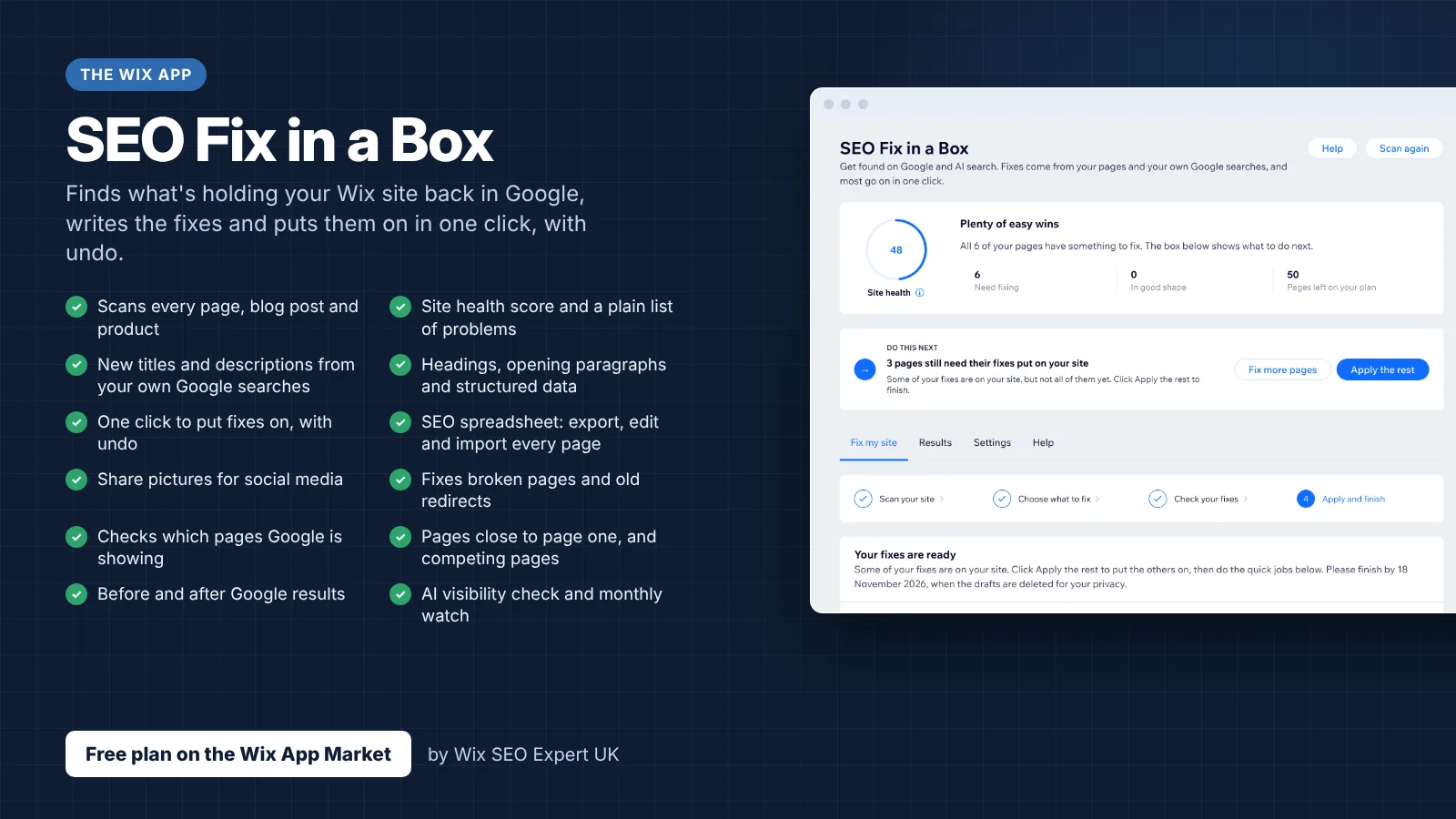
- SEO Fix in a Box: My Wix app. Free to install, it scans your site and shows what needs fixing, and paid plans write the fixes from your own Google searches
Was this lesson useful?
It takes 1 minute to tell me. The course is free and I want to keep it that way, and your feedback shows me what is working and helps other people find it.
This lesson on CourseInstance and Course structured data for Wix Online Programs is part of Module 59: Wix Online Programs SEO in The Most Comprehensive Complete Wix SEO Course in the World (2026 Edition). Created by Michael Andrews, a Wix Marketplace Legend Partner with 14 years of hands-on experience, 800 completed Wix SEO projects and 456 verified five-star reviews.