PDF SEO fundamentals: how Google indexes PDF documents on Wix
Module 33: PDF, Document & Downloadable Asset SEO on Wix | Lesson 384 of 683 | 45 min read
By Michael Andrews, Wix SEO Expert UK
Google indexes PDFs. This is a fact most Wix site owners overlook entirely. When you upload a price list, brochure, menu, whitepaper, or any PDF to your Wix site, Google can crawl it, index it, and show it directly in search results. But most PDFs uploaded to Wix are completely unoptimised: generic filenames like "document1.pdf", no metadata, no internal links, and no consideration for how they appear in search. This lesson covers how Google handles PDFs, why PDF SEO matters, and the fundamentals every Wix site owner needs to understand before optimising their documents.
How Google Crawls and Indexes PDFs
Google has been indexing PDF documents since 2001. Googlebot can read text content within PDFs, follow links embedded in PDFs, and extract metadata. When a PDF ranks in Google, users see a "[PDF]" label next to the result. The title shown in search results comes from the PDF title metadata (not the filename), and the snippet comes from the PDF text content. Google treats each PDF as a separate indexable document, meaning a single PDF can rank independently from your website pages.
- Google extracts text from PDFs for indexing, including headings, body text, and table content
- The PDF title metadata appears as the search result title, not the filename
- Links within PDFs pass link equity just like links on web pages
- Google can index PDFs up to several hundred megabytes in size
- Scanned PDFs without OCR text layers are not indexable by Google
- Password-protected PDFs cannot be crawled or indexed
- PDFs compete with web pages for rankings on the same keywords
Common PDF Types on Wix Sites
Most Wix business sites host several types of PDFs without realising their SEO potential. Restaurant menus, product catalogues, price lists, service brochures, whitepapers, case studies, ebooks, technical specifications, application forms, and terms and conditions documents are all commonly uploaded as PDFs. Each represents an SEO opportunity if optimised correctly, or an SEO liability if uploaded with default settings.
Why PDF SEO Matters for Wix Businesses
PDFs can rank for valuable keywords that your web pages may struggle to rank for. A comprehensive PDF guide on a topic carries authority signals that Google values. Whitepapers and research documents attract backlinks naturally. Product catalogues in PDF format can rank for "[brand] catalogue 2026" searches. Price lists can rank for "[service] prices [city]" queries. By ignoring PDF SEO, Wix site owners leave significant organic traffic on the table.
Audit your current PDF SEO situation on Wix
- Step 1: List every PDF currently hosted on your Wix site. Check your Media Manager for uploaded PDFs and check every page for embedded or linked PDF files.
- Step 2: For each PDF, note the filename, file size, whether it has a title metadata set, and what keywords it could target.
- Step 3: Search Google for site:yourdomain.com filetype:pdf to see which PDFs Google has already indexed.
- Step 4: For each indexed PDF, check the search result appearance: does the title make sense? Does the snippet accurately represent the content?
- Step 5: Note any PDFs that are indexed but should not be (internal documents, draft versions, outdated materials).
- Step 6: Identify PDFs that could target valuable keywords but are currently unoptimised.
- Step 7: Check the file sizes. PDFs over 5MB should be compressed for faster loading.
- Step 8: Verify that no sensitive or confidential PDFs are publicly accessible and indexed.
Complete How-To Guide: Understanding PDF Indexation on Your Wix Site
Step-by-step guide to mapping your PDF SEO landscape
- Step 1: Open your Wix Media Manager and filter by document type. Export or screenshot the list of all uploaded PDFs.
- Step 2: Open Google and search: site:yourdomain.com filetype:pdf. Record every result Google shows.
- Step 3: Cross-reference the two lists. PDFs in your Media Manager but not in Google results are either not linked from any page (orphaned) or blocked from indexing.
- Step 4: For each indexed PDF, open it and check: does it have a proper title (shown when you hover over the browser tab)? Is the text selectable (not just a scanned image)?
- Step 5: Download each PDF and check its properties (right-click > Properties on Windows, or Get Info on Mac). Note the Title, Author, Subject, and Keywords metadata fields.
- Step 6: Create a spreadsheet with columns: Filename, Current Title Metadata, Target Keyword, File Size, Indexed (Yes/No), Pages Linking to It, Action Required.
- Step 7: Prioritise PDFs by SEO potential: whitepapers and guides (highest), product catalogues and price lists (high), brochures (medium), forms and terms (low).
- Step 8: This audit spreadsheet becomes your PDF SEO action plan for the following lessons in this module.
Essential Tools for This Lesson
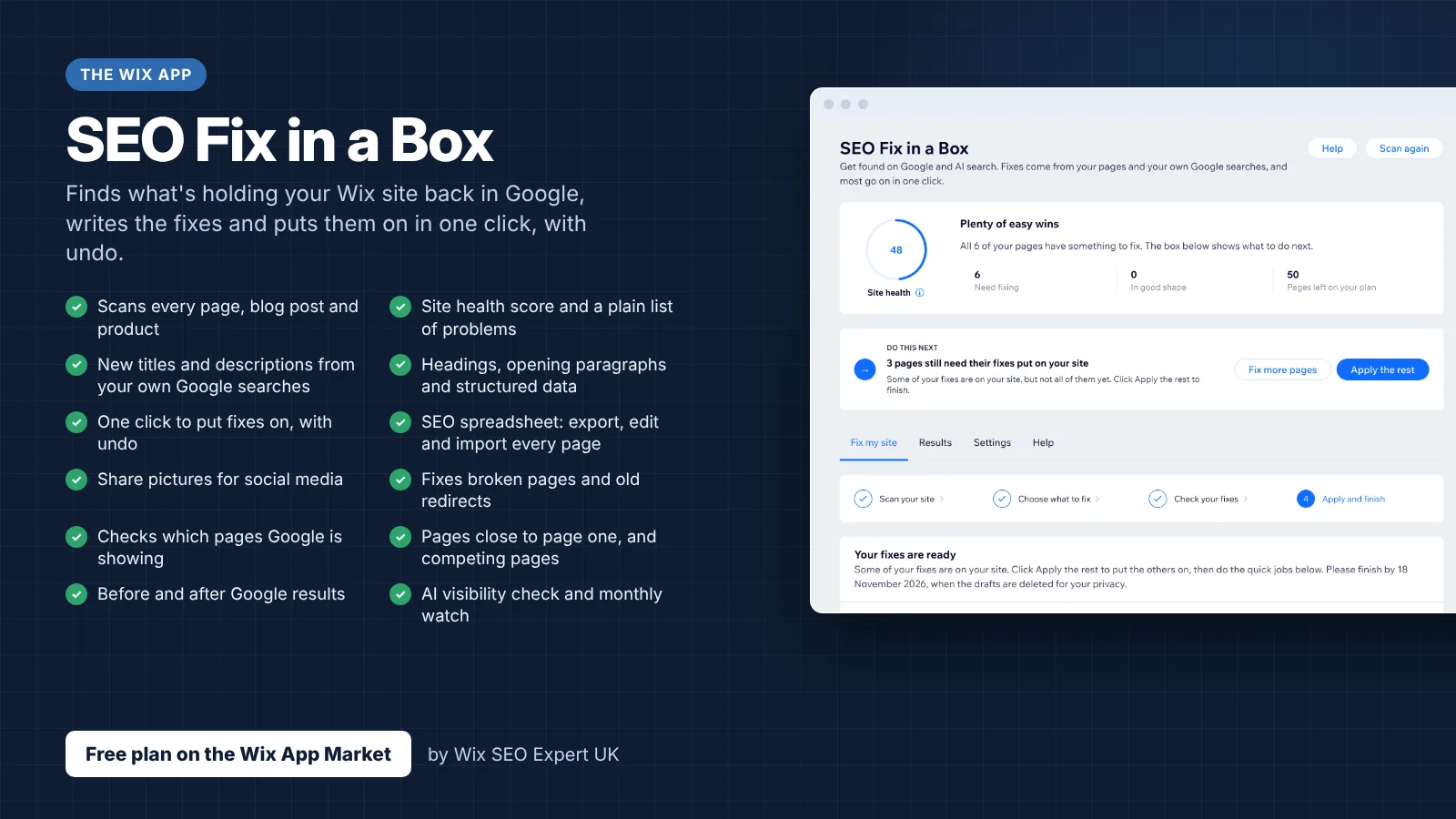
- SEO Fix in a Box: My Wix app. Free to install, it scans your site and shows what needs fixing, and paid plans write the fixes from your own Google searches
Was this lesson useful?
It takes 1 minute to tell me. The course is free and I want to keep it that way, and your feedback shows me what is working and helps other people find it.
This lesson on PDF SEO fundamentals: how Google indexes PDF documents on Wix is part of Module 33: PDF, Document & Downloadable Asset SEO on Wix in The Most Comprehensive Complete Wix SEO Course in the World (2026 Edition). Created by Michael Andrews, a Wix Marketplace Legend Partner with 14 years of hands-on experience, 800 completed Wix SEO projects and 456 verified five-star reviews.