Optimising PDF metadata: titles, descriptions and keywords for search
Module 33: PDF, Document & Downloadable Asset SEO on Wix | Lesson 385 of 683 | 48 min read
By Michael Andrews, Wix SEO Expert UK
PDF metadata is the equivalent of title tags and meta descriptions for web pages. The PDF title appears as the search result title in Google. The subject and description fields influence the snippet. Keywords help search engines understand the document topic. Yet 95% of PDFs uploaded to Wix sites have blank or default metadata like "Microsoft Word - Document1". This lesson teaches you how to optimise every PDF metadata field for maximum search visibility.
Essential PDF Metadata Fields for SEO
- Title: The most important field. Appears as the search result title. Should be 50-60 characters, include the target keyword, and accurately describe the document.
- Author: Should be the business name or individual author. Builds E-E-A-T signals.
- Subject: A brief summary of the document topic. Functions like a meta description.
- Keywords: Relevant keywords separated by commas. Less impactful than title but still used by some search engines.
- Creator: The application used to create the PDF. Less important for SEO but good practice to set.
- Producer: The PDF generation tool. Informational only.
How to Set PDF Metadata
PDF metadata can be set in the application that creates the PDF (Word, Google Docs, InDesign, Canva) or edited after creation using PDF tools. For existing PDFs, free tools like PDF24, iLovePDF, or Adobe Acrobat Reader allow you to edit document properties including title, author, subject, and keywords.
Optimise PDF metadata for search using free tools
- Step 1: Download the PDF from your Wix Media Manager to your computer.
- Step 2: Open the PDF in Adobe Acrobat Reader (free). Go to File > Properties.
- Step 3: In the Description tab, set the Title field. Use your target keyword naturally: "Complete Price List for Plumbing Services in Manchester 2026" not "Price List".
- Step 4: Set the Author field to your business name or the document author.
- Step 5: Set the Subject field to a 1-2 sentence description of the document: "Comprehensive pricing guide for residential and commercial plumbing services across Greater Manchester including emergency callout rates."
- Step 6: Set the Keywords field with 5-8 relevant keywords separated by commas: "plumbing prices, plumber costs Manchester, emergency plumber rates, commercial plumbing pricing, plumbing service guide".
- Step 7: Save the PDF with the updated metadata.
- Step 8: Rename the file with an SEO-friendly filename: plumbing-services-price-list-manchester-2026.pdf (not document1.pdf or pricelist-FINAL-v3.pdf).
- Step 9: Upload the optimised PDF to your Wix Media Manager, replacing the original.
- Step 10: Update any links on your Wix site that point to the old PDF URL.
PDF Filename Best Practices
The PDF filename becomes part of the URL when hosted on Wix. Google uses the URL as a ranking signal. A filename like "plumbing-services-price-list-manchester-2026.pdf" gives Google clear information about the document content. Use hyphens to separate words (not underscores or spaces), include your primary keyword, and keep the filename descriptive but concise.
Creating PDFs with Pre-Set Metadata
The best approach is setting metadata before creating the PDF. In Microsoft Word, go to File > Properties before saving as PDF. In Google Docs, the document title becomes the PDF title. In Canva, the design name becomes the PDF title. In Adobe InDesign, use File > File Info to set all metadata fields before exporting to PDF. Setting metadata at creation prevents the common problem of forgetting to optimise after the fact.
Complete How-To Guide: Batch Optimising All PDFs on Your Wix Site
Systematic metadata optimisation for all your PDFs
- Step 1: Using your PDF audit spreadsheet from Lesson 1, prioritise PDFs by SEO potential: highest-value documents first.
- Step 2: For each PDF, research the target keyword using Google Keyword Planner. Identify the primary keyword the PDF should rank for.
- Step 3: Write an optimised Title (50-60 characters including target keyword), Subject (1-2 sentences), and Keywords (5-8 terms).
- Step 4: Download the PDF from Wix Media Manager.
- Step 5: Open in Adobe Acrobat Reader or use iLovePDF.com online editor to set all metadata fields.
- Step 6: Rename the file with a keyword-rich, hyphenated filename.
- Step 7: Compress the file if over 2MB using iLovePDF compress feature or SmallPDF.
- Step 8: Re-upload to Wix Media Manager. If the URL changes, update all links pointing to the PDF.
- Step 9: In Google Search Console, use URL Inspection on the new PDF URL and request indexing.
- Step 10: After 2-4 weeks, search for your target keyword + filetype:pdf to verify the optimised PDF is ranking with the correct title and snippet.
- Step 11: Repeat for all priority PDFs. Aim to optimise 5 PDFs per week until all are done.
- Step 12: Set a process for new PDFs: every PDF uploaded to the site must go through the metadata optimisation checklist before publishing.
Essential Tools for This Lesson
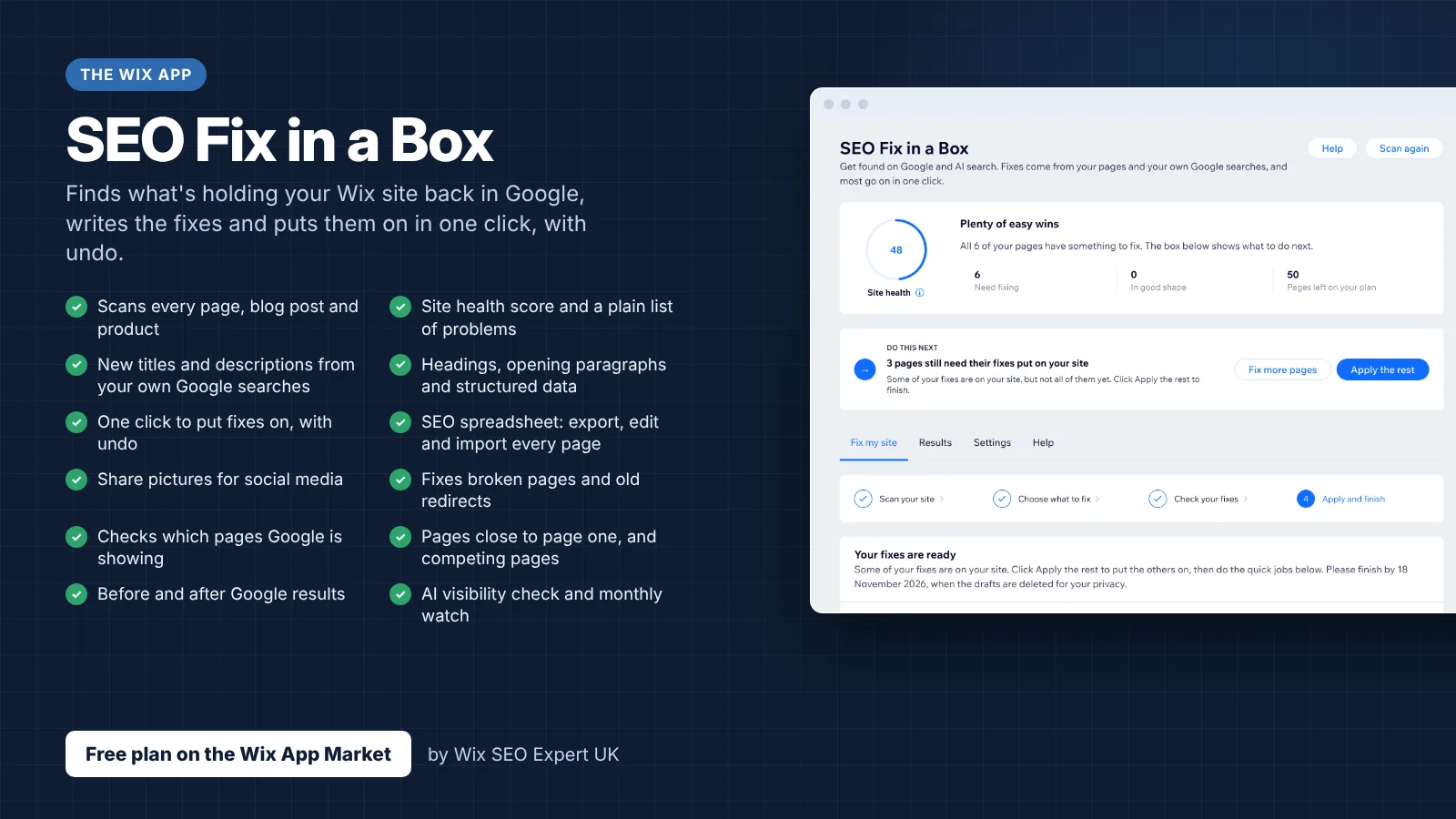
- SEO Fix in a Box: My Wix app. Free to install, it scans your site and shows what needs fixing, and paid plans write the fixes from your own Google searches
Was this lesson useful?
It takes 1 minute to tell me. The course is free and I want to keep it that way, and your feedback shows me what is working and helps other people find it.
This lesson on Optimising PDF metadata: titles, descriptions and keywords for search is part of Module 33: PDF, Document & Downloadable Asset SEO on Wix in The Most Comprehensive Complete Wix SEO Course in the World (2026 Edition). Created by Michael Andrews, a Wix Marketplace Legend Partner with 14 years of hands-on experience, 800 completed Wix SEO projects and 456 verified five-star reviews.