Wix Site Inspection: bulk checking indexability across your entire site
Module 16: Wix Native SEO Tools & AI Visibility | Lesson 185 of 683 | 25 min read
By Michael Andrews, Wix SEO Expert UK
Wix Site Inspection connects to Google Search Console and presents indexability data for all your pages in a single, filterable dashboard. Instead of checking pages one by one in GSC, you can see the indexing status of every page on your Wix site at a glance, filter by issue type, and prioritise fixes systematically.
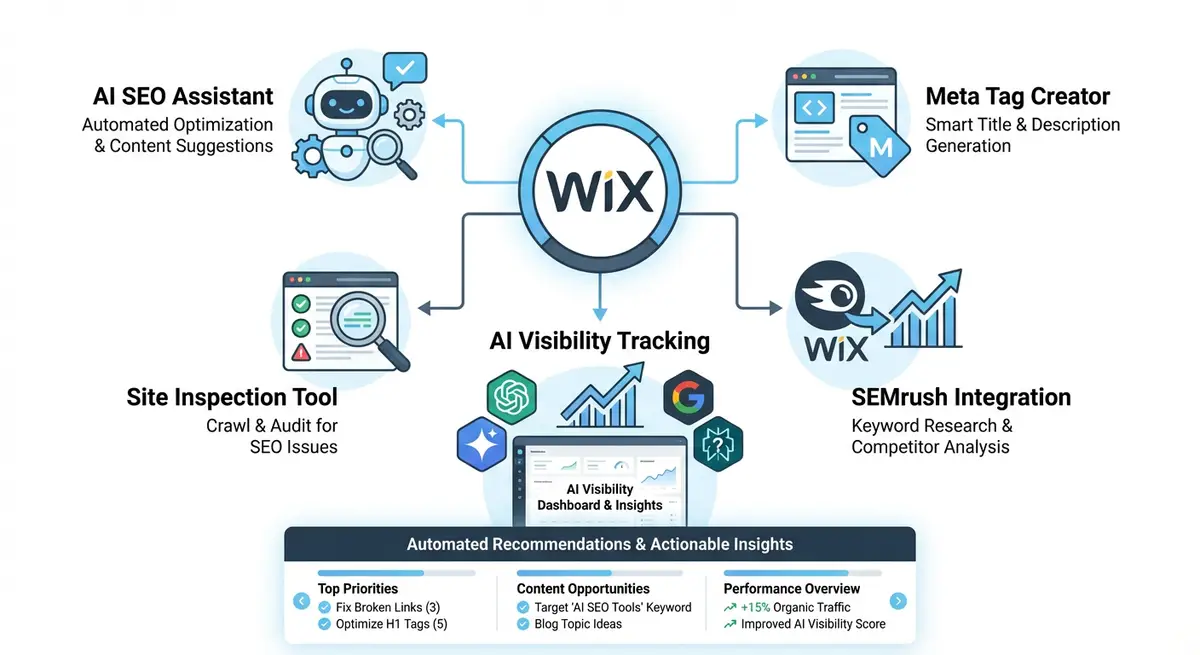
Running a Full Site Inspection
How to access Site Inspection
- Go to your Wix Dashboard and navigate to Marketing & SEO > SEO Tools.
- Click on Site Inspection to open the inspection dashboard.
- Ensure your Wix site is connected to Google Search Console (required for data).
- Click Run Inspection to pull the latest indexing data from GSC.
- Wait for the inspection to complete, which takes 1-5 minutes depending on site size.
Understanding the Results
- Indexed pages: pages that Google has crawled, rendered, and added to its search index. These can appear in search results.
- Not indexed - crawled: Google crawled the page but decided not to index it. Often a content quality signal.
- Not indexed - discovered: Google knows the page exists but has not crawled it yet. May indicate crawl budget issues.
- Excluded by noindex: pages with a noindex meta tag. Verify these are intentionally excluded.
- Redirect pages: pages that redirect to other URLs. Ensure redirects point to the correct destinations.
- Error pages: pages returning 4xx or 5xx status codes that need fixing.
Rich Results Status
Site Inspection also shows which pages have valid structured data and are eligible for rich results in Google. This includes FAQ schema (for AI citation visibility), Product schema, Review schema, and other markup types. Pages with structured data errors will not be properly processed by search engines or AI systems, so fixing validation errors is a quick win.
Complete How-To Guide: Using Wix Site Inspection to Fix Indexing Issues
This guide walks you through a systematic process for using Wix Site Inspection to identify, prioritise and fix indexing issues across your entire Wix site.
How to use Wix Site Inspection to ensure all important pages are indexed
- Step 1: Run a full Site Inspection from your Wix Dashboard > Marketing & SEO > SEO Tools > Site Inspection. Wait for the scan to complete and review the summary dashboard.
- Step 2: Note the total number of indexed versus non-indexed pages. Calculate the index ratio (indexed pages divided by total pages). A healthy Wix site should have an index ratio above 80%.
- Step 3: Filter the results to show only Not Indexed pages. Sort by page type or URL pattern to identify whether specific sections of your site have indexing problems.
- Step 4: For each "Crawled - currently not indexed" page, evaluate the content quality. Google chose not to index these pages, which usually means the content is too thin, duplicative, or low value. Either improve the content or add a noindex tag if the page is not important.
- Step 5: For "Discovered - currently not indexed" pages, the issue is often crawl budget. Improve internal linking to these pages by adding contextual links from your most authoritative pages.
- Step 6: Check all pages marked as "Excluded by noindex." Verify that every noindex page is intentionally excluded. If you find important pages accidentally tagged with noindex, remove the tag immediately in the Wix page SEO settings.
- Step 7: Review redirect pages to ensure they point to the correct final destination. Redirect chains (A redirects to B which redirects to C) waste crawl budget and should be updated to redirect directly from A to C.
- Step 8: Fix any pages showing 4xx or 5xx error status codes. For 404 errors, either restore the page or set up a 301 redirect to the most relevant existing page.
- Step 9: Check the Rich Results section for structured data validation errors. Click into each error, note the specific issue, and fix the markup in your Wix page code or structured data settings.
- Step 10: After fixing issues, use Google Search Console URL Inspection tool to request reindexing for each fixed page. This speeds up Google recrawling the corrected pages.
- Step 11: Re-run the Site Inspection one week after making fixes to verify that previously broken pages are now indexed correctly.
- Step 12: Schedule a monthly Site Inspection review as part of your SEO maintenance routine. New pages, updated content, and Wix platform changes can introduce indexing issues at any time.
How to Fix Indexing Issues Found by Wix Site Inspection
After running Wix Site Inspection and identifying non-indexed pages, you need a systematic process to fix each issue type. These steps cover the most common indexing problems and their solutions.
How to diagnose and fix indexing issues using Wix Site Inspection
- Step 1: Log in to your Wix Dashboard and navigate to Marketing & SEO > SEO Tools > Site Inspection. Click Run Inspection and wait for the scan to complete. Review the indexed versus not-indexed breakdown.
- Step 2: Filter the results to show Not Indexed pages. Note the total count and the breakdown by reason (Crawled but not indexed, Discovered but not indexed, Excluded by noindex, Redirect, Error).
- Step 3: For pages marked as Excluded by noindex: click each one to view details. Navigate to that page in the Wix Editor. Go to SEO settings and check the indexing toggle. If important pages are accidentally set to noindex, change the setting to Allow indexing and publish.
- Step 4: For pages marked as Crawled but not indexed: these pages were crawled but Google decided not to index them. The most common cause is thin content. Open each page in the Wix Editor and review the word count. Pages under 300 words need significant content expansion.
- Step 5: Expand thin pages by adding a detailed overview section, an FAQ section with 5+ questions and full answers, a process or how-it-works section, and customer testimonials. Target at least 600 words per page.
- Step 6: For pages marked as Discovered but not indexed: Google knows they exist but has not crawled them yet. This often indicates a crawl budget issue. Add internal links from your most authoritative pages to these under-linked pages.
- Step 7: For pages showing as Redirect: verify each redirect destination is correct. Navigate to Settings > Redirects in your Wix Dashboard and check that the destination URL is the most relevant live page (not just the homepage).
- Step 8: For pages showing as Error (4xx or 5xx): these need immediate attention. For 404 errors on previously important pages, create a redirect via Settings > Redirects. For 500 server errors, check for recent code changes or app conflicts.
- Step 9: After fixing the content or settings issues on not-indexed pages, navigate to Google Search Console and use the URL Inspection tool. Enter each fixed page URL and click Request Indexing to prompt Google to recrawl.
- Step 10: Check the Rich Results section of Site Inspection for structured data errors. Click each error to see the specific field that failed validation. Open the affected page in the Wix Editor > SEO settings > Advanced SEO and correct the JSON-LD.
- Step 11: Re-run Site Inspection one week after making fixes. Compare the new not-indexed count against your previous scan. Verify that fixed pages have moved to indexed status.
- Step 12: If pages remain not-indexed after fixing content and requesting indexing, check Google Search Console Coverage report for more detailed error information. Some pages may have quality issues that require more substantial content improvements.
Essential Resources
- Google Search Console: Source data for Wix Site Inspection and URL Inspection tool
- Google Rich Results Test: Validate structured data on pages flagged with schema errors
- Wix SEO Help Centre: Official guidance on using Site Inspection and fixing indexing issues
- SEO Fix in a Box: My Wix app. Free to install, it scans your site and shows what needs fixing, and paid plans write the fixes from your own Google searches
Was this lesson useful?
It takes 1 minute to tell me. The course is free and I want to keep it that way, and your feedback shows me what is working and helps other people find it.
This lesson on Wix Site Inspection: bulk checking indexability across your entire site is part of Module 16: Wix Native SEO Tools & AI Visibility in The Most Comprehensive Complete Wix SEO Course in the World (2026 Edition). Created by Michael Andrews, a Wix Marketplace Legend Partner with 14 years of hands-on experience, 800 completed Wix SEO projects and 456 verified five-star reviews.