Wix SEO Wiz and the built-in SEO dashboard
Module 2: How to Set Up Your Wix Site for Maximum SEO | Lesson 14 of 683 | 40 min read
By Michael Andrews, Wix SEO Expert UK
Wix's built-in SEO Dashboard has evolved from a basic checklist into a genuinely useful diagnostic tool. It identifies SEO issues across your entire site, provides per-page recommendations, and offers bulk editing capabilities that save significant time. However, not every recommendation is equally important, and blindly following all suggestions can waste your time on low-impact changes while missing what actually matters. This lesson teaches you to use the Wix SEO Dashboard strategically, focusing on the recommendations that move the needle.
Understanding the Wix SEO Ecosystem
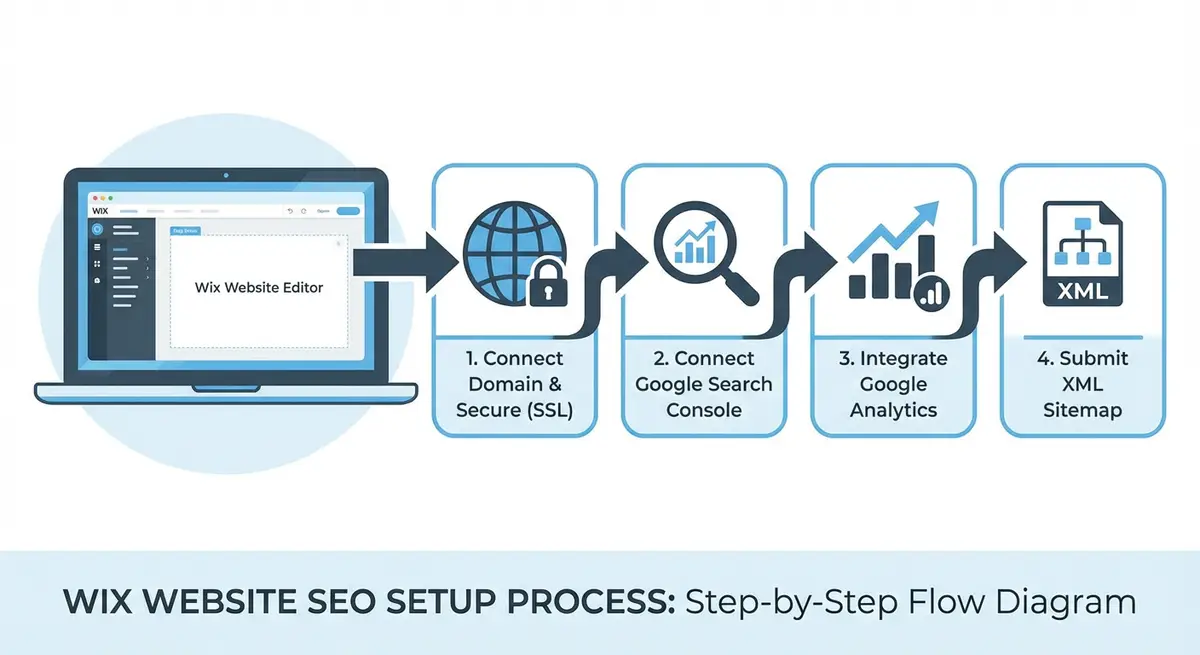
Wix has three overlapping SEO tools that often confuse users. Understanding what each does prevents duplication of effort:
- Wix SEO Wiz (Setup Checklist): A one-time guided setup wizard that appears when you first enable SEO on your site. It walks you through basic tasks like connecting GSC, submitting your sitemap, and setting your homepage title tag. Once completed, you rarely need to revisit it.
- Wix SEO Dashboard: An ongoing diagnostic tool found at Marketing & SEO > SEO. Shows a health score, site-wide issues, and per-page recommendations. This is your primary ongoing SEO monitoring tool within Wix.
- Per-Page SEO Panel: The SEO (Google) panel accessible from each page's settings in the Wix editor. Where you set title tags, meta descriptions, URLs, and other per-page SEO settings.
Navigating the Wix SEO Dashboard
How to access and navigate the SEO Dashboard
- From your Wix main dashboard, click Marketing & SEO in the left sidebar
- Click "SEO" to open the SEO tools section
- Click "Go to SEO Dashboard" to open the full diagnostic view
- You will see an overall SEO health score (0-100) and a prioritised list of recommendations
- Recommendations are grouped by category: Indexing, Structure, On-Page, Performance, and Social
- Each recommendation shows how many pages are affected and the severity level (Critical, Recommended, Optional)
- Click any recommendation to see the specific pages affected and the fix instructions
High-Priority Recommendations: Fix These First
Not all Wix SEO Dashboard recommendations have equal impact. Here are the ones that directly affect rankings and should be fixed immediately:
- Missing title tags: Pages without custom title tags use the Wix default (often just the page name). This is one of the highest-impact fixes. Set a unique, keyword-rich title for every page.
- Missing meta descriptions: While not a direct ranking signal, missing meta descriptions mean Google auto-generates them, often poorly. Write compelling descriptions for every page.
- Pages not indexed: If the dashboard flags pages that should be indexed but are not, investigate immediately. Check for noindex tags, thin content, or crawl issues.
- Missing alt text on images: Important for accessibility, image search, and demonstrating content quality. Add descriptive alt text to every image.
- Broken links: Internal broken links waste crawl budget and signal poor maintenance. Fix or remove every broken link.
- Missing H1 tags: Every page needs exactly one H1. If the dashboard flags missing H1s, fix the heading structure in the editor.
- Slow page speed warnings: These link to PageSpeed Insights data. Follow the fix recommendations from Lesson 3 of Module 1.
Recommendations to Treat with Caution
Some Wix SEO Dashboard recommendations are well-intentioned but can lead you astray if followed blindly:
- "Add more text to your page": The dashboard sometimes flags pages as having insufficient text content. However, word count is NOT a ranking factor. A 300-word service page that perfectly answers the searcher's query outranks a 3,000-word page of filler. Add value, not words.
- "Your page has too many links": On normal content pages with good navigation and in-content links, this is rarely a problem. Google can handle hundreds of links per page. Only worry if you have genuinely spammy numbers of links (200+) with no content context.
- "Connect social media accounts": Useful for brand building and social sharing, but connecting social accounts has zero direct impact on search rankings. Do it for user experience, not SEO.
- "Add structured data": The dashboard may suggest adding schema markup that is already handled automatically by Wix for your content type (blog posts, products, events). Check what Wix already provides before adding duplicate markup.
Using Focus Keywords in the SEO Dashboard
The Wix SEO Dashboard allows you to set a "focus keyword" for each page. This triggers keyword-specific recommendations based on whether your focus keyword appears in the title tag, meta description, H1, URL, body content, and image alt text.
How to effectively use focus keywords
- Open the SEO Dashboard and click on any page
- Click "Set Focus Keyword" or "Change Keyword"
- Enter your primary target keyword for that page (from your keyword map)
- The dashboard updates with keyword-specific recommendations
- Work through each recommendation: add the keyword to your title tag (near the start), include it in your meta description, ensure it appears in your H1 heading, and use it naturally in your page content
- Do NOT force the keyword into every element if it reads unnaturally. Google's algorithms are sophisticated enough to understand semantic variations.
- Set a different focus keyword for every page. No two pages should target the same keyword.
SEO Patterns: Automating SEO for Dynamic Pages
SEO Patterns is one of Wix's most powerful but underused features. It allows you to create templates that automatically generate title tags, meta descriptions, and structured data for dynamic pages like blog posts, product pages, and collection items.
How to configure SEO Patterns
- Go to Marketing & SEO > SEO > SEO Patterns
- Select the content type you want to configure (Blog Posts, Products, etc.)
- For Blog Posts, set the title pattern. Example: {postTitle} | {siteName}
- Set the meta description pattern. Example: {postExcerpt}... Read more on {siteName}.
- Set the URL pattern to use the post title slug by default
- For Products, set similar patterns using product name, price, and category variables
- Click Save to apply patterns to all existing and future posts/products
- Test by creating a test blog post and checking that the auto-generated title and description look correct
- You can always override the pattern on individual pages by manually editing the SEO panel
Bulk Editing SEO Settings
One of the SEO Dashboard's most time-saving features is the ability to bulk-edit title tags and meta descriptions across multiple pages without opening each one individually in the editor.
How to bulk-edit SEO settings in Wix
- In the Wix SEO Dashboard, go to Pages & Navigation > Manage Pages
- You will see a list of all pages with their current title tags and meta descriptions
- Click on any title or description field to edit it inline
- Work through the list, updating each page's title and description
- Use the filter to show only pages missing titles or descriptions
- Changes save automatically as you edit each field
- This method is 3-5x faster than opening each page individually in the editor
Complete SEO Dashboard Audit Workflow
Monthly Wix SEO Dashboard audit workflow
- Open the Wix SEO Dashboard and note your overall SEO health score
- Filter recommendations by "Critical" severity and fix every critical issue first
- Check for missing title tags: create unique, keyword-rich titles for every flagged page
- Check for missing meta descriptions: write compelling, CTA-driven descriptions for every flagged page
- Check for missing alt text: add descriptive alt text to every flagged image
- Check for broken links: fix or remove every broken link identified
- Check for missing H1 tags: fix heading structure on every flagged page
- Move to "Recommended" severity and work through these systematically
- For each page, verify a focus keyword is set and keyword-specific recommendations are addressed
- Review SEO Patterns for blog posts and products to ensure they are generating proper metadata
- Check page speed warnings and compare against your PageSpeed Insights baseline
- Note your updated health score and compare against last month
- Schedule the next monthly audit
Essential Resources
- Wix SEO Setup Checklist: Official Wix guide covering the SEO Wiz setup process and dashboard features
- Wix SEO Page Settings: How to edit title tags, meta descriptions, and focus keywords in the Wix SEO panel
- Google PageSpeed Insights: Test pages flagged for performance issues in the Wix SEO Dashboard
- HeadingsMap Chrome Extension: Verify heading structure on pages flagged for H1 issues in the dashboard
Was this lesson useful?
It takes 1 minute to tell me. The course is free and I want to keep it that way, and your feedback shows me what is working and helps other people find it.
This lesson on Wix SEO Wiz and the built-in SEO dashboard is part of Module 2: How to Set Up Your Wix Site for Maximum SEO in The Most Comprehensive Complete Wix SEO Course in the World (2026 Edition). Created by Michael Andrews, a Wix Marketplace Legend Partner with 14 years of hands-on experience, 800 completed Wix SEO projects and 456 verified five-star reviews.