Wix native SEO reports: understanding every report in your Analytics dashboard
Module 16: Wix Native SEO Tools & AI Visibility | Lesson 186 of 683 | 30 min read
By Michael Andrews, Wix SEO Expert UK
Wix Analytics includes a suite of SEO-specific reports that provide organic traffic data, search query insights, landing page performance and trend analysis directly in your Wix dashboard. While these reports do not replace Google Search Console or GA4, they offer a convenient overview that is useful for quick daily checks and for Wix users who prefer staying within a single platform.
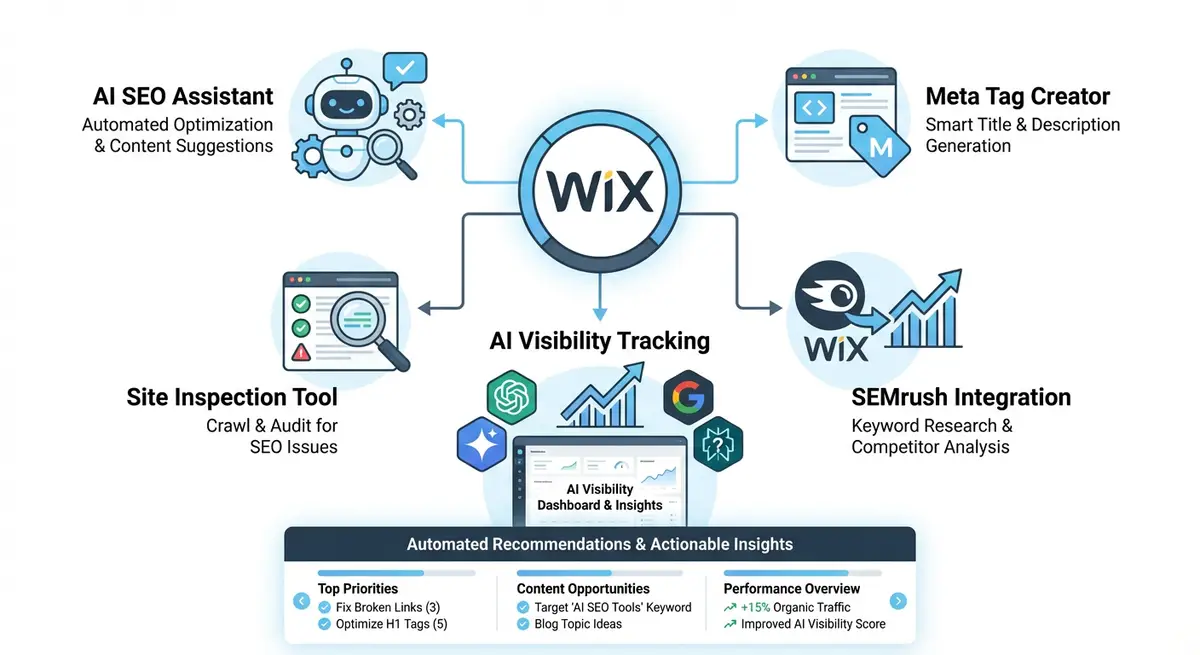
The Complete List of Wix SEO Reports
- Traffic Overview: total visits, unique visitors, and traffic source breakdown including organic search.
- Organic Search report: visits specifically from search engines, with trend lines and comparison periods.
- Top Search Queries: keywords that people searched to find your Wix site (pulled from Google Search Console data).
- Top Landing Pages: which pages receive the most organic traffic, sorted by visits.
- Geographic Distribution: where your organic visitors are located by country and city.
- Device Breakdown: mobile vs desktop vs tablet split for organic traffic.
What Each Report Tells You
The Organic Search report is your primary indicator of SEO health. An upward trend means your SEO is working. A flat or declining trend requires investigation. The Top Search Queries report shows what people actually search to find you, which may differ from your target keywords. The Top Landing Pages report reveals which content drives the most organic visits, helping you identify what to replicate.
Limitations of Wix SEO Reports
Wix SEO reports have notable limitations. They do not show click-through rates, average position, or impressions, all of which are available in Google Search Console. The traffic source attribution can miscategorise some organic traffic as direct. And the data granularity is lower than GA4, meaning you cannot drill down into engagement metrics, conversion paths, or custom segments.
Complete How-To Guide: Getting the Most from Wix Native SEO Reports
This guide walks you through accessing, interpreting and acting on every SEO report available in your Wix Analytics dashboard.
How to use Wix native SEO reports for ongoing optimisation
- Step 1: Navigate to your Wix Dashboard > Analytics & Reports > Traffic Overview. Set the date range to Last 30 Days with comparison to the Previous 30 Days.
- Step 2: Check the traffic source breakdown. Note the percentage of traffic coming from Organic Search. For most well-optimised Wix sites, organic should represent 40-60% of total traffic.
- Step 3: Click into the Organic Search detailed report. Review the trend line over the last 90 days. An upward trend confirms your SEO is working. A downward trend requires investigation.
- Step 4: Open the Top Search Queries report. Review the top 20 queries that drive traffic to your site. Compare these with your target keywords. If your target keywords are absent, your content may not be ranking for the right terms.
- Step 5: Check for branded vs non-branded query balance. If 80%+ of your queries are branded (your business name), you need more non-branded content targeting problem-solving and informational keywords.
- Step 6: Review the Top Landing Pages report. Identify your top 5 organic landing pages. These are your most valuable SEO assets and should receive ongoing content updates and internal linking priority.
- Step 7: Look for pages that have dropped out of the top 10 landing pages compared to the previous month. A page losing organic traffic may need content refreshing, better internal links, or technical investigation.
- Step 8: Check the Geographic Distribution report. If you are a local business, verify that most organic traffic comes from your target geographic area. Traffic from irrelevant locations may indicate keyword targeting issues.
- Step 9: Review the Device Breakdown. If mobile organic traffic significantly outweighs desktop, prioritise mobile page speed and user experience for your top landing pages.
- Step 10: Set up automated email reports from Wix Analytics. Go to Analytics & Reports > Email Reports and schedule a weekly summary delivered to your inbox every Monday.
- Step 11: Create a simple monthly comparison table in a spreadsheet tracking total organic visits, top 5 queries, and top 5 landing pages month over month. This builds the historical view that Wix reports lack.
- Step 12: Cross-reference Wix organic traffic data with Google Search Console clicks monthly. Calculate the difference to understand Wix reporting accuracy for your specific site and adjust your interpretation accordingly.
How to Use Wix Native SEO Reports for Monthly Performance Tracking
Wix native SEO reports provide a convenient overview of organic performance. These steps show you how to integrate them into a monthly monitoring routine alongside Google's tools.
How to build a monthly SEO reporting routine using Wix Analytics and Google tools
- Step 1: Log in to your Wix Dashboard and navigate to Analytics & Reports > Traffic Overview on the first day of each month. Set the date range to the previous calendar month with comparison to the same month last year.
- Step 2: Note the total visits and the percentage coming from Organic Search. Record these in a monthly tracking spreadsheet. A growing organic percentage indicates improving SEO relative to other channels.
- Step 3: Click into the Organic Search report and note the trend line over the previous 3 months. Is organic traffic growing, stable, or declining? A consistent downward trend requires investigation in Google Search Console.
- Step 4: Open the Top Search Queries report. Review the top 20 queries driving traffic. Compare this month's top 20 against last month's. Identify any keywords that have risen or fallen significantly in the rankings.
- Step 5: Open Google Search Console and navigate to Performance. Set the date range to match your Wix Analytics review period. Compare the top query list with the Wix report. Note any significant discrepancies.
- Step 6: In Google Search Console, filter the Performance report by CTR (ascending). Find any pages with position under 5 but below-average CTR. These pages need better title tags and meta descriptions. Update them via the Wix Editor.
- Step 7: Return to Wix Analytics and open the Top Landing Pages report. Identify your top 5 organic landing pages. These are your highest-value SEO assets. Ensure each one is regularly updated and thoroughly internally linked.
- Step 8: Check for pages that have dropped out of the top 10 landing pages compared to the previous month. Open each declining page in Google Search Console URL Inspection to check its indexing status and any issues.
- Step 9: Review the Geographic Distribution report in Wix Analytics. Verify that the majority of your organic traffic comes from your target geographic market. High traffic from irrelevant countries may indicate keyword targeting issues.
- Step 10: Record all monthly metrics in your tracking spreadsheet: organic visits, organic percentage of total, top 5 queries, top 5 landing pages, and any pages with notable changes. This builds the historical view that the 30-day Wix report view cannot show.
- Step 11: Compare your Wix Analytics organic visit count against Google Search Console clicks for the same period. Calculate the ratio. Use this ratio consistently to normalise Wix data in future months.
- Step 12: Based on your monthly review, identify one specific action to take in the following month. This might be refreshing a declining blog post, improving the meta description on a low-CTR page, or creating new content for an emerging keyword opportunity.
Your Search Console data also shows up inside Wix itself. See how the Wix SEO Dashboard shows your Google Search Console data for a panel by panel walk through.
Essential Resources
- Google Search Console: Detailed organic performance data to complement Wix native reports
- Google Analytics 4: Advanced engagement analytics beyond what Wix reports provide
- Wix SEO Learning Hub: Official Wix tutorials on interpreting SEO reports and analytics
- SEO Fix in a Box: My Wix app. Free to install, it scans your site and shows what needs fixing, and paid plans write the fixes from your own Google searches
Was this lesson useful?
It takes 1 minute to tell me. The course is free and I want to keep it that way, and your feedback shows me what is working and helps other people find it.
This lesson on Wix native SEO reports: understanding every report in your Analytics dashboard is part of Module 16: Wix Native SEO Tools & AI Visibility in The Most Comprehensive Complete Wix SEO Course in the World (2026 Edition). Created by Michael Andrews, a Wix Marketplace Legend Partner with 14 years of hands-on experience, 800 completed Wix SEO projects and 456 verified five-star reviews.