Social sharing optimisation for Wix blog posts and pages
Module 11·Lesson 4 of 7·55 min read

Social sharing optimisation for Wix blog posts and pages

Making your Wix content easy and appealing to share amplifies your reach organically. This lesson covers adding share buttons, creating shareable content formats, and the copy and image strategies that maximise social sharing from your Wix blog.

What you will learn in this Wix SEO lesson

  • Adding social share buttons to Wix blog posts and pages
  • Creating shareable content: quotes, statistics and infographics
  • Writing social-first headlines that encourage sharing
  • Image sizing and design for maximum social media impact
  • Measuring social sharing metrics in Wix Analytics and GA4

Creating great content on your Wix site is only half the equation. If nobody shares it, the indirect SEO benefits of social amplification, earned backlinks, branded searches and referral traffic, never materialise. Most content is not designed to be shared. It lacks share buttons, shareable elements, social-first formatting and the emotional triggers that compel people to forward a link to their network. This lesson covers the complete social sharing optimisation process for Wix: from placing share buttons strategically to crafting content elements that are inherently shareable, designing social-first headlines that differ from your SEO titles, creating custom share images for every important page, optimising for WhatsApp and messaging app sharing (which most businesses overlook entirely), and tracking which content actually gets shared and which falls flat.

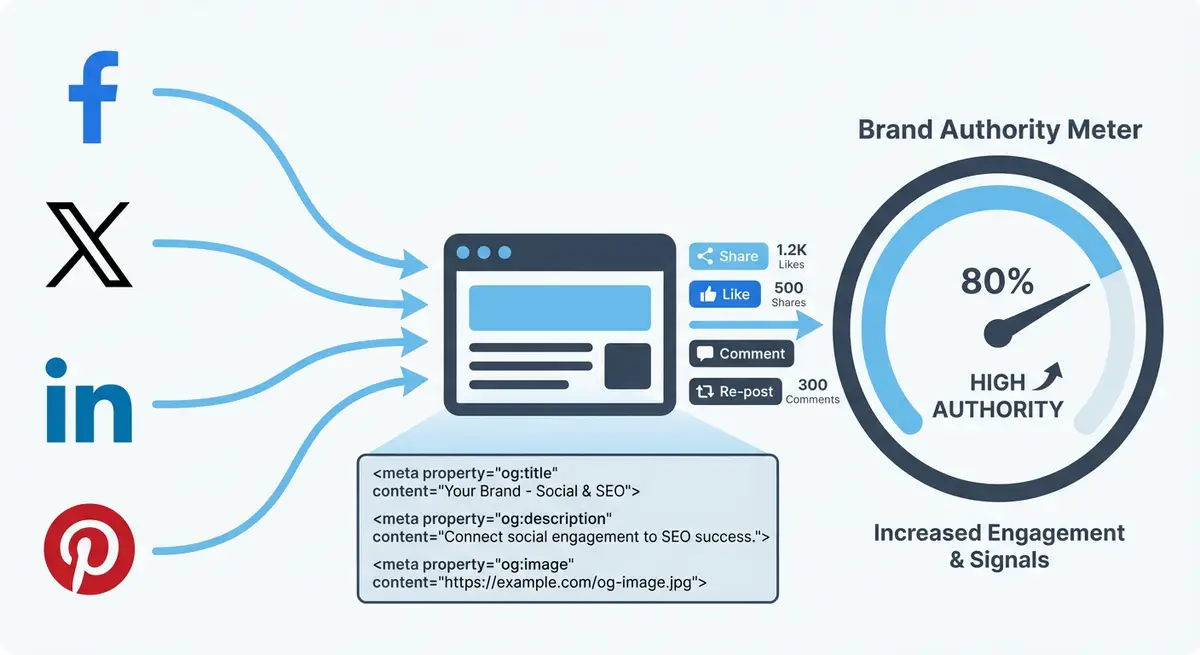
How-to infographic showing how social signals influence SEO including Open Graph tags, social sharing optimisation, cross-platform brand presence, and social analytics
Social signals and proper Open Graph implementation strengthen your Wix site brand authority and drive additional organic visibility.

Adding Share Buttons to Your Wix Site

The simplest way to increase sharing is to make sharing easy. Wix has a built-in Social Share Bar element that adds share buttons to any page. However, where you place the buttons, which platforms you include, and how the buttons are styled significantly impacts how often visitors actually use them.

Strategic share button placement on Wix

  1. 1Open the Wix Editor and search for "Social Share Bar" in the Add Elements panel (+ button).
  2. 2Add the Social Share Bar to your blog post template. Place it at two locations: immediately below the blog post title and at the bottom of the article after the conclusion.
  3. 3Select only 3-4 platforms that your audience actually uses. For B2B content: LinkedIn, Twitter/X, Email. For B2C content: Facebook, Pinterest, WhatsApp. Too many buttons create decision fatigue and reduce sharing.
  4. 4Style the buttons to match your site design. Use your brand colours or choose a style that complements without overwhelming the content.
  5. 5For service pages, add a share bar at the bottom of the page near testimonials or results sections. People are more likely to share proof of outcomes than service descriptions.
  6. 6Consider adding inline share buttons for specific content elements (pull quotes, statistics) using Wix's custom embed functionality.

Mobile Placement

On mobile, floating share buttons that follow the user as they scroll can increase sharing rates by 20-30%. However, they must not obstruct content or interfere with the reading experience. Test on multiple mobile devices before enabling.

Creating Inherently Shareable Content Elements

The most effective way to increase social sharing is not more share buttons; it is creating content elements that people instinctively want to share. These elements provide standalone value even when removed from the full article, making them perfect for social posts, screenshots and forwards.

  • Pull quotes: styled text blocks containing a surprising statement, bold opinion or memorable insight. Format them with a distinctive background colour, larger font and quotation marks. When readers screenshot and share these, they create organic social proof.
  • Statistics and data points: numbers are inherently shareable because they provide instant credibility. "73% of Wix users never optimise their meta descriptions" is a complete social media post. Embed statistics in visually distinct callout boxes.
  • Infographics and visual summaries: visual representations of complex information perform exceptionally well on Pinterest and LinkedIn. Create a summary infographic for data-heavy posts that can be shared independently.
  • Key takeaways: a numbered list of 5-7 top insights at the end of every blog post. This format is the most shared content type on LinkedIn because it provides standalone value.
  • Before/after comparisons: visual proof of results (traffic growth charts, ranking improvements, design transformations) that demonstrate expertise and outcomes.
  • Checklists and frameworks: numbered step-by-step processes that people save and share as reference materials.
  • Controversial or contrarian opinions: well-argued positions that challenge conventional wisdom generate discussion and sharing because people want their network to react.

Writing Social-First Headlines

Your SEO title tag and your social headline should be optimised for different audiences. The SEO title targets Google's ranking algorithm and uses keyword-focused phrasing. The social headline (set via the og:title tag) targets human psychology and uses curiosity, emotion, numbers and specific outcomes to drive clicks in a social feed where your content competes against personal updates, news and entertainment.

  • SEO title: "Wix SEO Guide: Complete Optimisation Steps for 2026" (keyword-focused, descriptive)
  • Social headline: "We Ranked a Wix Site #1 in 30 Days. Here Is Exactly How." (curiosity, specificity, outcome)
  • SEO title: "Local SEO for Plumbers: A Comprehensive Strategy Guide" (keyword match)
  • Social headline: "This Plumber Gets 40 Calls a Week from Google. His Strategy Is Surprisingly Simple." (story, specific number, curiosity gap)
  • SEO title: "How to Optimise Wix Title Tags for Better Rankings" (informational keyword)
  • Social headline: "We Changed One Line of Text and Got 40% More Clicks from Google" (specific result, surprising simplicity)

The key principle is that SEO titles answer "what is this page about?" while social headlines answer "why should I click on this right now?" Both are valid and important, and OG tags let you use both simultaneously.

Custom Social Share Images for Every Page

Every blog post and key page should have a custom social share image that is designed specifically for social previews, separate from the hero image on the page. The social share image should be optimised for the 1200x630 pixel format and designed to stop scrolling in a social feed.

Creating effective social share images

  1. 1Use your branded Canva template at 1200x630 pixels (created in the OG tags lesson).
  2. 2Write the blog post title or key message as large overlay text. Use no more than 6-8 words that are readable at thumbnail size.
  3. 3Choose a background that contrasts strongly with the text. Solid colour backgrounds with text overlay consistently outperform photographs with text.
  4. 4Include your logo or brand mark in a consistent position (typically bottom-left or top-right corner).
  5. 5For data-driven posts, include a key statistic or number in the image. "73%" displayed prominently is more attention-grabbing than the title alone.
  6. 6Export as JPG under 1MB for fast loading across all platforms.
  7. 7Upload in the Wix page SEO settings under Social Share, overriding the default featured image.

Optimising for WhatsApp and Messaging App Sharing

WhatsApp is the most-used messaging platform in the UK and dozens of other markets. For local Wix businesses, WhatsApp sharing is often the primary way potential customers discover your site: someone sends a friend your link with a personal recommendation. Yet most Wix site owners never test how their links appear in WhatsApp.

  • WhatsApp displays a compact preview card with og:title, og:description and og:image. The image appears as a small square thumbnail, so ensure your key message is visible at very small sizes.
  • WhatsApp descriptions are truncated earlier than other platforms. Keep your og:description under 100 characters for full visibility.
  • WhatsApp caches link previews aggressively with no official way to force a refresh. Getting your OG tags right the first time is critical.
  • Test every important page by sending it to yourself on WhatsApp before promoting it. This takes 10 seconds and prevents embarrassing broken previews.
  • Consider your audience's sharing context. When someone sends your plumber's website to a friend, the preview needs to immediately communicate what service you offer and where you are located.
  • iMessage (Apple Messages) also uses OG tags and is the dominant messaging platform among iPhone users. Test in both WhatsApp and iMessage if your audience uses Apple devices.

UTM Parameters for Social Share Tracking

Without UTM parameters, all social traffic appears as generic "referral" in your analytics, making it impossible to determine which social posts, platforms and content types drive the most valuable traffic. Implementing a consistent UTM convention transforms your social data from noise into actionable intelligence.

Setting up UTM tracking for social shares

  1. 1Create a UTM convention: utm_source = platform name (linkedin, twitter, facebook, pinterest, whatsapp), utm_medium = "social" for all, utm_campaign = descriptive slug (blog-post-title or campaign-name).
  2. 2When you share links on social media manually, always add UTM parameters before posting.
  3. 3For share buttons on your Wix site, you can use Wix Custom Code to automatically append UTM parameters to shared URLs. This ensures even organic shares from visitors include tracking.
  4. 4Create a UTM template spreadsheet or use Google Campaign URL Builder (ga-dev-tools.google/campaign-url-builder/) to generate tagged URLs consistently.
  5. 5In GA4, navigate to Acquisition > Traffic Acquisition and filter by Session medium = "social" to see all social traffic. Further break down by Session source to compare platforms.
  6. 6Track not just visits but engagement metrics (time on page, pages per session, conversion rate) for each social source to identify which platforms drive the most valuable traffic.

Content Formats That Drive the Most Social Shares

Research consistently shows that certain content formats are shared dramatically more than others. Aligning your Wix blog content strategy with these formats maximises your social amplification and the resulting SEO benefits.

  • List posts ("10 Ways to...", "7 Mistakes to Avoid..."): the most shared format across all platforms. Numbers set clear expectations and the list format is easy to scan.
  • Original data and research: posts containing unique statistics, survey results or data analyses are shared 3-4x more than opinion pieces because they provide reference-worthy information.
  • How-to guides: detailed tutorials that solve a specific problem are shared because they help the sharer appear knowledgeable and helpful to their network.
  • Case studies with specific results: "How We Increased Organic Traffic by 340% in 6 Months" combines proof, specificity and a story arc that compels sharing.
  • Contrarian opinion pieces: well-argued positions that challenge conventional wisdom generate discussion, comments and shares from people who both agree and disagree.
  • Tools and calculators: interactive content on your Wix site (ROI calculators, audit tools, generators) gets shared because it provides utility beyond the article itself.
  • Visual content: infographics, charts, comparison tables and diagrams are shared at higher rates than text-only content, especially on Pinterest and LinkedIn.

Complete How-To Guide: Making Your Wix Content Irresistibly Shareable

This comprehensive guide walks you through the entire social sharing optimisation process, from adding share buttons to crafting content that people genuinely want to share, with a tracking system that measures what works.

Follow these steps to optimise your Wix content for maximum social sharing

  1. 1Step 1: Open the Wix Editor and add the Social Share Bar element to your blog post template. Place it below the title area and again at the bottom after the conclusion. Select only 3-4 platforms your audience uses most.
  2. 2Step 2: For each existing blog post, create a custom 1200x630 pixel social share image using your branded Canva template. Include the post title as large text overlay, your logo and a high-contrast background.
  3. 3Step 3: Upload each custom social image in the blog post SEO settings under Social Share. Do not rely on the featured image, which may not be optimised for social preview dimensions.
  4. 4Step 4: Write a social-first headline for every blog post as the og:title (separate from the SEO title). Use curiosity, numbers, specific outcomes or emotional triggers that compel clicks in a social feed.
  5. 5Step 5: Write a social-optimised og:description for every post (under 100 characters). Include a call to action or curiosity hook that works in both social previews and messaging app cards.
  6. 6Step 6: Within each blog post, create at least one "pull quote" element: a visually distinct text block containing a surprising statistic or bold statement. Style it with a background colour and larger font.
  7. 7Step 7: Add a "Key Takeaways" section at the end of every blog post with 5-7 numbered insights. This format provides standalone value and is the most shared content type on LinkedIn.
  8. 8Step 8: For data-heavy content, create a summary infographic or visual chart using Canva. Embed it in the blog post and also save it as a standalone image for Pinterest pinning.
  9. 9Step 9: Write a custom sharing prompt at the end of each post. Replace generic "Share this" text with specific copy: "Know a business owner struggling with SEO? Forward this guide to help them out."
  10. 10Step 10: Set up your UTM convention: utm_source=platform, utm_medium=social, utm_campaign=post-slug. Create a UTM template spreadsheet for consistency.
  11. 11Step 11: When publishing each new blog post, create platform-native social content: a LinkedIn post with key insights, a Twitter/X thread summarising the main points, and a Pinterest pin with the infographic or social image.
  12. 12Step 12: Add UTM parameters to every social share link before posting. Use Google Campaign URL Builder or your template spreadsheet to generate tagged URLs.
  13. 13Step 13: Test every new blog post by sending its URL in private WhatsApp and Slack messages to yourself. Verify the preview image, title and description look compelling before promoting publicly.
  14. 14Step 14: Review GA4 monthly. Navigate to Acquisition > Traffic Acquisition, filter by medium = "social" and compare engagement metrics across platforms and content types. Identify your most-shared content and create more of what works.

Final Checkpoint

After completing this process every blog post on your Wix site should have a custom social share image, a social-first og:title, an optimised og:description, at least one shareable content element (pull quote, statistic, key takeaways), strategic share button placement, and UTM-tracked social distribution. The most shared content solves a specific problem or provides data people cannot find elsewhere.

Finished this lesson?

Mark it complete to track your course progress.

AI Lesson Tutor

AI Powered

Got a question about this lesson? Ask the AI tutor for a quick explanation or practical examples.

Your Course Resources

11 downloadable PDFs -- checklists, templates, worksheets and your certificate

Course Progress0/561 lessons

Checklists

Wix SEO Audit ChecklistPDF

20-point site-wide audit covering technical, on-page, content and local SEO

On-Page SEO ChecklistPDF

37-point per-page checklist: titles, headings, content, images, links, schema

Technical SEO Deep-DivePDF

50-point technical audit: crawlability, Core Web Vitals, speed, security, Wix-specific

Local SEO Setup ChecklistPDF

42-point local checklist: Google Business Profile, NAP, citations, reviews, local links

Site Launch SEO ChecklistPDF

48-point pre-launch and post-launch guide for new Wix sites going live

Templates & Worksheets

Keyword Research TemplatePDF

Printable tracker with columns for volume, difficulty, intent, priority and notes

Monthly SEO Report TemplatePDF

Client-ready report covering traffic, rankings, technical health and action plan

Content Brief TemplatePDF

Plan every page: target keywords, outline, competitor analysis, internal links, CTAs

Backlink Outreach TrackerPDF

Campaign log with status tracking plus 3 proven outreach email templates

Competitor Analysis WorksheetPDF

14-metric comparison table, content gap analysis and SEO SWOT framework

Achievement

Certificate of CompletionLocked

Complete all lessons to unlock (0/561 done)

Lesson Tools

No part of this Wix SEO Course content may be reproduced, copied, or distributed without the written consent of Michael Andrews.

This lesson on Social sharing optimisation for Wix blog posts and pages is part of Module 11: Social Signals, Open Graph & Cross-Platform Brand Presence in The Most Comprehensive Complete Wix SEO Course in the World (2026 Edition). It covers Wix SEO optimization (US) and optimisation (UK) strategies applicable to businesses in the United Kingdom, United States, Australia, Canada, New Zealand, Ireland and worldwide. Created by Michael Andrews, the UK's No.1 Wix SEO Expert with 14 years of hands-on experience, 750+ completed Wix SEO projects and 425+ verified five-star reviews. This is lesson 123 of 561 in the most affordable, most comprehensive Wix SEO training programme available in 2026.