On-page SEO terminology: words and phrases that define content optimisation on Wix
Module 55: Wix SEO Glossary: Complete A-Z Reference Library | Lesson 594 of 683 | 38 min read
By Michael Andrews, Wix SEO Expert UK
Every major on-page SEO term defined with Wix application notes. Covers title tags, meta descriptions, heading tags, alt text, anchor text, featured snippets, CTR, keyword density, internal links, landing pages, bounce rate, and URL structure.
What you will learn in this Wix SEO lesson
- Title tag best practices and where to set them in the Wix editor
- Meta description character limits and CTR optimisation techniques
- Heading hierarchy (H1-H6) setup in the Wix editor for SEO
- Internal linking strategy for distributing authority across Wix pages
- How featured snippets work and how to structure Wix content to win them
On-page SEO is the discipline of optimising the elements within your direct control on each Wix page. Mastering the terminology means you can diagnose weaknesses, communicate optimisation needs clearly, and implement changes with precision. This lesson covers every major on-page SEO term with Wix-specific application notes, step-by-step guidance, common mistakes, and related terms to guide further learning.
Title Tag (Meta Title)
The HTML title tag specifies the title of a web page, displayed as the clickable headline in Google search results and as the browser tab label. It is one of the most important on-page SEO elements. In Wix, set the title tag in the SEO settings panel of each page. Aim for 50-60 characters, place the primary keyword naturally near the beginning, and include your brand name at the end.
Usage Context
The title tag directly influences both rankings (as a primary on-page keyword signal) and click-through rate (as the first thing users see in search results). A compelling title tag can significantly outperform a keyword-heavy but boring one in terms of clicks.
How to Apply on Wix
Optimising title tags on Wix
- In the Wix Editor, click on a page and open its SEO settings panel.
- Navigate to the "SEO" tab and find the "Title tag" field.
- Write a title that starts with the primary keyword, includes a key benefit or USP, and ends with your brand name.
- Keep the title between 50-60 characters to avoid truncation in search results.
- For each page, write a unique title. Duplicate title tags across Wix pages are a common and easily fixed issue.
- For Wix blog posts, use the Wix Blog SEO settings to override the default title pattern.
- Use SEO Patterns in Wix for bulk optimisation of CMS collection pages (product pages, blog posts).
Common Mistakes
- Using the same title tag on multiple Wix pages. Duplicate titles prevent pages from competing for different queries
- Making titles too long (over 60 characters) so they are truncated with "..." in search results
- Omitting the primary keyword entirely, or burying it at the end of the title
- Writing generic titles like "Home" or "Services" for the homepage and service pages
Related Terms
- Meta Description
- Click-Through Rate
- Heading Tags
- Keyword
- SEO Patterns
Meta Description
An HTML attribute providing a brief summary of a page's content, typically 150-160 characters, displayed as the descriptive text below the title in search results. Meta descriptions are not a direct ranking factor but significantly influence click-through rate. Write compelling, keyword-informed meta descriptions for every Wix page.
Usage Context
Google rewrites meta descriptions approximately 60-70% of the time in favour of content that better matches the specific query. Despite this, writing quality meta descriptions is worthwhile. When Google uses your version, well-crafted descriptions improve CTR. And even when rewritten, they can influence the AI-generated snippet.
How to Apply on Wix
Writing meta descriptions in Wix
- In Wix Editor, open each page's SEO settings and navigate to the Description field.
- Write 150-160 characters that summarise the page value and include a call-to-action ("Learn more", "Get a free quote", "Shop now").
- Naturally include the primary keyword. Google bolds keywords in meta descriptions that match the search query.
- Make each meta description unique across all Wix pages.
- For Wix Blog posts, set meta descriptions in the Blog Post SEO settings or via SEO Patterns for automation.
- After publishing, check how your description appears in Google by searching for your target keyword and reviewing the snippet.
Common Mistakes
- Leaving meta descriptions blank. Wix will use auto-extracted page content, which is rarely optimal
- Writing descriptions over 160 characters, causing truncation in search results
- Using the same meta description across multiple pages
Related Terms
- Title Tag
- Click-Through Rate
- SERP
- Open Graph
- SEO Patterns
Heading Tags (H1-H6)
HTML elements (H1 through H6) defining the hierarchical heading structure of a webpage. The H1 tag represents the main topic and should contain the primary keyword; use only one H1 per page. H2 tags denote major sections, H3 tags are subsections, and so on. In the Wix editor, text formatted as Heading 1, Heading 2, etc. maps to H1, H2 tags respectively.
Usage Context
Heading tags are both an SEO signal and a UX tool. Google uses them to understand page structure and topic hierarchy. Users scan headings to decide whether to read further. A logical, keyword-informed heading structure serves both audiences simultaneously.
How to Apply on Wix
Setting heading structure in Wix
- In the Wix Editor, select a text element and click the text type dropdown at the top of the editor.
- Use "Heading 1" for your main page title (only once per page).
- Use "Heading 2" for major section titles throughout the page.
- Use "Heading 3" for sub-sections within H2 sections.
- Ensure the primary keyword or a close variant appears in the H1.
- Naturally include secondary and related keywords across H2 and H3 headings.
- Check your heading structure using the browser's view source or a browser extension to verify the H tags are correct.
Common Mistakes
- Using multiple H1 tags on a single Wix page. Use one H1 only
- Styling text as "Heading 1" for visual reasons rather than structural ones, creating incorrect H1s
- Skipping heading levels (jumping from H1 to H4) which confuses both users and search engines
- Not including the primary keyword in the H1 tag
Related Terms
- Title Tag
- Keyword
- Content Structure
- Featured Snippet
- On-Page SEO
Alt Text
Descriptive text added to an image's alt attribute, serving accessibility for visually impaired users and providing context to search engine crawlers. In Wix, add alt text to every image via the image settings panel. Effective alt text is concise, descriptive, and naturally incorporates relevant keywords without stuffing.
How to Apply on Wix
Adding alt text to images in Wix
- In the Wix Editor, click on any image element to select it.
- Open the image settings panel and navigate to the Accessibility or SEO section.
- Enter descriptive alt text that accurately describes the image content.
- If the image is relevant to your target keyword, include the keyword naturally (not forced).
- For decorative images with no informational content, use empty alt text (alt="") rather than describing the decoration.
- Audit all images on your Wix site using a tool like Screaming Frog to find images missing alt text.
Common Mistakes
- Using keyword-stuffed alt text like "Wix SEO Wix SEO consultant Wix SEO expert London"
- Leaving all images with the default file name (e.g., "image-1.jpg") as the alt text
- Writing identical alt text for multiple images on the same page
Related Terms
- Image SEO
- Accessibility
- Google Images
- Core Web Vitals
- Heading Tags
Anchor Text
The visible, clickable text of a hyperlink that provides context about the linked page's topic to both users and search engines. When creating internal links on your Wix site, use descriptive, keyword-informed anchor text that accurately describes the destination page. Avoid generic anchors like "click here" or "read more."
How to Apply on Wix
Optimising anchor text for Wix internal links
- When creating a link in the Wix Editor, write anchor text that describes the destination page topic.
- For example, instead of linking "click here to learn about title tags," link "title tag optimisation guide."
- Vary your anchor text. Do not use the exact same anchor every time you link to the same page.
- For internal links, a mix of keyword-rich and branded anchors is ideal.
- Audit internal anchor text using Screaming Frog or Google Search Console's Internal Links report.
Common Mistakes
- Using "click here," "read more," or "here" as anchor text for important internal links
- Over-optimising anchor text with exact-match keywords on every internal link to a page
- Using the same anchor text for links to different destination pages
Related Terms
- Internal Link
- Link Equity
- Backlink
- Keyword
- PageRank
Featured Snippet
A selected search result that Google displays at the top of the SERP (position zero) in a special box, extracted from a web page to directly answer the user's query. Featured snippets appear as paragraphs, lists, tables, or videos. To win featured snippets on Wix, structure content to directly answer questions using clear formatting, implement FAQ schema, and provide concise definitions that Google can easily extract.
Usage Context
Featured snippets are awarded to pages that already rank in the top 5-10 organic positions for a query. Focus on winning snippets for queries where you already rank on page one. You cannot win a snippet for a query where you rank on page five.
How to Apply on Wix
Optimising Wix content for featured snippets
- Identify queries where your Wix pages rank in positions 1-10 in Google Search Console.
- For question-format queries, add a clear direct answer in 40-60 words immediately after the question heading.
- Format list-type answers as actual HTML bulleted or numbered lists in Wix (not simulated with dashes).
- Write each FAQ answer as a direct, self-contained reply under a question heading so it can be considered for a featured snippet.
- Structure definitions with a clear "X is Y" sentence format for definition-type snippets.
- Keep sentences short and answers direct. Google prefers concise, unambiguous snippet candidates.
Common Mistakes
- Targeting snippets for queries where your Wix page ranks below page one
- Using vague, hedged language in answers. Google prefers direct, confident statements
- Formatting lists using manually typed dashes or numbers instead of actual HTML list elements
Related Terms
- FAQ Schema
- Position Zero
- SERP
- Heading Tags
- Schema Markup
Internal Link
A hyperlink connecting one page on your Wix site to another page on the same domain. Internal links serve multiple SEO functions: distributing link equity from high-authority pages to important target pages, helping Google discover new content, establishing topical relationships between pages, and communicating which pages are most important based on how frequently they are linked. Strategic internal linking is one of the highest-impact technical tasks you can perform on any Wix site.
How to Apply on Wix
Building an effective internal linking structure on Wix
- Create a content map showing your key pages and their topic relationships.
- Prioritise linking from your high-authority pages (homepage, most-linked blog posts) to pages you want to rank.
- Add contextual internal links within body text on every new Wix blog post at publication.
- Go back to your top-performing existing pages and add links from them to newer content.
- Use descriptive anchor text for every internal link.
- Ensure every important Wix page has at least 3-5 internal links pointing to it from different pages.
- Check internal links in Google Search Console under Links > Internal Links to see which pages receive the most links.
Common Mistakes
- Only linking via navigation menus without contextual body text links
- Creating pages with no internal links pointing to them (orphan pages)
- Linking too many pages from a single paragraph, which dilutes the authority passed per link
Related Terms
- Link Equity
- PageRank
- Anchor Text
- Crawl Depth
- Content Architecture
URL Structure
The format and composition of a page's web address. SEO-friendly URLs are short, human-readable, include the primary keyword, use hyphens (not underscores) to separate words, and avoid unnecessary parameters. In Wix, set the page URL in the SEO settings panel. Avoid changing URLs on established pages unless you set up proper 301 redirects, as URL changes without redirects destroy accumulated link equity.
How to Apply on Wix
Setting SEO-friendly URLs in Wix
- In the Wix Editor, open a page and navigate to its SEO settings.
- Find the Page URL field and enter a short, keyword-relevant URL slug.
- Use hyphens to separate words: /seo-audit-london not /seo_audit_london or /seoauditlondon.
- Keep URLs short, ideally 3 to 5 words that describe the page topic.
- Never use uppercase letters, special characters, or spaces in Wix page URLs.
- If you must change a URL on an established page, immediately set up a 301 redirect from the old URL to the new one in the Wix URL Redirect Manager.
Common Mistakes
- Using the Wix default URL (often the page name without any editing) which can be long and not keyword-optimised
- Changing URLs on pages that already rank without setting up 301 redirects
- Using session IDs, tracking parameters, or excessive URL folders unnecessarily
Related Terms
- Redirect (301)
- Canonical Tag
- Wix SEO Settings
- Slug
- Internal Link
Keyword Density and Dwell Time
Keyword density is the percentage of times a keyword appears in content relative to total word count. This is now largely obsolete as a metric, as modern algorithms evaluate semantic relevance not counts. Dwell time is the time a user spends on a page before returning to the SERP. Long dwell time suggests content satisfied the user. Focus on writing naturally and comprehensively for readers, which achieves both semantic relevance and high dwell time simultaneously.
Related Terms
- Engagement Rate
- Search Intent
- Content Quality
- Bounce Rate
- E-E-A-T
Essential Tools for This Lesson
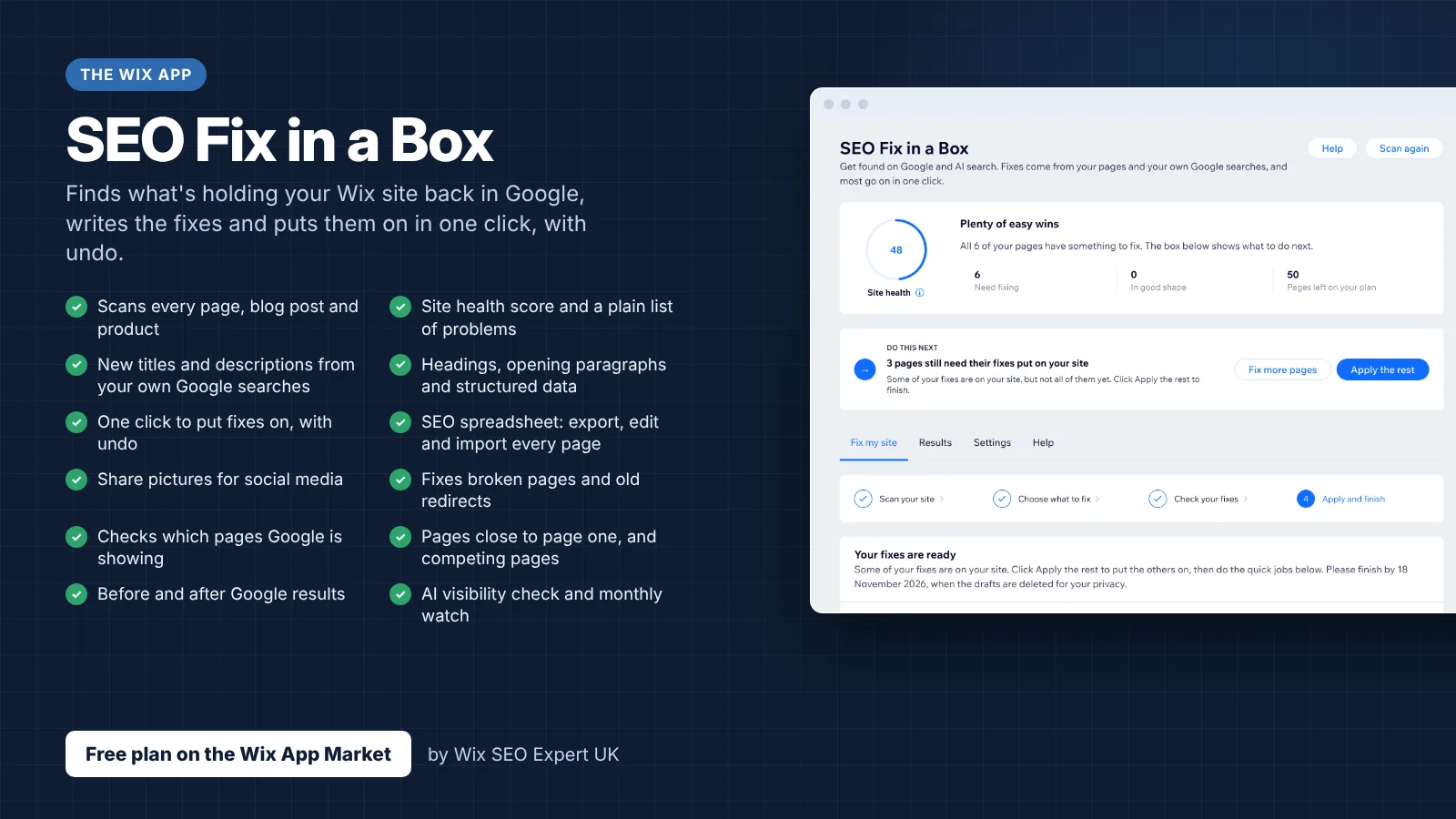
- SEO Fix in a Box: My Wix app. Free to install, it scans your site and shows what needs fixing, and the paid plan writes the fixes from your own Google searches
More lessons in Module 55: Wix SEO Glossary: Complete A-Z Reference Library
- Core SEO concepts glossary: the foundation terms every Wix site owner must know
- Local SEO glossary: geographic ranking terms for Wix businesses
- Analytics and measurement glossary: data terms every Wix SEO practitioner needs
- Content and strategy glossary: Wix SEO content marketing terminology
- AI, GEO, and future search glossary: next-generation SEO terms for Wix
- Wix platform SEO glossary: native tools, features, and platform-specific terms
- The master reference: 150+ SEO terms quick-reference guide for Wix practitioners
Was this lesson useful?
It takes 1 minute to tell me. The course is free and I want to keep it that way, and your feedback shows me what is working and helps other people find it.
This lesson on On-page SEO terminology: words and phrases that define content optimisation on Wix is part of Module 55: Wix SEO Glossary: Complete A-Z Reference Library in The Most Comprehensive Complete Wix SEO Course in the World (2026 Edition). Created by Michael Andrews, a Wix Marketplace Legend Partner with 14 years of hands-on experience, 805 completed Wix SEO projects and 459 verified five-star reviews.