Migrating from Squarespace to Wix: preserving rankings and traffic
Module 48: Migrating to Wix Without Losing Rankings | Lesson 537 of 683 | 30 min read
By Michael Andrews, Wix SEO Expert UK
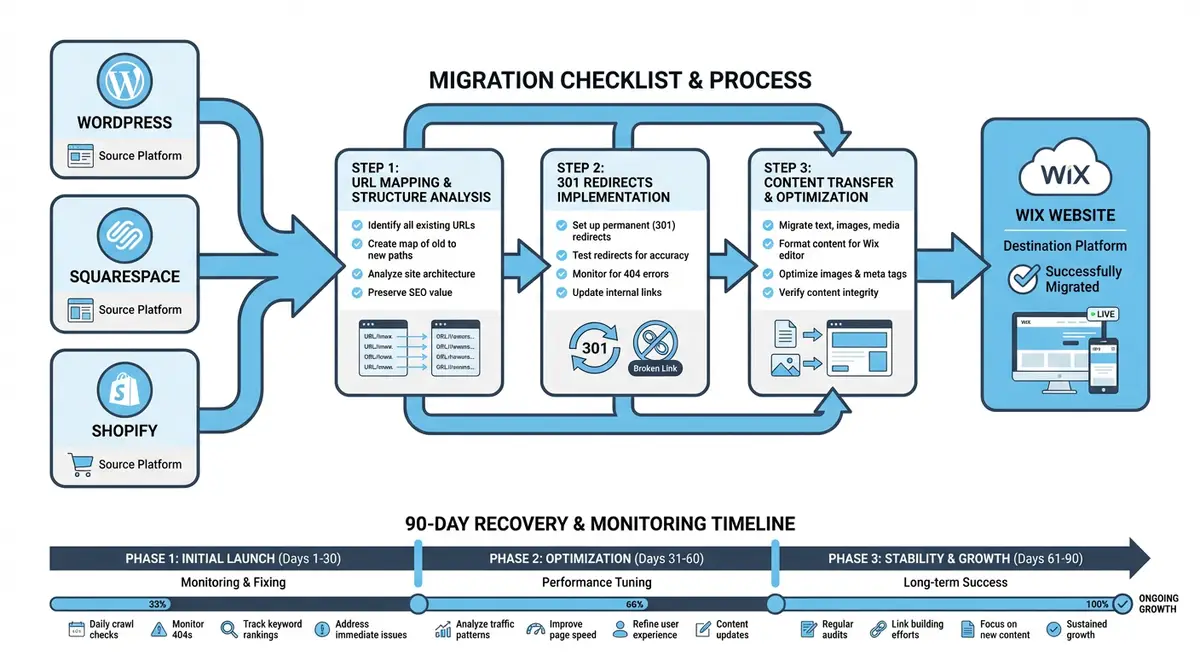
Squarespace-to-Wix migrations present unique challenges because Squarespace generates URL structures that differ significantly from Wix conventions. Squarespace blog posts use a /blog/post-slug format by default, collection pages use /collection-name/item-slug, and the platform adds trailing slashes to all URLs. Understanding these structural differences before migration begins is essential for creating an accurate redirect map that preserves your existing rankings and organic traffic.
Understanding Squarespace URL Patterns
Squarespace uses several URL patterns depending on the content type. Standard pages use /page-slug/. Blog posts use /blog/post-slug/ by default, though the /blog/ prefix can be customised to any collection name. Product pages use /shop/product-slug/. Gallery pages use /gallery/image-slug/. Index pages create nested structures like /index-page/section-name/. Each of these patterns must be mapped to the Wix equivalent during migration.
Squarespace URL                           →  Wix URL
/about/                                   →  /about
/blog/my-first-post/                      →  /post/my-first-post
/blog/category/marketing/                 →  /blog/categories/marketing
/shop/handmade-candle/                    →  /product-page/handmade-candle
/portfolio/brand-identity-project/        →  /portfolio/brand-identity-project
/events/summer-workshop/                  →  /events/summer-workshop
/blog/tag/seo-tips/ → /blog/tags/seo-tipsContent Export and Import Process
Exporting content from Squarespace
- In Squarespace, go to Settings > Advanced > Import/Export
- Click Export and select WordPress format (Squarespace exports as WordPress XML)
- Download the XML file which contains blog posts, pages, and basic content
- Note that the export does NOT include images, products, custom CSS, or form data
- Separately download all images from your Squarespace site by right-clicking and saving or using a bulk download tool
- Export product data separately via the Squarespace Commerce CSV export if you have an online store
- Document any custom code blocks, embedded content, or third-party integrations that will need manual recreation
Image CDN Differences and Migration
Squarespace hosts images on its own CDN with URLs like images.squarespace-cdn.com/content/v1/site-id/image-id/image.jpg. These URLs will stop working after you cancel your Squarespace subscription, breaking any external sites that link to your images. Before cancelling Squarespace, download every image at full resolution and re-upload to your Wix site. Update all internal content references to use the new Wix image URLs.
Redirect Setup for Squarespace to Wix
If you are keeping the same domain, point your DNS to Wix and set up all redirects in the Wix URL Redirect Manager. Remember to include redirects for both the trailing-slash and non-trailing-slash versions of each Squarespace URL. If Squarespace added URL prefixes for collections like /blog/ or /shop/ that differ from your Wix structure, every URL in those collections needs individual redirects.
For bulk redirect imports, prepare a CSV file with two columns: the old Squarespace path (including trailing slash) and the new Wix path. Wix accepts bulk CSV uploads in the URL Redirect Manager. After importing, manually verify at least 20 redirects by visiting the old URLs to confirm they land on the correct new pages. Pay special attention to blog category and tag pages, which are commonly missed in Squarespace migrations.
Common Squarespace Migration Pitfalls
- Forgetting to redirect Squarespace collection URLs (/blog/, /shop/, /gallery/) which often have their own rankings
- Missing trailing slash redirects causing systematic 404 errors across every migrated URL
- Losing image SEO because Squarespace image URLs are not redirected to Wix equivalents
- Not exporting and recreating Squarespace blog categories and tags which may have independent rankings
- Ignoring Squarespace custom 301 redirects that were already in place and need to be carried over to Wix
- Cancelling Squarespace too early before confirming all content is live and indexed on Wix
- Forgetting to update external directory listings, social profiles, and Google Business Profile with the new site URL if the domain changes
Post-Migration Verification
Verify migration success with these checks
- Submit your new Wix sitemap to Google Search Console immediately after going live
- Use the URL Inspection tool in GSC to request indexing of your most important pages
- Check for crawl errors daily during the first week and fix any 404s immediately
- Compare indexed page counts in GSC before and after migration to ensure nothing was lost
- Verify that all structured data (schema markup) has been recreated on the Wix site
- Test all forms, eCommerce functionality, and interactive elements on the new Wix site
- Monitor organic traffic daily for the first 30 days using GA4
Squarespace Migration Tools
- Screaming Frog: Crawl your Squarespace site to capture all URLs, titles, and meta data before migration
- Wix URL Redirect Manager: Bulk import and manage 301 redirects for migrated URLs
- Redirect Checker: Test individual redirects to verify they return proper 301 status codes
- Google Change of Address: Notify Google of a domain change during migration
Complete How-To Guide
This step-by-step guide covers every phase of migrating from Squarespace to Wix, addressing the platform-specific URL differences, trailing slash challenges, and content export limitations that make Squarespace migrations uniquely tricky.
How to Migrate Squarespace to Wix While Preserving Rankings and Traffic
- Step 1: Crawl your live Squarespace site with Screaming Frog or Sitebulb before making any changes. Export every URL, status code, title tag, meta description, H1 tag, and canonical tag. Pay close attention to URLs with trailing slashes, as Squarespace adds them to every URL by default.
- Step 2: Document your SEO baseline by exporting 16 months of Google Search Console performance data and 12 months of GA4 organic traffic data by landing page. Export your backlink profile from Ahrefs or Semrush, noting every Squarespace URL that receives external links.
- Step 3: Export your Squarespace content via Settings > Advanced > Import/Export. Download the WordPress XML file that Squarespace generates. Note that this export includes blog posts and basic pages but does not include images, products, galleries, custom CSS, forms, or embedded third-party content.
- Step 4: Download all images and media files from your Squarespace site at full resolution. Use a bulk image downloader or manually save each image. Record the original Squarespace CDN URL (images.squarespace-cdn.com) for each image so you can set up image redirects if needed.
- Step 5: Build your complete URL redirect map in a spreadsheet. Map every Squarespace URL (with trailing slash) to its Wix equivalent (without trailing slash). Include all content types: pages (/page-name/ to /page-name), blog posts (/blog/post-slug/ to /post/post-slug), blog categories (/blog/category/name/ to /blog/categories/name), products (/shop/product/ to /product-page/product), and gallery pages.
- Step 6: Create your Wix site on a staging domain. Recreate all static pages in the Wix Editor, preserving the exact title tags, meta descriptions, heading structure, and content from Squarespace. Use the Wix Blog to recreate blog posts, importing via the WordPress XML where possible and manually creating any posts that fail to import.
- Step 7: Upload all downloaded images and media to your Wix site. Update every content reference to use the new Wix media URLs. Preserve all image alt text and file names. For images that rank in Google Images or have external backlinks, note the old Squarespace CDN URLs for redirect setup.
- Step 8: Recreate any Squarespace features that do not transfer automatically: contact forms, newsletter signup blocks, embedded maps, social feeds, scheduling widgets, and custom code blocks. Verify that each recreated element functions identically to the Squarespace original.
- Step 9: Import your redirect map into the Wix URL Redirect Manager using the CSV bulk upload feature. Critically, include redirects for both the trailing-slash version (/about/) and non-trailing-slash version (/about) of every URL, both pointing to the Wix destination. Set all redirects to 301 (permanent).
- Step 10: Carry over any existing Squarespace 301 redirects. Check Squarespace Settings > Advanced > URL Mappings for any redirects that were already in place. These need to be recreated in Wix, pointing from the original source URL directly to the final Wix destination to avoid redirect chains.
- Step 11: Test all redirects before switching your domain. Use a bulk HTTP status checker to verify every redirect returns a 301 and lands on the correct page. Test from both mobile and desktop. Specifically test URLs with trailing slashes, category pages, tag pages, and any custom URL slugs you modified in Squarespace.
- Step 12: Switch your domain to Wix by updating DNS records at your registrar. If you were using a Squarespace-managed domain, transfer the domain to an external registrar first, then point it to Wix. Allow 48 hours for propagation and keep your Squarespace subscription active during this period.
- Step 13: Submit your new Wix sitemap to Google Search Console immediately after DNS propagation completes. If you are changing domains (e.g., from yourbrand.squarespace.com to yourbrand.com), use the Change of Address tool in GSC to notify Google of the domain move.
- Step 14: Monitor Google Search Console daily for 14 days, then weekly for the next 76 days. Watch for crawl errors, 404 spikes, and indexing issues. Compare your organic traffic and keyword rankings against the pre-migration baseline, using year-over-year comparisons to account for seasonal patterns.
- Step 15: Keep your Squarespace subscription active for at least 30 days after the Wix site goes live. This ensures that any Squarespace-hosted resources (images, files, embedded content) remain accessible during the transition period. Cancel only after confirming that all content is fully migrated and indexed on Wix.
Was this lesson useful?
It takes 1 minute to tell me. The course is free and I want to keep it that way, and your feedback shows me what is working and helps other people find it.
This lesson on Migrating from Squarespace to Wix: preserving rankings and traffic is part of Module 48: Migrating to Wix Without Losing Rankings in The Most Comprehensive Complete Wix SEO Course in the World (2026 Edition). Created by Michael Andrews, a Wix Marketplace Legend Partner with 14 years of hands-on experience, 800 completed Wix SEO projects and 456 verified five-star reviews.