Heat mapping and user behaviour analysis with Hotjar and Clarity on Wix
Module 21: Conversion Rate Optimisation for Organic Traffic on Wix | Lesson 258 of 683 | 25 min read
By Michael Andrews, Wix SEO Expert UK
Analytics tools like GA4 tell you what happened on your Wix site: how many visitors, which pages, how long they stayed. But they cannot tell you why visitors behaved the way they did. Heat mapping and session recording tools bridge this gap by showing you exactly how visitors interact with your pages: where they click, how far they scroll, where they hesitate, and where they abandon. This visual behaviour data is essential for making evidence-based optimisation decisions rather than relying on guesswork.
Installing Hotjar on Your Wix Site
Complete Hotjar installation for Wix
- Create a free Hotjar account at hotjar.com and set up your first site
- Copy the Hotjar tracking code from Settings > Sites & Organizations
- In the Wix Editor, go to Settings > Custom Code > Head
- Paste the Hotjar tracking code and set it to load on all pages
- Publish your Wix site to activate the tracking code
- Return to Hotjar and verify the installation by checking the status indicator
- Configure your first heatmap by specifying the page URL you want to analyse
Installing Microsoft Clarity as a Free Alternative
Microsoft Clarity is a completely free alternative to Hotjar that offers unlimited heatmaps and session recordings with no traffic caps. The installation process on Wix is identical: copy the Clarity tracking code and paste it into your Wix custom code settings. Clarity also integrates directly with Google Analytics, allowing you to view session recordings for specific GA4 segments. For Wix site owners on a budget, Clarity provides professional-grade behaviour analytics at no cost.
Reading and Interpreting Heat Maps
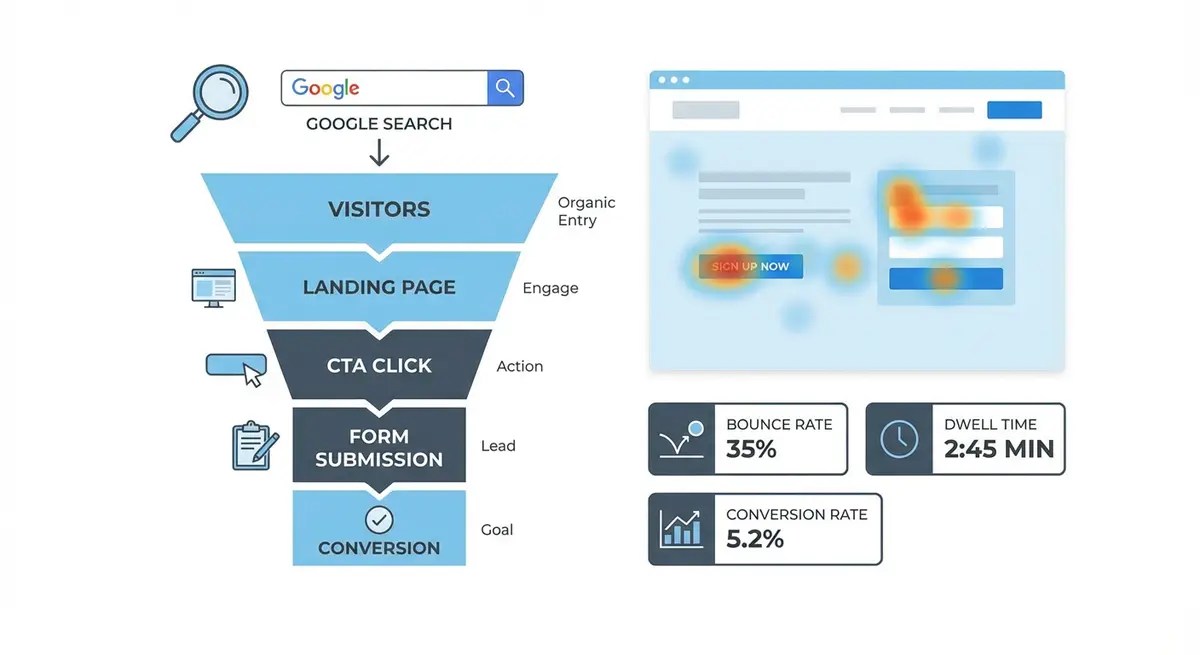
A click heatmap shows where visitors click on your page, displayed as a colour gradient from blue (few clicks) to red (many clicks). Look for unexpected patterns: are visitors clicking on non-clickable elements like images or headings? That indicates they expect those elements to be interactive. Are visitors ignoring your primary CTA? That suggests a visual hierarchy problem. Are clicks concentrated on the navigation menu? That means visitors are not finding what they need on the current page.
Scroll heatmaps show how far down the page visitors scroll before leaving. The data is displayed as a percentage: 100% at the top (everyone sees it) decreasing as you move down. A sharp drop-off at a specific point indicates a content or design problem at that location. Common drop-off triggers include long text blocks without visual breaks, repetitive content, and confusing layouts. Aim for at least 50% of visitors reaching your primary CTA location.
Session Recordings: Watching Real User Behaviour
Session recordings replay actual visitor sessions on your Wix site as video. You see the cursor movements, clicks, scrolls, and navigation path of each individual visitor. This is the most powerful diagnostic tool available because it shows behaviour in full context. A heatmap shows that users are clicking a certain area, but a session recording shows you the confusion and hesitation that led to that click.
Identifying Drop-Off Points and Conversion Barriers
- Rage clicks: rapid repeated clicks on the same element indicate frustration with a non-responsive or confusing interface
- Dead clicks: clicks on non-interactive elements suggest users expect functionality that does not exist
- Quick backs: visitors who arrive and immediately hit the back button indicate a mismatch between search intent and page content
- Form abandonment: users who start filling a form but leave before submitting point to friction in form design
- Scroll abandonment: sudden drop-offs at specific page sections indicate content that loses visitor interest
- U-turns: visitors who scroll down, then quickly scroll back up and leave, suggest content confusion or disappointment
Prioritising Improvements Based on Behaviour Data
Framework for turning behaviour insights into action
- Review heatmaps and recordings for your top 5 most-visited pages from organic search
- Document every usability issue, confusion point, and missed opportunity you observe
- Score each issue on two dimensions: severity of impact (1-5) and frequency of occurrence (1-5)
- Multiply severity by frequency to get a priority score for each issue
- Address the highest-scoring issues first with specific design or content changes
- Rerun heatmaps and recordings after changes to verify improvement
- Move to the next highest-scoring issues and repeat the cycle
Combining Heatmap Data with GA4 Insights
The most powerful analysis combines quantitative GA4 data with qualitative heatmap data. Use GA4 to identify which pages have high traffic but low conversion rates, then deploy heatmaps and recordings specifically on those underperforming pages to diagnose why. This targeted approach is far more efficient than trying to analyse behaviour across your entire site at once.
User Behaviour Analysis Tools
- Hotjar: Heatmaps, session recordings, surveys, and feedback widgets for understanding user behaviour
- Microsoft Clarity: Free unlimited heatmaps and session recordings with GA4 integration
- FullStory: Enterprise-grade session replay with advanced search and AI-powered insights
- Lucky Orange: Real-time heatmaps, recordings, and live chat in a single tool
Complete How-To Guide
This step-by-step guide walks you through setting up, collecting, analysing, and acting on heat mapping and user behaviour data for your Wix site using Hotjar and Microsoft Clarity.
How to set up and use heat mapping and behaviour analysis on Wix
- Step 1: Create free accounts on both Hotjar (hotjar.com) and Microsoft Clarity (clarity.microsoft.com), adding your Wix site domain as a new project in each tool
- Step 2: Copy the Hotjar tracking code from Settings > Sites & Organizations and paste it into your Wix site under Settings > Custom Code > Head, set to load on all pages, then publish your site
- Step 3: Copy the Microsoft Clarity tracking code from your Clarity project settings and add it to the same Wix Custom Code section, also set to load on all pages
- Step 4: Configure your Wix cookie consent banner to categorise both Hotjar and Clarity as analytics tools requiring opt-in consent for GDPR compliance, and update your privacy policy to disclose session recording
- Step 5: In GA4, identify your top 5 pages with the highest organic traffic but lowest conversion rates by creating an exploration report filtered by organic traffic source
- Step 6: In Hotjar, create click heatmaps and scroll heatmaps specifically for those 5 underperforming pages, setting each to collect at least 1,000 pageviews before analysis
- Step 7: In Microsoft Clarity, navigate to the Dashboard and filter session recordings by the same underperforming page URLs, then watch at least 10 full recordings per page from organic visitors
- Step 8: While watching recordings, document every instance of rage clicks, dead clicks, quick backs, form abandonment, scroll abandonment, and U-turn behaviour in a spreadsheet
- Step 9: Review the click heatmaps to identify elements receiving unexpected clicks (non-clickable items visitors think are interactive) and CTAs being ignored despite prominent placement
- Step 10: Review the scroll heatmaps to pinpoint exact locations where visitor attention drops off sharply, noting what content or design elements appear at those drop-off points
- Step 11: Score each identified issue on severity of impact (1-5) and frequency of occurrence (1-5), then multiply both scores to create a prioritised list of improvements
- Step 12: Address the top 3 highest-scoring issues first by making specific design or content changes in the Wix Editor, such as making clicked non-interactive elements into actual links or moving CTAs to higher-engagement zones
- Step 13: After implementing changes, set up fresh heatmaps in Hotjar for the modified pages and wait for at least 1,000 new pageviews to accumulate before comparing the new data against your baseline
- Step 14: In Clarity, use the comparison feature to view session recordings from after your changes and verify that the problematic behaviours (rage clicks, quick backs) have decreased
- Step 15: Repeat the cycle for the next batch of issues on your priority list, continuously monitoring GA4 conversion rates alongside behaviour data to confirm that usability improvements translate into measurable conversion gains
Was this lesson useful?
It takes 1 minute to tell me. The course is free and I want to keep it that way, and your feedback shows me what is working and helps other people find it.
This lesson on Heat mapping and user behaviour analysis with Hotjar and Clarity on Wix is part of Module 21: Conversion Rate Optimisation for Organic Traffic on Wix in The Most Comprehensive Complete Wix SEO Course in the World (2026 Edition). Created by Michael Andrews, a Wix Marketplace Legend Partner with 14 years of hands-on experience, 800 completed Wix SEO projects and 456 verified five-star reviews.