Google Shopping and Merchant Center integration for Wix
Module 17: Wix eCommerce SEO Mastery | Lesson 195 of 683 | 40 min read
By Michael Andrews, Wix SEO Expert UK
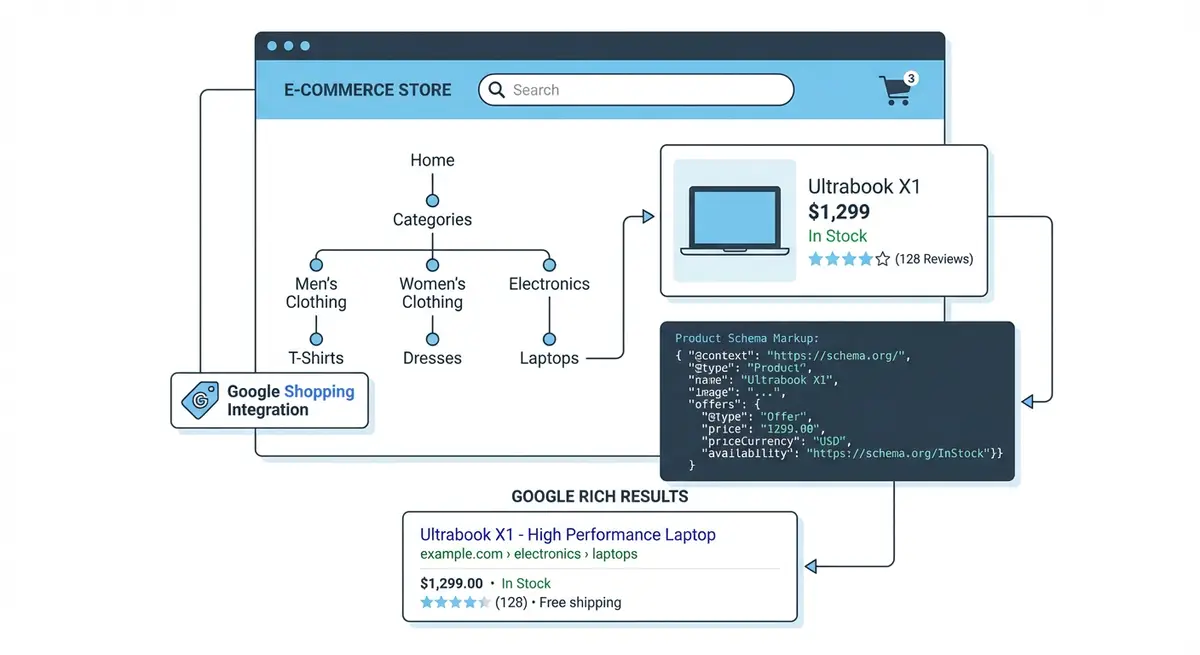
Google Shopping has become one of the most valuable traffic sources for eCommerce stores, and since Google introduced free product listings in 2020, every Wix Store owner can get their products displayed in the Shopping tab, image results, and even the main search results without paying a penny for ads. This lesson walks you through the complete setup of Google Merchant Center for Wix, from account creation to feed optimisation and fixing the disapprovals that trip up most store owners.
Understanding Google Merchant Center and Why It Matters
Google Merchant Center is a platform where you upload your product data so that Google can display it across its surfaces: the Shopping tab, Google Images, Google Search, YouTube, and Gmail. Think of it as the product database that feeds Google Shopping results. Without a Merchant Center account and an active product feed, your products will never appear in Shopping results regardless of how well-optimised your product pages are.
The distinction between free listings and paid Shopping ads is critical. Free listings appear in the Shopping tab and sometimes in the main search results carousel, but they have lower visibility than paid placements. Paid Shopping ads (managed through Google Ads) appear at the top of search results with prominent visual placement. This lesson focuses on getting your free listings set up correctly, as they require no advertising budget and can drive significant organic traffic.
Setting Up Google Merchant Center for Wix
Complete Merchant Center setup process
- Go to merchants.google.com and sign in with your Google account (use the same account connected to your Google Search Console)
- Enter your business information: business name, country, and timezone
- Verify and claim your website URL by adding the verification meta tag through Wix SEO settings or by connecting through Google Search Console
- In your Wix Dashboard, go to Marketing & SEO > Google Merchant Center and click "Connect"
- Authorise Wix to share your product data with Google Merchant Center
- Select which products and collections to include in your feed (start with all products unless you have specific reasons to exclude some)
- Wait 24-72 hours for Google to process your initial product feed
- Check the Diagnostics tab in Merchant Center for any product disapprovals or warnings
- Enable free product listings in Merchant Center under Growth > Manage Programs > Free Product Listings
Optimising Your Product Feed Data
The quality of your product feed data directly determines whether your products appear in Shopping results and how prominently they are displayed. Google uses your feed data to match products to search queries, so vague or incomplete data means your products will not surface for relevant searches. Wix automatically generates a product feed from your store data, but the output is only as good as the information you have entered for each product.
Product Title Optimisation for Google Shopping
Google Shopping titles follow different rules than standard SEO titles. Shopping titles should be front-loaded with the most important attributes because Google often truncates them in the display. The ideal format is: Brand + Product Type + Key Attributes (colour, size, material, model). For example, "Nike Air Max 90 Running Shoes - White/Black - Men's Size 10" is far more effective than "Amazing Running Shoes for Men".
- Include the brand name at the beginning of every product title
- Follow with the specific product type using common search terms, not creative marketing names
- Add the most distinguishing attributes: colour, size, material, gender, age group
- Keep titles under 150 characters (Google truncates at about 70 characters in display but uses the full title for matching)
- Never use promotional text like "FREE SHIPPING" or "SALE" in titles as this violates Merchant Center policies
- Avoid ALL CAPS, excessive punctuation, or special characters in titles
Product Description Requirements
Your Merchant Center product description should be a factual, detailed explanation of what the product is. Unlike your on-page product description which can be persuasive and emotional, the Shopping feed description should focus on attributes, features, and specifications. Google uses this text to understand your product and match it to relevant queries. Include key specifications, compatible products, use cases, and material information.
GTIN, MPN, and Brand Identifiers
Google requires unique product identifiers for most products. The Global Trade Item Number (GTIN), which is the barcode number on your product, is the most important identifier. If your products have barcodes, enter the GTIN in the Wix product settings under the "Additional Info" section. Products with GTINs receive significantly better visibility in Google Shopping because Google can match them precisely to its product database and show them in more contexts.
Free Listings vs Paid Google Shopping Ads
Free listings and paid Shopping ads use the same product feed from Merchant Center, but they appear in different locations and with different frequency. Free listings primarily show in the Shopping tab (when users click the "Shopping" filter on Google) and occasionally in the "Popular Products" carousel on the main search results page. Paid Shopping ads appear at the very top of search results, in Google Images, on YouTube, and across the Google Display Network.
For Wix Store owners just starting out, free listings should be your first priority. Get your feed approved, optimise your product data, and start generating free traffic. Once you see which products get the most impressions and clicks from free listings, you have data-driven evidence for which products to invest advertising budget behind with paid Shopping campaigns.
Diagnosing and Fixing Product Disapprovals
Product disapprovals are the most common frustration with Google Merchant Center. A disapproved product will not appear in any Shopping results until the issue is resolved. Google provides specific disapproval reasons in the Diagnostics section of Merchant Center, but they can be cryptic. Here are the most common disapprovals for Wix Stores and how to fix each one.
- Mismatched price: The price in your feed does not match the price on your product page. Ensure Wix feed sync is up to date and currency settings match
- Missing shipping information: Configure shipping rates in Merchant Center settings to match your Wix Store shipping rules exactly
- Unavailable landing page: The product URL returns a 404 or redirect. Check that the product is published and the URL slug has not changed
- Policy violation in product image: Google rejects images with text overlays, watermarks, or promotional badges. Use clean product photos
- Missing GTIN for known products: If Google recognises your product as a branded item, it may require a GTIN. Add the barcode number or set identifier_exists to false for custom items
- Insufficient product data: Title or description too short. Expand both to include all relevant attributes
- Mismatched availability: Your feed says "in stock" but the product page shows out of stock. Ensure inventory sync is working correctly
How to resolve product disapprovals
- Log into Google Merchant Center and navigate to Products > Diagnostics
- Click on the specific disapproval issue to see all affected products
- Review Google's explanation and linked documentation for each issue type
- Fix the issue at the source: update the product in your Wix Dashboard (not just the feed)
- Wait for the next automatic feed refresh (Wix syncs every 24 hours) or manually request a re-crawl
- Monitor the Diagnostics tab over the next 3-5 days to confirm the disapproval is resolved
- For persistent issues, use the "Request Review" button in Merchant Center to escalate to Google's review team
Advanced Feed Optimisation Strategies
Once your basic feed is approved and products are showing in free listings, there are several advanced optimisations that can significantly improve your Shopping performance. Adding product_type attributes with your full category hierarchy helps Google match your products to more specific queries. Adding custom labels allows you to segment products by margin, season, or performance for smarter bid management if you later run paid campaigns.
Google Shopping Setup Tools
- Google Merchant Center: The core platform for managing your product feed, monitoring diagnostics, and enabling free listings
- Google Merchant Center Help: Official documentation for feed specifications, policies, and troubleshooting disapprovals
- Wix Google Merchant Center Integration: Step-by-step Wix documentation for connecting your store to Merchant Center
- GTIN Lookup Tool: Look up GTIN/UPC barcodes for branded products if you do not have the packaging available
Complete How-To Guide: Connecting Your Wix Store to Google Shopping
This guide walks you through the complete process of setting up Google Merchant Center, connecting your Wix Store product feed, and getting your products listed in Google Shopping.
How to get your Wix Store products listed in Google Shopping
- Step 1: Create a Google Merchant Center account at merchants.google.com. Use the same Google account that manages your Search Console and GA4.
- Step 2: Enter your business information including business name, country, and website URL. Verify your website ownership using one of the verification methods offered.
- Step 3: In your Wix Dashboard, go to Marketing & SEO > Google Merchant Center or Marketing Integrations. Click Connect to begin the Wix-Merchant Center integration.
- Step 4: Authorise the connection and select which product collections to sync. For most stores, sync all products initially and exclude specific items later if needed.
- Step 5: Wait for the initial feed sync to complete. This typically takes 24-48 hours. Check the Merchant Center diagnostics for any feed processing errors.
- Step 6: Review the Products section in Merchant Center. Check for disapproved products and note the specific disapproval reasons for each.
- Step 7: Fix the most common disapprovals: missing GTIN/MPN (add product identifiers in Wix), mismatched pricing (ensure Wix prices match what Merchant Center reads), and missing shipping information (configure shipping rates in Merchant Center).
- Step 8: Optimise product titles in your Wix Store. Google Shopping titles should follow the format: Brand + Product Type + Key Attributes. Longer, more descriptive titles perform better in Shopping than in organic search.
- Step 9: Ensure every product has a high-quality main image on a white background. Google Shopping requires images that meet specific quality standards including minimum resolution and no promotional overlays.
- Step 10: Enable Free Listings in Merchant Center. Go to Growth > Manage Programs > Free Listings and opt in. Your products will begin appearing in the Google Shopping tab without ad spend.
- Step 11: Set up shipping and returns information in Merchant Center. Accurate shipping costs and a clear returns policy are required for products to appear in Shopping results.
- Step 12: Monitor the Merchant Center dashboard weekly. Check the Diagnostics tab for new disapprovals, the Performance tab for free listing impressions and clicks, and the Products tab for feed freshness.
Was this lesson useful?
It takes 1 minute to tell me. The course is free and I want to keep it that way, and your feedback shows me what is working and helps other people find it.
This lesson on Google Shopping and Merchant Center integration for Wix is part of Module 17: Wix eCommerce SEO Mastery in The Most Comprehensive Complete Wix SEO Course in the World (2026 Edition). Created by Michael Andrews, a Wix Marketplace Legend Partner with 14 years of hands-on experience, 800 completed Wix SEO projects and 456 verified five-star reviews.