Google Business Profile: complete setup and local SEO integration
Module 30: Social Media Setup for Wix SEO | Lesson 359 of 683 | 60 min read
By Michael Andrews, Wix SEO Expert UK
Google Business Profile (GBP) is the single most important platform for local SEO. It directly controls how your business appears in Google Maps, the local pack (the 3-business listing that appears for local searches), and branded Knowledge Panels. For Wix website owners serving local customers, a fully optimised GBP is not optional: it is the foundation of your local search visibility. This lesson covers the complete setup, advanced optimisation, and Wix integration of your Google Business Profile with every data point and technique you need.
Google Business Profile SEO Impact: The Data
Infographic: GBP Statistics for Local SEO (2026)
Complete How-To: Creating and Verifying Your Google Business Profile
Part 1: Account Creation
- Go to business.google.com and sign in with the SAME Google account you use for Google Search Console and Google Analytics. This creates an implicit entity connection between your website data and your business listing.
- Click "Add your business to Google". Search for your business first. If an unclaimed listing already exists (someone may have created it from Google Maps data), claim it rather than creating a duplicate.
- Enter your exact business name. This must match your Wix site, all social profiles, and your official business registration exactly. Do not add keywords, taglines, or location modifiers. Google can suspend listings that keyword-stuff the business name.
- Select your primary business category. This is THE most important ranking factor for GBP. Choose the most specific category available. Start typing and browse all options. "SEO Agency" is more specific than "Marketing Agency". "Plumber" is more specific than "Contractor". You will add secondary categories later.
- Choose your business type: (1) Physical location (customers visit you), (2) Service area business (you visit customers), or (3) Both. For service-area businesses, you will define your service areas by city, postcode, or region.
- Add your business address. For physical locations, enter your full street address. For service-area businesses, you can hide your street address while still appearing in local searches for your service areas. The address format must be IDENTICAL to your Wix site and all other platforms.
- Define your service areas (for SABs). You can add up to 20 service areas by city name, postcode, or region. Be realistic: only add areas you genuinely serve. Over-claiming areas without local signals can dilute your rankings.
- Add your primary phone number. Use the phone number that rings at your business. This must match your Wix site, Facebook, and all other citations exactly. Use the same format everywhere.
- Add your Wix website URL. Use the full URL with https://.
Part 2: Verification Process
- Google requires verification to prove you are the legitimate owner of the business. Available methods vary by business type and location.
- Postcard verification (most common): Google mails a postcard with a 5-digit code to your business address. This takes 5-14 days. Do not change any profile details while waiting for the postcard, as this can invalidate the code.
- Phone verification (if available): Google calls your business phone with an automated verification code. Available for some established businesses.
- Email verification (if available): Google sends a code to your business email. Available for some businesses with verified domain email.
- Video verification (newer option): Record a video showing your business location, signage, and proof of operation. Upload to Google for review within 5 business days.
- Once you receive your verification code, log in to business.google.com and enter the code in the Verification section.
- After verification, your listing becomes active and appears in Google Maps and local search results within 24-48 hours.
Part 3: Full Profile Optimisation
- Add your secondary categories. You can add up to 9 additional categories. Choose categories that describe additional services you offer. Example: primary "SEO Agency", secondary "Web Designer", "Marketing Consultant", "Internet Marketing Service". Each category makes you eligible to appear in searches for those services.
- Write your business description (750 characters). Include your primary services, key locations you serve, years of experience, unique differentiators, and credentials. Write naturally and place your most important keywords in the first sentence. Do not keyword stuff. Example: "Bedford Garden Rooms designs and builds insulated garden rooms and home offices across Bedfordshire. With 10 years of experience, we take each project from design through to build."
- Add your business hours. Set regular hours for each day. Add special hours for holidays and events. Match these exactly to your Wix site.
- Upload photos. Aim for 100+ photos (businesses with this many get 520% more calls). Include: logo (1 photo), cover photo (1 photo), exterior shots (5-10 from different angles and times of day), interior shots (5-10), team photos (5-10), product/service photos (10-20), and customer interaction photos. Add new photos monthly.
- Add your Products or Services section. Create detailed listings for each service/product with: name, description (up to 1,000 characters), price or price range, and a link to the relevant Wix page. This creates additional internal links from GBP to your site.
- Set up the Q&A section proactively. Do not wait for customers to ask questions. Add 15-20 common questions and detailed answers yourself (from your own Google account). Include keywords naturally. Cover: services, pricing, service areas, opening hours, parking, accessibility, and booking process.
- Enable messaging. Go to Messages in your GBP dashboard and turn on messaging. This allows customers to send you direct messages from your GBP listing. Respond within 24 hours to maintain your response rate score.
- Complete all available attributes. Google offers attributes like: wheelchair accessible, free Wi-Fi, LGBTQ+ friendly, women-owned, veteran-led, appointment required, etc. Complete every relevant attribute. These help your listing appear in filtered searches.
- Create your first Google Post. Posts appear in your GBP listing and in Google Search results. Create an "Update" post introducing your business with a photo and a link to your Wix site.
Infographic: Google Business Profile Ranking Algorithm
Google uses three primary factors to rank local businesses in the local pack and Google Maps. Understanding these factors allows you to strategically optimise your GBP for maximum visibility.
Complete How-To: Google Reviews Strategy
Google Reviews are the single most impactful thing you can do for your GBP ranking after setting your primary category. Businesses with more reviews, higher ratings, and recent review activity consistently outrank competitors in the local pack.
Building a systematic Google Reviews strategy
- Create a direct review link. Open Google Maps, find your business, click "Write a Review" and copy the URL. Alternatively, use the Google Places API review link format. Save this link for easy sharing.
- Create a short URL or QR code for the review link. Use bit.ly or a custom short URL. Print the QR code on business cards, receipts, invoices, and in your physical location.
- Build review requests into your business process. After every completed project, service delivery, or positive customer interaction, send a personalised review request within 24-48 hours while the experience is fresh.
- Create an email template: "Hi [Name], thank you for choosing [Business]. We hope you are happy with [specific service/result]. If you have a moment, a Google Review would mean the world to us and helps other customers find us: [review link]. Thank you!"
- Respond to every single review within 24 hours. For positive reviews: thank the reviewer by name, reference something specific about their experience, and mention a relevant service naturally. For negative reviews: apologise, take responsibility, offer to resolve offline, and provide your contact details.
- Never offer incentives for reviews (this violates Google's policies and can result in listing suspension). Simply ask and make it easy.
- Aim for 2-4 new reviews per month minimum. Consistent review velocity is more important than a burst of reviews followed by silence.
- Monitor your reviews weekly. Set up Google Alerts for your business name to catch new reviews immediately.
- Showcase your best Google Reviews on your Wix site. Use a reviews widget or manually add testimonial sections that reference your Google rating. This creates a trust bridge between your GBP and your website.
Connecting GBP to Your Wix Site
Integrating GBP with your Wix website for maximum local SEO
- Add LocalBusiness schema markup to your Wix homepage. Include your exact business name, address, phone, website URL, business hours, and a sameAs array listing all your social profile URLs. This explicitly connects your website entity to your GBP.
- Display your full NAP (Name, Address, Phone) on your Wix site footer, contact page, and about page. The format must be identical to your GBP listing.
- Embed a Google Maps widget on your Wix contact page showing your business location. This creates an implicit connection between your website and your GBP listing.
- Add a "Leave a Review" button on your Wix site that links to your Google Review URL.
- Install the Wix Google Business Profile app from the App Market if available. This allows you to manage your GBP listing from your Wix dashboard.
- Ensure your Wix site's meta title and description for your homepage include your business name and primary location, matching your GBP.
GBP Tools
- Google Business Profile Manager: Create, manage and optimise your Google Business Profile
- Google Business Profile Manager: Manage your GBP on desktop and mobile: respond to reviews, add photos, post updates
- BrightLocal: Track local rankings, audit citations, monitor GBP performance and competitor analysis
- Whitespark: Local citation finder, Google Review link generator, and local rank tracker
- Google Maps: Search for your business to verify your listing appears correctly
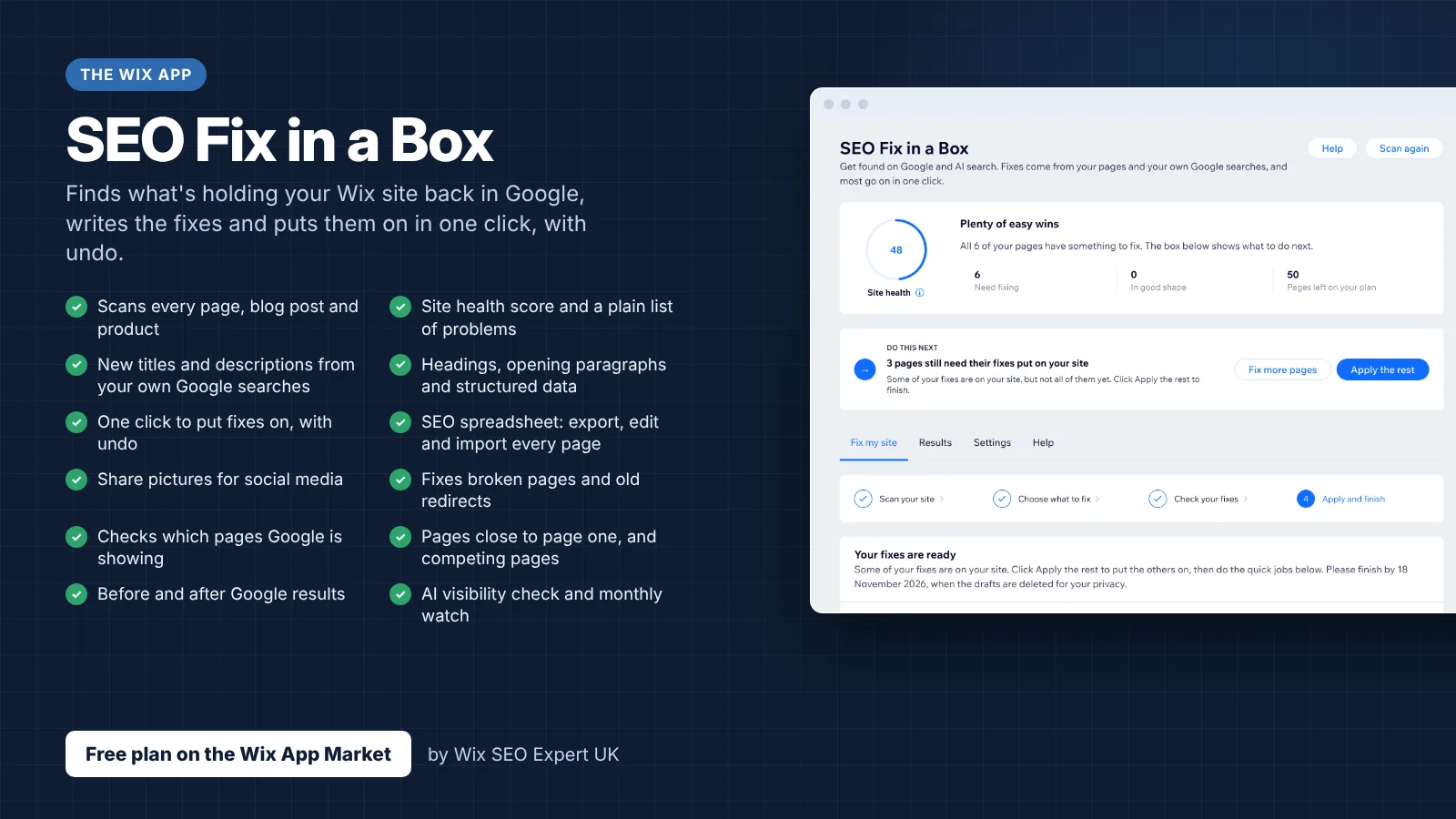
- SEO Fix in a Box: My Wix app. Free to install, it scans your site and shows what needs fixing, and paid plans write the fixes from your own Google searches
Was this lesson useful?
It takes 1 minute to tell me. The course is free and I want to keep it that way, and your feedback shows me what is working and helps other people find it.
This lesson on Google Business Profile: complete setup and local SEO integration is part of Module 30: Social Media Setup for Wix SEO in The Most Comprehensive Complete Wix SEO Course in the World (2026 Edition). Created by Michael Andrews, a Wix Marketplace Legend Partner with 14 years of hands-on experience, 800 completed Wix SEO projects and 456 verified five-star reviews.