Google Business Profile advanced: Posts, Q&A, Products and Services
Module 9: Local SEO Domination | Lesson 119 of 683 | 30 min read
By Michael Andrews, Wix SEO Expert UK
Most Wix site owners claim their Google Business Profile and stop at the basics: name, address, phone number, and a few photos. That approach leaves enormous ranking potential untapped. Google Business Profile offers a suite of advanced features including Posts, Q&A, Products, and Services that directly influence your visibility in the local pack and Maps results. This lesson takes you beyond the fundamentals and into the features that separate top-ranking local businesses from everyone else.
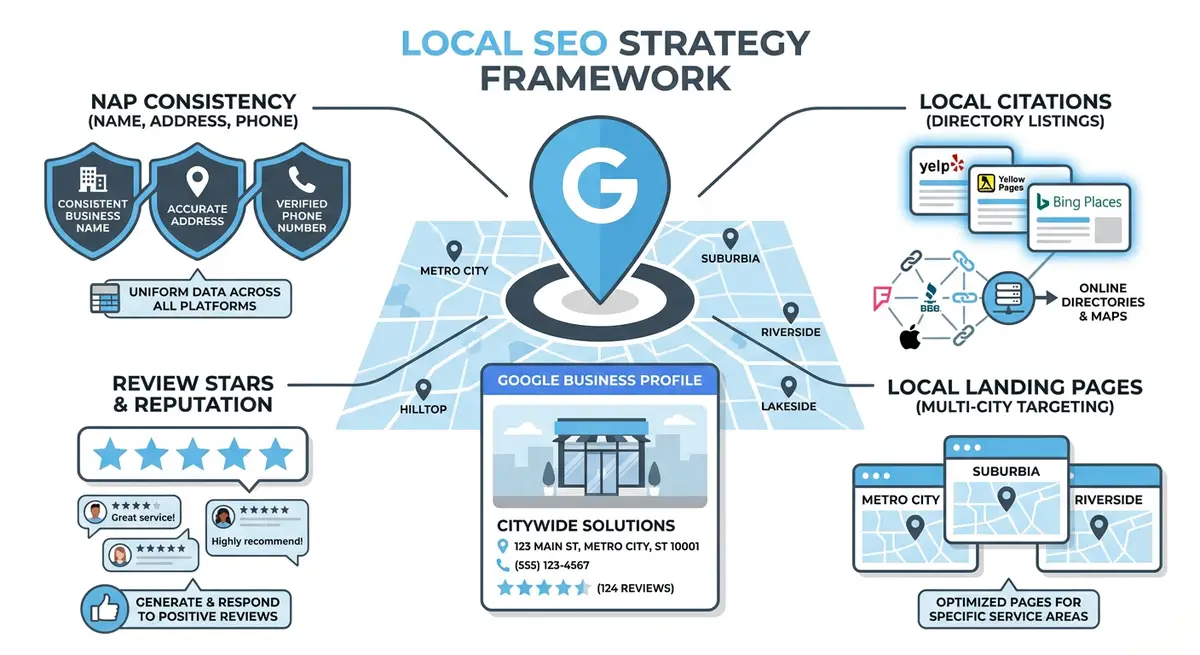
Why Advanced GBP Features Matter for Local Rankings
Google has confirmed that profile completeness is a ranking factor for local results. Businesses that utilise every available GBP feature send a stronger relevance and activity signal than those with bare-bones profiles. In competitive local markets, the difference between position three and position one in the local pack often comes down to which business is making the most of these advanced features.
Beyond rankings, these features directly influence conversion. A business with active posts, answered questions, and a full product catalogue gives searchers significantly more reasons to click, call, or visit. Think of your GBP as a mini-website that lives inside Google itself, one that many potential customers will interact with without ever visiting your Wix site.
Google Posts: Types, Strategy, and Publishing Cadence
Google Posts allow you to publish short updates directly to your Business Profile. These appear in your knowledge panel when someone searches for your business name and can also appear in local pack results for relevant queries. There are four primary post types: Updates, Events, Offers, and Products. Each serves a distinct purpose and has different formatting options and lifespans.
Update Posts
Update posts are the most versatile type and remain visible for six months from publication (previously they expired after seven days). Use update posts to share news about your business, highlight recent projects, announce new services, or publish seasonal content that includes your target local keywords. Each post supports up to 1,500 characters, a photo or video, and a call-to-action button linking to your Wix site.
Event Posts
Event posts include start and end dates and remain visible for the duration of the event. They are ideal for workshops, sales events, open houses, or webinars. The structured date format helps Google understand the temporal relevance of your content, potentially surfacing your listing when someone searches for events in your area or industry.
Offer Posts
Offer posts display with a distinctive yellow "View offer" tag that immediately draws attention in search results. These are time-limited and require start and end dates. They support coupon codes and terms and conditions text. Use offer posts strategically for promotions, especially during high-competition periods like holidays when you need your listing to stand out visually.
Creating a high-impact Google Post
- Log in to your Google Business Profile at business.google.com and navigate to the Posts section
- Select the appropriate post type based on your content: Update for general content, Event for dates, Offer for promotions
- Write a compelling opening sentence that includes your primary local keyword naturally within the first 100 characters
- Add a high-quality image sized at 1200 x 900 pixels minimum, avoiding text overlays that become unreadable on mobile
- Include a clear call-to-action button (Book, Learn More, Call Now, or Sign Up) linking to the relevant page on your Wix site
- Publish the post and monitor engagement metrics in the Performance section of your GBP dashboard
Q&A Management and Strategic Question Seeding
The Q&A section of your Google Business Profile is one of the most overlooked features in local SEO. Anyone with a Google account can ask or answer questions on your profile, and those questions and answers are publicly visible. Left unmanaged, this section can fill with unanswered questions or, worse, incorrect answers from random users. Proactive management turns this liability into a powerful SEO asset.
Google indexes the Q&A content on your profile, which means the text in your questions and answers can influence what searches your profile appears for. Strategic question seeding, asking and answering your own frequently asked questions, is a legitimate tactic that Google has not prohibited. It improves both your keyword relevance and the user experience for potential customers who find your listing.
- Seed 10 to 15 frequently asked questions covering your services, hours, pricing, parking, accessibility, and policies
- Write answers that naturally incorporate location keywords and service keywords without stuffing
- Upvote your own answers using the business account so they appear as the top answer
- Monitor for new user questions weekly and respond promptly with detailed, helpful answers
- Flag any spam or inappropriate questions using the three-dot menu on each Q&A entry
Adding Products and Services to Your GBP Listing
The Products and Services editors in Google Business Profile allow you to create structured, searchable catalogues directly within your listing. These sections display as dedicated tabs on your profile and can appear in search results when someone searches for specific products or services in your area. For service-based Wix businesses, the Services section is particularly impactful because it allows you to list individual services with descriptions, price ranges, and direct links.
When adding products, include the product name, category, price, description, and a high-quality photo. Google can match these product listings to Shopping-related queries. For services, add each distinct service you offer with a detailed description that includes relevant keywords. Group related services into collections for better organisation. Both features provide additional keyword-rich content that Google associates with your business entity.
Industry-Specific Attributes and Categories
Google provides dozens of industry-specific attributes that most businesses never fill in. These include features like "wheelchair accessible," "free Wi-Fi," "outdoor seating," "women-led," "veteran-led," and many more. These attributes appear as badges on your profile and serve as filters in Google Maps searches. When a user searches "wheelchair accessible restaurants near me," only businesses with that attribute checked will appear in filtered results.
Beyond attributes, verify that your primary and secondary categories are optimal. Your primary category is the single most influential GBP ranking factor. Research what categories your top-ranking competitors use with tools like GMBSpy or Pleper, and ensure your categories accurately reflect your core business while maximising search visibility. You can add up to nine secondary categories to capture additional relevant search queries.
Measuring the Impact of Advanced GBP Features
Google Business Profile Insights provides data on how customers find and interact with your listing. Track the metrics that matter most: search queries that triggered your profile, actions taken such as website visits, direction requests, and phone calls, and photo views compared to competitors. After implementing advanced features, allow two to four weeks before drawing conclusions from the data.
Setting up a GBP performance tracking routine
- Navigate to your GBP dashboard and click Performance in the left sidebar
- Record your baseline metrics for searches, profile views, and customer actions before implementing changes
- Export the data monthly and track trends in a spreadsheet, noting when you implemented each feature
- Compare your photo quantity and quality metrics against the competitor benchmark Google provides
- Cross-reference GBP referral traffic in your Wix site analytics (GA4) with the traffic source google.com/maps or business.google.com
Your Google Business Profile is not a set-it-and-forget-it asset. Treat it as a living extension of your Wix website that requires weekly attention and strategic updates to maintain competitive visibility in local search.
Complete How-To Guide: Mastering Advanced GBP Features
This step-by-step guide walks you through every advanced Google Business Profile feature, from creating high-impact posts to optimising your Q&A section and product catalogue. Follow each step to transform your GBP from a basic listing into a fully optimised local search asset that drives traffic to your Wix site.
Follow these steps to master advanced Google Business Profile features
- Step 1: Log in to your Google Business Profile at business.google.com and navigate to the Posts section. Create an Update post by writing a compelling opening sentence that includes your primary local keyword within the first 100 characters, adding a high-quality image sized at 1200 x 900 pixels minimum, and selecting a call-to-action button linking to the relevant page on your Wix site.
- Step 2: Create an Offer post by selecting the Offer post type, setting a start and end date for your promotion, writing a clear description of the deal, adding an optional coupon code, and including terms and conditions. Add UTM tracking parameters to the link (utm_source=google&utm_medium=gbp&utm_campaign=offer-name) so you can measure conversions in GA4.
- Step 3: Create an Event post by selecting the Event post type, entering the event title with a relevant keyword, setting the event start and end dates and times, adding a description that highlights the value for attendees, and linking to the event registration or details page on your Wix site.
- Step 4: Set up a weekly posting schedule by creating a content calendar that alternates between Update, Offer, and Event posts. Batch-create posts in advance so you always have content ready. Set a recurring calendar reminder every Monday to publish that week's post and review the previous week's engagement metrics.
- Step 5: Optimise your GBP Q&A section by seeding 10 to 15 frequently asked questions covering your services, hours, pricing, parking, accessibility, and business policies. Write detailed answers that naturally incorporate your location and service keywords without stuffing, and upvote your own answers from the business owner account so they appear at the top.
- Step 6: Add your complete product catalogue by navigating to the Products section in your GBP dashboard. For each product, enter the product name, select or create a category, add a price or price range, write a keyword-rich description of 100 to 300 characters, upload a high-quality product photo, and link directly to the product page on your Wix site.
- Step 7: Set up your Services listing by navigating to the Services section in your GBP dashboard. Add each distinct service you offer with a clear name, detailed description including relevant keywords, and a price range if applicable. Group related services into logical collections for better organisation and user experience.
- Step 8: Configure booking links by navigating to the Bookings section and connecting your scheduling platform such as Wix Bookings, Calendly, or Square Appointments. Test the booking flow from a customer's perspective to ensure the link directs to the correct booking page on your Wix site and that the process completes without errors.
- Step 9: Enable GBP Messaging by going to the Messages section and turning on the messaging feature. Set up automated welcome messages that greet potential customers and guide them toward next steps. Configure notification preferences so you receive alerts immediately and can respond within your target response time.
- Step 10: Add all relevant business attributes by navigating to the Info section and clicking on Attributes. Check every attribute that accurately applies to your business, including accessibility features, amenities, payment methods, health and safety measures, and identity attributes such as women-led or veteran-led. These appear as badges on your profile and serve as filters in Google Maps searches.
- Step 11: Create trackable offers by adding UTM parameters to every link you include in Google Posts, Products, and Services. Use a consistent UTM structure (utm_source=google&utm_medium=gbp&utm_campaign=post-type-topic) and log each tracked URL in a spreadsheet so you can correlate GBP activity with Wix site traffic and conversions in GA4.
- Step 12: Monitor Q&A activity by setting up Google notifications for new questions on your profile. Check the Q&A section at least twice per week and respond to every new question within 24 hours from your business owner account to display the verified badge. Flag any spam or inappropriate questions using the three-dot menu on each entry.
Essential Resources
- Google Business Profile Help: Official GBP documentation for managing your business listing
- Google Search Console: Monitor your site performance and local search visibility
- Schema.org LocalBusiness: LocalBusiness schema reference for structured data markup
- Wix SEO Help Centre: Official Wix SEO documentation and best practice guides
Essential Resources
- Google Business Profile Help: Official GBP documentation for managing your business listing
- Google Search Console: Monitor your site performance and local search visibility
- Schema.org LocalBusiness: LocalBusiness schema reference for structured data markup
- Wix SEO Help Centre: Official Wix SEO documentation and best practice guides
Essential Resources
- Google Business Profile: Manage Posts, Q&A, Products and Services on your Google listing
- Google Analytics 4: Track UTM-tagged traffic from GBP Posts and product listings
- Canva: Create 1200x900px Google Post images with branded templates
- SEO Fix in a Box: My Wix app. Free to install, it scans your site and shows what needs fixing, and paid plans write the fixes from your own Google searches
Was this lesson useful?
It takes 1 minute to tell me. The course is free and I want to keep it that way, and your feedback shows me what is working and helps other people find it.
This lesson on Google Business Profile advanced: Posts, Q&A, Products and Services is part of Module 9: Local SEO Domination in The Most Comprehensive Complete Wix SEO Course in the World (2026 Edition). Created by Michael Andrews, a Wix Marketplace Legend Partner with 14 years of hands-on experience, 800 completed Wix SEO projects and 456 verified five-star reviews.