Google Analytics 4: the reports that matter for SEO decisions
Module 15: Wix Analytics & SEO Reporting | Lesson 169 of 683 | 57 min read
By Michael Andrews, Wix SEO Expert UK
GA4 interface is confusing to anyone who learned analytics on Universal Analytics. But once you know where to look, the data available is incredibly powerful for making informed SEO decisions. This lesson cuts straight to the reports that matter, teaches you to build custom explorations that connect organic search to revenue, and shows you how to configure GA4 specifically for SEO analysis on your Wix site.
Report 1: Traffic Acquisition (Organic Channel)
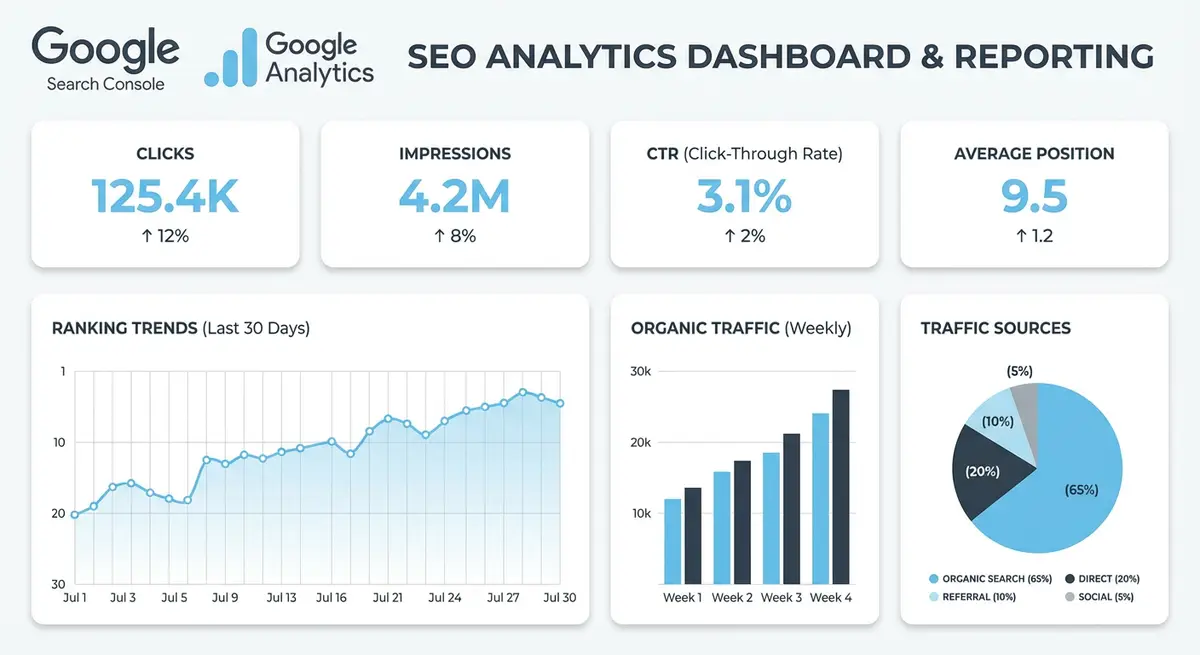
Go to Reports > Acquisition > Traffic Acquisition. Set the comparison date range to the previous period. Look at "Organic Search" as a channel, sessions, engagement rate, conversions, and revenue (if applicable). This tells you the overall health of your organic traffic trend.
Understanding Organic Engagement Metrics
GA4 engagement rate is the percentage of sessions that lasted longer than 10 seconds, had a conversion event, or had two or more page views. For organic traffic, a healthy engagement rate is between 50% and 70%. If your organic engagement rate is below 40%, visitors are bouncing quickly, which signals either poor content quality or a mismatch between what the page promises in search results and what it delivers on-site.
Average engagement time per session tells you how long organic visitors spend actively interacting with your content. For blog posts, aim for 2-4 minutes. For service pages, 1-2 minutes is typical as users quickly assess whether to contact you. Pages with high traffic but very low engagement time (under 30 seconds) need immediate investigation, they may be ranking for the wrong keywords.
Report 2: Landing Pages
Go to Reports > Engagement > Landing Pages. Filter by "Session source = google / organic". This shows you which pages are receiving organic traffic, how engaged users are (engagement rate), and how many convert. Pages with high traffic but low engagement may have intent-mismatch problems, the page is ranking for a query but not satisfying the user.
Identifying Content Improvement Opportunities from Landing Page Data
Sort landing pages by organic sessions descending and look for anomalies. Pages with high sessions but engagement rate below 30% need content improvements. Pages with high engagement rate but low sessions may deserve more internal links or backlink investment to increase their visibility. Pages with high sessions and high engagement but zero conversions may be missing calls to action.
- High sessions + low engagement: rewrite introductions to better match search intent and improve content structure with clear headings
- Low sessions + high engagement: excellent content that needs more visibility through internal linking and external link building
- High sessions + high engagement + zero conversions: add clear CTAs, contact forms, or relevant service links within the content
- Declining sessions month-over-month: content may be stale, check Google Search Console for position drops and update accordingly
- New pages with unexpectedly high sessions: investigate which keywords are driving traffic and optimise the page further for those terms
Report 3: Custom Explorations for SEO Analysis
Building a keyword-to-conversion exploration in GA4
- Go to Explore in the left nav and click the "+" to create a new exploration
- Select "Blank" as your starting point
- Under Dimensions, add "Page path" and "Session source/medium"
- Under Metrics, add "Sessions", "Engagement rate", "Conversions"
- Filter the session source to "google / organic"
- Link this exploration to GSC data by going to GA4 Admin > Product Links > Search Console to enable the connection
Building an SEO Content Performance Exploration
Create a second exploration specifically for content analysis. Add dimensions: Landing Page, Page Title. Add metrics: Sessions, Engaged Sessions, Average Engagement Time, Key Events, Total Revenue. Filter by organic traffic only. This exploration lets you quickly identify which content pages drive the most engaged organic visitors and which generate actual revenue. Export this monthly to build a content performance library that guides your editorial calendar.
Report 4: User Acquisition vs Traffic Acquisition
GA4 separates User Acquisition (first-visit attribution) from Traffic Acquisition (session-level attribution). For SEO, both are valuable. User Acquisition shows how many people discovered your brand through organic search for the first time, measuring your reach into new audiences. Traffic Acquisition shows total organic sessions including returning visitors, measuring ongoing engagement with organic content. A healthy SEO strategy shows growth in both metrics.
Report 5: Path Exploration for User Journeys
The Path Exploration in GA4 shows what users do after landing on your site from organic search. Set the starting point to "Organic Search" and visualise the most common page sequences. This reveals whether organic visitors navigate to your service pages, contact forms, or simply leave after reading one page. If most organic visitors exit without visiting a second page, your internal linking and calls to action need improvement.
Tracing the Organic-to-Conversion Path
Configure a funnel exploration with steps: organic landing page visit, service or product page view, contact form view, form submission. This shows exactly where organic visitors drop off in your conversion funnel. If 80% of organic visitors reach your service pages but only 5% view the contact form, the service pages may not have prominent enough calls to action. If 30% view the form but only 3% submit, the form itself may be too complex or ask for too much information.
Setting Up Events and Conversions for SEO Tracking
GA4 is event-driven, meaning you need to define which user actions count as conversions. For Wix SEO tracking, the essential events to mark as conversions are: form_submit (Wix forms), click events on telephone links, booking completions (Wix Bookings), and purchase events (Wix Stores). Each of these must be toggled as a "Key Event" in GA4 Admin > Events to appear in conversion reports.
- Form submissions: Wix fires a form_submit event automatically when using Wix Forms, verify it appears in your GA4 events list
- Phone clicks: Create a custom event triggered by clicks on elements containing "tel:" in the link URL
- Booking completions: Wix Bookings triggers booking events that can be captured in GA4 when the integration is properly configured
- Purchase events: Wix Stores sends purchase event data to GA4 including transaction value when the GA4 integration is active
- Scroll depth: Enable enhanced measurement scrolls to track how far organic visitors scroll on your content pages
- File downloads: Track PDF guide downloads and resource downloads as engagement indicators for content pages
Linking GA4 with Google Search Console
Linking GA4 with GSC unlocks the "Google organic search traffic" report in GA4 which shows search queries alongside on-site engagement data. This is the most powerful combined view in any SEO analytics setup because it connects what people search for (GSC data) with what they do after clicking (GA4 data). Without this link, you have two disconnected data sets that require manual correlation.
How to link GA4 with Google Search Console
- In GA4, go to Admin (gear icon) in the bottom left
- Under Product Links, click Search Console Links
- Click Link and select your verified Search Console property
- Choose the web data stream that corresponds to your Wix site
- Click Submit to complete the connection
- Navigate to Reports > Library and publish the Search Console collection to make it visible in your reports navigation
Complete How-To Guide: Setting Up GA4 for SEO Reporting on Your Wix Site
This guide walks you through configuring GA4 to provide the most actionable SEO data for your Wix site, from initial setup to custom explorations.
How to configure GA4 for comprehensive Wix SEO analysis
- Step 1: Verify GA4 is installed on your Wix site. Go to Wix Dashboard > Marketing & SEO > Marketing Integrations > Google Analytics and confirm your GA4 measurement ID (starting with G-) is connected. If not connected, enter your measurement ID and save.
- Step 2: Link GA4 with Google Search Console. In GA4, go to Admin > Product Links > Search Console Links > Link, select your Search Console property and confirm the connection. Then publish the Search Console collection in your Reports Library.
- Step 3: Navigate to Reports > Acquisition > Traffic Acquisition. Click the pencil icon to customise the report. Ensure Sessions, Engagement Rate, Average Engagement Time and Key Events are included as metrics.
- Step 4: Create a saved filter for organic traffic. Click Add Filter, set Session Default Channel Group to Organic Search and save. This gives you a one-click view of all organic metrics whenever you open this report.
- Step 5: Go to Reports > Engagement > Landing Page and apply the organic traffic filter. Sort by Sessions descending to see which Wix pages attract the most organic visitors. Note the engagement rate for each.
- Step 6: Identify pages with high organic sessions but low engagement rate (below 40%). These pages rank well but fail to engage visitors, indicating content quality or intent mismatch issues that need investigation.
- Step 7: Build a custom exploration for keyword-to-conversion analysis. Go to Explore > Create New > Blank. Add dimensions: Landing Page, Session Source/Medium. Add metrics: Sessions, Engagement Rate, Key Events, Total Revenue.
- Step 8: Filter the exploration to session source/medium containing google / organic to isolate SEO performance from all other traffic sources. Save this exploration as your SEO Performance Analysis template.
- Step 9: Build a second exploration for content performance. Add Page Title and Page Path as dimensions. Add Sessions, Average Engagement Time, Scroll percentage, and Key Events as metrics. Filter to organic traffic only.
- Step 10: Enable the Search Console reports in GA4. Go to Admin > Property Settings > Product Links > Search Console and verify the link. Then go to Library in the Reports section and publish the Search Console collection.
- Step 11: Review the Google Organic Search Queries report. This combined view shows which keywords drive traffic alongside on-site engagement and conversion data, letting you identify your most valuable organic keywords.
- Step 12: Set up key events for your most important SEO goals. Go to Admin > Events, find your form submission, phone click or booking events, and mark them as key events by toggling the conversion switch.
- Step 13: Configure event values where possible. For form submissions, estimate the value of each lead based on your average client value multiplied by close rate. Enter this as the default event value for conversion tracking.
- Step 14: Create a monthly export routine. On the first of each month, export Landing Page performance data for organic traffic to Google Sheets. Include sessions, engagement rate, key events, and revenue columns.
- Step 15: Build a GA4 reporting template in Google Sheets that automatically calculates month-over-month changes for your key organic metrics. This historical archive survives GA4 data retention limits and provides the long-term trend data essential for proving SEO ROI.
Essential Tools for This Lesson
- SEO Fix in a Box: My Wix app. Free to install, it scans your site and shows what needs fixing, and paid plans write the fixes from your own Google searches
Was this lesson useful?
It takes 1 minute to tell me. The course is free and I want to keep it that way, and your feedback shows me what is working and helps other people find it.
This lesson on Google Analytics 4: the reports that matter for SEO decisions is part of Module 15: Wix Analytics & SEO Reporting in The Most Comprehensive Complete Wix SEO Course in the World (2026 Edition). Created by Michael Andrews, a Wix Marketplace Legend Partner with 14 years of hands-on experience, 800 completed Wix SEO projects and 456 verified five-star reviews.