Domain setup, HTTPS and SSL configuration on Wix
Module 2: How to Set Up Your Wix Site for Maximum SEO | Lesson 11 of 683 | 40 min read
By Michael Andrews, Wix SEO Expert UK
A correctly configured domain is non-negotiable for SEO. Google has used HTTPS as a ranking signal since 2014, and Chrome displays a "Not Secure" warning for any HTTP site, which immediately destroys user trust. Beyond the ranking signal itself, your domain configuration affects how Google consolidates your ranking signals, whether you split authority between www and non-www versions, and whether users and search engines can reach every page reliably. This lesson covers every aspect of domain configuration for Wix sites, from purchase to verification.
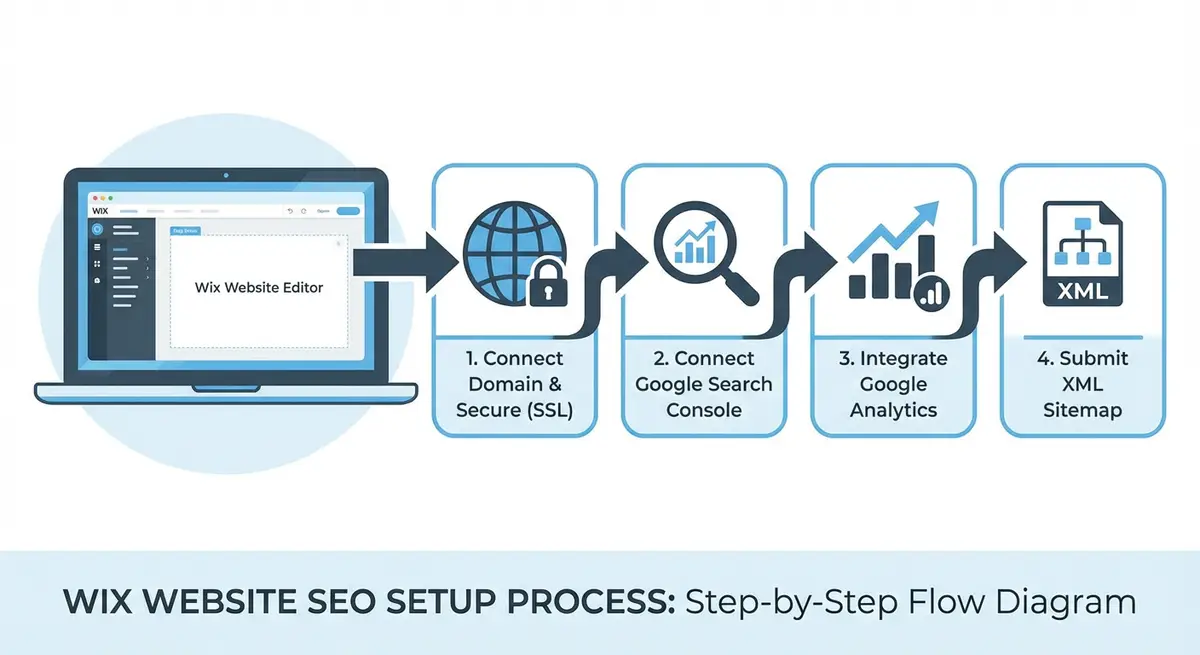
Choosing the Right Domain Name for SEO
Before connecting a domain to Wix, you need to choose the right one. Your domain name is a permanent branding and SEO decision that is very difficult to change later.
Domain Name Best Practices
- Keep it short: domains under 15 characters are easier to remember, type, and share. Shorter domains tend to have higher click-through rates in search results.
- Use your brand name: for most businesses, yourbrandname.com is the best choice. Exact-match domains (like "best-plumber-london.com") carry far less weight than they did a decade ago and can look spammy.
- Avoid hyphens and numbers: they are harder to communicate verbally and look less professional. "mike-s-plumbing-123.com" is far worse than "mikesplumbing.com".
- Choose the right TLD: .com is the default and most trusted globally. Country-specific TLDs (.co.uk, .com.au, .ca) are appropriate if you only serve that country and can help with local SEO signals.
- Check for trademark conflicts: search the trademark register in your country before purchasing a domain to avoid legal issues.
- Check social media availability: ideally, your domain name matches available social media handles for brand consistency.
Buying a Domain Through Wix vs External Registrar
You can buy a domain directly through Wix or connect one purchased from an external registrar like Namecheap, GoDaddy, or Google Domains. Both approaches work for SEO. Buying through Wix is simpler (automatic DNS configuration) but typically slightly more expensive. External registrars give you more control and are better if you might move away from Wix in the future.
Connecting a Custom Domain to Wix
Method 1: Domain Purchased Through Wix
Setting up a Wix-purchased domain
- In your Wix Dashboard, go to Settings > Domains
- Click "Get a New Domain"
- Search for your desired domain name and check availability
- Complete the purchase (requires a Wix Premium plan)
- The domain is automatically connected and DNS is configured, no additional steps needed
- SSL certificate is automatically provisioned within minutes
Method 2: External Domain Connected to Wix
Connecting an external domain to Wix
- In your Wix Dashboard, go to Settings > Domains
- Click "Connect a Domain You Already Own"
- Enter your domain name (e.g., yourbusiness.com)
- Choose connection method: "Pointing" (recommended) or "Name servers"
- For Pointing: Wix provides specific DNS records to add at your registrar. Typically a CNAME record pointing www to your Wix site, and an A record or redirect for the root domain.
- Log into your domain registrar (Namecheap, GoDaddy, etc.)
- Navigate to DNS settings for your domain
- Add the CNAME record: Host = www, Value = [Wix-provided address]
- Add the A record or redirect for the root domain as instructed by Wix
- Save the DNS changes at your registrar
- Return to Wix and click "I've Already Changed My DNS"
- Wait 24-48 hours for DNS propagation (sometimes as fast as 2-4 hours)
- Return to Wix Dashboard > Domains to verify the connection shows "Connected"
HTTPS and SSL Configuration on Wix
HTTPS (Hypertext Transfer Protocol Secure) encrypts the connection between your visitors' browsers and your Wix server. Google confirmed HTTPS as a ranking signal in 2014, and since 2018, Chrome displays a "Not Secure" warning for any page served over plain HTTP. On Wix, SSL is handled automatically, but you still need to verify it is working correctly.
How Wix Handles SSL
- Wix automatically provisions a free SSL certificate from Let's Encrypt for every connected custom domain.
- The certificate is automatically renewed before expiration, you never need to manage renewals.
- HTTPS redirect is enabled by default: any visitor accessing http://yoursite.com is automatically redirected to https://yoursite.com.
- The SSL certificate covers both www and non-www versions of your domain.
- Wix uses TLS 1.2 and TLS 1.3, meeting modern security standards.
Verifying SSL Is Active
How to verify your Wix SSL certificate
- Open your site in Chrome and check for the padlock icon in the address bar
- Click the padlock to view certificate details, it should show "Certificate is valid"
- Test all four URL variations to ensure they all redirect to HTTPS: http://yourdomain.com, http://www.yourdomain.com, https://yourdomain.com, https://www.yourdomain.com
- Use an SSL checker tool (sslshopper.com/ssl-checker.html) to verify the certificate chain is complete
- If the padlock is missing or shows a warning, go to Wix Dashboard > Settings > Domains and check the SSL status
- For "Mixed Content" warnings (padlock with a yellow triangle), your page is loading some resources over HTTP. Check for external images, scripts, or embeds that use HTTP URLs.
The www vs Non-www Decision
Your site must be consistently accessible from either www.yourdomain.com OR yourdomain.com, with one version permanently redirecting to the other. This is not a ranking factor itself, but having both versions accessible without a redirect splits your ranking signals between two separate URLs, which is a significant SEO problem.
- www version (www.yourdomain.com): Technically allows more granular DNS control. Some enterprise configurations require it. No SEO advantage.
- Non-www version (yourdomain.com): Shorter, cleaner, and increasingly the modern standard. No SEO advantage.
- The choice itself does not matter for SEO. What matters is that you pick one and redirect the other consistently.
How to set your preferred domain version on Wix
- Go to Wix Dashboard > Settings > Domains
- Click the three dots next to your domain
- Select "Set as Primary" for your preferred version (www or non-www)
- Wix automatically creates a 301 redirect from the non-preferred version to the preferred one
- Verify by typing the non-preferred version in your browser; it should redirect to the preferred version
- In Google Search Console, add both versions as properties (both www and non-www)
- Set your preferred version in GSC to match your Wix primary domain setting
- Ensure your sitemap URL uses the preferred version
Domain Configuration for Multiple Countries
If your Wix site targets multiple countries, your domain strategy needs careful consideration for international SEO:
- Single market (e.g., UK only): Use a .co.uk domain or .com with Google Search Console geographic targeting set to the UK.
- Multiple English-speaking markets: Use .com as your primary domain. Consider subdirectories (/uk/, /au/, /us/) for country-specific content. Implement hreflang tags.
- Multiple languages: Consider separate domains (.co.uk, .com.au) or subdirectories with hreflang tags. Wix has limited native hreflang support, so you may need custom code.
Domain Changes and SEO: What to Know
Changing your domain name (e.g., from oldbrand.com to newbrand.com) is one of the highest-risk SEO actions you can take. Even with perfect 301 redirects, expect a 10-30% temporary drop in organic traffic that takes 3-6 months to fully recover.
If you must change your domain
- Set up ALL 301 redirects from every old URL to the corresponding new URL before making the switch
- In GSC, use the Change of Address tool to notify Google about the domain change
- Update all external links, citations, and directory listings to the new domain
- Keep the old domain active with redirects for at least 12 months
- Monitor GSC daily for the first month after the change
- Update all internal references, canonical tags, sitemap URL, and structured data to use the new domain
Domain Configuration Tools
- SSL Checker: Verify your SSL certificate is active, valid, and the certificate chain is complete
- Redirect Checker: Test that www/non-www and HTTP/HTTPS redirects are working correctly with proper 301 status codes
- Google Search Console: Set your preferred domain version and verify ownership
- Namecheap: Affordable domain registrar with easy DNS management
- DNS Checker: Verify DNS propagation status worldwide after making changes
Essential Resources
- Wix Domain Connection Guide: Official step-by-step guide for connecting a custom domain to your Wix site
- DNS Checker: Verify DNS propagation status worldwide after connecting your domain to Wix
- SSL Server Test: Verify your Wix site's SSL/HTTPS certificate is configured correctly
- Redirect Checker: Test that all URL variations redirect correctly to your primary HTTPS domain
Was this lesson useful?
It takes 1 minute to tell me. The course is free and I want to keep it that way, and your feedback shows me what is working and helps other people find it.
This lesson on Domain setup, HTTPS and SSL configuration on Wix is part of Module 2: How to Set Up Your Wix Site for Maximum SEO in The Most Comprehensive Complete Wix SEO Course in the World (2026 Edition). Created by Michael Andrews, a Wix Marketplace Legend Partner with 14 years of hands-on experience, 800 completed Wix SEO projects and 456 verified five-star reviews.