Wix SEO Setup Checklist, Site Inspection and built-in tools
Module 46: Essential Wix Apps for SEO | Lesson 516 of 683 | 45 min read
By Michael Andrews, Wix SEO Expert UK
Before installing a single third-party app, every Wix site comes with powerful built-in SEO tools that most users either ignore or barely scratch the surface of. The SEO Setup Checklist, Site Inspection, SEO Settings panel, and the auto-generated Sitemap together form the foundation of your Wix SEO workflow. Mastering these free tools is essential because they handle the fundamentals that every other SEO effort builds upon. If these are not configured correctly, no amount of third-party apps will compensate.
The Wix SEO Setup Checklist
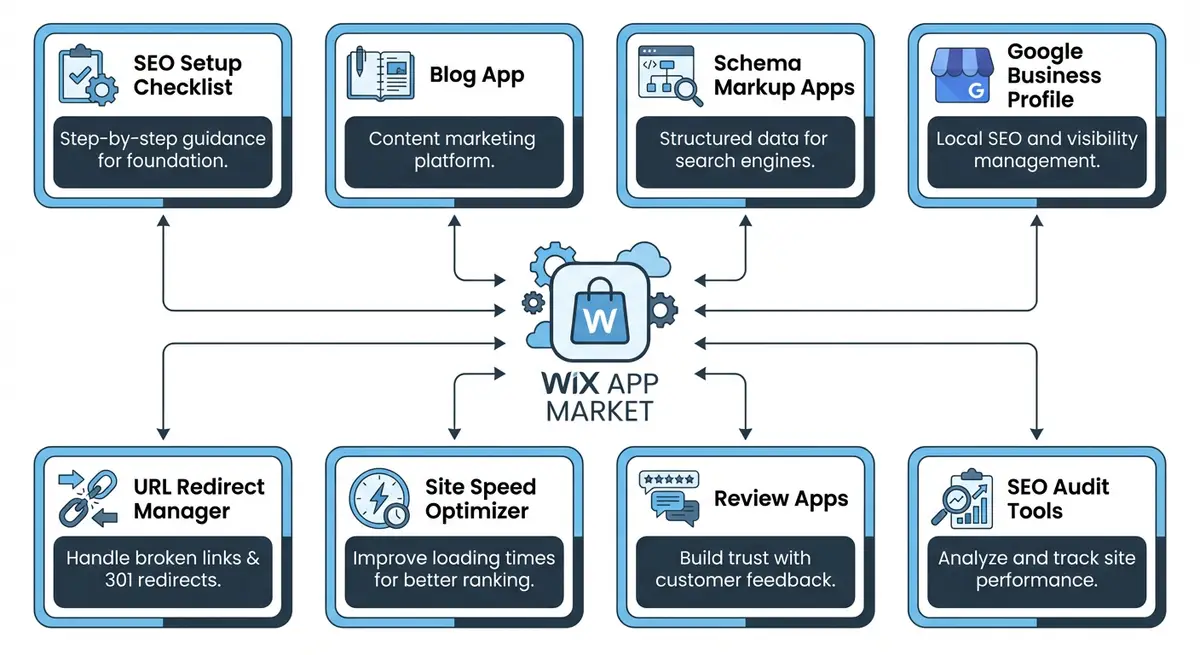
The SEO Setup Checklist is your starting point for Wix SEO. Found in your Wix dashboard under Marketing and SEO, it walks you through a series of foundational tasks: connecting your site to Google Search Console, setting your site title and meta description, verifying your custom domain, and submitting your sitemap. Completing every item on this checklist ensures Google can find, crawl, and understand your website. Many Wix users skip items or leave the checklist half-finished, which creates avoidable indexing problems.
- Connect your site to Google Search Console for direct communication with Google about your pages
- Set a site-wide title tag pattern and default meta description for pages that lack custom ones
- Verify your custom domain is connected and your site is not running on a free Wix subdomain
- Submit your XML sitemap to Google so every page is discoverable by search engine crawlers
- Add your business name and location details for local SEO signals
- Verify that your site is set to be indexed and is not accidentally hidden from search engines
Built-In Tools Comparison: What Each Tool Does
Understanding the role of each built-in tool prevents duplication of effort and ensures you use the right tool for each task. Here is a breakdown of when and why you would use each one.
- SEO Setup Checklist: One-time foundational setup. Use when first launching your site or after a major restructure. Covers domain verification, GSC connection, sitemap submission, and basic metadata.
- Site Inspection: On-demand diagnostic tool. Use when a specific page is not ranking, not indexed, or showing errors. Provides per-page crawl and indexing reports directly from Google.
- SEO Settings: Ongoing configuration management. Use when you need to set or update title tag patterns, meta description defaults, Open Graph templates, or robots directives across dynamic page types.
- Wix Sitemap: Automatic crawl reference. Verify monthly that all published pages appear. Use the sitemap URL in GSC submissions and when diagnosing missing pages.
- Robots.txt: Crawl access control. Review quarterly to ensure no critical pages are blocked and that the sitemap reference is present.
Site Inspection: Your On-Demand Crawl Tool
Site Inspection is one of the most underused tools in Wix. Found under Marketing and SEO in your dashboard, it lets you check how Google sees any individual page on your site. It reports on indexing status, crawl errors, mobile usability, structured data validity, and page experience signals. Think of it as a mini Google Search Console built directly into Wix. When a page is not ranking or not appearing in Google at all, Site Inspection is your first diagnostic tool.
Run Site Inspection on every important page at least once a month. It will tell you whether the page is indexed, whether Google found any errors, and whether the structured data on the page is valid. If a page shows as "not indexed", the report will explain why: it might be blocked by robots.txt, marked as noindex, flagged as a duplicate, or simply not yet discovered. Each diagnosis has a specific fix.
Site Inspection Status Codes and What They Mean
- Indexed: The page is in Google search index and can appear in results. No action needed unless rankings are poor.
- Crawled, not indexed: Google found the page but decided not to add it to the index. Usually indicates thin content, duplicate content, or low perceived quality. Expand the page content and resubmit.
- Discovered, not indexed: Google knows the URL exists but has not crawled it yet. This is a crawl budget issue. Improve internal linking to the page and request indexing manually.
- Blocked by robots.txt: The robots.txt file prevents Google from accessing this page. Check if this is intentional. If not, update robots.txt settings in Wix SEO Settings.
- Noindex tag detected: The page has a noindex meta tag telling Google not to index it. Check the SEO panel for this page and remove the noindex directive if the page should be searchable.
- Redirect: The URL redirects to another page. Verify the redirect target is correct and update any internal links pointing to the old URL.
- Soft 404: Google considers the page a soft 404 (returns 200 status but has minimal content). Add substantial content to the page or redirect it to a relevant alternative.
SEO Settings: Site-Wide Defaults and Patterns
The SEO Settings panel controls how Wix generates default SEO data across your entire site. This includes title tag patterns for dynamic pages (blog posts, product pages, booking services), default meta descriptions, Open Graph defaults, and robots directives. Setting these correctly means that every new page you create automatically inherits good SEO defaults instead of generic placeholder text.
- Title tag patterns use variables like {page title} and {site name} to auto-generate optimised titles
- Meta description patterns ensure no page ever has an empty or duplicate meta description
- Open Graph defaults control how your pages appear when shared on social media platforms
- Robots settings let you control which page types are indexed and which are hidden from search
- Canonical URL settings prevent duplicate content issues on dynamic pages with filters or parameters
Recommended SEO Pattern Templates
These tested patterns work well across most Wix sites. Replace placeholders with your actual business details.
- Blog post title pattern: {post title} | {site name} -- keeps titles focused on the topic with brand reinforcement
- Product page title pattern: {product name} - {collection name} | {site name} -- includes product context and brand
- Service page title pattern: {page title} | Professional {service type} | {site name} -- adds authority signal
- Blog post meta description: {post excerpt} -- auto-pulls the first 155 characters as a natural snippet
- Product meta description: Shop {product name} from {site name}. {product description} -- combines commercial intent with details
The Wix Sitemap
Wix automatically generates and maintains an XML sitemap at yourdomain.com/sitemap.xml. This sitemap includes all your published pages, blog posts, products, and other indexable content. Wix updates it automatically when you publish or unpublish pages. You do not need to create or manage it manually. However, you should verify it is submitted to Google Search Console and periodically check that it includes all the pages you expect it to include.
Sitemap Health Check Routine
- Visit yourdomain.com/sitemap.xml monthly and count the total URLs listed
- Compare the sitemap URL count against your expected number of published pages, blog posts, and products
- Check Google Search Console Sitemaps section for any "Error" or "Couldn't fetch" statuses
- Verify that recently published pages appear in the sitemap within 24 hours of publishing
- Ensure no unpublished, noindexed, or duplicate URLs appear in the sitemap
- Cross-reference sitemap URLs with GSC Coverage report to identify pages that are in the sitemap but not indexed
How-To Guide: Configuring All Built-In Wix SEO Tools
Complete setup walkthrough for Wix built-in SEO tools
- Step 1: Go to your Wix dashboard and navigate to Marketing and SEO, then SEO. Open the SEO Setup Checklist. Work through every single item from top to bottom, marking each as complete.
- Step 2: In the checklist, connect your site to Google Search Console. Follow the prompts to verify ownership. Wix handles the verification automatically through your connected domain. Confirm the green checkmark appears.
- Step 3: Set your homepage title tag and meta description in the SEO Settings. Your homepage title should include your primary keyword and business name. Keep it under 60 characters. Your meta description should be compelling and under 155 characters.
- Step 4: Configure SEO Patterns for dynamic pages. Go to SEO Settings and set title tag patterns for Blog Posts, Products, and any other dynamic page types. Use the variable format: {post title} | {site name} for blog posts and {product name} - {collection name} | {site name} for products.
- Step 5: Navigate to Site Inspection in your dashboard. Run an inspection on your homepage, your top 3 service pages, and your most recent blog post. Note any errors or warnings that appear.
- Step 6: For any page showing indexing errors in Site Inspection, follow the suggested fix. Common issues include accidental noindex tags, thin content warnings, and missing canonical URLs. Fix each one in the Wix editor.
- Step 7: Verify your sitemap by visiting yourdomain.com/sitemap.xml in your browser. Check that all your important pages are listed. If a published page is missing, check whether it is accidentally set to noindex in its page SEO settings.
- Step 8: In Google Search Console, go to Sitemaps and submit your sitemap URL if not already done. Confirm the status shows as "Success" with the correct number of discovered URLs.
- Step 9: Review your robots.txt file at yourdomain.com/robots.txt. Verify it references your sitemap and does not block any important page directories. Wix manages this file automatically, but checking it confirms everything is correct.
- Step 10: Set up a monthly routine. On the first Monday of each month, run Site Inspection on your 10 most important pages, check the SEO Setup Checklist for any new items, and review your sitemap submission status in Google Search Console.
How to Complete the Wix SEO Setup Checklist and Site Inspection
The Wix SEO Setup Checklist and Site Inspection are your starting point for a technically sound Wix site. These steps walk you through completing each tool methodically.
How to use the Wix SEO Setup Checklist and Site Inspection to fix technical issues
- Step 1: Log in to your Wix Dashboard and navigate to Marketing & SEO > SEO Tools. Open the SEO Setup Checklist and review all items shown. Items with a red or amber status require action.
- Step 2: Complete the Business Info section. Navigate to Settings > Business Info and fill in every field: business name, address, phone, email, and description. This data feeds into your site schema markup.
- Step 3: Connect your Wix site to Google Search Console. In the SEO Setup Checklist, click Connect Google Search Console and follow the verification steps. This is required for Site Inspection to work.
- Step 4: Submit your sitemap. In the SEO Setup Checklist, locate the Sitemap step. Click Submit Sitemap to send your site's sitemap XML file to Google. Verify submission in Google Search Console > Sitemaps.
- Step 5: Configure SEO Patterns for each CMS collection. Navigate to Marketing & SEO > SEO Tools > SEO Patterns. Set up title and description patterns using available variables for your Blog Posts, Products, and any other collections.
- Step 6: Navigate to Marketing & SEO > SEO Tools > Site Inspection. Click Run Inspection to initiate a full crawl of your Wix site indexed pages.
- Step 7: Review the inspection results. Filter by Not Indexed to see pages Google has crawled but not indexed. For each one, assess the content quality. Thin pages under 300 words often need expansion before they will be indexed.
- Step 8: For pages showing as Excluded by noindex, verify each one is intentionally excluded. If you find important pages accidentally set to noindex, open them in the Wix Editor, go to SEO settings, and change the indexing setting to Allow indexing.
- Step 9: Check for pages with redirect issues in the Site Inspection results. Redirect chains (page A redirects to B which redirects to C) waste crawl budget. Update these in Settings > Redirects to redirect directly from A to C.
- Step 10: Review the Rich Results section of Site Inspection. Pages with structured data errors cannot earn rich results. Click each error to see the specific issue and fix the schema markup on the affected page.
- Step 11: After fixing all Site Inspection issues, use Google Search Console URL Inspection to request re-indexing for your most important pages. This speeds up Google recrawling the corrected pages.
- Step 12: Set a monthly calendar reminder to re-run the Site Inspection. New content, Wix updates, and app changes can introduce new indexing issues at any time.
Essential Resources
- Wix App Market: Browse and install apps to extend your Wix site functionality
- Wix SEO Help Centre: Official Wix SEO documentation and setup guides
- Google Rich Results Test: Test structured data and rich result eligibility for any URL
- PageSpeed Insights: Analyse page performance and Core Web Vitals scores
Essential Resources
- Wix SEO Help Centre: Official Wix documentation for SEO setup checklist and site inspection
- Google Search Console: Submit sitemaps and verify site ownership for your Wix site
- Wix App Market: Browse and install SEO apps to extend your Wix site capabilities
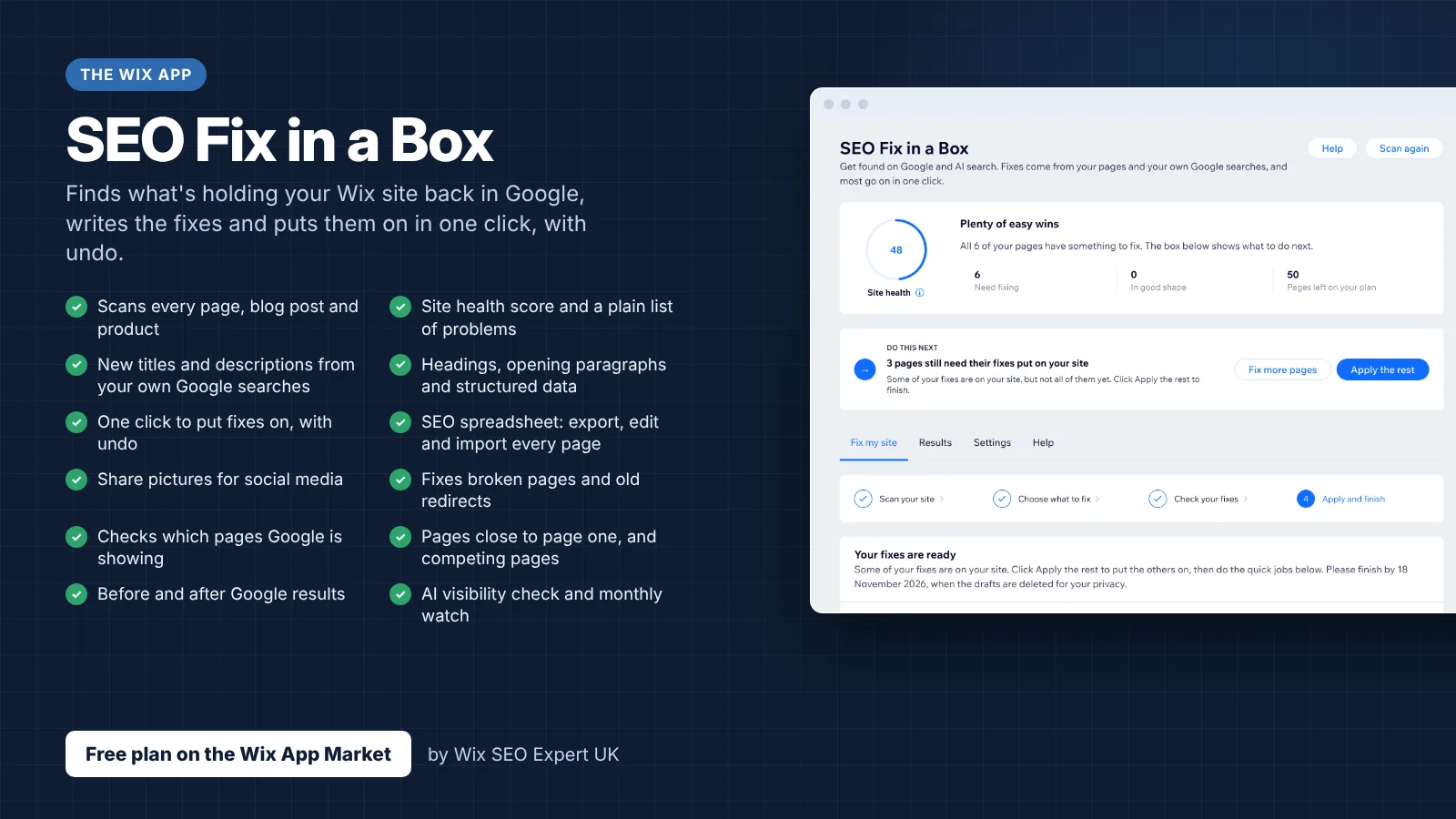
- SEO Fix in a Box: My Wix app. Free to install, it scans your site and shows what needs fixing, and paid plans write the fixes from your own Google searches
Was this lesson useful?
It takes 1 minute to tell me. The course is free and I want to keep it that way, and your feedback shows me what is working and helps other people find it.
This lesson on Wix SEO Setup Checklist, Site Inspection and built-in tools is part of Module 46: Essential Wix Apps for SEO in The Most Comprehensive Complete Wix SEO Course in the World (2026 Edition). Created by Michael Andrews, a Wix Marketplace Legend Partner with 14 years of hands-on experience, 800 completed Wix SEO projects and 456 verified five-star reviews.