Wix log file analysis: Bot Traffic Over Time and Bot Traffic by Page reports
Module 8: Crawl Budget, Log Files & Advanced Site Health on Wix | Lesson 103 of 683 | 30 min read
By Michael Andrews, Wix SEO Expert UK
Traditional log file analysis requires server access, specialised tools and technical expertise. Wix has eliminated this barrier by building native bot traffic reporting directly into the SEO Analytics dashboard. These reports show you exactly which search engine bots are visiting your site, how often they crawl, which pages they prioritise and what response codes they encounter. This data is essential for understanding how Google interacts with your Wix site.
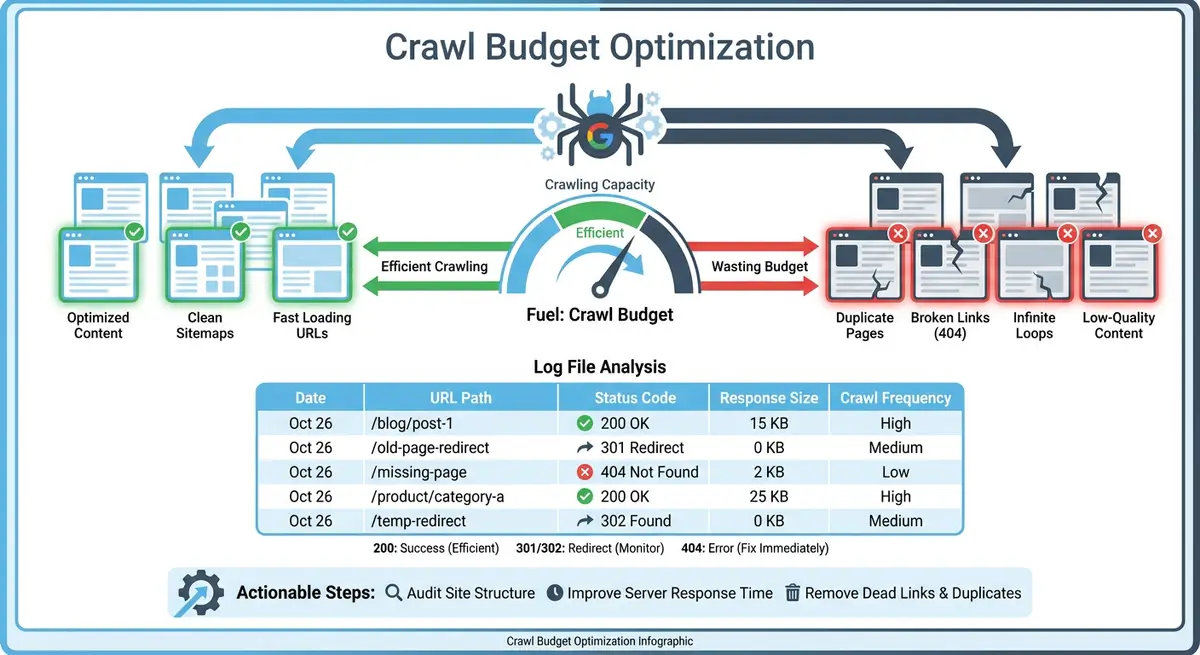
Accessing Wix SEO Analytics Bot Reports
How to find the bot traffic reports
- Log in to your Wix Dashboard
- Navigate to Analytics in the left sidebar
- Click on SEO to expand the SEO analytics section
- You will see three key reports: Bot Traffic Over Time, Bot Traffic by Page and Response Status Over Time
- Each report can be filtered by date range and specific bot type
Reading the Bot Traffic Over Time Report
The Bot Traffic Over Time report shows a timeline of how frequently different search engine bots visit your Wix site. Googlebot is typically the most active crawler, but you will also see Bingbot, Yandex, and increasingly AI bots like GPTBot. A healthy crawl pattern shows consistent daily visits from Googlebot. Sudden drops may indicate technical issues, while spikes often follow new content publication or sitemap updates. Use the date range filter to compare week-over-week and month-over-month crawl trends.
Using Bot Traffic by Page to Find Crawl Issues
The Bot Traffic by Page report reveals which specific pages on your Wix site receive the most and least bot attention. This is where you discover crawl budget waste. If Googlebot is spending most of its visits on your tag archive pages, old blog posts or Wix app-generated URLs instead of your core service pages and new content, you have a crawl priority problem. Sort by most crawled pages first and ask yourself: are these my most important pages? Then check the least crawled pages to see if any critical content is being neglected.
The Response Status Over Time Report
This report shows the HTTP status codes returned to bots over time. A healthy site shows predominantly 200 (OK) responses with minimal 301 redirects, very few 404 errors and zero 500 server errors. If you see a spike in 404 responses, it means bots are finding broken links or requesting pages that no longer exist. A spike in 301 redirects suggests Googlebot is spending crawl budget following redirect chains instead of reaching content directly. Any 500 errors require immediate investigation as they indicate server-side problems.
Scheduling Automated Bot Traffic Reports
Wix allows you to schedule automated email reports for your bot traffic data. This is invaluable for ongoing monitoring without needing to log in to your dashboard daily. Set up a weekly automated report that includes Bot Traffic Over Time and Response Status Over Time. Review it every Monday morning to catch any crawl anomalies quickly before they impact your indexing and rankings.
Essential Tools for This Lesson
- Wix SEO Analytics Dashboard: Access Bot Traffic Over Time, Bot Traffic by Page and Response Status Over Time reports for your Wix site
- SEO Fix in a Box: My Wix app. Free to install, it scans your site and shows what needs fixing, and paid plans write the fixes from your own Google searches
Complete How-To Guide: Analysing Bot Traffic Reports in Wix
This step-by-step guide walks you through the complete process of accessing, reading and acting on the bot traffic data available in your Wix SEO Analytics dashboard.
How to analyse bot traffic reports in Wix
- Step 1: Log in to your Wix Dashboard and navigate to Analytics > SEO. Click on Bot Traffic Over Time to open the main crawl activity report. Set the date range to the last 30 days for your initial analysis.
- Step 2: Identify the dominant bot by checking which crawler accounts for the majority of visits. Googlebot should typically be the most active. If Bingbot or another crawler is dominating, investigate whether you have submitted your sitemap to Bing Webmaster Tools or if another bot is crawling excessively.
- Step 3: Look for crawl frequency patterns. Note whether Googlebot visits daily, every few days or irregularly. Consistent daily crawling indicates Google considers your site active and worth monitoring. Irregular crawling may suggest your content is not updated frequently enough to warrant regular visits.
- Step 4: Compare crawl activity against your content publication dates. Open a second browser tab with your Wix Blog Manager and note when you last published posts. Check whether Googlebot crawl spikes correspond to new content publication, which is a healthy sign.
- Step 5: Switch to the Bot Traffic by Page report. Sort the results by most crawled pages. Write down the top 20 most-crawled URLs. Compare this list against your list of most important pages. If there is a significant mismatch, Googlebot is prioritising the wrong content.
- Step 6: In the same report, filter by least crawled pages. Check whether any of your core service pages, key landing pages or recent blog posts appear in this list. Pages that are important but rarely crawled may have poor internal linking or be too deep in your site architecture.
- Step 7: Open the Response Status Over Time report. Set the date range to the last 90 days to get a broader view. Check the ratio of 200 responses to non-200 responses. A healthy Wix site should show at least 90% of bot requests returning 200 status codes.
- Step 8: Click on any 404 error spikes in the Response Status report. Wix will show you which URLs returned 404 responses. Create a list of these broken URLs and check whether they were pages you deleted, renamed or moved without setting up 301 redirects.
- Step 9: Check for redirect chains by looking at the volume of 301 responses over time. If 301 redirects account for more than 10% of total bot requests, you likely have redirect chains where one redirect leads to another, wasting crawl budget on each hop.
- Step 10: Set up an automated weekly report by clicking the schedule icon in the Bot Traffic Over Time report. Enter your email address and select weekly delivery. Choose to include both Bot Traffic Over Time and Response Status Over Time data in the automated report.
- Step 11: Create a monitoring spreadsheet with columns for date, total Googlebot crawls, percentage of crawls to important pages, 200 response rate, 404 count and 301 count. Fill in this week's data as your baseline.
- Step 12: Review the automated report every Monday morning for four consecutive weeks. Update your monitoring spreadsheet with each week's data. After four weeks, you will have a clear picture of your crawl trends and any patterns that need attention.
- Step 13: Based on your analysis, create an action list of the top three issues to address: pages that should be crawled more, pages wasting crawl budget, broken URLs returning 404s, or redirect chains that need cleaning up.
- Step 14: After implementing fixes from your action list, continue monitoring the automated reports for the following four weeks. Compare the new data against your baseline to verify that your changes are having a positive impact on Googlebot's crawl behaviour.
Was this lesson useful?
It takes 1 minute to tell me. The course is free and I want to keep it that way, and your feedback shows me what is working and helps other people find it.
This lesson on Wix log file analysis: Bot Traffic Over Time and Bot Traffic by Page reports is part of Module 8: Crawl Budget, Log Files & Advanced Site Health on Wix in The Most Comprehensive Complete Wix SEO Course in the World (2026 Edition). Created by Michael Andrews, a Wix Marketplace Legend Partner with 14 years of hands-on experience, 800 completed Wix SEO projects and 456 verified five-star reviews.