Wix analytics dashboard: what to track and what to ignore
Module 15: Wix Analytics & SEO Reporting | Lesson 170 of 683 | 55 min read
By Michael Andrews, Wix SEO Expert UK
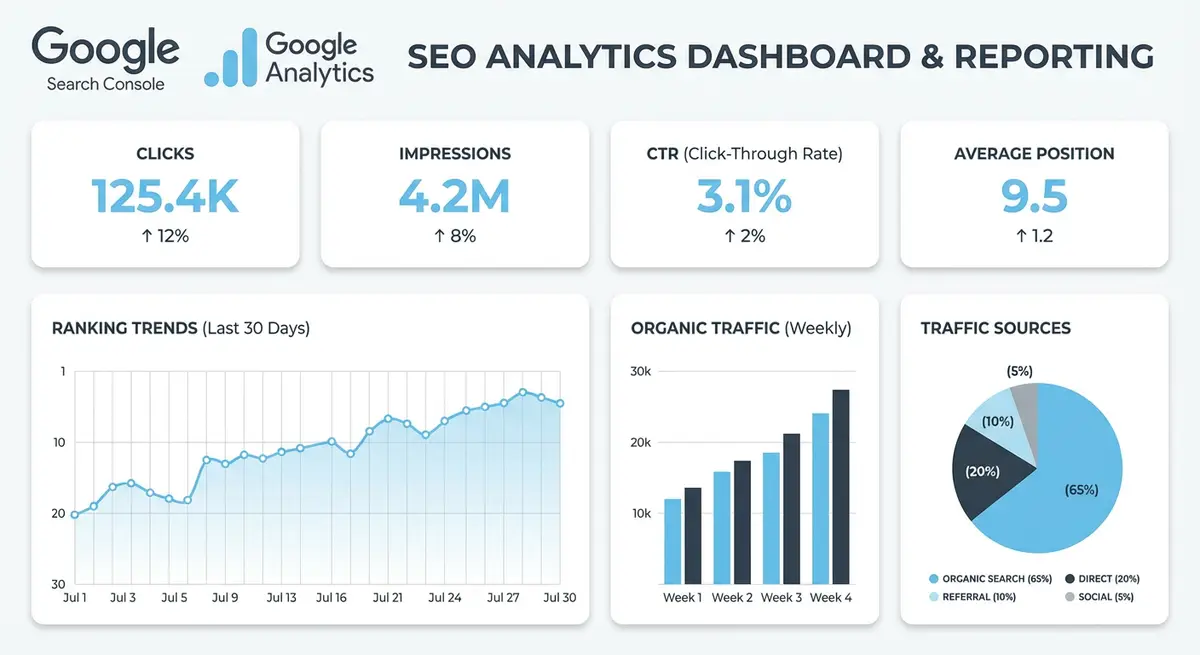
Wix has its own built-in analytics dashboard that is accessible without setting up GA4. It provides useful at-a-glance data, but it has significant limitations and should never be your primary analytics source for SEO decisions. This lesson explains exactly what Wix Analytics does well, where it falls short, and how to build a three-source analytics system combining Wix Analytics, GA4, and Google Search Console for complete data coverage.
What Wix Analytics Does Well
- Quick overview of total site visits and traffic trends without needing to configure anything
- Top pages by visits, useful for a quick sense of what content is popular
- Basic traffic source breakdown showing Direct, Organic, Social, Referral, and Other
- eCommerce revenue overview with order counts and average order value if using Wix Stores
- Booking and form submission tracking natively integrated with Wix Bookings and Wix Forms
- Real-time visitor count showing who is currently on your site
- Simple geography breakdown showing which countries your visitors come from
Wix Analytics for Quick Daily Health Checks
The primary value of Wix Analytics is speed. You can open your Wix Dashboard and within 5 seconds see whether traffic is normal, significantly up, or significantly down compared to the previous period. This makes it ideal for a quick daily health check before starting your workday. If you spot an anomaly, immediately switch to GA4 and GSC for deeper investigation.
Where Wix Analytics Falls Short for SEO
- Traffic source attribution is less accurate than GA4, organic and direct are often conflated, overstating direct traffic
- No keyword data at all, you cannot see which search terms drive traffic to your site
- Session counting methodology differs from GA4, causing data discrepancies of 10-30% in many cases
- No conversion funnel or path analysis to understand how visitors navigate your site
- Limited date range options and filtering compared to GA4 custom explorations
- No API access for custom reporting, Looker Studio integration, or automated data exports
- No engagement metrics comparable to GA4 engagement rate or average engagement time
- Cannot segment users by behaviour, demographics, or custom audiences
- No attribution modelling for understanding how organic search contributes to multi-touch conversions
Understanding Wix Analytics Session Counting Discrepancies
One of the most confusing aspects for Wix site owners is that Wix Analytics and GA4 often show different session counts for the same period. This happens because Wix counts every server request as a visit, including bots and crawlers, while GA4 only counts sessions where JavaScript executes in a real browser. GA4 also respects consent settings, so users who decline analytics cookies are excluded from GA4 but may still appear in Wix Analytics.
As a general rule, Wix Analytics will show 15-35% more sessions than GA4 for the same period. This gap widens on sites with significant bot traffic or strict cookie consent implementations. Neither number is wrong, they simply measure different things. Use Wix numbers for internal trend monitoring and GA4 numbers for client-facing reports and business decisions.
The Three-Source Analytics Framework
No single analytics tool provides a complete picture of your Wix site SEO performance. The optimal setup uses three sources, each serving a specific purpose. Wix Analytics provides quick daily health checks and native Wix feature tracking. Google Analytics 4 provides deep engagement analysis, conversion tracking, and user journey mapping. Google Search Console provides authoritative search query data, indexing status, and technical SEO health monitoring.
Which Tool for Which Question
- Is traffic up or down today? Check Wix Analytics for a 5-second answer
- Which keywords drive organic traffic? Only Google Search Console has this data
- How engaged are organic visitors? GA4 engagement rate and time metrics
- Which pages convert organic visitors? GA4 Landing Page report filtered to organic
- Are there indexing problems? Google Search Console Pages report
- How many bookings came from organic? Wix Analytics for native booking data, cross-referenced with GA4
- What is my Core Web Vitals status? Google Search Console Experience report
- How do organic visitors navigate my site? GA4 Path Exploration
- What is my total eCommerce revenue from SEO? Wix Analytics for complete order data, GA4 for attributed revenue
How to Configure the Three-Source Analytics System for Your Wix Site
How to configure the three-source analytics system for your Wix site
- Step 1: Verify Wix Analytics is active by going to Dashboard > Analytics & Reports > Traffic Overview. Confirm the dashboard loads session and visitor data correctly and set the default date range to Last 30 Days to establish your baseline.
- Step 2: Connect GA4 to your Wix site by going to Dashboard > Marketing & SEO > Google Analytics > Connect. Enter your GA4 measurement ID (beginning with G-) and save. Verify the connection is live by checking that events appear in the GA4 real-time report.
- Step 3: Verify the GSC connection in GA4 by going to GA4 > Admin > Property Settings > Search Console Linking. Confirm your verified Search Console property is linked. If not linked, click the Link button and follow the prompts to connect it.
- Step 4: Create a Google Sheet named "Monthly SEO Dashboard" with three tabs labelled Wix Traffic, GA4 Organic, and GSC Performance. Format each tab with headers matching the data you will export from each platform.
- Step 5: Each first Monday of the month, open Wix Analytics, set the date range to Last 30 Days, and export session and visitor data into the Wix Traffic tab of your Google Sheet.
- Step 6: In GA4, run the Landing Page report filtered to organic traffic and export the top 20 pages by sessions into the GA4 Organic tab. Include sessions, engagement rate, and key events columns.
- Step 7: In Google Search Console, go to the Performance report, set the same 30-day date range, switch to the Queries tab, and export the top 50 keywords by clicks into the GSC Performance tab.
- Step 8: Paste all three exports into their corresponding tabs in your Monthly SEO Dashboard Google Sheet. Keep each month as a new set of rows with the date clearly labelled so you build a historical archive.
- Step 9: Create a Summary tab in your Google Sheet that pulls key metrics from the three source tabs side-by-side: total sessions from Wix, organic sessions from GA4, and total clicks from GSC. Use formulas to calculate these automatically from the pasted data.
- Step 10: In the Summary tab, add a discrepancy check column that flags any month where the difference between Wix sessions, GA4 organic sessions, and GSC clicks exceeds 30 percent. A discrepancy greater than 30 percent indicates a potential tracking gap, consent blocking issue, or attribution problem that requires investigation before making strategic decisions based on the data.
Setting Up Automated Reporting from All Three Sources
Each of the three analytics sources offers automated email reports. Configure all three to arrive on Monday mornings so you start each week with a complete performance snapshot. Wix Analytics sends a weekly summary email from Dashboard > Analytics > Email Reports. GA4 sends automated reports via Looker Studio or scheduled email exports. GSC Performance data can be scheduled through Looker Studio dashboards linked to your Search Console property.
Building a Unified Weekly Report
For maximum efficiency, create a single Google Sheet that combines data from all three sources. Tab 1: GSC data (queries, clicks, impressions, positions). Tab 2: GA4 data (organic sessions, engagement rate, conversions). Tab 3: Wix Analytics data (total visits, top pages, eCommerce revenue). Tab 4: Combined dashboard with key metrics from all sources. Update this sheet weekly in 15 minutes by pasting exported data from each platform.
Common Mistakes When Interpreting Wix Analytics
- Treating Wix session counts as equivalent to GA4 sessions, they use different counting methods
- Relying on Wix traffic source data for organic attribution, GA4 is more accurate for source/medium classification
- Comparing Wix Analytics data directly with GA4 in client reports, which creates confusing discrepancies
- Ignoring Wix Analytics entirely because it is not as sophisticated as GA4, it has unique strengths for native Wix features
- Using Wix Analytics for SEO keyword analysis, which is impossible as it provides zero keyword data
- Making strategic decisions based solely on Wix Analytics data without cross-referencing GA4 and GSC
Complete How-To Guide: Setting Up a Three-Source Analytics System for Your Wix Site
This guide walks you through setting up Wix Analytics, GA4 and Google Search Console together so you always know which source to check for which data.
How to set up and use Wix Analytics alongside GA4 and GSC
- Step 1: Access Wix Analytics from your Wix Dashboard > Analytics & Reports > Traffic Overview. Familiarise yourself with the main dashboard showing site sessions, unique visitors and page views. Note the default date range and set it to Last 30 Days.
- Step 2: Check the Traffic Sources breakdown in Wix Analytics. Note that Wix categorises traffic as Direct, Organic Search, Social, Referral and Other. Be aware that Wix tends to over-report Direct traffic by 15-25% compared to GA4.
- Step 3: Navigate to the Top Pages report in Wix Analytics. Compare the top 10 pages with your GA4 landing page report. Note any significant discrepancies and understand that GA4 is more reliable for page-level analysis.
- Step 4: Use Wix Analytics for quick daily checks. Open it each morning and spend 30 seconds confirming traffic is normal. Look for sudden drops or spikes that warrant deeper investigation in GA4.
- Step 5: For all keyword and search query analysis, open Google Search Console exclusively. Wix Analytics provides zero keyword data, making GSC essential for understanding what people search to find your site.
- Step 6: For engagement and conversion analysis, use GA4 exclusively. Check engagement rate, average engagement time, user paths, and conversion tracking with the depth that only GA4 offers.
- Step 7: Create a reference document for yourself or your team listing which tool to check for each data type. Post this somewhere visible so team members always use the right source for their questions.
- Step 8: Set up Wix Analytics email reports. Go to Analytics & Reports > Traffic Overview and click the email icon to schedule a weekly summary. This serves as an early warning system for traffic anomalies.
- Step 9: Cross-reference Wix Analytics session counts with GA4 session counts monthly. Calculate the typical difference percentage for your specific site so you understand how to interpret Wix numbers relative to GA4.
- Step 10: For eCommerce Wix sites, use the Wix Sales analytics for complete revenue data alongside GA4 eCommerce reports. Wix captures 100% of Wix Store transactions while GA4 may miss some due to consent blocking.
- Step 11: If using Wix Bookings, check Wix Analytics for booking conversion data. Wix tracks every booking natively, while GA4 requires additional event configuration to capture booking completions accurately.
- Step 12: Build a unified Google Sheet with tabs for each data source. Update weekly by exporting from GSC, GA4, and noting Wix Analytics totals. Create a combined dashboard tab that pulls key metrics together.
- Step 13: Set up Looker Studio dashboards that pull from GSC and GA4 simultaneously. This automated view eliminates the need for manual data exports for those two sources, reducing your weekly reporting time.
- Step 14: Review all three analytics sources at the end of each month before creating your SEO report. Start with GSC for search performance, then GA4 for on-site behaviour, and use Wix Analytics to cross-check total traffic figures.
- Step 15: Document any persistent discrepancies between your three data sources in a notes column of your tracking spreadsheet. Over time, this helps you understand the typical variance for your specific Wix site and interpret data more accurately.
Was this lesson useful?
It takes 1 minute to tell me. The course is free and I want to keep it that way, and your feedback shows me what is working and helps other people find it.
This lesson on Wix analytics dashboard: what to track and what to ignore is part of Module 15: Wix Analytics & SEO Reporting in The Most Comprehensive Complete Wix SEO Course in the World (2026 Edition). Created by Michael Andrews, a Wix Marketplace Legend Partner with 14 years of hands-on experience, 800 completed Wix SEO projects and 456 verified five-star reviews.