Why web accessibility matters for SEO in 2026
Module 13: Accessibility & SEO on Wix | Lesson 155 of 683 | 20 min read
By Michael Andrews, Wix SEO Expert UK
Web accessibility and SEO are two sides of the same coin. Both aim to make content available and usable for the widest possible audience. In 2026, Google has made it clear that user experience metrics, including those tied to accessibility, directly influence rankings. An accessible Wix site is not just ethically right. It is a competitive SEO advantage.
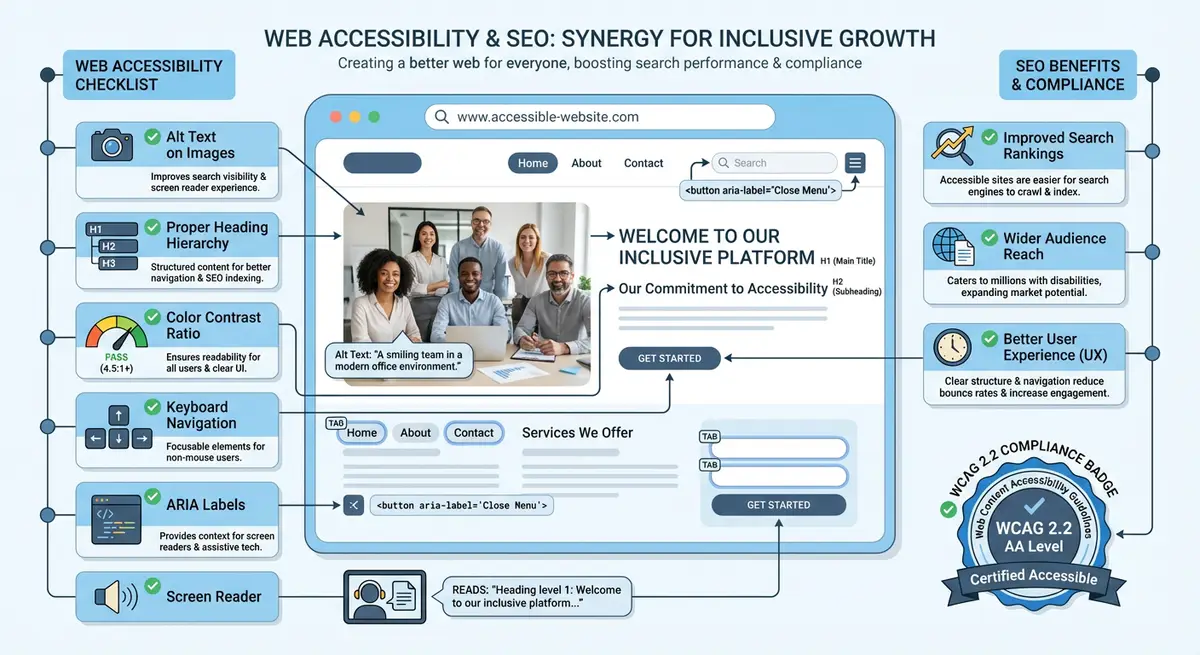
The Direct Connection Between Accessibility and SEO
- Alt text on images: serves both screen readers and Google Image Search rankings
- Heading hierarchy: helps screen readers navigate AND helps Google understand content structure
- Colour contrast: improves readability metrics and reduces bounce rates, both ranking signals
- Keyboard navigation: improves engagement metrics for non-mouse users, a growing segment
- Page speed: accessibility tools flag performance issues that also affect Core Web Vitals
- Semantic HTML: provides meaning to assistive technology AND to search engine crawlers
Legal Requirements
In the UK, the Equality Act 2010 requires websites to be accessible. The EU European Accessibility Act takes effect in 2025. In the US, ADA lawsuits against inaccessible websites have increased 300% since 2018. Beyond SEO benefits, accessibility compliance protects your business from legal risk.
The Business Case Beyond Compliance
Approximately 16% of the global population has a disability. In the UK, disabled people and their families have a combined spending power of over 274 billion pounds (the "Purple Pound"). An inaccessible website excludes this audience entirely. Accessible sites also perform better for all users: better readability, clearer navigation and faster load times benefit everyone.
Complete How-To Guide
This step-by-step guide walks you through evaluating your Wix site's current accessibility posture, understanding its SEO implications, and building a prioritised action plan to improve both accessibility and search rankings simultaneously.
How to evaluate and improve your Wix site's accessibility for SEO
- Step 1: Open your Wix site in Google Chrome, navigate to the homepage, and open Chrome DevTools by pressing F12. Go to the Lighthouse tab, check both "Accessibility" and "SEO" categories, and run an audit. Record both scores as your baseline.
- Step 2: Install the axe DevTools browser extension from the Chrome Web Store. Run an axe scan on your homepage and export the results. Count the total number of critical, serious, moderate and minor issues.
- Step 3: Run the WAVE accessibility checker (wave.webaim.org) on your five highest-traffic pages. Identify which issues appear repeatedly across multiple pages, as these represent systemic problems in your Wix template or design choices.
- Step 4: Open Google Search Console and review your Core Web Vitals report. Compare pages with poor CWV scores to pages flagged with accessibility issues. Note any overlap, as accessibility fixes often improve CWV metrics.
- Step 5: Check Google Analytics for bounce rate and average session duration on your top 10 landing pages. Pages with high bounce rates are prime candidates for accessibility improvements that will also boost engagement signals.
- Step 6: Create a spreadsheet with columns for Page URL, Issue Description, WCAG Criterion, SEO Impact (High/Medium/Low), and Estimated Fix Time. Populate it with all issues found in Steps 1 through 5.
- Step 7: Prioritise the spreadsheet by SEO impact. Address missing alt text first (it directly affects Google Image Search), then heading hierarchy issues (affects content understanding), then contrast failures (affects bounce rates).
- Step 8: In your Wix Editor, click on every image on your homepage and add descriptive alt text that naturally includes relevant keywords. Save and publish. This single change often improves both accessibility and image search visibility within days.
- Step 9: Review your heading structure across all pages using the WAVE tool's Structure tab. Ensure every page has exactly one H1, followed by H2s and H3s in proper order. Fix any skipped heading levels in the Wix text settings.
- Step 10: Use the WebAIM Contrast Checker to test your site's primary text colour against its background colour. If the contrast ratio is below 4.5:1, adjust your theme colours in Wix Site Design settings to meet WCAG AA.
- Step 11: Test your entire site using only a keyboard. Press Tab through every page, verify that all links, buttons and forms are reachable and operable, and note any elements that are skipped or trap focus.
- Step 12: After implementing fixes, re-run Lighthouse, axe DevTools and WAVE on the same pages. Compare the new scores to your baseline from Step 1. Document the improvements.
- Step 13: Set a monthly calendar reminder to repeat this evaluation process. Each month, focus on new pages and any content that has been updated since the last audit.
How to Fix Accessibility Issues on Your Wix Site
Once you have identified accessibility problems through your audit, use these steps to systematically resolve them in the Wix Editor and custom code.
How to implement accessibility fixes on Wix pages
- Step 1: Log in to your Wix Dashboard and navigate to the page you want to fix. Click Edit Site to open the Wix Editor for that page.
- Step 2: Go through every image on the page. Click each image, select Settings, and fill in the Alt Text field with a descriptive sentence that conveys what the image shows and its purpose on the page.
- Step 3: Check every heading on the page by clicking text elements and reviewing the heading level in the text formatting toolbar. Ensure you have exactly one H1 tag, followed by H2s for main sections and H3s for subsections.
- Step 4: Click on all interactive elements (buttons, links, form fields). Each must have a visible label. For icon-only buttons, add an aria-label via the Wix Editor Accessibility panel or through Velo custom code.
- Step 5: Open the Wix Editor Design panel for your site and check background-to-text colour combinations. Use the WebAIM Contrast Checker to verify you meet the minimum 4.5:1 ratio for body text and 3:1 for large headings.
- Step 6: Navigate to your site settings and check that a Skip to Main Content link is the first focusable element on every page. Add this through Velo if it is missing.
- Step 7: Review all form elements. Every input, select, and textarea must have an associated label element. In the Wix Editor form widget, ensure placeholder text is not used as a substitute for a visible label.
- Step 8: Check all videos on your site. If you embed YouTube or Vimeo videos, ensure captions are enabled. For custom Wix Video elements, upload a subtitle track via the video settings panel.
- Step 9: Test keyboard navigation on the updated page. Press Tab from the top of the page and verify every link, button, and form field receives visible focus in a logical reading order.
- Step 10: Run the WAVE accessibility tool on the updated page URL. Review the icons shown on the page for any remaining errors or alerts. Address each one following WAVE's guidance.
- Step 11: Use Chrome Lighthouse (F12 > Lighthouse > Accessibility) to generate an accessibility score. Fix any issues flagged in the report. Aim for a score of 90 or above.
- Step 12: Re-publish the page and request re-indexing via Google Search Console URL Inspection. Monitor your Core Web Vitals and engagement metrics over the following four weeks.
Essential Resources
- WAVE Web Accessibility Evaluator: Free tool to check web accessibility compliance for any URL
- axe DevTools: Browser extension for automated accessibility testing
- WebAIM Contrast Checker: Check colour contrast ratios meet WCAG requirements
- WCAG 2.2 Guidelines: Official Web Content Accessibility Guidelines specification
Essential Resources
- WAVE Web Accessibility Evaluator: Free tool to check web accessibility compliance for any URL
- axe DevTools: Browser extension for automated accessibility testing
- WebAIM Contrast Checker: Check colour contrast ratios meet WCAG requirements
- WCAG 2.2 Guidelines: Official Web Content Accessibility Guidelines specification
Essential Resources
- WAVE Web Accessibility Tool: Free tool to evaluate accessibility issues directly on your web pages
- axe DevTools: Industry-standard browser extension for automated accessibility testing
- WebAIM Contrast Checker: Check colour contrast ratios against WCAG AA and AAA requirements
- Google Lighthouse: Built-in Chrome tool for combined accessibility and SEO auditing
- SEO Fix in a Box: My Wix app. Free to install, it scans your site and shows what needs fixing, and paid plans write the fixes from your own Google searches
Was this lesson useful?
It takes 1 minute to tell me. The course is free and I want to keep it that way, and your feedback shows me what is working and helps other people find it.
This lesson on Why web accessibility matters for SEO in 2026 is part of Module 13: Accessibility & SEO on Wix in The Most Comprehensive Complete Wix SEO Course in the World (2026 Edition). Created by Michael Andrews, a Wix Marketplace Legend Partner with 14 years of hands-on experience, 800 completed Wix SEO projects and 456 verified five-star reviews.