Using Velo by Wix for dynamic SEO: meta tags, canonical URLs and Open Graph
Module 20: Wix Studio & Velo Advanced SEO | Lesson 247 of 683 | 40 min read
By Michael Andrews, Wix SEO Expert UK
The Wix SEO panel handles static pages well enough, but dynamic pages, those powered by database collections, need programmatic SEO control. When you have hundreds or thousands of product pages, blog posts, or location pages, manually setting meta tags is impossible. The Velo wix-seo API gives you full control over titles, descriptions, canonical URLs, Open Graph tags, and Twitter Cards, all generated dynamically from your data. This lesson covers every method in the API with production-ready code examples.
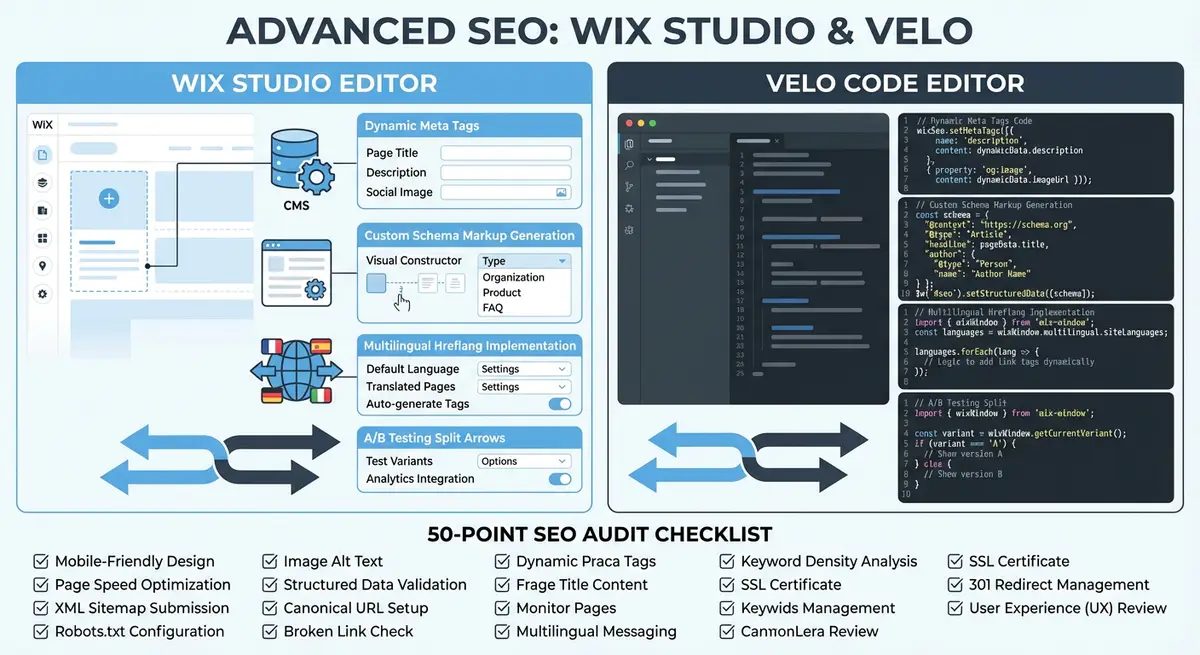
The wix-seo API: Your Programmatic SEO Toolkit
The wix-seo module is a frontend API available on any Wix page where Velo is enabled. It exposes methods for controlling the document head at render time, meaning the tags you set are present when Googlebot crawls the page. This is not client-side-only manipulation; Wix server-side renders the meta tags you set via this API, making them fully visible to search engines.
The primary methods you will use are title for setting the page title, metaTags for setting meta description and other meta elements, links for canonical URLs and alternate language links, and structuredData for JSON-LD schema markup. Each method accepts either a setter function or can be accessed through a combined approach using the seo object.
import wixSeo from 'wix-seo';

$w.onReady(function () {
  wixSeo.title = 'Your Dynamic Page Title | Brand Name';
});
Setting Dynamic Page Titles from Database Content
Page titles are the most important on-page SEO element. For dynamic pages, you want titles that include the specific entity name plus relevant keywords. The pattern is straightforward: query your collection data on page load and construct the title string from the returned fields. Always include your brand name at the end for consistency and brand recognition in search results.
import wixSeo from 'wix-seo';
import wixData from 'wix-data';

$w.onReady(async function () {
  const slug = wixWindow.getRouterData().slug;
  const result = await wixData.query('Products')
    .eq('slug', slug)
    .find();

  if (result.items.length > 0) {
    const product = result.items[0];
    wixSeo.title = product.name + ' - ' + product.category + ' | YourStore';
  }
});Dynamic Meta Descriptions That Convert Clicks
Meta descriptions do not directly influence rankings, but they dramatically affect click-through rates from search results. A compelling, specific description can double your CTR compared to a generic one. For dynamic pages, pull the most persuasive content from your database, typically a short description field, price, or key features, and construct a description that makes searchers want to click.
import wixSeo from 'wix-seo';

$w.onReady(async function () {
  const item = await getCurrentItem();

  wixSeo.metaTags = [
    {
      name: 'description',
      content: item.shortDescription
        ? item.shortDescription.substring(0, 155)
        : 'Discover ' + item.name + ' at competitive prices. Free shipping on orders over £50. Shop now at YourStore.'
    },
    {
      name: 'robots',
      content: 'index, follow, max-image-preview:large'
    }
  ];
});
Notice the fallback pattern in the code above. Not every item in your database will have a populated description field. Always provide a template-based fallback that constructs a reasonable description from the item name and other guaranteed fields. This prevents empty meta descriptions from appearing in search results, where Google would otherwise pull a random snippet from your page content.
Canonical URLs: Preventing Duplicate Content Programmatically
Canonical URLs tell search engines which version of a page is the authoritative one. This is critical for dynamic pages that can be accessed through multiple URL patterns, filtered views, or paginated listings. Without proper canonicalization, Google may split ranking signals across duplicate URLs, weakening all of them.
The wix-seo links property lets you set the canonical link element in the page head. For dynamic pages, the canonical should always point to the clean, parameter-free version of the URL. If your product page can be reached via /products/blue-widget and /products/blue-widget?ref=homepage, the canonical should point to the version without query parameters.
import wixSeo from 'wix-seo';
import wixLocationFrontend from 'wix-location-frontend';

$w.onReady(function () {
  const baseUrl = wixLocationFrontend.baseUrl;
  const path = wixLocationFrontend.path.join('/');
  const canonicalUrl = baseUrl + '/' + path;

  wixSeo.links = [
    {
      rel: 'canonical',
      href: canonicalUrl
    }
  ];
});Open Graph Tags for Social Sharing SEO
Open Graph tags control how your pages appear when shared on Facebook, LinkedIn, and other social platforms. While not a direct ranking factor, social sharing drives traffic and backlinks, both of which influence SEO. Dynamic pages need dynamic Open Graph tags so that each product, article, or listing shows its own image, title, and description when shared.
The og:image tag is especially important. Social posts with rich preview images receive dramatically more engagement than those with generic or missing images. For e-commerce sites, the product image should be the og:image. For blog posts, use the featured image. Always specify og:image:width and og:image:height to help platforms render the preview without an additional image fetch.
import wixSeo from 'wix-seo';

function setOpenGraphTags(item) {
  wixSeo.metaTags = [
    { property: 'og:title', content: item.name + ' | YourStore' },
    { property: 'og:description', content: item.shortDescription || 'Shop ' + item.name + ' at YourStore' },
    { property: 'og:image', content: item.mainImage },
    { property: 'og:image:width', content: '1200' },
    { property: 'og:image:height', content: '630' },
    { property: 'og:type', content: 'product' },
    { property: 'og:url', content: 'https://www.yourstore.com/products/' + item.slug },
    { property: 'og:site_name', content: 'YourStore' },
    { property: 'og:locale', content: 'en_US' }
  ];
}
Twitter Card Tags for Enhanced Tweet Previews
Twitter Cards work similarly to Open Graph but use their own namespace. The most common type for content pages is summary_large_image, which displays a large preview image above the tweet text. While Twitter will fall back to Open Graph tags if Twitter-specific tags are missing, setting both ensures optimal display across all platforms.
function setTwitterCardTags(item) {
  const twitterTags = [
    { name: 'twitter:card', content: 'summary_large_image' },
    { name: 'twitter:title', content: item.name + ' | YourStore' },
    { name: 'twitter:description', content: item.shortDescription || 'Discover ' + item.name },
    { name: 'twitter:image', content: item.mainImage },
    { name: 'twitter:site', content: '@YourStoreHandle' }
  ];
  return twitterTags;
}
Combining All Meta Tags in a Single Page Setup
In practice, you will set all meta tags together during page initialization rather than making separate API calls. The wix-seo API is designed to accept all tag types in a single assignment, which is more efficient and ensures all tags are set before Googlebot completes its render. Below is a comprehensive example that combines everything covered in this lesson into a single, production-ready page setup function.
import wixSeo from 'wix-seo';
import wixData from 'wix-data';
import wixLocationFrontend from 'wix-location-frontend';

$w.onReady(async function () {
  const routerData = wixLocationFrontend.path;
  const productSlug = routerData[routerData.length - 1];

  const result = await wixData.query('Products')
    .eq('slug', productSlug)
    .find();

  if (result.items.length === 0) return;

  const product = result.items[0];
  const fullUrl = wixLocationFrontend.baseUrl + '/products/' + product.slug;
  const description = product.shortDescription
    ? product.shortDescription.substring(0, 155)
    : 'Buy ' + product.name + ' online. Fast shipping and great prices at YourStore.';

  wixSeo.title = product.name + ' - ' + product.category + ' | YourStore';

  wixSeo.metaTags = [
    { name: 'description', content: description },
    { name: 'robots', content: 'index, follow' },
    { property: 'og:title', content: product.name + ' | YourStore' },
    { property: 'og:description', content: description },
    { property: 'og:image', content: product.mainImage },
    { property: 'og:image:width', content: '1200' },
    { property: 'og:image:height', content: '630' },
    { property: 'og:type', content: 'product' },
    { property: 'og:url', content: fullUrl },
    { name: 'twitter:card', content: 'summary_large_image' },
    { name: 'twitter:title', content: product.name + ' | YourStore' },
    { name: 'twitter:description', content: description },
    { name: 'twitter:image', content: product.mainImage }
  ];

  wixSeo.links = [
    { rel: 'canonical', href: fullUrl }
  ];
});
Edge Cases and Troubleshooting
Handling Missing Data Gracefully
Database items will inevitably have missing fields. A product without a description, an event without an image, or a listing without a category are all common scenarios. Your Velo code must handle every null or undefined field with sensible defaults. Never let a meta tag render with "undefined" or "null" as its content, as this looks unprofessional in search results and social previews.
Timing and Server-Side Rendering
The wix-seo API must be called within the $w.onReady function or during the initial page render cycle. If you set meta tags after an asynchronous delay that exceeds the SSR window, the tags may not be present when Googlebot renders the page. Keep your database queries fast by using indexed fields in your .eq() filters and avoid chaining unnecessary .include() references that slow down the query.
Testing Your Dynamic Meta Tags
How to verify your dynamic meta tags are working
- Publish your site and navigate to a dynamic page in an incognito browser window
- Right-click and select "View Page Source" to see the server-rendered HTML
- Search for your meta tag content in the source, it should appear in the head section
- Use the Facebook Sharing Debugger at developers.facebook.com/tools/debug to verify Open Graph tags
- Use Google Rich Results Test to confirm Googlebot can see your meta tags after JavaScript rendering
- Check Google Search Console URL Inspection tool for the rendered HTML of your dynamic pages
Tools and References
- Velo wix-seo API Reference: Complete API documentation for all wix-seo methods and properties
- Facebook Sharing Debugger: Test and debug Open Graph tags for Facebook and Instagram sharing
- Twitter Card Validator: Preview how your pages will appear when shared on Twitter
- Google Rich Results Test: Verify that Googlebot can render and read your dynamic meta tags
Complete How-To Guide: Setting Up Dynamic SEO Meta Tags with Velo
This guide walks you through implementing dynamic page titles, meta descriptions, canonical URLs, and Open Graph tags using the Velo wix-seo API for database-driven Wix pages.
How to implement dynamic SEO tags with the wix-seo API
- Step 1: Enable Velo (Dev Mode) on your Wix site by clicking the Dev Mode toggle in the top menu bar. This unlocks the code editor and gives you access to all Velo APIs including wix-seo.
- Step 2: Navigate to the dynamic page where you want to add programmatic SEO. Open the page code editor at the bottom of the screen. At the top of the code file, add: import wixSeo from 'wix-seo';
- Step 3: Inside the $w.onReady function, query your CMS collection to get the current item data. Use wixData.query with a .eq() filter on an indexed field like slug for fast results. Store the result in a variable.
- Step 4: Set the page title dynamically using wixSeo.title. Construct the title from your CMS fields: wixSeo.title = product.name + ' - ' + product.category + ' | YourStore'. Keep the total under 60 characters.
- Step 5: Set the meta description using wixSeo.metaTags. Include a name: 'description' entry with content pulled from your CMS short description field. Add a fallback for items without descriptions: item.shortDescription ? item.shortDescription.substring(0, 155) : 'Discover ' + item.name + ' at YourStore.'
- Step 6: Set the canonical URL using wixSeo.links. Import wixLocationFrontend and construct the clean canonical URL without query parameters: wixSeo.links = [{ rel: 'canonical', href: baseUrl + '/products/' + product.slug }];
- Step 7: Add Open Graph tags in the same wixSeo.metaTags array. Include og:title, og:description, og:image (product main image), og:image:width (1200), og:image:height (630), og:type (product), og:url, and og:site_name.
- Step 8: Add Twitter Card tags: twitter:card set to summary_large_image, twitter:title, twitter:description, twitter:image, and twitter:site with your Twitter handle.
- Step 9: Add a robots meta tag to control indexing: { name: 'robots', content: 'index, follow, max-image-preview:large' }. For items that should not be indexed, set content to 'noindex, nofollow'.
- Step 10: Handle missing data gracefully. For every CMS field you reference, add a fallback using the ternary operator or logical OR. Never allow "undefined" or "null" to appear in any meta tag content.
- Step 11: Publish your site and test in an incognito browser. Navigate to a dynamic page, right-click, select View Page Source, and search for your meta tags in the head section. Verify all dynamic values have been correctly populated.
- Step 12: Use the Facebook Sharing Debugger to test Open Graph tags, the Google Rich Results Test to verify Googlebot can see your meta tags after rendering, and Google Search Console URL Inspection to check the rendered HTML. Test with at least 3 different items from your collection, including one with missing optional fields.
Velo can also run SEO jobs in the background. See SEO API automation on Wix with Velo backend functions and scheduled jobs.
Was this lesson useful?
It takes 1 minute to tell me. The course is free and I want to keep it that way, and your feedback shows me what is working and helps other people find it.
This lesson on Using Velo by Wix for dynamic SEO: meta tags, canonical URLs and Open Graph is part of Module 20: Wix Studio & Velo Advanced SEO in The Most Comprehensive Complete Wix SEO Course in the World (2026 Edition). Created by Michael Andrews, a Wix Marketplace Legend Partner with 14 years of hands-on experience, 800 completed Wix SEO projects and 456 verified five-star reviews.