Twitter Cards, Pinterest Rich Pins and LinkedIn optimisation
Module 11: Social Signals, Open Graph & Cross-Platform Brand Presence | Lesson 141 of 683 | 25 min read
By Michael Andrews, Wix SEO Expert UK
While Open Graph is the universal standard, each major social platform has its own meta tag format for enhanced content previews. Twitter uses Twitter Card tags, Pinterest uses Rich Pins based on schema markup, and LinkedIn primarily uses OG tags but has its own preferences. This lesson covers the implementation for each platform on Wix.
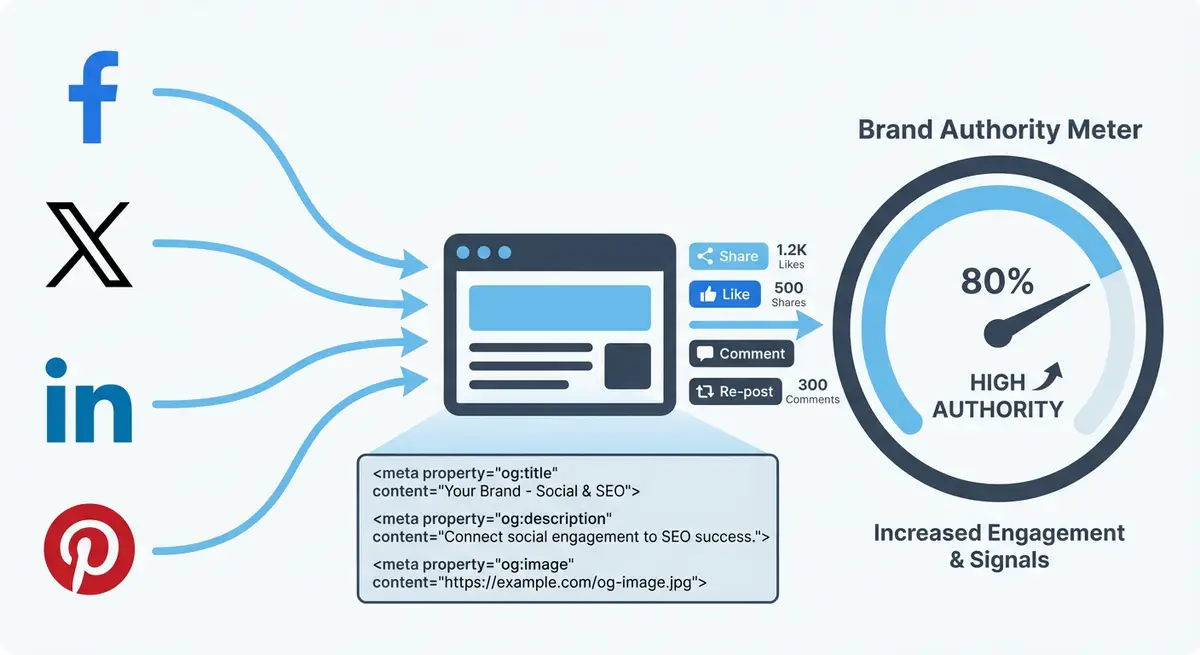
Twitter Card Tags
Twitter Cards extend your tweets with rich media. The two most useful types are Summary Card (small image with text) and Summary Card with Large Image (full-width image). For blog posts and articles, use the large image card. For service pages and general content, the summary card works well.
<meta name="twitter:card" content="summary_large_image">
<meta name="twitter:site" content="@yourhandle">
<meta name="twitter:title" content="Your Page Title">
<meta name="twitter:description" content="Your engaging description">
<meta name="twitter:image" content="https://yourdomain.com/your-image.jpg">
Pinterest Rich Pins
Pinterest Rich Pins pull additional information from your Wix pages: article titles, product prices, recipe ingredients. They are powered by either Open Graph tags or schema markup on your site. If you already have OG tags and Product schema, Pinterest Rich Pins work automatically after you validate them.
LinkedIn Article Sharing
LinkedIn uses Open Graph tags for link previews. However, LinkedIn is particularly strict about image quality and dimensions. Images smaller than 1200x627 pixels may display as a small thumbnail instead of a large preview, dramatically reducing click-through rates. For B2B Wix businesses, optimising LinkedIn previews can be the single highest-value social sharing optimisation.
Implementation on Wix
Wix automatically generates basic OG tags from your page SEO settings. For Twitter Cards, you need to add the twitter:card meta tag via Custom Code. The easiest approach is to add site-wide Custom Code in the head section that sets twitter:card to "summary_large_image" and twitter:site to your handle. Individual page OG tags will be used for the title, description and image.
Complete How-To Guide
This step-by-step guide walks you through setting up Twitter Cards, Pinterest Rich Pins and LinkedIn-optimised previews on your Wix site so every platform displays your content beautifully.
How to set up platform-specific social tags on Wix
- Step 1: Open your Wix Dashboard and navigate to Settings > Custom Code (or use the Wix Editor: Settings > Advanced > Custom Code).
- Step 2: Click Add Custom Code and paste the following Twitter Card meta tags into the Head section: <meta name="twitter:card" content="summary_large_image"> and <meta name="twitter:site" content="@yourhandle">. Replace @yourhandle with your actual Twitter/X username.
- Step 3: Set the code placement to "All pages" so every page on your site automatically gets the Twitter Card markup. The title, description and image will be pulled from your existing OG tags.
- Step 4: Publish your site and test your homepage URL at cards-dev.twitter.com/validator. Confirm that a large image card appears with the correct title, description and image.
- Step 5: For Pinterest Rich Pins, ensure your Wix site already has Open Graph tags configured on every key page (covered in the previous lesson). Pinterest reads OG tags to generate Rich Pins.
- Step 6: Go to developers.pinterest.com/tools/url-debugger and enter your homepage URL. Pinterest will validate whether your OG tags are sufficient for Rich Pins.
- Step 7: If validation passes, click Apply to request Rich Pin approval from Pinterest. This is a one-time process that enables Rich Pins for your entire domain.
- Step 8: For eCommerce pages on Wix Stores, verify that product schema markup is present by testing a product page URL in Google Rich Results Test. Pinterest uses this schema for Product Rich Pins showing price and availability.
- Step 9: Optimise your LinkedIn previews by ensuring every page has an og:image that is at least 1200x627 pixels. Images below this size display as tiny thumbnails on LinkedIn, reducing clicks dramatically.
- Step 10: Test your key pages at linkedin.com/post-inspector. Enter each URL and verify the preview shows a large image, correct title and compelling description.
- Step 11: If LinkedIn shows a cached old preview, use the Post Inspector to force a re-scrape by clicking the refresh button after updating your OG tags.
- Step 12: Create a testing checklist document listing every key page URL on your Wix site. Run each URL through all three platform validators (Twitter, Pinterest, LinkedIn) and note any issues.
- Step 13: Fix any issues found during testing: missing images, truncated titles, incorrect descriptions or images that are too small for specific platforms.
- Step 14: Schedule a quarterly review to re-test all key pages across all three validators, especially after any site redesign, content update or branding change.
How to Set Up Twitter Cards, Pinterest Rich Pins, and LinkedIn Previews on Wix
Enabling rich social previews on your Wix site requires configuring Open Graph meta tags and platform-specific card settings. These steps walk you through each platform validation.
How to configure and validate social card markup on your Wix site
- Step 1: Log in to your Wix Dashboard and navigate to the page you want to configure. Open the Wix Editor, click the three dots next to the page, and select SEO (Google) to open the SEO settings.
- Step 2: Scroll down to the Social Share section. Set a social share title (ideally your target keyword plus a compelling hook, under 60 characters), a social share description (under 155 characters with a clear value proposition), and upload a social share image at exactly 1200 x 630 pixels.
- Step 3: Navigate to Marketing & SEO > Social Share in your Wix Dashboard to set default social share settings for all pages. These defaults apply when a page does not have custom social share settings configured.
- Step 4: Verify your Open Graph tags are working by visiting the Facebook Sharing Debugger at developers.facebook.com/tools/debug. Enter your page URL and click Debug. Check that og:title, og:description, og:image, and og:url all populate correctly.
- Step 5: Visit the Twitter Card Validator at cards-dev.twitter.com/validator. Enter your page URL and click Preview Card. Verify the summary_large_image card type displays with your correct image, title, and description.
- Step 6: To enable Pinterest Rich Pins, go to developers.pinterest.com/tools/url-debugger and enter your Wix site URL. Pinterest will validate your OG tags. If validation passes, apply for Rich Pins using the application form on the same page.
- Step 7: Test LinkedIn sharing by visiting linkedin.com/post-inspector. Enter your page URL and review the preview. If an outdated image or title appears, click the Refresh button to force LinkedIn to re-scrape your current OG tags.
- Step 8: For Wix blog posts, go to the Wix Blog Manager and click on each post to edit it. Scroll to SEO & Social under the post settings. Add a custom social image specifically sized for social sharing if the hero image aspect ratio does not match 1.91:1.
- Step 9: For Wix eCommerce product pages, open each product in the Wix Store manager. Navigate to the SEO tab and set a product-specific social share image showing the product clearly against a clean background.
- Step 10: Check that your social share images are hosted on fast, accessible URLs. Wix hosts all uploaded images on a CDN, so this should be automatic, but verify no image URLs are broken by pasting them directly into a browser.
- Step 11: Test your most important pages on all four validators: Facebook Debugger, Twitter Card Validator, Pinterest Rich Pin Validator, and LinkedIn Post Inspector. Log any failures in a spreadsheet.
- Step 12: Publish updates and re-test within 24 hours. Set a recurring quarterly calendar event to re-run all validators on your top 10 pages to catch any issues introduced by Wix updates or content changes.
Essential Resources
- Twitter Card Validator: Validate Twitter Card markup and preview how tweets display your content
- Pinterest Rich Pins Validator: Validate and apply for Rich Pins on your Wix domain
- LinkedIn Post Inspector: Test how LinkedIn displays your page previews and force cache refreshes
- SEO Fix in a Box: My Wix app. Free to install, it scans your site and shows what needs fixing, and paid plans write the fixes from your own Google searches
Was this lesson useful?
It takes 1 minute to tell me. The course is free and I want to keep it that way, and your feedback shows me what is working and helps other people find it.
This lesson on Twitter Cards, Pinterest Rich Pins and LinkedIn optimisation is part of Module 11: Social Signals, Open Graph & Cross-Platform Brand Presence in The Most Comprehensive Complete Wix SEO Course in the World (2026 Edition). Created by Michael Andrews, a Wix Marketplace Legend Partner with 14 years of hands-on experience, 800 completed Wix SEO projects and 456 verified five-star reviews.