Structured data and schema markup for Wix directory and marketplace listings
Module 40: Wix SEO for Directories, Marketplaces & Multi-Vendor Sites | Lesson 458 of 683 | 50 min read
By Michael Andrews, Wix SEO Expert UK
Directory and marketplace sites have access to powerful schema types that dramatically improve Google visibility. LocalBusiness, Product, Service, AggregateRating, and ItemList schema can trigger rich results including star ratings, price ranges, and business details directly in search results. For Wix directory owners, implementing dynamic schema that draws from CMS data is the difference between a bare blue link and a rich, trust-building result. This lesson covers the complete schema strategy for Wix directory sites, including dynamic schema generation from CMS data using Velo, real-world implementation patterns, and a schema audit process you can run quarterly.
Essential Schema Types for Directory Sites
- LocalBusiness (or subtypes: Restaurant, Dentist, Plumber, etc.): For each listing with a physical location
- Service: For service-based listings without a physical location
- Product with AggregateOffer: For marketplace listings with pricing from multiple vendors
- AggregateRating: For displaying review stars in search results
- Review: Individual reviews attached to listings
- ItemList: For category pages listing multiple businesses
- BreadcrumbList: For breadcrumb navigation on all pages
- WebSite with SearchAction: For your directory search functionality
Dynamic Schema Generation with Wix Velo
Each listing page needs unique schema populated from CMS data. Hardcoding schema is impossible when you have hundreds of listings. Wix Velo allows you to dynamically generate JSON-LD schema by reading CMS collection data and injecting it into the page head or a custom HTML element. This automation ensures every listing has accurate, up-to-date structured data without any manual work per listing.
Implement dynamic LocalBusiness schema on Wix directory listing pages
- Step 1: On your dynamic listing page, add a custom HTML embed element. Position it at the bottom of the page (it contains invisible data).
- Step 2: In the Velo code panel for that page, write an onReady function that reads the current item data from the dynamic dataset.
- Step 3: Build a JSON-LD object using the CMS fields: @type as the appropriate LocalBusiness subtype, name from Title, description from Description, address from Location fields, telephone from Phone, url as the current page URL.
- Step 4: Add aggregateRating using the Average Rating and Total Reviews fields from the CMS.
- Step 5: Add openingHoursSpecification from your Hours of Operation field if available.
- Step 6: Add image as an array of image URLs from the listing gallery.
- Step 7: Add priceRange if pricing data is available in the CMS.
- Step 8: Wrap the JSON-LD in a <script type="application/ld+json"> tag and inject it into the HTML embed element using $w("#htmlEmbed").postMessage() or by setting innerHTML.
- Step 9: Add conditional logic to only include schema properties that have data. Empty fields should be omitted, not set to null.
- Step 10: Test 5 different listings in Google Rich Results Test to verify schema renders correctly with the correct CMS data for each listing.
ItemList Schema for Category Pages
Category pages that list multiple businesses benefit from ItemList schema. This tells Google the page contains a curated list of items and can trigger carousel-style rich results. Each item in the list should include its position, name, and URL. On Wix, generate this dynamically in Velo by querying all listings in the current category using wixData.query() and building the ItemList array from the results. Combined with individual listing schema on each listing page, this creates a comprehensive schema network across your directory that signals authority and structure to Google.
WebSite SearchAction for Directory Search
If your directory has a search function, add WebSite schema with SearchAction to enable the sitelinks search box in Google. When users search for your directory brand name, Google may show a search box that queries your directory directly from the SERP. The SearchAction requires a URL template pointing to your search results page with a query string parameter (e.g., https://yourdirectory.com/search?q={search_term_string}). This is especially valuable for established directories with brand recognition, as it reduces friction between intent and action.
Schema Maintenance and Common Errors
Schema is not a set-and-forget task. Common errors that trigger Google Search Console warnings include: AggregateRating with fewer than two reviews, missing required properties like name or url, and schema present in the code but not reflected in visible page content. Build a monthly audit routine where you check GSC Enhancements for any new errors, test a random sample of 10 listing pages in Rich Results Test, and verify that aggregate rating values in your schema match the actual displayed review data.
Complete How-To Guide: Full Schema Implementation for a Wix Directory
End-to-end schema implementation covering all page types
- Step 1: Create a schema type mapping document. For each listing category in your directory, identify the most specific LocalBusiness subtype from schema.org (e.g., Dentist, Plumber, Restaurant, LegalService).
- Step 2: Add a "Schema Type" field to your Listings CMS collection. Populate it with the correct schema.org type for each listing.
- Step 3: Implement dynamic LocalBusiness schema on listing pages following the steps above. Use the Schema Type CMS field to set @type dynamically.
- Step 4: Implement BreadcrumbList schema on all pages using a Velo function that reads the current page URL structure and generates breadcrumb JSON-LD.
- Step 5: Implement ItemList schema on category pages. Use Velo to query all listings in the current category and generate the ItemList with ListItem entries.
- Step 6: Implement WebSite SearchAction schema on your homepage and directory index page.
- Step 7: Validate every schema type using Google Rich Results Test. Test at least 3 listing pages, 2 category pages, and the homepage.
- Step 8: Submit representative URLs to Google Search Console URL Inspection and request indexing to trigger schema processing.
- Step 9: Monitor Google Search Console Enhancements section for schema status across all page types.
- Step 10: Create a monthly schema audit process: check that new listings have correct schema types, aggregate ratings match actual data, and no schema errors appear in GSC.
Essential Tools for This Lesson
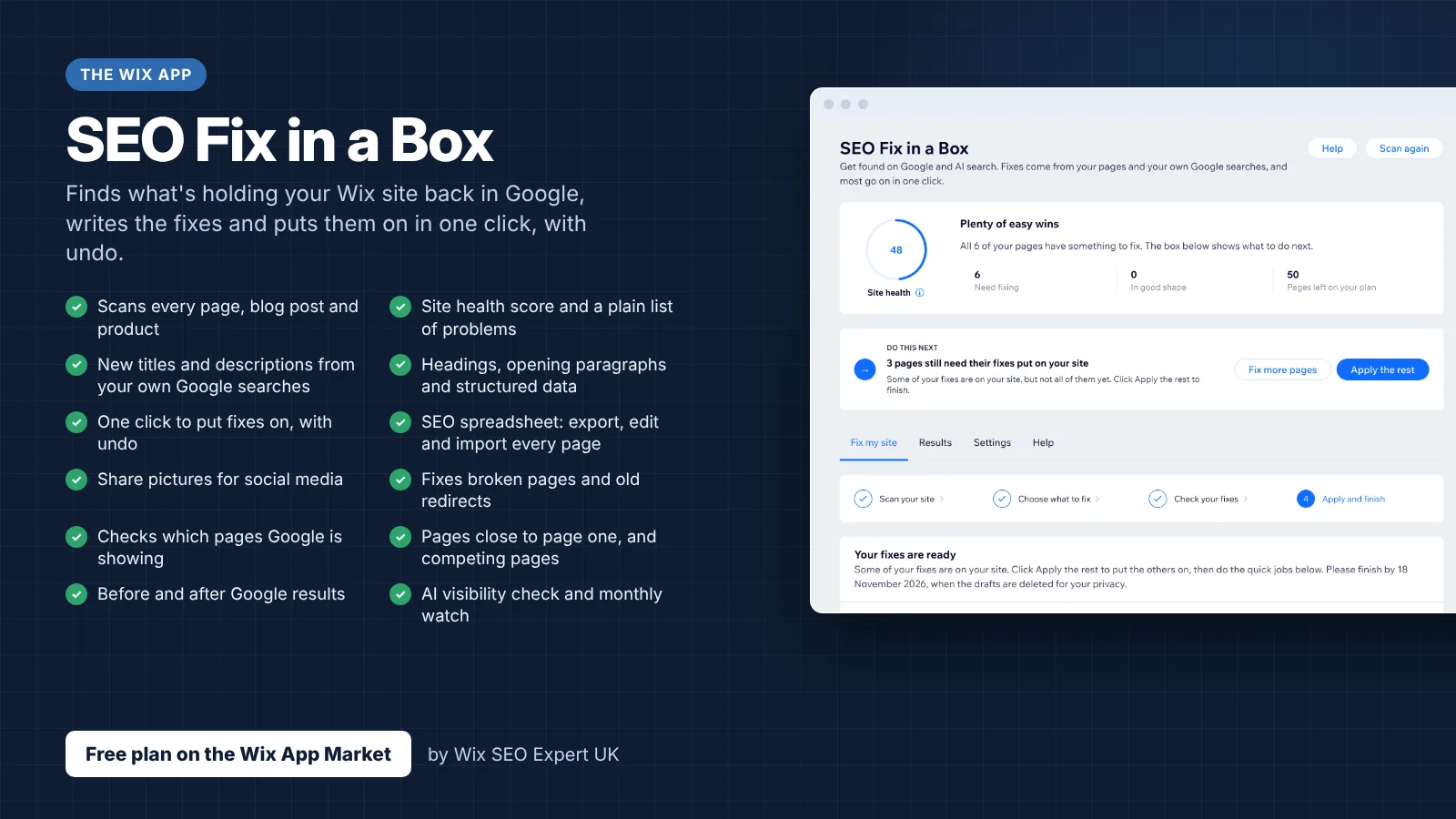
- SEO Fix in a Box: My Wix app. Free to install, it scans your site and shows what needs fixing, and paid plans write the fixes from your own Google searches
Was this lesson useful?
It takes 1 minute to tell me. The course is free and I want to keep it that way, and your feedback shows me what is working and helps other people find it.
This lesson on Structured data and schema markup for Wix directory and marketplace listings is part of Module 40: Wix SEO for Directories, Marketplaces & Multi-Vendor Sites in The Most Comprehensive Complete Wix SEO Course in the World (2026 Edition). Created by Michael Andrews, a Wix Marketplace Legend Partner with 14 years of hands-on experience, 800 completed Wix SEO projects and 456 verified five-star reviews.