Structured data errors and warnings: fixing schema markup problems on Wix
Module 50: Wix SEO Troubleshooting, Diagnostics & Common Fixes | Lesson 559 of 683 | 55 min read
By Michael Andrews, Wix SEO Expert UK
Structured data (schema markup) is the invisible code that helps Google understand exactly what your content represents: a product, a FAQ, a local business, an article, a recipe, or any of hundreds of other content types. When structured data is implemented correctly, your Wix pages become eligible for rich results (enhanced search appearances such as star ratings, product prices, and knowledge panels) that dramatically increase click-through rates, and AI systems can cite your structured answers directly. But structured data is unforgiving of errors. A single missing field, an incorrect value, or improper nesting can invalidate your entire schema, stripping you of rich results and leaving Google confused about your content. This lesson is your complete reference for diagnosing and fixing every common structured data error on Wix websites, whether the schema was auto-generated by Wix, added via Wix Custom Code, or injected by a third-party app.

Understanding Structured Data Errors vs Warnings
Google classifies structured data issues into two categories in Search Console, and the distinction is critically important for prioritising your fixes.
Errors (Critical)
Errors indicate that required fields are missing or contain invalid values. When a structured data item has errors, Google will NOT display any rich result for that page. The schema markup is considered broken and provides no SEO benefit. Errors must be fixed as a high priority because they represent lost rich result opportunities.
Warnings (Non-Critical)
Warnings indicate that recommended (but not required) fields are missing or that optional properties have issues. Pages with warnings may still receive rich results, but they may be less prominent or feature fewer details than fully optimised results. Warnings should be addressed to maximise rich result visibility but are lower priority than errors.
Rich Results Test vs Schema Markup Validator
Two primary tools exist for validating structured data, and they serve different purposes. Understanding when to use each one saves time and produces more accurate diagnoses.
- Google Rich Results Test (search.google.com/test/rich-results): This tool validates structured data specifically against Google's requirements for rich results. It shows which rich result types are eligible, identifies errors and warnings per Google's standards, and renders the page with JavaScript to detect dynamically added schema. Use this as your primary validation tool for Wix sites because it reflects exactly what Google will use for rich results.
- Schema Markup Validator (validator.schema.org): This tool validates structured data against the full Schema.org specification, which is broader than Google's requirements. It catches syntax errors, type mismatches, and specification violations that the Rich Results Test might not flag. Use this as a secondary tool when you need to verify your schema is technically correct against the official specification.
- Key difference: The Rich Results Test may show "valid with warnings" for schema that has issues the Schema Markup Validator considers errors, and vice versa. Always prioritise the Rich Results Test results because Google's requirements are what actually determine rich result eligibility.
Every Common Structured Data Error Explained
The following is a comprehensive reference of every structured data error you are likely to encounter on a Wix website, along with the exact cause and fix for each one.
Error: Missing @context
The @context property tells Google which vocabulary you are using for your structured data. Without it, Google cannot interpret any of the other properties. The fix is simple: ensure your JSON-LD begins with "@context": "https://schema.org". Wix auto-generated schema always includes this, so this error typically only appears in manually added Custom Code schema. Check your Custom Code injection for a missing or misspelled @context property.
{
  "@context": "https://schema.org",
  "@type": "LocalBusiness",
  "name": "Your Business Name"
}
Error: Missing @type
The @type property identifies what kind of entity your structured data describes (Product, Article, FAQPage, LocalBusiness, etc.). Without it, Google has no framework for interpreting the remaining properties. This is another error that almost exclusively affects manually added schema via Custom Code. Ensure every JSON-LD block includes a valid @type value from the Schema.org vocabulary.
Error: Invalid URL in Field
This error appears when a URL property (such as "url", "image", or "logo") contains a malformed URL, a relative path instead of an absolute URL, or a URL that does not resolve. On Wix, the most common cause is using relative image paths instead of full URLs. Always use complete URLs starting with https:// for all URL properties in your schema markup.
Error: Missing Required Property
Each schema type has a set of required properties that must be present. When a required property is missing, the entire schema item is invalid. The specific required properties vary by type.
- Product: Requires "name". For rich results, also requires "offers" (with "price" and "priceCurrency") or "review" or "aggregateRating".
- Article: Requires "headline" and "image". Google also expects "datePublished" and "author".
- LocalBusiness: Requires "name", "address" (with "streetAddress", "addressLocality", "addressRegion", "postalCode", "addressCountry"). For rich results, also strongly recommends "telephone", "openingHoursSpecification", "geo" and "url".
- FAQPage: Requires at least one "mainEntity" item, each with "@type": "Question", "name" (the question text), and "acceptedAnswer" with "@type": "Answer" and "text" (the answer text).
- HowTo: Requires "name" and at least one "step" with "name" and either "text" or "image".
- Event: Requires "name", "startDate" and "location" (with nested "name" and "address").
- Recipe: Requires "name" and "image". For rich results also requires "author", "datePublished", "description" and "prepTime" or "cookTime" or "totalTime".
- BreadcrumbList: Requires "itemListElement" array with each item having "position", "name" and "item" (URL).
Error: Incorrect Date Format
Date properties in schema markup must follow the ISO 8601 format. Google will flag an error for any date that does not conform to this standard. The correct formats are: YYYY-MM-DD for dates (e.g. "2026-03-30"), YYYY-MM-DDTHH:MM:SS+HH:MM for dates with time and timezone (e.g. "2026-03-30T14:30:00+00:00"), or YYYY-MM-DDTHH:MM:SSZ for UTC dates (e.g. "2026-03-30T14:30:00Z"). On Wix, date formatting errors most commonly occur in manually added Event or Article schema where dates are entered in local formats (DD/MM/YYYY or MM/DD/YYYY) instead of ISO 8601.
Error: Missing Image
Several schema types require an image property, and Google is strict about this requirement. Article, Product, Recipe and NewsArticle all require at least one image. The image must be a crawlable, publicly accessible URL (not behind a login). On Wix, this error can occur when: the page has no featured image set, the image URL uses a Wix internal reference instead of a public URL, or the image file has been deleted from the Wix Media Manager but the schema still references it.
Error: Invalid aggregateRating
The aggregateRating property allows you to display star ratings in search results. Errors occur when: "ratingValue" is missing or outside the valid range, "bestRating" is missing when the scale is not 1-5, "ratingCount" or "reviewCount" is missing or set to zero, or the rating values are not numeric. On Wix Stores, aggregateRating is generated from product reviews. If you have zero reviews, do not include aggregateRating in your schema, as an empty rating is an error.
Error: Incorrect Nesting or Missing Parent Type
Structured data types have specific nesting requirements. For example, "offers" in a Product must be nested within the Product type, not at the root level. "mainEntity" items in FAQPage must be nested inside the FAQPage object. Incorrect nesting often results from copy-paste errors or misunderstanding the schema hierarchy. Always validate your schema structure against the Schema.org specification for the type you are implementing.
// INCORRECT - offers outside Product
{
  "@context": "https://schema.org",
  "@type": "Product",
  "name": "Example Product"
}
{
  "@type": "Offer",
  "price": "29.99"
}

// CORRECT - offers nested inside Product
{
  "@context": "https://schema.org",
  "@type": "Product",
  "name": "Example Product",
  "offers": {
    "@type": "Offer",
    "price": "29.99",
    "priceCurrency": "GBP",
    "availability": "https://schema.org/InStock"
  }
}
How to Debug Schema Markup Added via Wix Custom Code
When you add schema markup manually through Wix Custom Code (Settings > Custom Code or via individual page code injection), debugging requires a systematic approach because errors in hand-written JSON-LD are extremely common.
Debugging custom schema markup on Wix
- First, verify the JSON syntax is valid. Copy your entire JSON-LD block and paste it into a JSON validator (such as jsonlint.com). JSON syntax errors (missing commas, unescaped quotes, trailing commas) will prevent the entire block from being parsed.
- Check that the script tag is correctly formatted: <script type="application/ld+json"> at the start and </script> at the end. Any typo in the type attribute will cause the schema to be ignored.
- Ensure the @context is set to "https://schema.org" (not "http://schema.org" without the s, though Google accepts both).
- Verify the @type matches a valid Schema.org type. Common misspellings: "Localbusiness" instead of "LocalBusiness", "faqpage" instead of "FAQPage", "Howto" instead of "HowTo".
- Check all required properties for your chosen type against the Schema.org specification.
- Test the page URL in Google's Rich Results Test. This will render the page (including JavaScript) and validate the detected structured data.
- If the Rich Results Test shows no structured data detected, check whether your Custom Code is being injected in the right location (head vs body) and whether it is set to load on the correct pages.
- If the Rich Results Test shows the schema but with errors, fix each error based on the specific guidance in this lesson, then retest.
- After all errors are resolved, test in the Schema Markup Validator as well to catch any specification-level issues the Rich Results Test may not flag.
- Monitor the GSC Enhancements reports over the next 7-14 days to confirm Google processes your schema without new errors.
Fixing Wix Auto-Generated Schema Issues
Wix automatically generates structured data for certain content types, including Products (Wix Stores), Blog Posts (Wix Blog), Events (Wix Events), and Bookings (Wix Bookings). While this auto-generated schema is generally well-formed, issues can arise from the source data.
- Product schema with missing price: Ensure every product in Wix Stores has a price set. Products with no price or a price of £0 may generate schema errors for the "offers" property.
- Blog post schema with missing author: Wix Blog generates Article schema that includes an "author" property. If the blog post author name is empty or uses a default placeholder, this can trigger a warning. Ensure every blog post has a named author.
- Blog post schema with missing image: Wix Blog schema requires a post cover image. Blog posts published without a cover image will generate a "missing image" error. Always add a cover image to every blog post.
- Event schema with missing location: Wix Events schema requires a location. Online events should use "VirtualLocation" type instead of leaving the location empty.
- Breadcrumb schema with empty names: Wix generates BreadcrumbList schema from your site hierarchy. Pages with empty titles or very long titles can cause breadcrumb schema issues.
- Wix auto-schema conflicts with custom schema: If you add custom schema via Custom Code for a page that already has Wix auto-generated schema, you may create duplicate or conflicting structured data. Google may struggle to interpret competing schema blocks. Ideally, either rely on the Wix auto-schema or override it completely with custom code but do not mix both for the same schema type on the same page.
Testing Schema Markup After Fixes
Post-fix validation workflow
- After making schema changes, publish your Wix site to ensure the changes are live on the public URL.
- Wait 2-3 minutes for Wix CDN cache to update, then test the published URL (not the Wix Editor preview) in Google's Rich Results Test.
- Verify the Rich Results Test shows "All structured data items are valid" or "Valid with warnings" (if only non-critical warnings remain).
- If the test still shows errors, check whether the change was properly saved and published. Clear your browser cache and reload the test.
- In Google Search Console, navigate to the relevant Enhancements report and click "Validate Fix" to tell Google to recheck the affected pages.
- Monitor the Enhancements report over the next 7-14 days. Google will recrawl the affected pages and update the error counts.
- If new errors appear after your fix, check whether your changes introduced a different issue (common with JSON syntax edits).
Monitoring Structured Data Health in GSC Enhancements
The Enhancements section in Google Search Console provides ongoing monitoring for every structured data type Google has detected on your Wix site. Each type (Product, FAQ, Breadcrumbs, How-To, Article, etc.) has its own sub-report showing the status over time.
- Valid items: Pages with correctly implemented structured data that are eligible for rich results. Your goal is to maximise this count.
- Valid with warnings: Pages where the structured data is functional but missing recommended properties. Rich results may be less detailed than for fully valid items.
- Errors: Pages with broken structured data that will not receive any rich results. Prioritise fixing these immediately.
- Trend graph: The graph at the top shows changes over time. A sudden spike in errors often correlates with a site update, template change, or Wix platform update that affected schema generation.
- Affected pages: Click on any error or warning type to see the specific URLs affected. This helps you identify whether the issue is isolated or site-wide.
Preventing Schema Errors When Updating Content
Many structured data errors are introduced when content is updated but the schema markup is not updated to match. This is particularly common with manually added Custom Code schema that references specific content values.
- When changing product prices in Wix Stores, the auto-generated Product schema updates automatically. No manual intervention is needed.
- When updating blog post content, ensure the cover image is not removed. Removing it creates a "missing image" schema error.
- When deleting or unpublishing pages that are referenced in schema (such as a FAQ page linked from your homepage schema), update the schema to remove the reference.
- When changing business hours, update both the Wix site footer and any LocalBusiness schema that includes openingHoursSpecification.
- When adding Custom Code schema that includes hardcoded values (prices, dates, ratings), create a reminder to review these values quarterly.
- Use dynamic schema generation via Velo whenever possible. Schema that pulls values from your CMS automatically stays in sync with content changes.
Bulk Schema Validation Strategies
For Wix sites with hundreds of pages, testing schema individually is impractical. Use these strategies to validate schema at scale.
- Google Search Console Enhancements reports: These are your primary bulk monitoring tool. They automatically track schema health across all pages Google has crawled.
- Screaming Frog SEO Spider: Crawl your entire Wix site with the "Structured Data" extraction enabled. Screaming Frog will flag pages with schema errors, missing schema, and validation issues across the entire site.
- Schema template approach: On Wix, most schema is either auto-generated (following a template per page type) or manually added via Custom Code (usually using the same template across similar pages). Fix the template once and all pages using that template benefit.
- Spot-check sampling: For auto-generated schema, test a representative sample of each page type rather than every page. Test 3-5 product pages, 3-5 blog posts, the homepage, and key landing pages. If the template is correct, all pages of that type should be valid.
- Automated monitoring: Tools like ContentKing, Lumar, or Sitebulb can continuously monitor your schema markup and alert you when errors are introduced.
Complete How-To Guide
Complete step-by-step structured data troubleshooting guide for Wix
- Start by identifying all structured data types present on your Wix site. Open Google Search Console and navigate to the Enhancements section. Note every sub-report listed (Product, FAQ, Breadcrumbs, Article, etc.).
- For each Enhancement type, review the current status. Note the count of valid items, items with warnings, and items with errors. Record these baseline numbers in a spreadsheet.
- Click into each error type to see the specific URLs affected. Export the URL list for each error type.
- For each affected URL, open the URL in Google's Rich Results Test. Review the detailed error messages and identify the specific properties causing issues.
- Categorise each error: Is it from Wix auto-generated schema (fix the source data in the Wix Editor) or from manually added Custom Code schema (fix the code directly)?
- For auto-generated schema errors: fix the source data. Missing product image? Add an image to the product in Wix Stores. Missing blog author? Set the author name in Wix Blog settings. Missing price? Set the product price in Wix Stores.
- For Custom Code schema errors: open the Custom Code section (Settings > Custom Code) or the page-level code injection. Edit the JSON-LD to fix the specific error. Use the error reference in this lesson to understand exactly what needs to change.
- Validate your JSON syntax using a JSON validator (jsonlint.com) before saving. A single syntax error invalidates the entire schema block.
- Publish your changes and wait 2-3 minutes for CDN cache to update. Test the fixed URL in Google's Rich Results Test to confirm the error is resolved.
- In Google Search Console, click "Validate Fix" in the relevant Enhancement report. Google will recrawl the affected pages over the next few days.
- Monitor the Enhancement reports daily for 7-14 days to confirm error counts decrease. If new errors appear, investigate immediately.
- After all errors are fixed, address warnings using the same process. Focus on adding recommended properties to earn more complete rich results.
- Set up a monthly schema health check. On the first of each month, review all Enhancement reports in GSC, run the Rich Results Test on your top 10 pages, and fix any new issues.
- Document your schema implementation in a reference document: which pages have auto-generated schema, which have custom schema, and what properties are included. This prevents future team members from introducing errors.
Structured Data Validation and Monitoring Tools
- Google Rich Results Test: Primary tool for validating structured data against Google's requirements and checking rich result eligibility
- Schema Markup Validator: Validate structured data against the full Schema.org specification for technical correctness
- Google Search Console Enhancements: Monitor structured data health across your entire Wix site with ongoing error tracking
- JSON-LD Playground: Test and visualise JSON-LD structured data to understand how it will be interpreted
- JSONLint: Validate JSON syntax before adding schema markup to your Wix Custom Code
- Schema.org Documentation: Complete reference for all schema types, properties and expected values
- Screaming Frog SEO Spider: Crawl your Wix site to extract and validate structured data at scale across all pages
- Merkle Schema Markup Generator: Generate correctly formatted JSON-LD schema markup for common types without coding
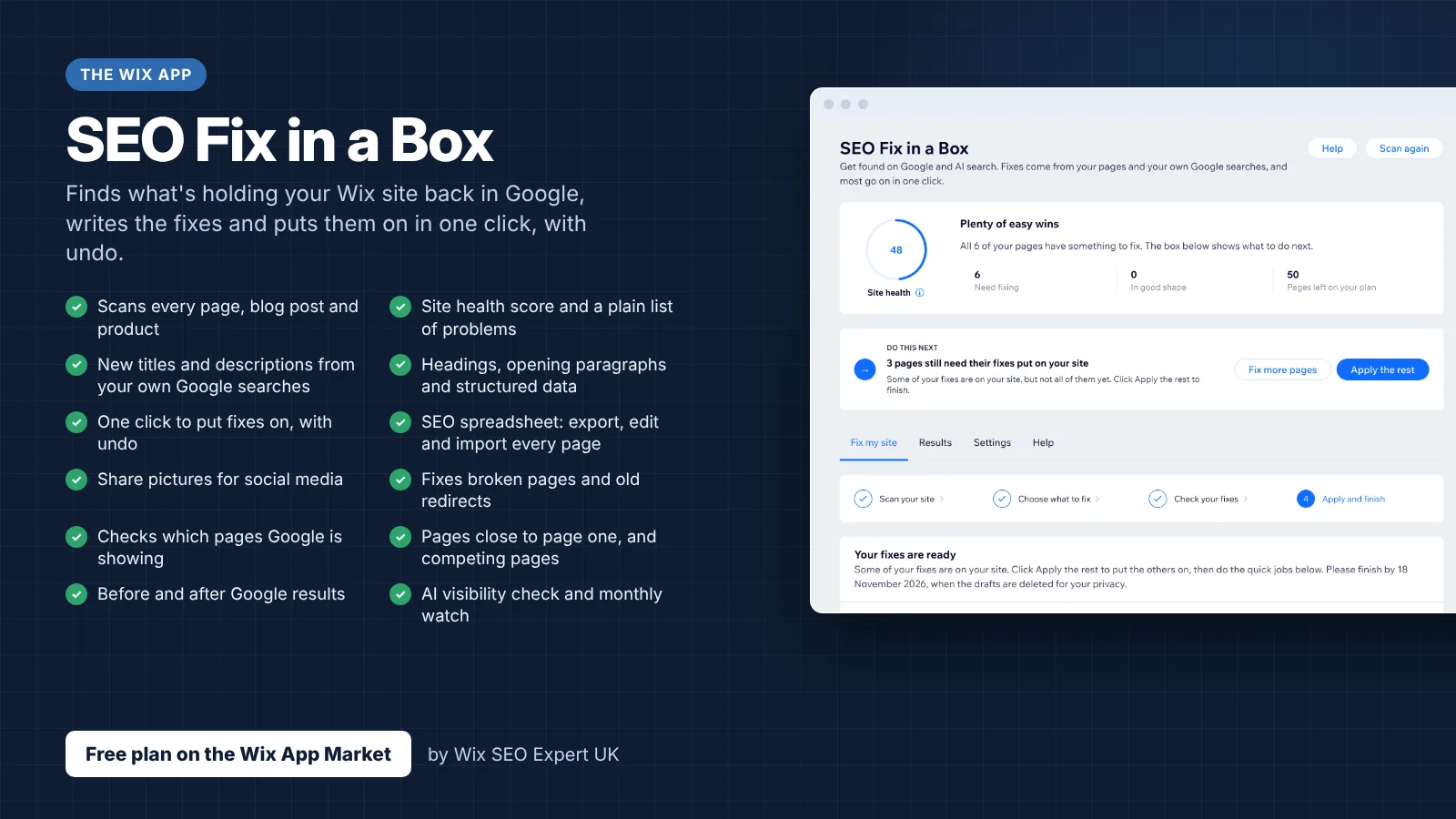
- SEO Fix in a Box: My Wix app. Free to install, it scans your site and shows what needs fixing, and paid plans write the fixes from your own Google searches
Was this lesson useful?
It takes 1 minute to tell me. The course is free and I want to keep it that way, and your feedback shows me what is working and helps other people find it.
This lesson on Structured data errors and warnings: fixing schema markup problems on Wix is part of Module 50: Wix SEO Troubleshooting, Diagnostics & Common Fixes in The Most Comprehensive Complete Wix SEO Course in the World (2026 Edition). Created by Michael Andrews, a Wix Marketplace Legend Partner with 14 years of hands-on experience, 800 completed Wix SEO projects and 456 verified five-star reviews.