Setting up your Wix app development environment
Module 47: How to Build a Wix App: Complete Developer Guide | Lesson 527 of 683 | 50 min read
By Michael Andrews, Wix SEO Expert UK
Before you can build a Wix app, you need a properly configured development environment. This lesson walks you through installing every tool you need, scaffolding your first project, understanding the file structure, connecting to a test site, and running your app locally. Whether you are building with Wix Blocks or Wix CLI, this foundation is essential.
Prerequisites: What You Need Before Starting
- A Wix account (free or premium) - you will need a site to test your app on
- A Wix Developer Centre account at dev.wix.com
- Node.js version 18 or higher installed on your machine (required for CLI apps)
- A code editor such as VS Code with the ESLint and Prettier extensions
- Basic familiarity with JavaScript/TypeScript, npm, and the command line
- Git for version control (strongly recommended)
Installing Node.js and the Wix CLI
Step-by-step environment setup for Wix CLI development
- Install Node.js 18+ from nodejs.org. Verify the installation by running "node --version" and "npm --version" in your terminal. Both should return version numbers.
- Install the Wix CLI globally by running: npm install -g @wix/cli. This gives you the "wix" command in your terminal for creating, developing and deploying apps.
- Verify the CLI installation by running: wix --version. You should see the current CLI version number.
- Log in to your Wix account through the CLI by running: wix login. This opens a browser window where you authenticate with your Wix Developer Centre credentials.
- Confirm your authentication by running: wix whoami. This should display your Wix account email.
# Install Node.js 18+ from https://nodejs.org
# Then install the Wix CLI:
npm install -g @wix/cli

# Verify installations
node --version    # Should show v18.x or higher
npm --version     # Should show 9.x or higher
wix --version     # Should show current CLI version

# Authenticate with your Wix Developer Centre account
wix login

# Verify authentication
wix whoami
Scaffolding Your First Wix App Project
The Wix CLI provides a scaffolding command that creates a complete app project with the correct file structure, configuration files, and starter code. This is the recommended way to start every new Wix app.
Create your first Wix app project
- Navigate to your projects directory in the terminal and run: wix app create. The CLI will prompt you to choose a template.
- Select a template based on your app type. Options typically include: Basic App, Dashboard Widget, Site Widget, and Full App with Backend. For this tutorial, choose "Full App" for the most complete example.
- Enter your app name when prompted. This becomes both the folder name and the initial app name in the Developer Centre. Use lowercase with hyphens (e.g., "my-seo-tool").
- Wait for the CLI to scaffold the project, install dependencies, and register the app in your Developer Centre. This typically takes 1-2 minutes.
- Navigate into the project folder with: cd my-seo-tool. Open it in your code editor with: code . (if using VS Code).
# Create a new Wix app project
wix app create

# Follow the prompts:
# > Choose a template: Full App
# > App name: my-seo-tool

# Navigate into the project
cd my-seo-tool

# Open in VS Code
code .
Understanding the Wix App Project Structure
A scaffolded Wix CLI app has a specific directory structure that you must understand. Each folder and file has a purpose, and placing code in the wrong location will cause build errors or unexpected behaviour.

- src/dashboard/ - React components for dashboard pages that appear in the Wix site owner's admin panel
- src/site/ - React components for site widgets that render on the live published website
- src/backend/ - Server-side code including service plugins, webhooks, event handlers and scheduled jobs
- src/public/ - Shared utilities, types and constants accessible from both frontend and backend code
- wix.config.ts - App configuration file defining permissions, extensions, and OAuth scopes
- package.json - Dependencies and scripts for your app project
- .wix/ - Auto-generated folder containing Wix SDK types and local development configuration
Connecting to a Wix Development Site
To test your app, you need to install it on a Wix site. The CLI provides a development mode that automatically installs your app on a test site and hot-reloads changes as you code.
Connect your app to a test site for development
- Create a new free Wix site specifically for testing, or use an existing site you do not mind modifying. Go to wix.com and create a blank site.
- In your project terminal, run: wix dev. This starts the local development server and opens a browser window.
- The browser will prompt you to select which Wix site to install the app on. Choose your test site.
- Once connected, the CLI watches for file changes and hot-reloads your app on the test site automatically. You will see your dashboard pages in the site's admin panel and widgets in the editor.
- Open the Wix editor for your test site to see your site widgets, or navigate to the site dashboard to see your dashboard pages.
# Start the local development server
wix dev

# The CLI will:
# 1. Build your app
# 2. Start a local dev server
# 3. Open a browser to select your test site
# 4. Install the app on the selected site
# 5. Watch for file changes and hot-reload
Development Workflow Best Practices
- Use Git from day one - initialise a repository immediately after scaffolding and commit after every meaningful change
- Create a .env.local file for any API keys or secrets needed during development - never commit these
- Run "wix dev" in a split terminal so you can see logs while editing code in the other pane
- Test on both desktop and mobile viewports early - do not wait until submission to check responsiveness
- Read the auto-generated .wix/ folder for TypeScript types - these are the definitive reference for available APIs
- Use the Wix Developer Centre dashboard to monitor your app's status, errors and analytics during development
Development Environment Tools
- Node.js: JavaScript runtime required for Wix CLI development
- Visual Studio Code: Recommended code editor with excellent TypeScript support
- Wix CLI Reference: Official CLI commands documentation
- Git: Version control for your app source code
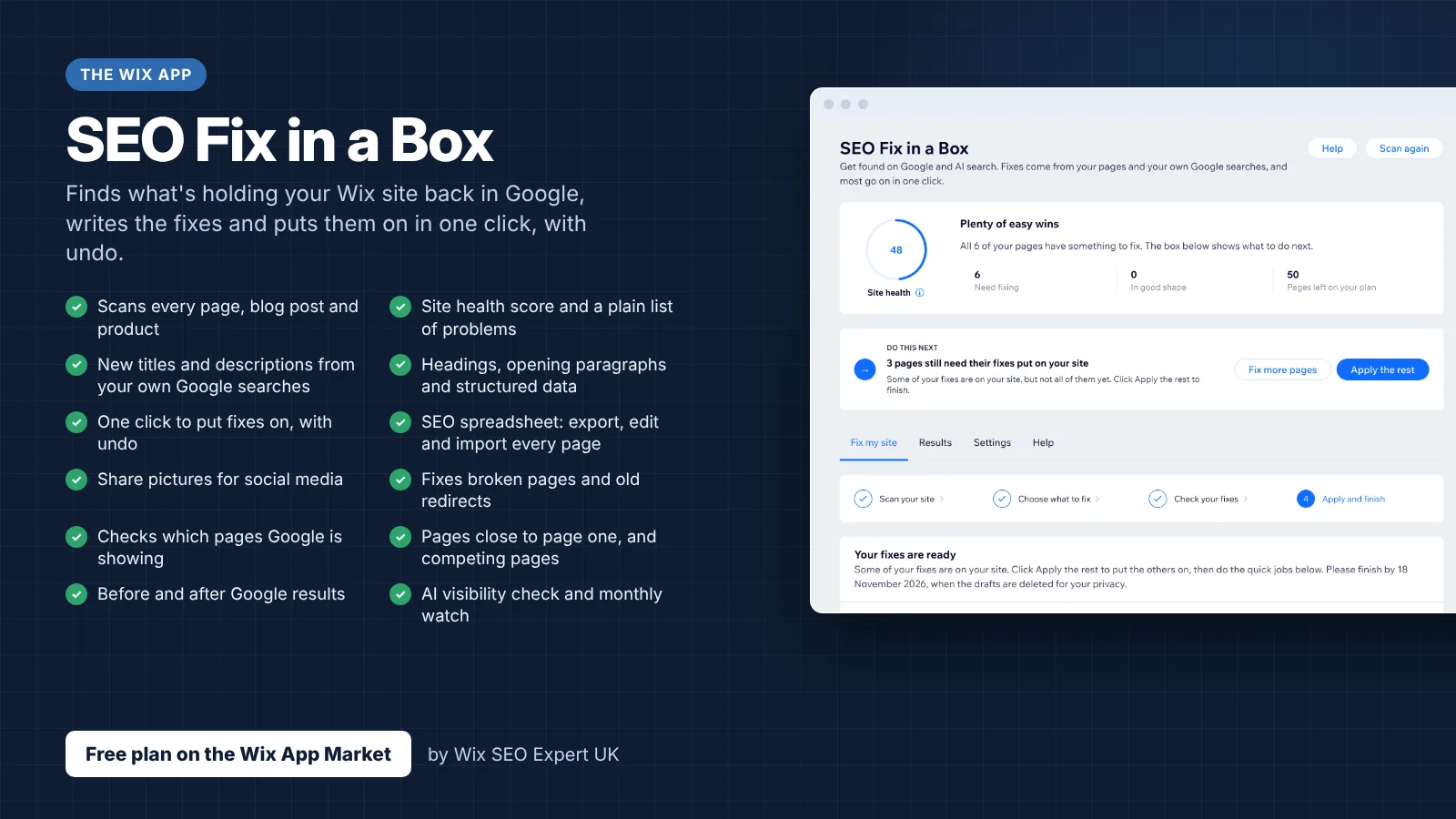
- SEO Fix in a Box: My Wix app. Free to install, it scans your site and shows what needs fixing, and paid plans write the fixes from your own Google searches
Was this lesson useful?
It takes 1 minute to tell me. The course is free and I want to keep it that way, and your feedback shows me what is working and helps other people find it.
This lesson on Setting up your Wix app development environment is part of Module 47: How to Build a Wix App: Complete Developer Guide in The Most Comprehensive Complete Wix SEO Course in the World (2026 Edition). Created by Michael Andrews, a Wix Marketplace Legend Partner with 14 years of hands-on experience, 800 completed Wix SEO projects and 456 verified five-star reviews.