Response status codes on Wix: finding and fixing 404s, 500s and redirect chains
Module 8: Crawl Budget, Log Files & Advanced Site Health on Wix | Lesson 105 of 683 | 28 min read
By Michael Andrews, Wix SEO Expert UK
Every time a bot or visitor requests a page on your Wix site, the server returns an HTTP status code that tells the requester what happened. A 200 means the page loaded successfully. A 404 means the page was not found. A 301 means the page has permanently moved. A 500 means something went wrong on the server. These codes directly affect your crawl budget because every non-200 response wastes a crawl opportunity that could have been spent on your actual content.
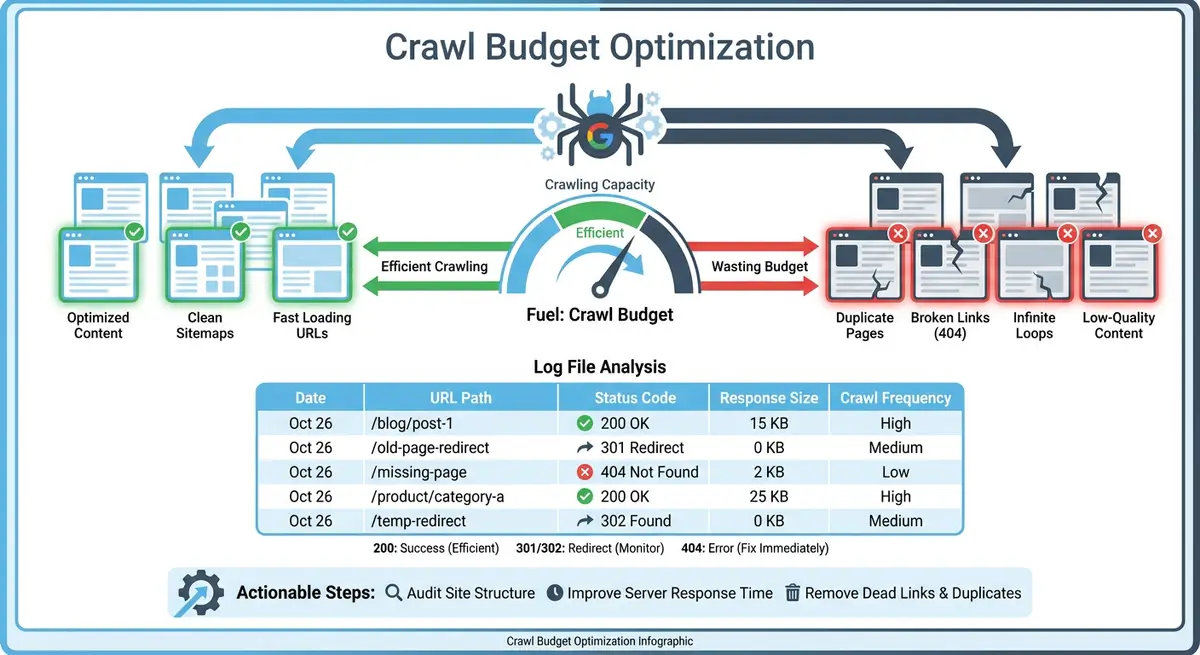
Understanding Key HTTP Status Codes
- 200 (OK): the page loaded successfully. This is the response you want for all your live content pages.
- 301 (Permanent Redirect): the page has permanently moved to a new URL. Googlebot follows the redirect and transfers most link equity to the destination URL.
- 302 (Temporary Redirect): the page has temporarily moved. Googlebot keeps the original URL in its index, which can cause confusion if the redirect is actually permanent.
- 404 (Not Found): the page does not exist. A few 404s are normal, but a large number wastes crawl budget and signals poor site maintenance.
- 500 (Internal Server Error): something went wrong on the server side. Persistent 500 errors can cause Google to reduce crawl frequency for your entire site.
- 503 (Service Unavailable): the server is temporarily down. Used during maintenance. Google treats this as temporary and will retry.
Using Wix Response Status Over Time
The Response Status Over Time report in Wix SEO Analytics shows you the distribution of status codes returned to bots over any date range. A healthy Wix site should show an overwhelming majority of 200 responses with minimal 301s, very few 404s and zero 500s. Spikes in non-200 responses are red flags that need investigation. For example, a sudden increase in 404 responses might mean you deleted pages without setting up redirects, or incoming links are pointing to URLs that no longer exist.
Finding and Fixing 404 Errors on Wix
The most common source of 404 errors on Wix sites is deleted or renamed pages without 301 redirects. When you remove a blog post, rename a page URL slug, or restructure your site navigation, any existing links pointing to the old URL will return a 404. Both Google Search Console and Wix SEO Analytics report these errors. The fix is straightforward: set up a 301 redirect from every old URL to the most relevant current page using the Wix URL Redirect Manager.
Identifying Redirect Chains and Loops
A redirect chain occurs when URL A redirects to URL B, which then redirects to URL C. Every hop in the chain wastes a crawl request and dilutes link equity. Redirect loops occur when URL A redirects to URL B, which redirects back to URL A, creating an infinite cycle. Chains often build up on Wix sites when pages are renamed multiple times or when redirects are layered over months of site changes. The Wix URL Redirect Manager shows all active redirects, making it possible to identify and flatten chains.
Handling 500 Server Errors on Wix
Since Wix manages server infrastructure, 500 errors are relatively rare on Wix sites compared to self-hosted platforms. When they do occur, they are usually caused by third-party app conflicts, Velo code errors, or temporary Wix platform issues. If you see 500 errors in your Response Status Over Time report, check whether they correlate with a recently installed app or Velo code deployment. Remove or disable the suspect app and monitor whether the 500 errors resolve.
Essential Tools for This Lesson
- Google Search Console: View crawl errors, 404 pages and coverage issues reported by Googlebot
- Wix URL Redirect Manager: Set up and manage 301 redirects to fix broken URLs and flatten redirect chains on your Wix site
- SEO Fix in a Box: My Wix app. Free to install, it scans your site and shows what needs fixing, and paid plans write the fixes from your own Google searches
Complete How-To Guide: Finding and Fixing Status Code Issues on Wix
This step-by-step guide walks you through the complete process of identifying 404 errors, redirect chains, server errors and other status code problems on your Wix site, then fixing them systematically to recover wasted crawl budget.
How to find and fix status code issues on your Wix site
- Step 1: Open Google Search Console and navigate to the Pages report (formerly Coverage). Click on the "Not found (404)" category to see every URL where Googlebot encountered a 404 error. Export this list to a spreadsheet for systematic processing.
- Step 2: Open your Wix Dashboard and go to Analytics > SEO > Response Status Over Time. Set the date range to the last 90 days. Note the overall ratio of 200, 301, 404 and 500 responses. Screenshot this as your baseline before making any fixes.
- Step 3: Cross-reference the GSC 404 list with your Wix site. For each 404 URL, determine whether the page was deliberately deleted, accidentally removed, renamed with a new slug, or never existed. Categorise each URL as: needs redirect, can be ignored, or needs investigation.
- Step 4: For every URL categorised as "needs redirect", open the Wix URL Redirect Manager at Marketing & SEO > SEO Tools > URL Redirect Manager. Click Add Redirect and enter the old URL path in the From field and the most relevant current page path in the To field. Set the redirect type to 301 (Permanent).
- Step 5: After adding all redirects, test each one by entering the old URL in your browser's address bar. Verify that it immediately redirects to the correct destination page without any intermediate hops or error messages.
- Step 6: Check for redirect chains by reviewing all existing redirects in the Wix URL Redirect Manager. Look for cases where the destination URL of one redirect is the source URL of another redirect. This creates a chain that wastes crawl budget.
- Step 7: Flatten any redirect chains by updating the first redirect to point directly to the final destination URL. For example, if /old-page redirects to /renamed-page which redirects to /final-page, update the first redirect so /old-page goes directly to /final-page, then remove the middle redirect.
- Step 8: Check for redirect loops by looking for any circular patterns in your redirect list. If /page-a redirects to /page-b and /page-b redirects to /page-a, you have a loop. Fix it by deciding which URL should be the final destination and removing the reverse redirect.
- Step 9: Investigate any 500 errors by checking the Response Status Over Time report for the dates when 500 errors occurred. Cross-reference those dates with any Wix app installations, Velo code deployments or site changes you made. Disable suspect apps one at a time to identify the cause.
- Step 10: If 500 errors persist and you cannot identify the cause, contact Wix Support with the specific dates, URLs and screenshots from your Response Status Over Time report. Wix support can investigate server-side issues that are not visible from your dashboard.
- Step 11: Review your 302 (temporary) redirects in the Wix URL Redirect Manager. If any have been in place for more than 30 days, they should almost certainly be changed to 301 (permanent) redirects. Temporary redirects that remain indefinitely waste crawl budget because Google keeps re-checking the original URL.
- Step 12: After completing all fixes, return to Google Search Console and use the URL Inspection tool to test 5-10 of the previously broken URLs. Request re-indexing for each to prompt Googlebot to verify your fixes.
- Step 13: Set up a monthly status code review process. On the first Monday of each month, check Response Status Over Time in Wix SEO Analytics and the Coverage report in GSC. Address any new 404 errors or redirect issues before they accumulate.
- Step 14: After 30 days, compare your Response Status Over Time report against your baseline screenshot from Step 2. You should see a higher percentage of 200 responses and fewer 404 and 301 responses, confirming that your crawl budget is being used more efficiently.
How to Set Up 301 Redirects and Fix Broken URLs on Wix
After identifying status code issues, use these steps to implement fixes through the Wix URL Redirect Manager and prevent future broken links.
How to create and manage redirects in the Wix URL Redirect Manager
- Step 1: Log in to your Wix Dashboard and navigate to Settings > Redirects to open the URL Redirect Manager.
- Step 2: Click Add Redirect. In the Old URL field, enter the broken URL path (e.g. /old-page) and in the New URL field enter the correct destination (e.g. /new-page). Select 301 as the redirect type.
- Step 3: For bulk redirects from a site migration, prepare a CSV file with two columns: old URL and new URL. Click Import Redirects and upload the file to create multiple redirects simultaneously.
- Step 4: After adding each redirect, use a browser tool such as Redirect Checker at redirect-checker.org to confirm the redirect resolves in one hop from old URL to final destination.
- Step 5: Check for redirect chains in your existing redirect list. A redirect chain occurs when redirect A points to redirect B which points to URL C. Edit these so redirect A points directly to URL C.
- Step 6: Review any 302 (temporary) redirects currently active in the Redirect Manager. If they have been in place for more than 30 days, change the type to 301 by editing each one.
- Step 7: In Google Search Console, navigate to Pages and filter by Not Found (404). Export the list and create redirects for every 404 URL that previously had organic traffic or inbound backlinks.
- Step 8: Check your Wix site's internal links. Navigate to each page that linked to a now-removed URL and update the anchor link to the new destination. Do not rely on redirects as a permanent substitute for updating internal links.
- Step 9: After fixing 404s with redirects, navigate to Coverage in Google Search Console and click Request Indexing for each URL. This prompts Googlebot to re-crawl and confirm the page now resolves correctly.
- Step 10: Set up Google Search Console email alerts for new crawl errors. Go to Settings > Email Notifications and enable alerts for coverage errors so you are notified immediately when new 404s appear.
- Step 11: Publish a sitemap update by navigating to Marketing & SEO > SEO Tools > Sitemaps in your Wix Dashboard. Verify all live pages are included and the sitemap does not contain any 404 or redirect URLs.
- Step 12: One month after implementing redirects, check Google Search Console Coverage for any remaining 404 errors. If new ones have appeared, trace the source in your internal links and fix immediately.
Was this lesson useful?
It takes 1 minute to tell me. The course is free and I want to keep it that way, and your feedback shows me what is working and helps other people find it.
This lesson on Response status codes on Wix: finding and fixing 404s, 500s and redirect chains is part of Module 8: Crawl Budget, Log Files & Advanced Site Health on Wix in The Most Comprehensive Complete Wix SEO Course in the World (2026 Edition). Created by Michael Andrews, a Wix Marketplace Legend Partner with 14 years of hands-on experience, 800 completed Wix SEO projects and 456 verified five-star reviews.