Product schema, Offer schema and rich product results
Module 17: Wix eCommerce SEO Mastery | Lesson 196 of 683 | 32 min read
By Michael Andrews, Wix SEO Expert UK
Product schema markup is the structured data that tells Google exactly what your product is, how much it costs, whether it is in stock, and what customers think of it. When implemented correctly, it unlocks rich product results in Google Search: star ratings, price ranges, availability badges, and review counts displayed directly in the search listing. These rich results dramatically increase click-through rates and make your listings stand out against competitors who lack structured data.
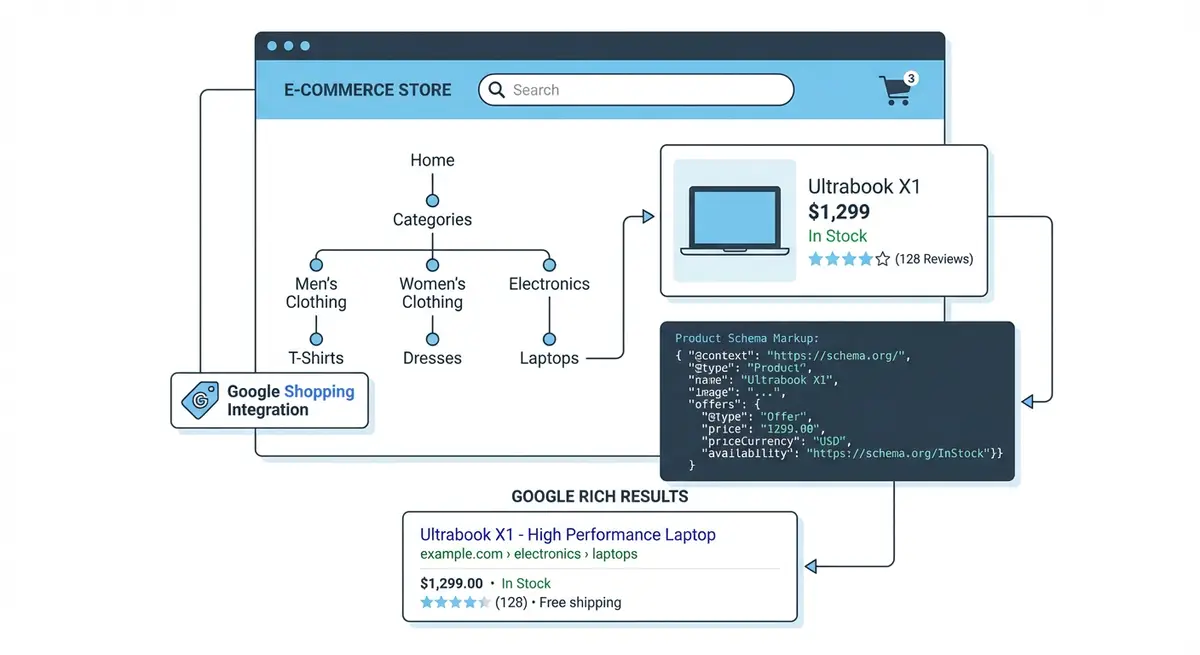
What Product Schema Achieves in Search Results
Without product schema, your search listing shows a plain blue link with a title and meta description. With product schema, Google can display rich snippets that include a star rating, the number of reviews, the price, availability status, and even shipping information. Studies consistently show that rich results receive 20-40% more clicks than plain listings at the same position. For eCommerce, where every click represents a potential sale, this is an enormous competitive advantage.
Wix Stores automatically generates basic Product schema on product pages, but the default implementation is often incomplete. It may miss AggregateRating data, variant-specific offers, or detailed product attributes. By adding comprehensive JSON-LD schema manually through Wix's custom code injection or the Velo developer tools, you can ensure Google has every piece of data it needs to generate the richest possible results.
Core Product Schema Structure
The foundation of product structured data is the Product type from Schema.org. At minimum, every product page should include the product name, description, image, brand, and at least one Offer. Google strongly recommends including a unique product identifier (GTIN, MPN, or SKU) as this helps Google match your product to its knowledge graph and improves eligibility for Merchant listings in search.
{
  "@context": "https://schema.org",
  "@type": "Product",
  "name": "Organic Lavender Essential Oil - Pure Therapeutic Grade",
  "description": "100% pure organic lavender essential oil, steam-distilled from French lavender flowers. Therapeutic grade, ideal for aromatherapy, skincare, and relaxation. 30ml amber glass bottle with precision dropper.",
  "image": [
    "https://www.yourstore.com/product-images/lavender-oil-front.jpg",
    "https://www.yourstore.com/product-images/lavender-oil-bottle-detail.jpg",
    "https://www.yourstore.com/product-images/lavender-oil-lifestyle.jpg"
  ],
  "brand": {
    "@type": "Brand",
    "name": "YourBrand Naturals"
  },
  "sku": "LAV-OIL-30ML",
  "gtin13": "5060000000000",
  "mpn": "LAV30",
  "offers": {
    "@type": "Offer",
    "url": "https://www.yourstore.com/product-page/organic-lavender-essential-oil",
    "priceCurrency": "GBP",
    "price": "14.99",
    "priceValidUntil": "2026-12-31",
    "availability": "https://schema.org/InStock",
    "itemCondition": "https://schema.org/NewCondition",
    "seller": {
      "@type": "Organization",
      "name": "YourBrand Naturals"
    },
    "shippingDetails": {
      "@type": "OfferShippingDetails",
      "shippingRate": {
        "@type": "MonetaryAmount",
        "value": "3.99",
        "currency": "GBP"
      },
      "deliveryTime": {
        "@type": "ShippingDeliveryTime",
        "handlingTime": {
          "@type": "QuantitativeValue",
          "minValue": 1,
          "maxValue": 2,
          "unitCode": "DAY"
        },
        "transitTime": {
          "@type": "QuantitativeValue",
          "minValue": 2,
          "maxValue": 5,
          "unitCode": "DAY"
        }
      },
      "shippingDestination": {
        "@type": "DefinedRegion",
        "addressCountry": "GB"
      }
    }
  },
  "aggregateRating": {
    "@type": "AggregateRating",
    "ratingValue": "4.7",
    "bestRating": "5",
    "ratingCount": "124"
  },
  "review": {
    "@type": "Review",
    "reviewRating": {
      "@type": "Rating",
      "ratingValue": "5",
      "bestRating": "5"
    },
    "author": {
      "@type": "Person",
      "name": "Sarah M."
    },
    "reviewBody": "Beautiful quality lavender oil with a strong, authentic scent. Perfect for my evening diffuser routine."
  }
}
Understanding the Offer Schema in Detail
The Offer nested within your Product schema is where pricing, availability, and purchase conditions are defined. Google uses this data to display the price and availability status in rich results. Every Offer must include at minimum: price, priceCurrency, and availability. Without these three fields, Google will not generate price-related rich snippets. The priceValidUntil field is strongly recommended as it tells Google when to re-check your price data.
The availability property uses Schema.org enumerated values. The most common are InStock, OutOfStock, PreOrder, and BackOrder. Getting this right is essential because Google can penalise sites that show "in stock" in schema but "out of stock" on the page. Wix automatically syncs inventory status with its default schema, but if you are adding custom schema, ensure your availability values match your actual inventory status dynamically.
- Always use the full Schema.org URL for availability: https://schema.org/InStock (not just "InStock")
- Set priceValidUntil to a date at least 30 days in the future and update it when prices change
- Use the correct ISO 4217 currency code: GBP, USD, EUR, AUD, etc.
- Include the itemCondition property: NewCondition, UsedCondition, or RefurbishedCondition
- Add shippingDetails if you want shipping cost and delivery time to appear in search results
- Include a hasMerchantReturnPolicy property if you want your return policy displayed in rich results
Handling Product Variants in Schema
When a product has multiple variants (different sizes, colours, or configurations with different prices), you should not list just one price in your schema. Instead, use an AggregateOffer or multiple Offer objects to represent the full range. Google recommends using multiple Offers when each variant has a distinct price, and AggregateOffer when you want to show a price range. The approach you choose affects how the price appears in search results.
{
  "@context": "https://schema.org",
  "@type": "Product",
  "name": "Organic Essential Oil Gift Set",
  "description": "Curated collection of pure organic essential oils in multiple set sizes.",
  "image": "https://www.yourstore.com/product-images/essential-oil-gift-set.jpg",
  "brand": {
    "@type": "Brand",
    "name": "YourBrand Naturals"
  },
  "offers": [
    {
      "@type": "Offer",
      "name": "3-Oil Starter Set",
      "price": "29.99",
      "priceCurrency": "GBP",
      "availability": "https://schema.org/InStock",
      "sku": "GIFT-SET-3"
    },
    {
      "@type": "Offer",
      "name": "6-Oil Collection Set",
      "price": "49.99",
      "priceCurrency": "GBP",
      "availability": "https://schema.org/InStock",
      "sku": "GIFT-SET-6"
    },
    {
      "@type": "Offer",
      "name": "12-Oil Complete Set",
      "price": "89.99",
      "priceCurrency": "GBP",
      "availability": "https://schema.org/InStock",
      "sku": "GIFT-SET-12"
    }
  ]
}
AggregateRating Schema: Displaying Star Ratings
The AggregateRating property is what generates those coveted star ratings beneath your listing in Google Search. It summarises all customer reviews into a single rating value and count. To be eligible for star rating rich results, you need a minimum of one review, though Google is more likely to display stars when you have a meaningful number of reviews, typically five or more. The ratingValue should be the average score, and ratingCount should reflect the total number of ratings submitted.
Adding Custom Product Schema to Wix
How to add JSON-LD product schema to Wix Store pages
- Open the Wix Editor and navigate to the product page template
- Click on "Add" in the top menu and select "Embed" then "Custom Element" or use Wix Velo for dynamic injection
- Alternatively, go to Settings > Advanced > Custom Code in your Wix Dashboard
- Select "Add Custom Code" and paste your JSON-LD script wrapped in <script type="application/ld+json"> tags
- Set the code placement to "Head" and apply it to the specific product page or all product pages
- For dynamic product data, use Wix Velo (formerly Corvid) to generate schema that pulls from product database fields
- After implementation, test each product URL using Google's Rich Results Test tool
- Fix any errors or warnings flagged by the testing tool before moving on
Testing and Validating Your Product Schema
Before your schema can generate rich results, it must be valid and error-free. Google provides two testing tools: the Rich Results Test (which shows you exactly what rich results your page is eligible for) and the Schema Markup Validator (which checks for syntax errors). Always test with both tools after implementation. The Rich Results Test is more important because it shows Google's actual interpretation of your schema, while the Validator catches technical syntax issues.
- Test every unique product page template, not just one sample page
- Verify that price, availability, and rating values match what is displayed on the page
- Check for warnings as well as errors; warnings indicate missed opportunities for richer results
- Re-test after any changes to product data, schema code, or Wix template updates
- Monitor the Rich Results report in Google Search Console for site-wide schema issues
- Use the URL Inspection tool in Search Console to see how Google renders your schema in production
Complete How-To Guide: Implementing Product Schema on Your Wix Store
This guide walks you through adding comprehensive Product and Offer schema to your Wix Store product pages to earn rich product results in Google.
How to add Product schema to your Wix Store for rich search results
- Step 1: Check what schema Wix already generates. Open one of your product pages and use Google Rich Results Test to see existing structured data. Wix automatically adds basic Product schema.
- Step 2: Review the auto-generated schema for completeness. Check whether it includes name, description, image, price, priceCurrency, availability, brand and review data.
- Step 3: Ensure every product in your Wix Store has complete data fields: product name, full description, at least one image, price, currency, availability status, brand name, and SKU or MPN.
- Step 4: Add product identifiers. Go to each product in your Wix Dashboard, open Advanced Settings, and enter GTIN (barcode), MPN (manufacturer part number) or ISBN where applicable.
- Step 5: Enable customer reviews on your Wix Store. Product reviews generate AggregateRating schema which displays star ratings in Google search results.
- Step 6: Collect at least 3-5 reviews per product before expecting rich review snippets to appear. Google requires a meaningful number of reviews before displaying star ratings.
- Step 7: For products with variants (sizes, colours), ensure each variant has its own price and availability data. Wix handles variant schema but verify it using the Rich Results Test.
- Step 8: Add the priceValidUntil property if your products have promotional pricing. This tells Google when the price expires and helps with Shopping and deal-related search features.
- Step 9: Test every product page type in Google Rich Results Test. Test at least one product from each category to confirm schema is valid across your store.
- Step 10: Fix any validation errors flagged by the Rich Results Test. Common issues include missing required fields, incorrect price formats, and invalid availability values.
- Step 11: Monitor the Rich Results report in Google Search Console. Go to Enhancements > Product to see which product pages have valid schema and which have errors across your entire site.
- Step 12: Check Google search results for your product names. Within 2-4 weeks of fixing schema, you should start seeing rich product results with price, availability and star ratings in search listings.
Was this lesson useful?
It takes 1 minute to tell me. The course is free and I want to keep it that way, and your feedback shows me what is working and helps other people find it.
This lesson on Product schema, Offer schema and rich product results is part of Module 17: Wix eCommerce SEO Mastery in The Most Comprehensive Complete Wix SEO Course in the World (2026 Edition). Created by Michael Andrews, a Wix Marketplace Legend Partner with 14 years of hands-on experience, 800 completed Wix SEO projects and 456 verified five-star reviews.