Open Graph tags implementation on Wix websites
Module 11·Lesson 2 of 7·58 min read

Open Graph tags: complete implementation on Wix

Open Graph tags control exactly how your Wix pages appear when shared on Facebook, LinkedIn, WhatsApp and other platforms. A compelling social preview dramatically increases click-through rates from social shares. This lesson covers the full OG tag implementation on Wix.

What you will learn in this Wix SEO lesson

  • What Open Graph tags are and why they matter for SEO
  • Setting og:title, og:description, og:image and og:url on Wix
  • The ideal Open Graph image dimensions for maximum visual impact
  • Using Wix SEO settings vs Custom Code for OG tags
  • Testing your Open Graph implementation with Facebook Debugger

When someone shares a link to your Wix site on Facebook, LinkedIn, WhatsApp, Slack, Teams, Discord or any messaging app, the preview that appears is controlled by Open Graph (OG) meta tags. A compelling preview with a clear title, engaging description and eye-catching image can increase click-through rates by 200-300% compared to a missing or poorly configured preview. Conversely, a shared link that shows no image, a truncated title, or a generic description creates the impression of an unprofessional or broken website, damaging your brand before anyone even visits your page. Open Graph tags are technically simple but strategically critical. This lesson covers the complete OG specification, how to implement it on every page type in Wix, how to create social share images that stop people scrolling, platform-specific quirks that affect how your previews display, and a systematic testing and maintenance workflow that ensures your social previews always represent your brand perfectly.

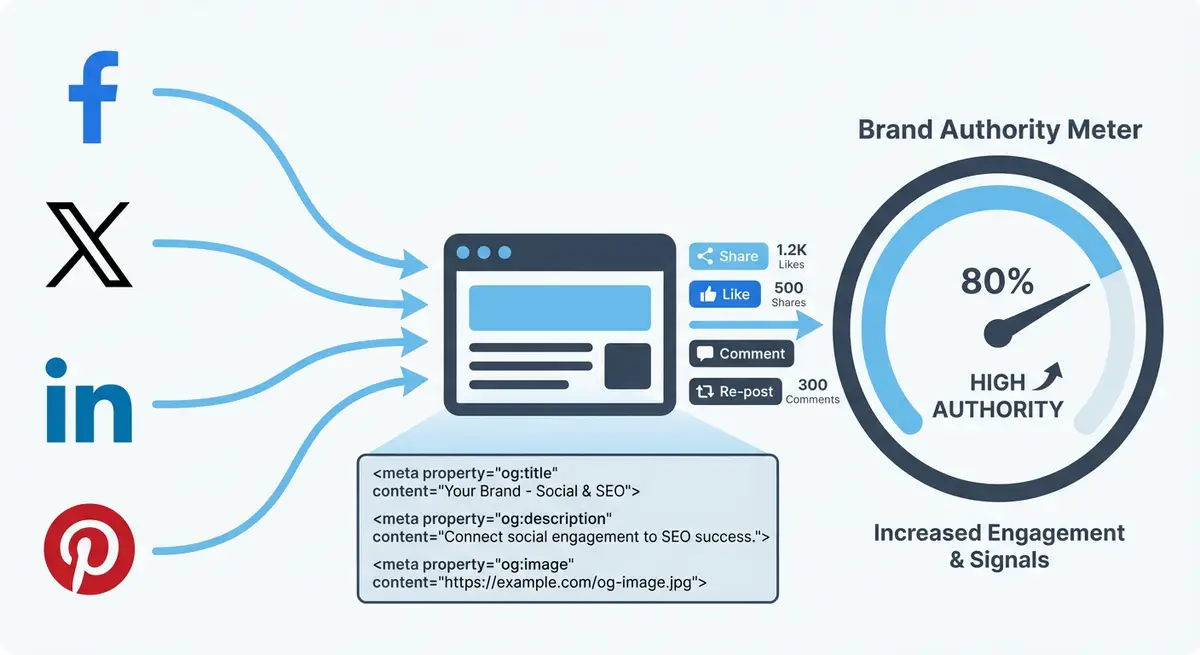
How-to infographic showing how social signals influence SEO including Open Graph tags, social sharing optimisation, cross-platform brand presence, and social analytics
Social signals and proper Open Graph implementation strengthen your Wix site brand authority and drive additional organic visibility.

Understanding the Open Graph Protocol

The Open Graph protocol was created by Facebook in 2010 to standardise how web pages are represented when shared on social platforms. It uses meta tags placed in your page's HTML head section that tell social platforms what title, description, image, URL and content type to display in the share preview. Today, virtually every social platform, messaging app and collaboration tool supports OG tags, making them the universal standard for social sharing metadata.

OG tags are separate from your SEO meta tags (title tag and meta description), which means you can optimise them independently. Your SEO title might target a keyword: "Wix SEO Services | Expert Optimisation for Wix Websites." Your OG title can be more engaging: "We Helped 200+ Wix Sites Reach Page One. Here's How." This separation lets you optimise for two different audiences: Google searchers and social media scrollers.

The Essential Open Graph Tags

  • og:title - the title displayed in the social preview. Should be compelling and under 60 characters to avoid truncation on most platforms.
  • og:description - the description shown below the title. Keep it under 155 characters. Use a conversational tone with a call to action or curiosity hook.
  • og:image - the most impactful element. This is the image displayed in the preview card. Optimal dimensions are 1200x630 pixels. Must be a full absolute URL.
  • og:url - the canonical URL of the page. Should match your page's canonical tag to prevent duplication issues.
  • og:type - the content type. Use "website" for your homepage, "article" for blog posts, "product" for eCommerce items.
  • og:site_name - your website or brand name. Appears as secondary text in some platform previews.
  • og:locale - the language and region of the content. Use "en_GB" for UK English or "en_US" for American English.

Setting OG Tags in the Wix Editor

Wix provides a built-in interface for configuring the most important OG tags without touching any code. This covers the majority of use cases for most Wix site owners.

Configuring OG tags through Wix's built-in settings

  1. 1Open any page in the Wix Editor.
  2. 2Click the three-dot page menu at the top of the editor panel and select "SEO (Google)."
  3. 3The SEO panel opens with tabs for Basic SEO, Social Share, and Advanced. Click the Social Share tab.
  4. 4Enter a custom og:title. This can differ from your SEO title. Use engaging, conversational language that encourages clicks in a social feed.
  5. 5Write a custom og:description. This can differ from your meta description. Include a call to action or curiosity hook.
  6. 6Upload a dedicated social share image. Click the image area and upload an image at exactly 1200x630 pixels for optimal display across all platforms.
  7. 7Save and publish the page. The OG tags are now embedded in the page's HTML head section.

Blog Posts in Wix

For Wix Blog posts, the social share settings are accessed differently. Open the blog post editor, click "SEO Settings" in the sidebar, then navigate to the "Social Share" tab. The blog featured image is used as the OG image by default, but you can override it with a custom social image.

Advanced OG Tags via Custom Code

Some OG tags are not available through Wix's built-in settings and require Custom Code. This is particularly relevant for og:type (Wix defaults to "website" for all pages), og:locale, and article-specific tags like article:published_time and article:author.

<meta property="og:type" content="article">
<meta property="article:published_time" content="2026-03-15T08:00:00Z">
<meta property="article:modified_time" content="2026-03-20T14:30:00Z">
<meta property="article:author" content="https://www.yourwixsite.com/about">
<meta property="article:section" content="SEO">
<meta property="article:tag" content="Wix SEO">
<meta property="article:tag" content="Link Building">

Adding custom OG tags via Wix Custom Code

  1. 1In the Wix Editor, go to Settings > Custom Code (or navigate via the dashboard under Marketing & SEO > Custom Code).
  2. 2Click "Add Custom Code" and give it a descriptive name like "Blog OG Article Tags."
  3. 3Set the placement to "Head" so the tags appear in the correct location.
  4. 4Choose whether to apply the code to specific pages or all pages. For blog-specific OG tags, select only your blog post pages.
  5. 5Paste your OG meta tags and save. Publish the site for changes to take effect.

Creating the Perfect Social Share Image

The og:image is the most impactful OG tag because the human brain processes images 60,000 times faster than text. In a social feed crowded with competing content, your share image is what stops the scroll. A generic or missing image means your shared link blends into the background and gets ignored.

  • Optimal dimensions: 1200x630 pixels (1.91:1 aspect ratio). This displays correctly on Facebook, LinkedIn, Twitter/X, WhatsApp, Slack and Teams.
  • File format: JPG or PNG. Use JPG for photographs and PNG for graphics with text overlay. Keep file size under 5MB (ideally under 1MB for fast loading).
  • Text overlay: include your page title or key message as large, readable text. Use no more than 6-8 words. Text must be legible at thumbnail size (300x157 pixels).
  • Brand consistency: use your brand colours, fonts and logo placement consistently across all social share images. This builds recognition in social feeds.
  • High contrast: ensure strong contrast between text and background. Dark text on light backgrounds or white text on dark backgrounds. Avoid placing text over busy photographic backgrounds.
  • Face rule: images with human faces receive 38% more engagement on average. If appropriate, include a headshot or team photo.
  • Avoid text in the centre bottom: some platforms overlay interface elements on the bottom portion of share images, potentially obscuring text placed there.

Template Strategy

Create a branded Canva template at 1200x630 pixels with your logo in a fixed position, your brand colours as background options, and a text placeholder for the page title. This makes creating consistent social share images for new pages a 2-minute task rather than a design project.

Platform-Specific OG Behaviour and Quirks

While OG tags are a universal standard, each platform interprets and displays them slightly differently. Understanding these quirks prevents surprises when your content is shared.

  • Facebook: strictly follows OG tags. Caches aggressively, so updated tags may not appear until you force a re-scrape via the Sharing Debugger. Minimum image width is 600 pixels; images below this display as tiny thumbnails.
  • LinkedIn: uses OG tags but is strict about image quality. Images below 1200x627 pixels display as small thumbnails rather than large previews. LinkedIn caches for approximately 7 days.
  • WhatsApp: uses OG tags for link previews in messages. Image caching is aggressive and can persist for weeks. There is no official tool to force a cache refresh.
  • Slack: uses OG tags and also checks for twitter:card tags. Slack preview rendering is generally reliable but can truncate long og:descriptions.
  • Discord: uses OG tags with good rendering. Supports og:video for video previews. Discord refreshes caches more frequently than other platforms.
  • iMessage: Apple's Messages app uses OG tags for link previews. Image rendering is high quality but caching is aggressive.
  • Microsoft Teams: uses OG tags and supports adaptive card rendering. Preview images must be accessible via HTTPS.

Testing and Debugging Your OG Tags

A systematic approach to testing OG tags

  1. 1Facebook Sharing Debugger (developers.facebook.com/tools/debug): the most comprehensive OG testing tool. Shows all detected tags, warnings and the exact preview. Use "Scrape Again" to force a cache refresh.
  2. 2LinkedIn Post Inspector (linkedin.com/post-inspector): shows how your link preview will appear on LinkedIn. Reveals image sizing issues that may not appear on other platforms.
  3. 3Self-test: send the URL in a private WhatsApp message to yourself. Check the preview image, title and description.
  4. 4Slack test: paste the URL in a private Slack channel or DM to yourself to verify the Slack preview.
  5. 5View page source: right-click on your published Wix page, select "View Page Source" and search for "og:" to verify all OG tags are present and correctly formatted in the HTML.

Common OG Tag Mistakes and How to Fix Them

  • Missing og:image: the most damaging mistake. Links shared without an image receive dramatically less engagement. Always upload a custom social share image for every page.
  • Image too small: images under 1200x630 display as tiny thumbnails on most platforms. Always use the full recommended dimensions.
  • Relative image URL: og:image must be a full absolute URL (https://...). Relative paths like /images/social.jpg will not work.
  • HTTP image on HTTPS page: if your Wix site uses HTTPS (which it should), your og:image URL must also use HTTPS. Mixed content will cause the image to fail on some platforms.
  • Truncated titles: og:title content over 60 characters gets truncated on most platforms. Keep titles concise and ensure the key message appears in the first 60 characters.
  • Using SEO title as OG title: your SEO title is optimised for search ranking. Your OG title should be optimised for social engagement. Treat them as separate optimisation opportunities.
  • Not testing after updates: platforms cache OG data aggressively. After updating tags, always force a re-scrape using the appropriate debugger tool.
  • Inconsistent branding: different pages using different image styles, colours or formats creates an inconsistent brand impression in social feeds.

Complete How-To Guide: Implementing Open Graph Tags Across Your Wix Site

This step-by-step guide walks you through implementing optimised OG tags on every important page of your Wix site, creating consistent social share images, and establishing a testing and maintenance workflow.

Follow these steps to implement OG tags across your Wix site

  1. 1Step 1: Create an inventory of every key page on your Wix site that could be shared on social media. Include the homepage, all service pages, pricing page, about page, contact page, portfolio pages, case studies and all blog posts.
  2. 2Step 2: Create a branded social share image template in Canva at 1200x630 pixels. Include your logo in a consistent position, your brand colours as background options, and a large text placeholder for the page title. Save the template for reuse.
  3. 3Step 3: For each page in your inventory, create a custom social share image using your template. Write the page's key message or title as the text overlay. Export as JPG (under 1MB) or PNG and save with a descriptive filename.
  4. 4Step 4: Open the Wix Editor and navigate to your homepage. Click the three-dot page menu, select SEO (Google), and click the Social Share tab.
  5. 5Step 5: Enter a custom og:title for your homepage that is engaging and conversational (under 60 characters). Example: "We Help Wix Sites Rank on Google - See How" rather than "Wix SEO Expert | Professional SEO Services."
  6. 6Step 6: Write a custom og:description for your homepage (under 155 characters). Include a call to action or curiosity hook. Example: "200+ Wix sites ranked. Free SEO audit available. See what we can do for your business."
  7. 7Step 7: Upload your custom homepage social share image in the Social Share image field. Verify it displays correctly in the preview pane.
  8. 8Step 8: Repeat steps 4-7 for every service page and key landing page. Each page must have its own unique og:title, og:description and og:image tailored to that specific page's content.
  9. 9Step 9: For Wix Blog posts, open the blog post editor, click SEO Settings in the sidebar, navigate to the Social Share tab, and configure the og:title, og:description and social image. Override the default featured image with a custom social share image.
  10. 10Step 10: For blog posts, add article-specific OG tags via Custom Code. Go to Settings > Custom Code, add a new code block in the Head section, and include og:type "article," article:published_time and article:author meta tags.
  11. 11Step 11: Publish all changes to your Wix site.
  12. 12Step 12: Open the Facebook Sharing Debugger at developers.facebook.com/tools/debug. Test your homepage URL first. Verify the correct title, description and image appear. Click "Scrape Again" if needed.
  13. 13Step 13: Test every key page URL in the Facebook Debugger. Fix any pages where the image is missing, the title is truncated, or the description pulls from the wrong source.
  14. 14Step 14: Test your key pages at linkedin.com/post-inspector to verify LinkedIn displays large image previews (not tiny thumbnails). If thumbnails appear, your image may be below 1200x627 pixels.
  15. 15Step 15: Send test links in private WhatsApp and Slack messages to yourself to verify previews look correct in messaging apps.
  16. 16Step 16: Create a tracking spreadsheet listing every key page URL, its og:title, og:description, og:image filename, and the date it was last tested. Set a quarterly calendar reminder to review and update all OG tags.

Final Checkpoint

After completing this implementation, every key page on your Wix site should have a custom og:title, og:description and 1200x630 social share image. All pages should pass the Facebook Sharing Debugger and LinkedIn Post Inspector tests. You should have a branded Canva template for rapid social image creation and a tracking spreadsheet for ongoing maintenance.

Finished this lesson?

Mark it complete to track your course progress.

AI Lesson Tutor

AI Powered

Got a question about this lesson? Ask the AI tutor for a quick explanation or practical examples.

Your Course Resources

11 downloadable PDFs -- checklists, templates, worksheets and your certificate

Course Progress0/561 lessons

Checklists

Wix SEO Audit ChecklistPDF

20-point site-wide audit covering technical, on-page, content and local SEO

On-Page SEO ChecklistPDF

37-point per-page checklist: titles, headings, content, images, links, schema

Technical SEO Deep-DivePDF

50-point technical audit: crawlability, Core Web Vitals, speed, security, Wix-specific

Local SEO Setup ChecklistPDF

42-point local checklist: Google Business Profile, NAP, citations, reviews, local links

Site Launch SEO ChecklistPDF

48-point pre-launch and post-launch guide for new Wix sites going live

Templates & Worksheets

Keyword Research TemplatePDF

Printable tracker with columns for volume, difficulty, intent, priority and notes

Monthly SEO Report TemplatePDF

Client-ready report covering traffic, rankings, technical health and action plan

Content Brief TemplatePDF

Plan every page: target keywords, outline, competitor analysis, internal links, CTAs

Backlink Outreach TrackerPDF

Campaign log with status tracking plus 3 proven outreach email templates

Competitor Analysis WorksheetPDF

14-metric comparison table, content gap analysis and SEO SWOT framework

Achievement

Certificate of CompletionLocked

Complete all lessons to unlock (0/561 done)

Lesson Tools

No part of this Wix SEO Course content may be reproduced, copied, or distributed without the written consent of Michael Andrews.

This lesson on Open Graph tags: complete implementation on Wix is part of Module 11: Social Signals, Open Graph & Cross-Platform Brand Presence in The Most Comprehensive Complete Wix SEO Course in the World (2026 Edition). It covers Wix SEO optimization (US) and optimisation (UK) strategies applicable to businesses in the United Kingdom, United States, Australia, Canada, New Zealand, Ireland and worldwide. Created by Michael Andrews, the UK's No.1 Wix SEO Expert with 14 years of hands-on experience, 750+ completed Wix SEO projects and 425+ verified five-star reviews. This is lesson 121 of 561 in the most affordable, most comprehensive Wix SEO training programme available in 2026.