Migrating from WordPress to Wix: the complete SEO preservation guide
Module 48: Migrating to Wix Without Losing Rankings | Lesson 536 of 683 | 40 min read
By Michael Andrews, Wix SEO Expert UK
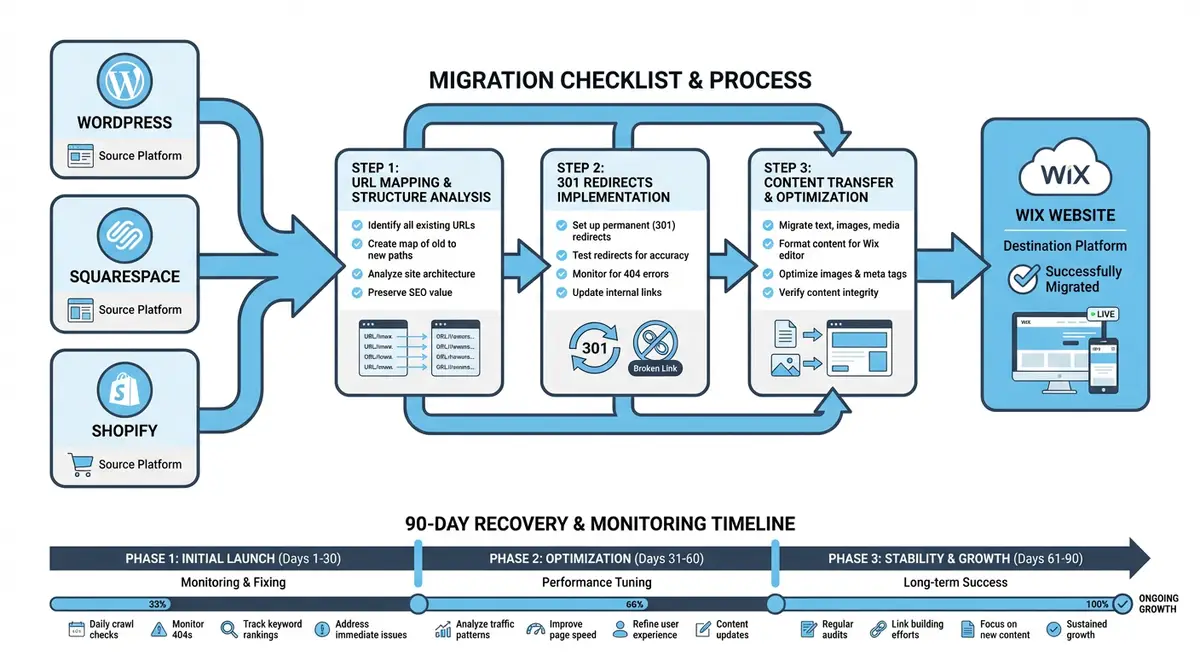
Migrating from WordPress to Wix is the most common platform migration we see, and it is also the one with the highest stakes. WordPress sites often have years of accumulated SEO equity: backlinks, ranking positions, indexed pages, and domain authority. A poorly executed migration can destroy that equity overnight, causing traffic drops of 50-80% that take months to recover. This comprehensive guide covers every step of the WordPress-to-Wix migration process with a focus on preserving every ounce of your hard-earned SEO value.
Pre-Migration SEO Audit
Before touching anything, you must document your current SEO baseline in exhaustive detail. This baseline is your insurance policy. If something goes wrong during migration, you need to know exactly what your traffic, rankings, and indexed pages looked like before you started. Spend at least a full day on this audit. Rushing the pre-migration phase is the single most common cause of failed migrations.
Complete pre-migration audit checklist
- Export your full Google Analytics traffic data for the past 12 months, broken down by landing page
- Export your Google Search Console performance data including all queries, pages, positions, and clicks
- Download a complete site crawl from Screaming Frog or Sitebulb capturing every URL, title tag, meta description, H1, canonical, and redirect
- Export your WordPress sitemap and verify it matches your indexed pages in Search Console
- Use Ahrefs or Semrush to export your complete backlink profile with referring domains and target URLs
- Screenshot your current Google rankings for your top 50 keywords as a visual baseline
- Document all WordPress plugins that affect SEO: Yoast/RankMath settings, schema markup, redirect rules, and custom robots.txt entries
- Export all 301 redirects currently active on WordPress from your .htaccess file or redirect plugin
URL Mapping: WordPress to Wix
WordPress and Wix use fundamentally different URL structures. WordPress typically uses /category/post-name/ for blog posts and /page-name/ for pages, with various permalink structures possible. Wix uses /post/post-name for blog posts and /page-name for static pages. You must create a comprehensive URL mapping document that maps every WordPress URL to its new Wix equivalent.
WordPress URL                          →  Wix URL
/about-us/                             →  /about-us
/services/web-design/                  →  /services/web-design
/blog/how-to-optimize-seo/             →  /post/how-to-optimize-seo
/blog/category/seo-tips/               →  /blog/categories/seo-tips
/wp-content/uploads/2024/guide.pdf     →  /files/guide.pdf
/portfolio/project-name/               →  /portfolio/project-name
/?p=123                                →  /post/actual-post-name
/author/john-smith/ → /blog/authors/john-smithSetting Up 301 Redirects on Wix
Implementing redirects in Wix URL Redirect Manager
- In the Wix dashboard, go to SEO Tools > URL Redirect Manager
- Click "Add New Redirect" for each old WordPress URL
- Enter the old URL path (without the domain) in the "Old URL" field
- Enter the new Wix URL path in the "New URL" field
- Set the redirect type to 301 (Permanent Redirect)
- For bulk redirects, use the "Import from file" option with a CSV containing old and new URL pairs
- Test each redirect by visiting the old URL and confirming it lands on the correct new page
Content and Image Migration
WordPress content can be exported as XML, but this export does not transfer directly to Wix. You will need to manually recreate each page and blog post in the Wix editor, or use the Wix WordPress import tool for blog posts. During this process, preserve the exact title tags, meta descriptions, heading structure, and internal links from the WordPress originals. Any changes to on-page SEO elements during migration risk ranking fluctuations.
Images hosted on WordPress use URLs like /wp-content/uploads/year/month/image.jpg. When you upload these images to Wix, they receive new URLs on the Wix CDN. Update all internal image references in your content to point to the new Wix URLs. For images that have earned backlinks or rank in Google Images, set up redirects from the old WordPress image URLs to the new Wix image URLs where possible.
The 90-Day Post-Migration Monitoring Framework
- Days 1-7: Check Google Search Console daily for crawl errors, 404s, and indexing issues. Submit the new Wix sitemap immediately.
- Days 7-14: Monitor ranking positions for your top 50 keywords. Expect minor fluctuations but flag any drops greater than 10 positions.
- Days 14-30: Review organic traffic in GA4 compared to the pre-migration baseline. A 10-20% temporary drop is normal.
- Days 30-60: Rankings should stabilise or begin recovering. Investigate any keywords that remain significantly below baseline.
- Days 60-90: Traffic should return to pre-migration levels. If it has not, audit redirects, content parity, and technical SEO issues.
- Ongoing: Continue monitoring Google Search Console for new crawl errors and redirect chains that may develop over time.
WordPress to Wix Migration Tools
- Screaming Frog SEO Spider: Crawl your WordPress site pre-migration to capture every URL and SEO element
- Wix URL Redirect Manager: Set up and manage 301 redirects in your Wix dashboard
- Ahrefs Site Explorer: Audit backlinks to ensure all target URLs are included in your redirect map
- Google Search Console: Monitor indexing, crawl errors, and submit your new sitemap post-migration
Complete How-To Guide
This step-by-step guide walks you through the entire WordPress-to-Wix migration process from start to finish, with a focus on preserving your search engine rankings, backlink equity, and organic traffic throughout the transition.
How to Migrate WordPress to Wix Without Losing SEO
- Step 1: Export your full WordPress site data. Go to Tools > Export in WordPress admin and download the complete XML file. Separately export your database, media library, and any redirect rules from plugins like Yoast, RankMath, or Redirection.
- Step 2: Run a comprehensive site crawl using Screaming Frog or Sitebulb on your live WordPress site. Export the crawl data as a spreadsheet capturing every URL, HTTP status code, title tag, meta description, H1 tag, canonical URL, and internal linking structure.
- Step 3: Export your backlink profile from Ahrefs or Semrush. Create a prioritised list of every URL on your WordPress site that has at least one external backlink pointing to it. These are your highest-priority redirect targets.
- Step 4: Record your baseline SEO metrics. Export 16 months of Google Search Console data (queries, pages, clicks, impressions, positions) and 12 months of GA4 organic traffic data by landing page. Screenshot your current rankings for your top 50 keywords.
- Step 5: Build your URL redirect map in a spreadsheet. Map every WordPress URL to its new Wix equivalent. Account for permalink structure differences: WordPress /blog/post-name/ becomes Wix /post/post-name, and /category/name/ becomes /blog/categories/name. Include every backlinked URL without exception.
- Step 6: Set up your Wix site on a temporary or staging domain. Recreate all pages, blog posts, and media content. Use the Wix Blog import tool for blog posts where possible. Manually recreate each static page, preserving the exact title tags, meta descriptions, H1 headings, and body content from the WordPress originals.
- Step 7: Upload all WordPress media files to your Wix site. Replace every internal image and file reference in your Wix content with the new Wix-hosted URLs. Verify that alt text for all images has been preserved during the transfer.
- Step 8: Recreate all structured data on your Wix site. If you used schema markup on WordPress via Yoast, RankMath, or custom JSON-LD, add equivalent structured data to your Wix pages using the Wix SEO panel or custom code. Test each page with the Google Rich Results Test tool.
- Step 9: Import your redirect map into the Wix URL Redirect Manager. Go to Wix Dashboard > SEO Tools > URL Redirect Manager and use the CSV bulk import feature. Ensure every redirect is set to 301 (permanent). Include redirects for WordPress system URLs like /feed/, /wp-json/, and category/tag archives.
- Step 10: Test every redirect before switching your domain. Use a bulk HTTP status checker to verify that all redirects return a 301 status code and land on the correct destination page. Pay special attention to URLs with trailing slashes, query parameters, and special characters.
- Step 11: Point your domain DNS to Wix. Update your domain nameservers or DNS A records to point to Wix. Allow up to 48 hours for DNS propagation. During propagation, some visitors will see the old WordPress site while others see the new Wix site, so keep WordPress running until propagation completes.
- Step 12: Submit your new Wix sitemap to Google Search Console immediately after the domain switch. Go to GSC > Sitemaps and add your sitemap URL (yourdomain.com/sitemap.xml). Use the URL Inspection tool to request indexing of your 10 most important pages.
- Step 13: Monitor Google Search Console daily for the first 14 days. Check the Pages report for new crawl errors, 404s, and redirect issues. Fix any problems within 24 hours. Verify that your indexed page count is not declining by comparing it to your pre-migration baseline.
- Step 14: Track your keyword rankings and organic traffic daily for 90 days. Compare against your pre-migration baseline using year-over-year data to account for seasonality. Expect minor fluctuations in the first 30 days, with stabilisation by day 60 and full recovery by day 90.
Was this lesson useful?
It takes 1 minute to tell me. The course is free and I want to keep it that way, and your feedback shows me what is working and helps other people find it.
This lesson on Migrating from WordPress to Wix: the complete SEO preservation guide is part of Module 48: Migrating to Wix Without Losing Rankings in The Most Comprehensive Complete Wix SEO Course in the World (2026 Edition). Created by Michael Andrews, a Wix Marketplace Legend Partner with 14 years of hands-on experience, 800 completed Wix SEO projects and 456 verified five-star reviews.