Keyboard navigation and focus management on Wix
Module 13: Accessibility & SEO on Wix | Lesson 159 of 683 | 24 min read
By Michael Andrews, Wix SEO Expert UK
Many users navigate websites using a keyboard instead of a mouse: people with motor disabilities, power users, and anyone whose mouse battery just died. If your Wix site cannot be navigated and operated entirely by keyboard, you fail WCAG 2.1 Level A (the minimum standard) and create a poor experience for a significant number of visitors.
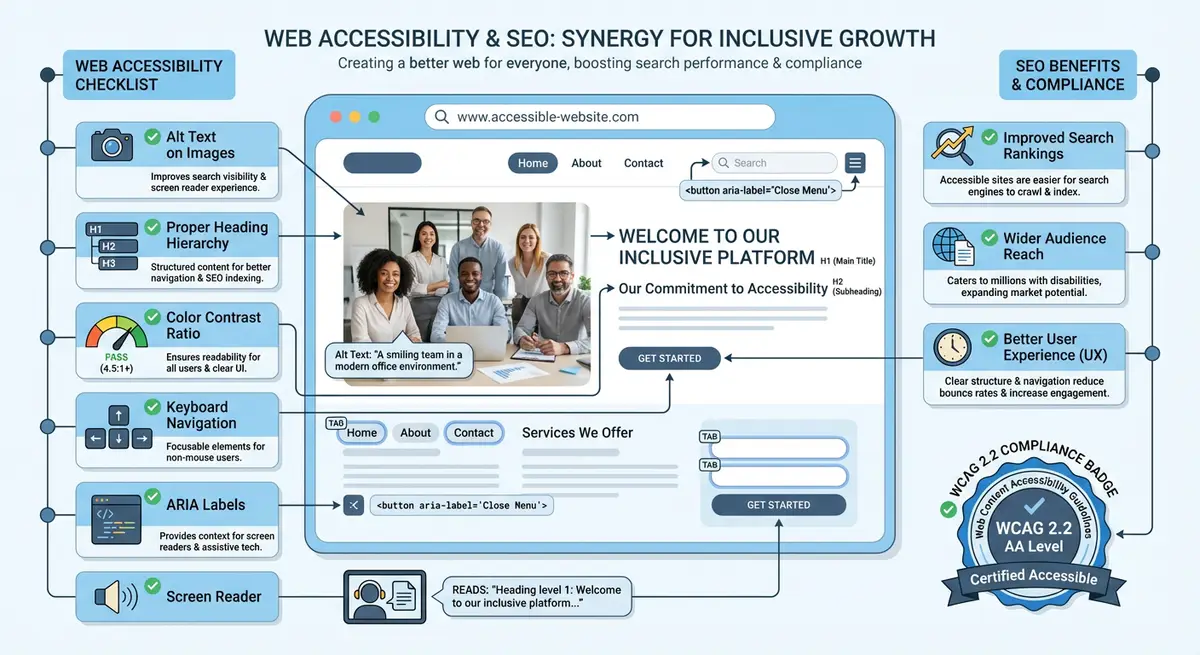
Testing Keyboard Navigation
How to test your Wix site with keyboard only
- Open your Wix site in a browser and put your mouse away
- Press Tab to move through interactive elements (links, buttons, form fields)
- Verify that every interactive element receives visible focus (a highlight or outline)
- Press Enter to activate buttons and links
- Test form fields: can you fill in every field and submit using only the keyboard?
- Test navigation menus: can you open dropdowns and navigate submenus with Tab and Arrow keys?
- Check for focus traps: elements where Tab keeps cycling within a component and you cannot escape
Common Keyboard Issues on Wix
- Custom buttons created from images that are not focusable
- Modal popups (like exit intent or cookie consent) that trap keyboard focus
- Lightbox galleries that cannot be navigated or closed with keyboard
- Tab order that does not follow the visual layout (jumping around the page unexpectedly)
- Hidden focus: focus moves to an element but the visual indicator is not visible
Skip Navigation Links
Essential Resources
- WAVE Web Accessibility Evaluator: Free tool to check web accessibility compliance for any URL
- axe DevTools: Browser extension for automated accessibility testing
- WebAIM Contrast Checker: Check colour contrast ratios meet WCAG requirements
- WCAG 2.2 Guidelines: Official Web Content Accessibility Guidelines specification
Skip navigation is a hidden link at the top of the page that lets keyboard users skip directly to the main content, bypassing the navigation menu. Wix includes a basic skip-to-content feature, but you should verify it works on your site. This is a WCAG Level A requirement and a usability improvement for all keyboard users.
Complete How-To Guide
This step-by-step guide walks you through a comprehensive keyboard navigation and focus management audit of your Wix site, identifying and fixing every issue that prevents keyboard-only users from accessing your content and interactive features.
How to audit and fix keyboard navigation on your Wix site
- Step 1: Open your published Wix site (not the editor preview) in Google Chrome. Physically move your mouse to the side and commit to not using it for the duration of this test. Start by pressing the Tab key once. The first focused element should be a "Skip to main content" link. If it does not appear, note this as a critical issue.
- Step 2: Continue pressing Tab to move through your site header. The focus should move logically from left to right through your logo (if it is a link), main navigation items, and any header buttons like "Contact" or "Book Now". Record the exact order in which elements receive focus. Does it match the visual order? If focus jumps unexpectedly, note each instance.
- Step 3: Test your navigation menu dropdown. When focus is on a navigation item that has a submenu, press Enter or the Down Arrow key to open the dropdown. Verify that the submenu items are reachable with Tab or Arrow keys. Then press Escape to close the dropdown. If the dropdown does not open, does not close, or traps focus, record the specific menu item and behaviour.
- Step 4: Tab through the main content area of your homepage. Every link, button, form field, and interactive widget must receive focus. For each element that receives focus, verify that a visible focus indicator appears (typically a blue or black outline around the element). If focus moves to an element but no visual indicator is visible, note it as a "hidden focus" issue.
- Step 5: Test all buttons and links by pressing Enter when they are focused. Buttons should activate their action (opening a modal, submitting a form, etc.) and links should navigate to their destination. If pressing Enter does nothing on a focused element that looks clickable, it is likely built as a non-interactive element (such as a styled div) and needs to be replaced with a proper button or link in the Wix Editor.
- Step 6: Test every form on your site. Tab to the first form field and type into it. Tab to the next field. Verify that labels are associated with fields (the label should be announced by a screen reader when the field receives focus). Tab to the submit button and press Enter. Verify the form submits and that any success or error messages receive focus so keyboard users know the result.
- Step 7: Test any modal popups, lightboxes, or overlay elements. When a modal opens, focus must move to the modal (typically to the close button or the first interactive element inside it). Press Tab repeatedly inside the modal. Focus must stay trapped within the modal and not escape to the page behind it. Press Escape to close the modal. Focus must return to the element that triggered it.
- Step 8: Test any image galleries, carousels, or slideshows. Can you navigate between slides using Arrow keys? Can you pause auto-advancing slides with the Space bar? Can you open a full-size image view and close it with Escape? If any of these interactions are not possible with keyboard alone, record them.
- Step 9: Test the footer section. Tab through all footer links and verify they are reachable and properly ordered. After the last footer element, pressing Tab should cycle focus back to the browser address bar (or the top of the page if the site uses a skip-to-top link). If focus disappears or gets stuck, there is a focus management issue in the footer.
- Step 10: In the Wix Editor, fix image-based buttons by replacing them with actual Wix button elements. Select the image that functions as a button, delete it, and add a proper Wix button in its place. Style the button to match your design. Proper button elements receive keyboard focus automatically and respond to Enter and Space key presses.
- Step 11: Fix focus visibility issues by adding custom CSS through Wix's custom code feature (found in Settings > Custom Code). Add a CSS rule that enhances focus outlines: *:focus-visible { outline: 3px solid #005fcc; outline-offset: 2px; } This adds a visible blue outline to all focused elements, overriding any Wix default styles that may be too subtle.
- Step 12: Fix tab order issues by rearranging elements in the Wix Editor. Wix determines tab order based on the visual layout position of elements (top-to-bottom, left-to-right). If an element receives focus out of order, move it to the correct visual position in the editor. For complex layouts, use the Wix Layers panel to adjust the element stacking order.
- Step 13: After making all fixes, perform a complete keyboard navigation test of every page on your site from start to finish. Time how long it takes to complete common tasks (finding contact information, navigating to a service page, submitting a form) using only the keyboard. Compare this to the time with a mouse. If keyboard navigation takes more than twice as long, look for additional navigation shortcuts or skip links you can add.
- Step 14: Test with a screen reader (NVDA on Windows or VoiceOver on Mac) in addition to keyboard-only testing. Screen readers reveal issues that keyboard testing alone misses, such as buttons that are focusable but have no accessible name, or elements that receive focus but are announced as the wrong role.
Essential Resources
- WAVE Web Accessibility Tool: Identify keyboard and focus management issues with a visual overlay
- WAVE Web Accessibility Evaluator: Free tool to check web accessibility compliance for any URL
- axe DevTools: Browser extension for automated accessibility testing
- WebAIM Contrast Checker: Check colour contrast ratios meet WCAG requirements
- WCAG 2.2 Guidelines: Official Web Content Accessibility Guidelines specification
- NVDA Screen Reader: Free screen reader for Windows to test keyboard navigation and screen reader compatibility
- axe DevTools: Detect keyboard traps, missing focus indicators, and interactive element issues
- SEO Fix in a Box: My Wix app. Free to install, it scans your site and shows what needs fixing, and paid plans write the fixes from your own Google searches
Was this lesson useful?
It takes 1 minute to tell me. The course is free and I want to keep it that way, and your feedback shows me what is working and helps other people find it.
This lesson on Keyboard navigation and focus management on Wix is part of Module 13: Accessibility & SEO on Wix in The Most Comprehensive Complete Wix SEO Course in the World (2026 Edition). Created by Michael Andrews, a Wix Marketplace Legend Partner with 14 years of hands-on experience, 800 completed Wix SEO projects and 456 verified five-star reviews.