Image optimisation: alt text, file names, WebP and compression
Module 4: On-Page SEO Optimisation for Wix | Lesson 35 of 683 | 50 min read
By Michael Andrews, Wix SEO Expert UK
Images are simultaneously one of the biggest SEO opportunities and one of the most common causes of poor performance on Wix sites. Unoptimised images are the number one reason Wix sites fail Core Web Vitals assessments. They slow page load times, hurt LCP scores, cause layout shifts, and miss ranking opportunities in Google Image Search. On the other hand, properly optimised images improve page speed, unlock image search traffic (which accounts for 20-25% of all Google searches), boost accessibility scores, and support your on-page keyword strategy through alt text. This lesson covers every aspect of image optimisation for Wix: alt text, file naming, compression, format selection, lazy loading, responsive sizing, and image schema markup.
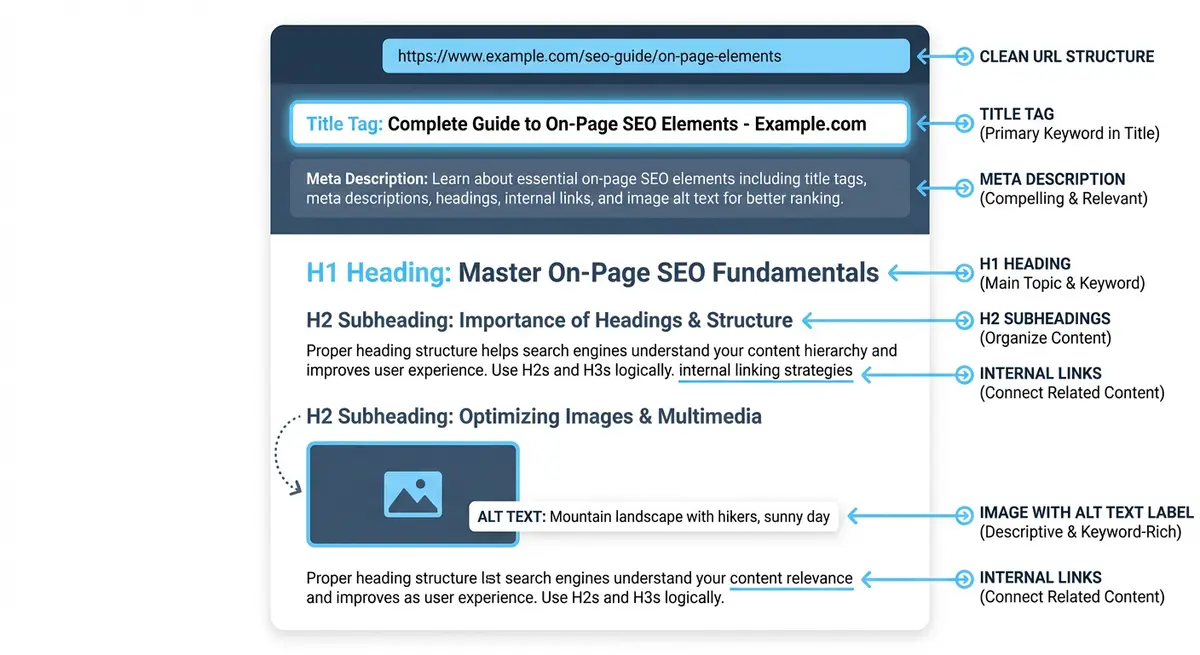
Why Image Optimisation Matters for Wix SEO
- Page speed: Images are typically the largest files on any page. A single uncompressed hero image can add 2-5 seconds to load time, destroying your LCP score.
- Google Image Search: 20-25% of all Google searches show image results. Properly optimised images with descriptive alt text can drive significant traffic from image search.
- Core Web Vitals: LCP (Largest Contentful Paint) is directly impacted by hero image size and loading. CLS (Cumulative Layout Shift) is caused by images without explicit dimensions.
- Accessibility: Alt text is a legal requirement under accessibility laws (WCAG 2.1, EAA). Google uses accessibility compliance as a quality signal.
- E-E-A-T support: Original, high-quality images (especially screenshots, infographics, and real photos) demonstrate Experience and Expertise.
- Conversion: Pages with relevant, high-quality images convert better than text-only pages. Product images increase purchase intent by 67%.
Writing Descriptive Alt Text
Alt text is the text description of an image that serves three purposes: it helps Google understand what the image shows (supporting relevance and image search ranking), it improves accessibility for users with visual impairments who use screen readers, and it displays as placeholder text when an image fails to load.
The Alt Text Formula
Formula: [Descriptive phrase] + [relevant keyword if natural]

BAD alt text:
"image1.jpg" (filename, not descriptive)
"photo" (too vague)
"wix seo expert wix seo services wix seo" (keyword stuffing)
"" (empty - worst case)

GOOD alt text:
"Wix SEO audit results showing 300% organic traffic increase over 6 months"
"Screenshot of Google Search Console performance report for Wix website"
"Michael Andrews presenting Wix SEO workshop at Brighton conference"
"Before and after comparison of Wix site speed optimisation results"
Alt Text Rules
- Be specific and descriptive. Describe what the image actually shows, not what the page is about.
- Keep it under 125 characters. Screen readers cut off alt text after this length.
- Include a relevant keyword ONLY if it naturally describes the image. Do not force keywords into alt text.
- Do not start with "Image of" or "Picture of". Screen readers already announce the element as an image.
- For decorative images (backgrounds, dividers, purely visual elements), use empty alt text (alt="") to tell screen readers to skip them.
- For infographics and charts, describe the key data points, not just "infographic about SEO".
- For screenshots, describe what the screenshot shows and the key information visible.
Adding Alt Text in Wix
How to add alt text to images in Wix
- Click on the image in the Wix Editor
- Click the "Settings" icon (gear icon) or look for the "What's in the image?" / "Alt Text" field
- In the Wix Blog editor, click the image and select "Settings" to find the alt text field
- Write your descriptive alt text following the formula above
- For Wix Stores product images, add alt text in the product media settings
- For gallery images, click each image individually to add alt text
- Wix Media Manager also allows you to add alt text that carries over when the image is used on pages
File Naming Before Upload
Image file names are a secondary SEO signal that reinforces what the image is about. Google reads file names as part of its image understanding process. While file names are a weaker signal than alt text, they add up across dozens of images on a site.
- Use hyphens to separate words: "wix-seo-results-case-study.jpg" not "wixseoresultscasestudy.jpg"
- Be descriptive: "wix-seo-audit-results.webp" not "IMG_4821.jpg"
- Include the primary keyword naturally: "wix-site-speed-test-results.webp"
- Keep it concise: 3-6 words is ideal. Longer names add no extra value.
- Use lowercase only: "hero-image.webp" not "Hero-Image.WebP"
- Rename ALL images before uploading to Wix. Once uploaded, Wix assigns its own file ID but the original name is still referenced.
Image Formats: WebP, JPEG, PNG, and AVIF
The image format you choose has a significant impact on file size and page speed. In 2026, WebP is the standard for web images, offering 25-35% smaller file sizes than JPEG at equivalent quality.
- WebP: The default choice for all web images. Supported by all modern browsers. 25-35% smaller than JPEG. Supports both lossy and lossless compression.
- JPEG: Use only for photographs where WebP is not an option. Good compression for photos but larger than WebP.
- PNG: Use only for images that require transparency (logos, icons with transparent backgrounds). PNGs are significantly larger than WebP or JPEG.
- AVIF: The next-generation format, 50% smaller than JPEG. Browser support is growing but not universal. Use as a progressive enhancement.
- GIF: Avoid for anything except very short, simple animations. GIFs are massive files that destroy page speed.
- SVG: Use for logos, icons, and simple illustrations. SVGs are vector-based, infinitely scalable, and very small in file size.
Compressing Images Before Upload
How to compress images before uploading to Wix
- Go to squoosh.app (Google's free image compression tool) or use TinyPNG
- Drag and drop your image into the tool
- Select "WebP" as the output format on the right panel
- Set quality to 75-80%. This is visually indistinguishable from 100% in most cases.
- Check the file size: aim for under 200KB for hero/above-the-fold images and under 100KB for supporting images
- If the image is still too large, reduce the resolution (next section)
- Download the compressed image and upload to Wix Media Manager
- For batch processing, use tools like ShortPixel or ImageOptim to compress multiple images at once
Image Dimensions and Resolution
Oversized image dimensions are the most common cause of slow Wix pages. An image uploaded at 4000x3000 pixels (12 megapixels, straight from a camera) is massive overkill for web use. Wix will resize it for display, but the original file still needs to be downloaded.
- Hero images: maximum 1920px wide. Most displays do not benefit from wider images.
- Blog content images: maximum 1200px wide. This covers full-width blog layouts.
- Thumbnail images: 400-600px wide. Small images do not need high resolution.
- Product images: 800-1000px wide for main images. 200-300px for thumbnails.
- Always set explicit width and height in the Wix Editor to prevent CLS (Cumulative Layout Shift).
- Use Wix's responsive image settings to serve different sizes for mobile and desktop.
Lazy Loading and Priority Loading
Lazy loading defers the loading of images that are below the fold (not visible when the page first loads) until the user scrolls to them. This dramatically improves initial page load time and LCP score.
- Above-the-fold images (hero image, header logo): Set to "Eager" loading so they load immediately. These affect LCP directly.
- Below-the-fold images (content images, gallery images): Set to "Lazy" loading so they only load when the user scrolls near them.
- Wix applies lazy loading automatically to most images, but you should verify hero images are set to eager loading.
- In the Wix Editor, click on an image > Settings and check the loading behaviour option.
- For critical images, use fetchpriority="high" if available in your Wix setup to tell the browser to prioritise downloading them.
Image SEO for Google Image Search
Google Image Search drives significant traffic, especially for visual industries (photography, design, food, fashion, real estate). Optimising for image search requires all the fundamentals above plus a few additional strategies.
- Use original images wherever possible. Stock photos are used by thousands of sites and have no unique ranking potential.
- Add captions below images. Google reads image captions as additional context about the image.
- Surround images with relevant text. The text near an image helps Google understand its context.
- Use structured data: ImageObject schema tells Google explicit details about your images.
- Submit an image sitemap if you have a large number of important images.
- Create Pinterest-worthy images for shareable content. Vertical images (2:3 ratio) perform best on Pinterest and generate backlinks.
Common Image Mistakes on Wix Sites
- No alt text on any images. This is the most common issue I find in Wix audits.
- Default file names like IMG_4821.jpg or Screenshot 2024-01-15.
- Hero images over 1MB uploaded directly from a camera without compression.
- Using JPEG or PNG instead of WebP for all images.
- Video backgrounds on mobile. These destroy LCP on mobile devices. Use a static image on mobile instead.
- Gallery images without individual alt text. Each gallery image needs its own descriptive alt text.
- Decorative images with keyword-stuffed alt text. Decorative images should have empty alt text.
Complete How-To Guide: Optimising Every Image on Your Wix Site
Follow these steps to optimise every image on your Wix site
- Audit all images on your Wix site by going through each page in the editor and noting images without alt text (use Screaming Frog to export all images with missing alt text)
- For each image, write descriptive alt text that naturally describes what the image shows and includes a relevant keyword where appropriate
- In the Wix Editor, click on each image, then click Settings or the Alt Text field and enter your description
- Before uploading any new images, rename the files with descriptive, keyword-rich names using hyphens between words
- Convert all new images to WebP format using squoosh.app before uploading to Wix
- Compress every image: under 200KB for above-the-fold hero images, under 100KB for content images, under 50KB for thumbnails
- Resize images before upload: hero images max 1920px wide, content images max 1200px wide, thumbnails max 600px wide
- Set explicit width and height dimensions for every image in the Wix Editor to prevent Cumulative Layout Shift
- Set hero and above-the-fold images to "Eager" loading. Set all below-the-fold images to "Lazy" loading.
- Replace any video backgrounds with static images on mobile using the Wix Mobile Editor
- Use the Wix Media Manager to review all uploaded images and identify any oversized files that need replacing with compressed versions
- Test your pages in PageSpeed Insights after optimisation and check that image-related warnings have been resolved
- Establish a process for all future uploads: rename, convert to WebP, compress to target size, then upload
Image Optimisation Tools
- Squoosh: Google's free browser-based image compression tool. Convert to WebP and control quality.
- TinyPNG: Drag-and-drop image compression for PNG and JPEG files
- ShortPixel: Batch image compression with API access for processing multiple images
- Google PageSpeed Insights: Test your page speed and identify image-related performance issues
- Screaming Frog: Crawl your site to find all images with missing alt text (free up to 500 URLs)
Was this lesson useful?
It takes 1 minute to tell me. The course is free and I want to keep it that way, and your feedback shows me what is working and helps other people find it.
This lesson on Image optimisation: alt text, file names, WebP and compression is part of Module 4: On-Page SEO Optimisation for Wix in The Most Comprehensive Complete Wix SEO Course in the World (2026 Edition). Created by Michael Andrews, a Wix Marketplace Legend Partner with 14 years of hands-on experience, 800 completed Wix SEO projects and 456 verified five-star reviews.