Google Search Console API: automated data extraction and custom reporting
Module 22: Advanced Wix SEO Strategies | Lesson 272 of 683 | 28 min read
By Michael Andrews, Wix SEO Expert UK
The Google Search Console web interface is useful for quick checks, but it has significant limitations for serious SEO analysis. Data exports are capped at 1,000 rows, date range options are restricted, and there is no way to automate regular data pulls. The Search Console API removes all of these limitations, letting you extract up to 25,000 rows per request, query historical data programmatically, and build automated reporting systems that run on schedule without manual intervention.
What the GSC API Can Do That the Web Interface Cannot
The Search Console API provides programmatic access to all the search analytics data available in the web interface, plus capabilities that are exclusive to the API. You can retrieve up to 25,000 rows per request compared to the web interface's 1,000-row export limit. You can combine dimensions like query, page, country, and device in a single request. You can automate daily data pulls to build historical datasets that exceed the 16 months of data available in the web interface.
For Wix site owners who are serious about SEO, the API enables workflows that would be impractical manually. Automated weekly keyword position tracking across hundreds of queries. Automatic detection of traffic drops that trigger email alerts. Custom reports that combine Search Console data with business metrics from other sources. These capabilities transform SEO from a manual, periodic review process into a continuous, automated monitoring system.
- Extract up to 25,000 rows of search analytics data per API request versus 1,000 in the web interface
- Query data programmatically with custom date ranges, dimension combinations, and filters
- Automate daily, weekly, or monthly data pulls to build historical datasets beyond the standard 16-month retention
- Combine query and page dimensions in a single request to see which keywords drive traffic to which pages
- Filter data by country, device, search appearance, and more with precise programmatic control
- Integrate Search Console data with GA4, CRM, or business data for holistic performance reporting
Setting Up Google Cloud Console for API Access
Accessing the Search Console API requires a Google Cloud project with the appropriate API enabled and credentials configured. This sounds more complex than it is. For the Google Sheets automation approach we are using in this lesson, you need a Google Cloud project with the Search Console API enabled and an OAuth consent screen configured. The entire setup takes approximately 15 minutes.
Configuring Google Cloud Console for GSC API access
- Go to console.cloud.google.com and sign in with the Google account that has access to your Search Console property
- Create a new project by clicking the project dropdown at the top and selecting New Project, give it a descriptive name like "Wix SEO Reporting"
- Navigate to APIs and Services > Library and search for "Google Search Console API"
- Click on the Search Console API result and click Enable to activate it for your project
- Go to APIs and Services > OAuth Consent Screen, select External user type, and fill in the required application name and email fields
- Add the scope https://www.googleapis.com/auth/webmasters.readonly to your consent screen configuration
- Navigate to APIs and Services > Credentials, click Create Credentials > OAuth 2.0 Client ID, select Web Application, and note your Client ID
Google Sheets and Apps Script: The No-Code Automation Approach
Google Apps Script provides the most accessible way for non-developers to automate Search Console data extraction. Apps Script runs directly within Google Sheets, requires no external servers or hosting, and can be scheduled to run automatically on a daily or weekly basis. The result is a Google Sheet that automatically populates with your latest search performance data, creating a growing historical dataset that updates itself.
The script we are building connects to the Search Console API, extracts search analytics data for your Wix site, and writes it to a designated sheet. You can customise the dimensions, date ranges, and filters to extract exactly the data you need. Once running, the script requires no maintenance unless you need to modify the data it collects.
function fetchSearchConsoleData() {
  var siteUrl = "sc-domain:yourwixsite.com";
  var sheet = SpreadsheetApp.getActiveSpreadsheet().getSheetByName("GSC Data");
  var endDate = new Date();
  endDate.setDate(endDate.getDate() - 3);
  var startDate = new Date();
  startDate.setDate(startDate.getDate() - 30);

  var request = {
    startDate: Utilities.formatDate(startDate, "GMT", "yyyy-MM-dd"),
    endDate: Utilities.formatDate(endDate, "GMT", "yyyy-MM-dd"),
    dimensions: ["query", "page", "date"],
    rowLimit: 25000,
    startRow: 0
  };

  var response = UrlFetchApp.fetch(
    "https://www.googleapis.com/webmasters/v3/sites/" +
    encodeURIComponent(siteUrl) + "/searchAnalytics/query",
    {
      method: "post",
      contentType: "application/json",
      headers: {
        Authorization: "Bearer " + ScriptApp.getOAuthToken()
      },
      payload: JSON.stringify(request)
    }
  );

  var data = JSON.parse(response.getContentText());
  if (!data.rows) return;

  sheet.clear();
  sheet.appendRow(["Query", "Page", "Date", "Clicks", "Impressions", "CTR", "Position"]);

  data.rows.forEach(function(row) {
    sheet.appendRow([
      row.keys[0],
      row.keys[1],
      row.keys[2],
      row.clicks,
      row.impressions,
      row.ctr,
      row.position
    ]);
  });
}
Setting up the Apps Script automation
- Create a new Google Sheet and rename one tab to "GSC Data" to serve as the data destination
- Open Extensions > Apps Script from the Google Sheet menu bar
- Delete any default code in the editor and paste the fetchSearchConsoleData function
- Replace "sc-domain:yourwixsite.com" with your actual Search Console property URL
- Click the Run button to execute the script for the first time and authorise the required permissions when prompted
- Verify that data populates in your GSC Data sheet, confirming the API connection works correctly
- Set up a time-based trigger by clicking the clock icon in Apps Script, selecting fetchSearchConsoleData, and choosing a daily or weekly schedule
Custom Keyword Position Tracking
One of the most valuable applications of the GSC API is building a custom keyword position tracker. Unlike third-party rank tracking tools that charge monthly fees and use simulated searches, the Search Console API provides actual average position data based on real impressions served to real users. By pulling this data daily and storing it historically in your Google Sheet, you build a comprehensive position tracking system at zero cost.
Extend the base script to track specific keywords by adding a filter to your API request. Create a sheet listing your target keywords, then modify the script to loop through each keyword and extract its daily position data. Over time, this creates a trend dataset showing exactly how each keyword's ranking changes day by day, with the accuracy and authority of Google's own data rather than estimated positions from third-party tools.
function trackKeywordPositions() {
  var siteUrl = "sc-domain:yourwixsite.com";
  var trackingSheet = SpreadsheetApp.getActiveSpreadsheet().getSheetByName("Keyword Tracking");
  var keywordsSheet = SpreadsheetApp.getActiveSpreadsheet().getSheetByName("Target Keywords");
  var keywords = keywordsSheet.getRange("A2:A").getValues().flat().filter(String);
  var endDate = new Date();
  endDate.setDate(endDate.getDate() - 3);
  var dateStr = Utilities.formatDate(endDate, "GMT", "yyyy-MM-dd");

  keywords.forEach(function(keyword) {
    var request = {
      startDate: dateStr,
      endDate: dateStr,
      dimensions: ["query"],
      dimensionFilterGroups: [{
        filters: [{
          dimension: "query",
          expression: keyword,
          operator: "equals"
        }]
      }],
      rowLimit: 1
    };

    var response = UrlFetchApp.fetch(
      "https://www.googleapis.com/webmasters/v3/sites/" +
      encodeURIComponent(siteUrl) + "/searchAnalytics/query",
      {
        method: "post",
        contentType: "application/json",
        headers: {
          Authorization: "Bearer " + ScriptApp.getOAuthToken()
        },
        payload: JSON.stringify(request)
      }
    );

    var data = JSON.parse(response.getContentText());
    var position = data.rows ? data.rows[0].position : "N/A";
    var clicks = data.rows ? data.rows[0].clicks : 0;
    var impressions = data.rows ? data.rows[0].impressions : 0;

    trackingSheet.appendRow([dateStr, keyword, position, clicks, impressions]);
  });
}
Automated Weekly SEO Health Checks
Combine the data extraction capabilities with Apps Script's email functionality to build automated SEO health checks that alert you to problems before they become crises. The script can compare this week's data to last week's, identify keywords that dropped more than three positions, flag pages with significant traffic declines, and send you a summary email every Monday morning with the findings.
This proactive monitoring approach is particularly valuable for Wix sites because it catches algorithm-related ranking changes, technical issues affecting indexing, and competitive shifts before they result in significant revenue impact. A weekly automated check that takes the script seconds to run replaces hours of manual Search Console review and ensures nothing falls through the cracks.
function weeklyHealthCheck() {
  var siteUrl = "sc-domain:yourwixsite.com";
  var thisWeekEnd = new Date();
  thisWeekEnd.setDate(thisWeekEnd.getDate() - 3);
  var thisWeekStart = new Date();
  thisWeekStart.setDate(thisWeekStart.getDate() - 10);
  var lastWeekEnd = new Date(thisWeekStart);
  lastWeekEnd.setDate(lastWeekEnd.getDate() - 1);
  var lastWeekStart = new Date(lastWeekEnd);
  lastWeekStart.setDate(lastWeekStart.getDate() - 7);

  var thisWeekData = queryGSC(siteUrl, thisWeekStart, thisWeekEnd);
  var lastWeekData = queryGSC(siteUrl, lastWeekStart, lastWeekEnd);

  var alerts = [];
  var thisWeekMap = {};
  thisWeekData.forEach(function(row) { thisWeekMap[row.keys[0]] = row; });
  lastWeekData.forEach(function(row) {
    var query = row.keys[0];
    if (thisWeekMap[query]) {
      var positionChange = thisWeekMap[query].position - row.position;
      var clickChange = thisWeekMap[query].clicks - row.clicks;
      if (positionChange > 3) {
        alerts.push(query + ": position dropped by " + positionChange.toFixed(1) +
          " (was " + row.position.toFixed(1) + ", now " + thisWeekMap[query].position.toFixed(1) + ")");
      }
      if (clickChange < -10 && row.clicks > 20) {
        alerts.push(query + ": clicks dropped by " + Math.abs(clickChange) +
          " (was " + row.clicks + ", now " + thisWeekMap[query].clicks + ")");
      }
    }
  });

  if (alerts.length > 0) {
    MailApp.sendEmail({
      to: "your-email@example.com",
      subject: "SEO Alert: " + alerts.length + " issues detected",
      body: "Weekly SEO Health Check\n\n" + alerts.join("\n")
    });
  }
}

function queryGSC(siteUrl, startDate, endDate) {
  var request = {
    startDate: Utilities.formatDate(startDate, "GMT", "yyyy-MM-dd"),
    endDate: Utilities.formatDate(endDate, "GMT", "yyyy-MM-dd"),
    dimensions: ["query"],
    rowLimit: 5000
  };
  var response = UrlFetchApp.fetch(
    "https://www.googleapis.com/webmasters/v3/sites/" +
    encodeURIComponent(siteUrl) + "/searchAnalytics/query",
    {
      method: "post",
      contentType: "application/json",
      headers: { Authorization: "Bearer " + ScriptApp.getOAuthToken() },
      payload: JSON.stringify(request)
    }
  );
  var data = JSON.parse(response.getContentText());
  return data.rows || [];
}
Deploying the weekly health check
- Add the weeklyHealthCheck and queryGSC functions to your existing Apps Script project
- Replace the email address with your actual email and the site URL with your Wix domain
- Run the weeklyHealthCheck function manually once to test and authorise the email sending permission
- Create a time-based trigger set to run every Monday between 6 AM and 7 AM in your timezone
- Verify you receive the first automated email the following Monday with any detected alerts
- Adjust the threshold values for position drop (default 3) and click drop (default 10) based on your site traffic volume
The Search Console API transforms SEO monitoring from a manual, periodic activity into an automated, continuous system. The hour you invest in setting up these scripts will save you hundreds of hours of manual data checking over the life of your Wix site.
Complete How-To Guide: Automating SEO Reporting with the Google Search Console API
This guide walks through setting up Google Cloud credentials, writing your first Apps Script for automated data extraction, and building a keyword position tracking system that runs on autopilot.
How to set up automated SEO reporting using the GSC API and Google Sheets
- Step 1: Sign in to console.cloud.google.com with the Google account that has Search Console access for your Wix site. Click the project dropdown at the top and select "New Project". Name it "Wix SEO Reporting" and click Create.
- Step 2: In your new project, navigate to APIs & Services then Library. Search for "Google Search Console API" and click Enable. This activates API access for your project.
- Step 3: Go to APIs & Services then OAuth Consent Screen. Select External user type. Fill in the app name ("Wix SEO Reporter"), your email, and add the scope "https://www.googleapis.com/auth/webmasters.readonly". Save.
- Step 4: Create a new Google Sheet. Rename the first tab to "GSC Data". Add a second tab called "Target Keywords" and list your top 20-50 target keywords in column A starting from row 2.
- Step 5: In your Google Sheet, go to Extensions then Apps Script. Delete any default code. Paste the fetchSearchConsoleData function from the lesson code example. Replace "sc-domain:yourwixsite.com" with your actual Search Console property URL.
- Step 6: Click the Run button to execute the script for the first time. Google will prompt you to authorise permissions. Review and accept the required access. Check your "GSC Data" tab to verify data has populated.
- Step 7: Add the trackKeywordPositions function to your Apps Script. This function reads keywords from your "Target Keywords" tab and pulls daily position data for each one. Add a third tab called "Keyword Tracking" for this data.
- Step 8: Run the trackKeywordPositions function manually to test it. Verify that keyword position data appears in your "Keyword Tracking" tab with date, keyword, position, clicks, and impressions columns.
- Step 9: Set up automated triggers. In Apps Script, click the clock icon (Triggers). Add a trigger for fetchSearchConsoleData set to run daily between 6-7 AM. Add a second trigger for trackKeywordPositions on the same schedule.
- Step 10: Add the weeklyHealthCheck function with email alerts for ranking drops. Configure it with your email address and set a weekly trigger for Monday mornings. This will email you whenever a keyword drops more than 3 positions.
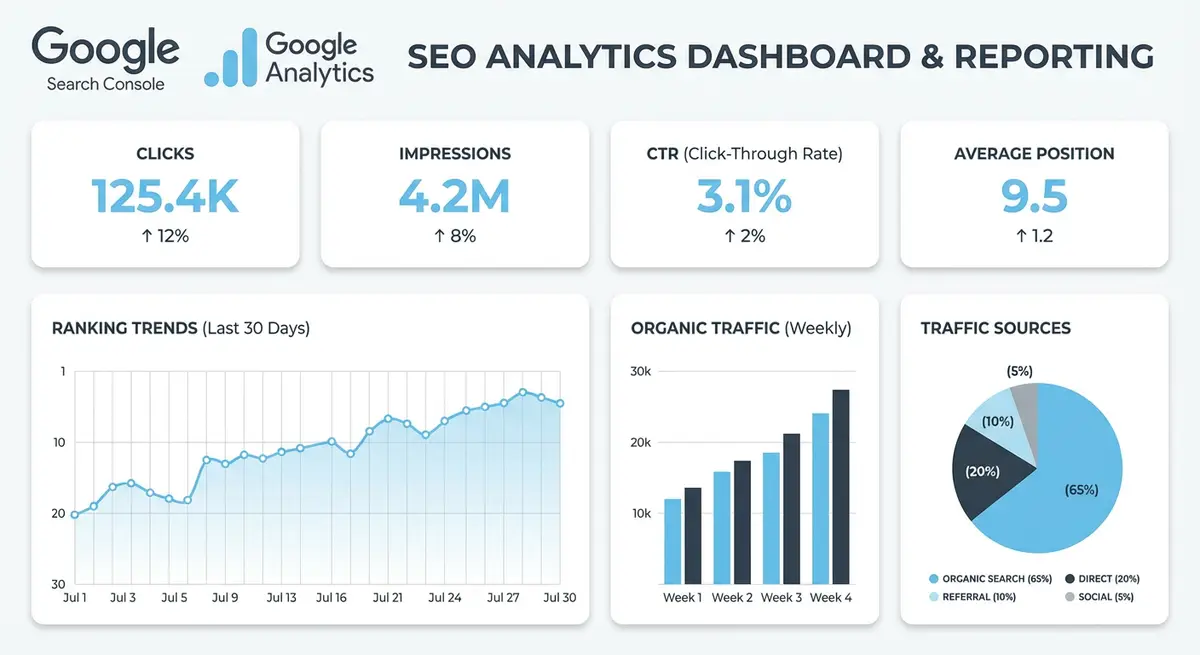
- Step 11: Build a dashboard tab in your Google Sheet. Create charts that visualise: organic clicks over time, average position trend for priority keywords, and a table of keywords with the biggest position changes this week. Use Google Sheets chart features connected to your data tabs.
- Step 12: Let the system run for 2 weeks, then review the data for accuracy. Verify that daily data pulls are completing without errors by checking the Apps Script Executions log. Adjust alert thresholds based on your site traffic volume. Share the Google Sheet with stakeholders who need access to SEO performance data.
Essential Resources
- Google Search Console API: Official API documentation for automated search analytics data extraction
- Google Apps Script: Write and schedule automated scripts for GSC data extraction
- Google Looker Studio: Visualise API-extracted data in interactive dashboards
Was this lesson useful?
It takes 1 minute to tell me. The course is free and I want to keep it that way, and your feedback shows me what is working and helps other people find it.
This lesson on Google Search Console API: automated data extraction and custom reporting is part of Module 22: Advanced Wix SEO Strategies in The Most Comprehensive Complete Wix SEO Course in the World (2026 Edition). Created by Michael Andrews, a Wix Marketplace Legend Partner with 14 years of hands-on experience, 800 completed Wix SEO projects and 456 verified five-star reviews.