Google Looker Studio: building automated SEO dashboards for Wix
Module 15: Wix Analytics & SEO Reporting | Lesson 174 of 683 | 35 min read
By Michael Andrews, Wix SEO Expert UK
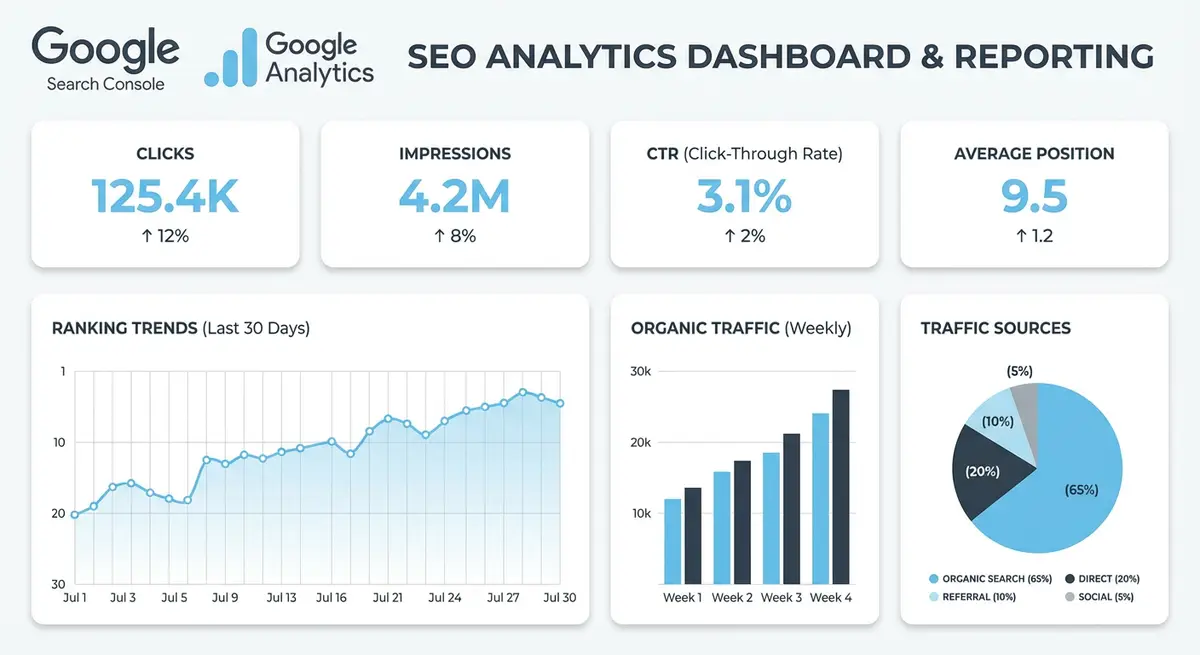
Manually checking Google Search Console and GA4 every week is inefficient and makes it easy to miss important trends. Google Looker Studio (formerly Data Studio) lets you build automated, visually rich dashboards that pull live data from Search Console, GA4, and other sources into a single view. This lesson walks you through building a complete SEO dashboard tailored to your Wix site that updates automatically and can be emailed to stakeholders on a schedule.
Getting Started with Looker Studio
Looker Studio is a free tool from Google that connects to dozens of data sources and lets you create interactive reports and dashboards. Unlike static spreadsheets, Looker Studio dashboards pull live data, meaning they are always current without manual updates. For SEO, this means you can build a dashboard once and have it automatically reflect your latest search performance data every time you open it.
To access Looker Studio, navigate to lookerstudio.google.com and sign in with the same Google account that has access to your Search Console and GA4 properties. You will see a template gallery and the option to create blank reports. While templates can be useful starting points, this lesson teaches you to build a custom dashboard from scratch so you understand every component and can customise it to your specific needs.
Setting up Looker Studio and connecting data sources
- Navigate to lookerstudio.google.com and sign in with the Google account connected to your Search Console and GA4
- Click Create and select Report to start a new blank dashboard
- When prompted to add a data source, search for Google Search Console and select your verified Wix site property
- Choose Site Impression as the data type for your first connection, which provides query-level search data
- Click Add to Report to confirm the Search Console connection
- Add a second data source by clicking Resource > Manage Added Data Sources > Add a Data Source and select Google Analytics (GA4)
- Select your GA4 property for your Wix site and click Add to Report
Building the Organic Traffic Overview Dashboard
Your first dashboard page should provide a high-level overview of your Wix site's organic search performance. This page answers the most fundamental question: is organic traffic growing, stable, or declining? Include scorecards for total clicks, impressions, average CTR, and average position from Search Console, alongside organic session data from GA4. Use comparison periods to show month-over-month and year-over-year trends at a glance.
Start by adding scorecards for the four core Search Console metrics. Select Insert > Scorecard and configure each one with the appropriate metric. Set the default date range to the last 28 days and enable the comparison date range for the previous 28 days. This gives you an instant visual indicator (green arrow up or red arrow down) showing the direction of each metric. Arrange these four scorecards across the top of your dashboard as your headline performance indicators.
Creating the organic traffic trend chart
- Insert a Time Series chart from the Insert menu and resize it to span the full width of your dashboard
- Set the data source to Google Search Console (Site Impression)
- Configure the date range dimension and add Clicks as the primary metric
- Add Impressions as a secondary metric on the right Y-axis for dual-axis comparison
- Set the default date range to Last 12 Months to show a full annual trend
- Apply a style with distinct colours for clicks (blue) and impressions (green) with appropriate line thickness
- Add a date range control above the chart so dashboard viewers can adjust the time period
Keyword Performance Tables
A keyword performance table is the core analytical component of any SEO dashboard. This table shows which search queries drive traffic to your Wix site, how they are trending, and where the biggest opportunities lie. Build a table that displays the query, clicks, impressions, CTR, and average position for your top keywords. Enable sorting so you can quickly switch between highest-traffic keywords, highest-impression keywords, and best-CTR keywords.
Add conditional formatting to make the data actionable at a glance. Apply a colour scale to the position column so keywords ranking one to three are green, four to ten are yellow, and beyond ten are red. Apply a similar colour scale to CTR where above-average CTR is green and below-average is red. These visual cues instantly draw your attention to keywords that are underperforming and may need content optimisation.
- Insert a table chart and set the data source to Search Console (Site Impression)
- Add Query as the dimension and Clicks, Impressions, CTR, and Average Position as metrics
- Sort by Clicks descending as the default view to show highest-traffic keywords first
- Enable pagination and set to 25 rows per page for manageable viewing
- Add a search filter above the table so you can quickly look up specific keywords or keyword patterns
- Create a duplicate table on a separate page sorted by Average Position ascending to identify keywords closest to page one
Page Performance Breakdown
While keyword tables tell you what people search for, page performance breakdowns tell you which pages on your Wix site are delivering results. Switch to the URL Impression data source to build a table showing your top-performing URLs alongside their aggregate clicks, impressions, CTR, and average position. This view is essential for identifying your highest-value pages, underperforming pages that need attention, and cannibalisation issues where multiple pages compete for the same keywords.
Essential Resources
- Looker Studio: Free dashboarding tool from Google with direct GSC and GA4 integration
- Google Search Console: Primary data source for SEO performance dashboards
- Google Analytics 4: Traffic and conversion data source for SEO reporting
- Supermetrics: Data pipeline tool connecting SEO sources to dashboards and spreadsheets
Complement the page table with a bar chart showing the top 20 pages by organic clicks. This visual representation makes it immediately obvious which content is carrying your search performance and how concentrated or distributed your traffic is across your site. If most traffic comes from just two or three pages, your strategy should focus on diversifying. If traffic is spread across many pages, your strategy should focus on scaling what is working.
Combining GA4 Data for Engagement and Conversion Tracking
Search Console tells you what happens in Google. GA4 tells you what happens after users click through to your Wix site. The most valuable SEO dashboards combine both data sources to connect search visibility with actual business outcomes. On a new dashboard page, build a table using GA4 data that shows landing page, organic sessions, engagement rate, average engagement time, and key events (conversions) for organic traffic specifically.
Create a filter at the data source level or use a dashboard filter to restrict GA4 data to only organic traffic. In GA4 terms, this means filtering by Session Default Channel Group equals "Organic Search." This ensures every metric on this dashboard page reflects organic search performance rather than all traffic sources combined, giving you a true picture of how your SEO efforts translate into on-site engagement and conversions.
Scheduled Email Reports and Sharing
Looker Studio allows you to schedule automated email delivery of your dashboard as a PDF attachment. This is invaluable for keeping stakeholders, clients, or team members informed without requiring them to log in to Looker Studio. Configure a weekly email that delivers your SEO dashboard every Monday morning, providing a consistent performance review cadence that keeps everyone aligned on progress and priorities.
Setting up scheduled email delivery
- Open your completed dashboard and click the Share dropdown in the top-right corner
- Select Schedule Email Delivery from the dropdown options
- Enter the email addresses of all recipients who should receive the automated report
- Set the frequency to Weekly and choose Monday as the delivery day with your preferred time
- Configure the date range to show the previous seven days of data so each email covers the prior week
- Customise the email subject line to include your brand name and report type for easy inbox filtering
- Click Schedule to activate the automated delivery and send a test email to verify the formatting
Complete How-To Guide: Building a Wix SEO Dashboard in Looker Studio
This guide walks you through creating a complete automated SEO dashboard for your Wix site from scratch in Google Looker Studio.
How to build an automated SEO dashboard for your Wix site in Looker Studio
- Step 1: Go to lookerstudio.google.com and sign in with the Google account that has access to your Wix site Search Console and GA4 properties. Click Create > Report to start a blank dashboard.
- Step 2: Add your first data source. Search for Google Search Console, select your Wix site property, and choose Site Impression as the data type. Click Add to Report.
- Step 3: Add a second data source. Click Resource > Manage Added Data Sources > Add a Data Source, select Google Analytics, choose your GA4 property for your Wix site, and click Add to Report.
- Step 4: Build the header section. Add a text box with your business name and "SEO Performance Dashboard" as the title. Add a date range control so viewers can adjust the reporting period.
- Step 5: Create four scorecards across the top using Search Console data: Total Clicks, Total Impressions, Average CTR and Average Position. Enable comparison to the previous period to show trend arrows.
- Step 6: Below the scorecards, insert a Time Series chart spanning the full width. Set Clicks as the primary metric and Impressions as the secondary metric on the right Y-axis. Set the default date range to Last 12 Months.
- Step 7: Add a keyword performance table. Insert a Table chart with Search Console Site Impression data. Set Query as the dimension and add Clicks, Impressions, CTR and Position as metrics. Sort by Clicks descending.
- Step 8: Add conditional formatting to the position column: green for positions 1-3, yellow for positions 4-10, red for positions above 10. This makes quick visual scanning possible.
- Step 9: Create a second page for landing page analysis. Add a URL Impression data source from Search Console. Build a table showing URL, Clicks, Impressions, CTR and Position for your top Wix pages.
- Step 10: Create a third page for GA4 engagement data. Build a table using your GA4 data source showing Landing Page, Sessions, Engagement Rate, Average Engagement Time and Key Events, filtered to organic traffic only.
- Step 11: Set up scheduled email delivery. Click Share > Schedule Email Delivery, enter recipient email addresses, set frequency to Weekly on Monday mornings, and configure the date range to show the previous 7 days.
- Step 12: Share the dashboard with stakeholders. Click Share and add email addresses for anyone who needs view access. Set permissions to "Can view" rather than "Can edit" for clients and team members.
Essential Resources
- Google Looker Studio: Build automated SEO dashboards with Search Console and GA4 data
- Google Search Console: Primary data source for organic search performance in Looker Studio
- Google Analytics 4: Engagement and conversion data source for your SEO dashboard
Was this lesson useful?
It takes 1 minute to tell me. The course is free and I want to keep it that way, and your feedback shows me what is working and helps other people find it.
This lesson on Google Looker Studio: building automated SEO dashboards for Wix is part of Module 15: Wix Analytics & SEO Reporting in The Most Comprehensive Complete Wix SEO Course in the World (2026 Edition). Created by Michael Andrews, a Wix Marketplace Legend Partner with 14 years of hands-on experience, 800 completed Wix SEO projects and 456 verified five-star reviews.