Google Ads PPC from the Wix Dashboard: complete setup and campaign guide
Module 29: SEO & Paid Search (SEM) Integration | Lesson 343 of 683 | 45 min read
By Michael Andrews, Wix SEO Expert UK
Running Google Ads directly from your Wix Dashboard puts paid search within reach of every small business owner. You do not need a marketing degree or an agency retainer. Wix has built a native Google Ads integration that lets you create, manage and optimise pay-per-click campaigns without leaving your site editor. This lesson walks you through every step, from connecting your Google Ads account to launching your first campaign and reading the performance data that tells you whether your money is working. Along the way you will find infographic-style breakdowns that make the complex hierarchy of Google Ads campaigns, ad groups, keywords and ads easy to understand at a glance.

What Is Google Ads PPC and Why It Matters for Wix Sites
Google Ads is a pay-per-click advertising platform where you bid on keywords so your ads appear at the top of Google search results, across YouTube, on partner websites and inside Gmail. You only pay when someone clicks your ad. For Wix site owners, Google Ads solves the biggest challenge of a new or growing website: getting traffic before organic SEO rankings mature. Even established sites benefit because paid ads let you dominate the search results page for your most valuable keywords, appearing in both the paid and organic sections simultaneously.
The Wix Dashboard integration simplifies what is traditionally a complex platform. Google Ads has hundreds of settings, but Wix surfaces the ones that matter most and guides you through campaign creation with a streamlined interface. You still get access to the full Google Ads console if you need advanced features, but for most small businesses the Wix Dashboard provides everything required to run profitable campaigns.
Infographic: The Google Ads Campaign Structure Hierarchy
Understanding how Google Ads is organised is essential before you create anything. Every Google Ads account follows a strict hierarchy, and knowing where each element sits prevents confusion when you start building campaigns.
Think of it like a filing cabinet. The account is the cabinet. Each campaign is a drawer. Each ad group is a folder inside that drawer. Keywords are the labels on the folder, and ads are the documents inside. This structure means you can have one campaign focused on emergency plumbing services with separate ad groups for boiler repair, leak detection and drain unblocking, each with its own tailored keywords and ad copy.
Step-by-Step: Connecting Google Ads to Your Wix Dashboard
Follow these steps to link your Google Ads account to Wix
- Log in to your Wix Dashboard and click Marketing & SEO in the left sidebar.
- Click Google Ads. If this is your first time, Wix will prompt you to connect a Google account.
- Sign in with the Google account you want to use for advertising. If you do not have a Google Ads account yet, Google will create one during this process.
- Grant Wix the necessary permissions to manage your Google Ads campaigns. This allows Wix to create and edit campaigns on your behalf.
- Confirm your billing information in Google Ads. You will need a valid payment method (credit card, debit card or bank account) before any ads can run.
- Once connected, you will see the Google Ads overview directly inside your Wix Dashboard with options to create your first campaign.
Step-by-Step: Creating Your First Google Ads Search Campaign
Search campaigns show text ads at the top of Google search results when someone types a query matching your keywords. This is the most common and often most profitable campaign type for Wix businesses.
How to create a search campaign from the Wix Dashboard
- From the Google Ads section in your Wix Dashboard, click Create Campaign or Create New Campaign.
- Select your campaign goal. For most Wix businesses, choose "Get more website visits" or "Get more calls". Wix may also offer "Get more sales" for ecommerce sites.
- Write your ad copy. You will need: three headlines (up to 30 characters each), two descriptions (up to 90 characters each) and your landing page URL. Headline 1 should include your primary keyword. Headline 2 should state your value proposition. Headline 3 can be your business name or a call to action.
- Add your keywords. Wix suggests keywords based on your site content. Review these carefully and add your own. Focus on keywords with clear purchase intent like "buy", "hire", "near me", "quote", "price" or "book".
- Choose your keyword match types. Broad match reaches the widest audience but may attract irrelevant clicks. Phrase match triggers your ad when the search includes your keyword phrase in order. Exact match only triggers when the search closely matches your keyword.
- Set your daily budget. Start with GBP 10 to GBP 20 per day to gather data. You can increase once you know which keywords convert.
- Choose your target location. For local businesses, set a radius around your service area (e.g. 15 miles around your town). For national businesses, target the entire country.
- Set your ad schedule. If you only answer calls during business hours, schedule ads to run during those times only. This prevents wasted clicks outside your operating hours.
- Add ad extensions: sitelink extensions (links to specific pages), call extensions (your phone number), location extensions (your address from Google Business Profile) and callout extensions (short selling points like "Free Quotes" or "24/7 Emergency Service").
- Review your campaign settings and click Publish or Launch Campaign.
Infographic: Quality Score Breakdown and How to Improve It
Quality Score is Google's rating of the quality and relevance of your keywords and ads on a scale of 1 to 10. It directly affects how much you pay per click and where your ad appears. A higher Quality Score means lower costs and better ad positions.
Quality Score of 7 or above is considered good. Scores of 8 to 10 earn significant cost discounts. Scores below 5 mean you are paying more than necessary and your ads may not show at all for competitive keywords. The fastest way to improve Quality Score on Wix is to ensure each ad group has a dedicated landing page on your Wix site that matches the ad group theme.
Keyword Match Types Explained with Examples
Keyword match types control which searches trigger your ads. Choosing the right match type is one of the most impactful decisions in your Google Ads campaign. Here is how each type works with real examples.
Broad Match
Your keyword: plumber london. Ads may show for: "find a plumber near london", "plumbing services south east england", "london pipe repair company", "how to fix a tap" (less relevant). Broad match casts the widest net but can attract irrelevant searches. Always combine broad match with negative keywords to filter out unwanted traffic.
Phrase Match
Your keyword: "plumber london". Ads may show for: "emergency plumber london", "best plumber london reviews", "cheap plumber london boiler". Ads will not show for: "london restaurants", "plumber in manchester". Phrase match balances reach and relevance. It is the recommended starting point for most Wix businesses.
Exact Match
Your keyword: [plumber london]. Ads show for: "plumber london", "london plumber", "plumber in london". Ads will not show for: "emergency plumber london", "cheap plumber". Exact match gives you the tightest control but limits your reach. Use it for your highest-value, most-proven keywords.
Negative Keywords: Protecting Your Budget
Negative keywords prevent your ads from showing for irrelevant searches. Without them, your budget leaks to clicks that will never convert. For example, a premium plumber does not want ads showing for "free plumbing advice" or "plumbing jobs hiring".
How to add negative keywords in Google Ads for your Wix campaigns
- Open Google Ads (either from Wix Dashboard link or directly at ads.google.com).
- Navigate to your campaign and click Keywords in the left menu.
- Click the Negative Keywords tab.
- Click the blue plus button to add negative keywords.
- Add words and phrases you want to exclude. Common negatives for service businesses: "free", "DIY", "jobs", "hiring", "salary", "training", "course", "cheap" (if you are premium), "complaints".
- Choose whether to apply negatives at the campaign level (blocks across all ad groups) or ad group level (blocks only for that specific group).
- Save and review weekly. Check your Search Terms Report every week to discover new irrelevant searches and add them as negatives.
Bidding Strategies from the Wix Dashboard
Your bidding strategy determines how Google spends your budget. Wix simplifies this by recommending automated strategies, but understanding what each one does helps you make better decisions.
- Maximise Clicks: Google automatically sets bids to get as many clicks as possible within your daily budget. Best for: new campaigns gathering data. Risk: clicks may not be from high-intent searchers.
- Maximise Conversions: Google uses machine learning to bid higher for searches likely to convert. Requires conversion tracking to be set up. Best for: campaigns with at least 30 conversions in the past 30 days.
- Target CPA (Cost Per Acquisition): You tell Google your target cost per conversion and it bids to hit that target. Best for: established campaigns with consistent conversion data. Example: "I want each lead to cost no more than GBP 25."
- Target ROAS (Return on Ad Spend): You set a target return percentage and Google bids accordingly. Best for: ecommerce Wix stores with revenue tracking. Example: "I want GBP 4 in revenue for every GBP 1 spent."
- Manual CPC: You set maximum bids for each keyword yourself. Best for: advertisers who want full control and have time to manage bids daily. Not recommended for beginners.
Conversion Tracking: Measuring What Matters
Without conversion tracking, you are flying blind. You might know how many clicks your ads get, but you will not know which clicks turned into actual enquiries, phone calls or sales. Conversion tracking closes this gap.
Setting up conversion tracking for your Wix Google Ads campaigns
- In your Wix Dashboard, go to Marketing & SEO > Google Ads.
- If Wix prompts you to set up conversion tracking, follow the guided setup. Wix can automatically track form submissions and Wix Bookings.
- For custom conversions, go to ads.google.com > Goals > Conversions > New Conversion Action.
- Choose your conversion source: Website (for form fills, page visits), Phone calls (for call tracking) or Import (for offline conversions).
- For website conversions, Google provides a conversion tracking tag. Install this on your Wix site by going to Settings > Custom Code in the Wix Dashboard, or use Google Tag Manager.
- Place the conversion tag on your thank-you page or confirmation page so it fires only when someone completes the desired action.
- Test the conversion by completing a form or action yourself and checking that it registers in Google Ads within 24 hours.
- For phone call tracking, enable call extensions in your campaign and Google will provide a forwarding number that tracks which calls came from ads.
Campaign Types Beyond Search
Display Campaigns
Display ads are image-based banners that appear on websites across Google's Display Network (over 2 million sites, apps and YouTube). They are best for brand awareness and retargeting rather than direct response. From the Wix Dashboard, you can create display campaigns using your existing site images or Google's responsive display ad builder which automatically tests different image and text combinations.
Performance Max Campaigns
Performance Max is Google's newest campaign type that runs across all Google properties: Search, Display, YouTube, Gmail, Maps and Discover. You provide your assets (images, videos, headlines, descriptions) and Google's AI distributes them across channels to maximise conversions. For Wix ecommerce sites, Performance Max can also pull product data from your Google Merchant Center to create shopping ads.
Local Service Ads
If you are a local service provider (plumber, electrician, locksmith, solicitor, etc.), Google Local Service Ads appear above standard search ads with a "Google Guaranteed" or "Google Screened" badge. You pay per lead rather than per click. These are set up through the Local Services section of Google Ads rather than the Wix Dashboard, but they complement your Wix search campaigns and local SEO strategy.
Writing Google Ads Copy That Converts
Your ad copy is the only thing standing between an impression and a click. Google gives you limited space, so every word must earn its place. Here is a proven framework for writing high-performing ads for Wix businesses.
- Always include your primary keyword in Headline 1 for relevance and Quality Score.
- Use numbers and specifics: "500+ Reviews", "12 Month Guarantee", "24/7 Service" outperform vague claims.
- Include a clear call to action: "Call Now", "Get a Free Quote", "Book Online Today".
- Address the searcher's pain point directly: "Boiler Broken?" is more compelling than "Plumbing Services Available".
- Test multiple ad variations. Create at least 3 ads per ad group and let Google rotate them to find the winner.
- Use responsive search ads (RSA) which let you provide up to 15 headlines and 4 descriptions. Google's AI then tests combinations to find the best-performing mix.
Ad Extensions: Free Extra Real Estate
Ad extensions add additional information to your ads at no extra cost. They make your ad larger, more informative and more clickable. Google rewards ads with extensions by giving them higher ad positions.
- Sitelink Extensions: Add links to specific pages (e.g. "Our Prices", "Contact Us", "Reviews", "About Us"). Aim for at least 4 sitelinks per campaign.
- Call Extensions: Display your phone number directly in the ad. On mobile, users can tap to call instantly.
- Location Extensions: Show your business address and a map pin. Requires a linked Google Business Profile.
- Callout Extensions: Short text snippets highlighting benefits (e.g. "Free Estimates", "Same Day Service", "Family Owned Since 2005").
- Structured Snippet Extensions: Show categories of your services (e.g. Types: "Boiler Repair, Drain Clearing, Bathroom Fitting, Pipe Work").
- Price Extensions: Show starting prices for your services directly in the ad.
- Image Extensions: Add a relevant image next to your text ad for visual impact.
Budget Management and Optimisation
Managing your Google Ads budget effectively is the difference between profitable advertising and wasted money. Here is a practical approach for Wix business owners.
Reading Your Google Ads Performance Data
The Wix Dashboard shows basic campaign metrics, but understanding what each number means allows you to make informed optimisation decisions.
- Impressions: How many times your ad was shown. High impressions with low clicks means your ad copy needs improvement or your keywords are too broad.
- Clicks: How many times someone clicked your ad. This is what you pay for.
- CTR (Click-Through Rate): Clicks divided by impressions, expressed as a percentage. Search ads average 3% to 5% CTR. Below 2% signals a problem with ad relevance.
- CPC (Cost Per Click): How much each click costs. Varies hugely by industry and keyword competitiveness.
- Conversions: How many clicks resulted in a desired action (form fill, call, purchase). This is the number that matters most.
- Conversion Rate: Conversions divided by clicks. Average is 3.75% for search (WordStream, 2017 to 2018 data). Below 2% means your landing page needs work.
- Cost Per Conversion: Total spend divided by conversions. This tells you how much each lead or sale costs.
- ROAS (Return on Ad Spend): Revenue generated divided by ad spend. A ROAS of 4:1 means GBP 4 revenue for every GBP 1 spent.
- Quality Score: Google's 1 to 10 rating of your keyword, ad and landing page quality. Aim for 7+.
- Impression Share: The percentage of available impressions your ads captured. Below 50% means your budget or bids are too low to compete.
Common Google Ads Mistakes Wix Users Make
- Sending all ads to the homepage instead of dedicated landing pages. Each ad group should link to a relevant page on your Wix site.
- Not setting up conversion tracking before launching campaigns. Without it, you cannot measure ROI.
- Using only broad match keywords without negative keywords. This burns budget on irrelevant clicks.
- Writing generic ad copy like "Welcome to Our Website" instead of benefit-driven, keyword-rich headlines.
- Setting it and forgetting it. Google Ads requires weekly attention: checking search terms, adjusting bids and testing new ad copy.
- Targeting too large a geographic area. A local plumber targeting the entire UK wastes budget on clicks from people 200 miles away.
- Not using ad extensions. This is free additional visibility that most competitors neglect.
- Giving up too soon. Most campaigns need 2 to 4 weeks of data before meaningful optimisation is possible. Do not judge performance after 3 days.
Google Ads and SEO: The Dual Strategy from Wix
Running Google Ads alongside your Wix SEO strategy creates a powerful feedback loop. PPC data reveals which keywords actually convert, which landing page messaging resonates and which geographic areas produce the most valuable customers. This data feeds directly into your SEO strategy. Meanwhile, strong organic rankings let you reduce paid spend on keywords where you already rank well, freeing budget for new keyword opportunities.
Google Ads Tools and Resources
- Google Ads: The main Google Ads platform for full campaign management access
- Google Keyword Planner: Free keyword research tool for discovering search volumes and bid estimates
- Google Ads Editor: Desktop app for bulk editing campaigns offline
- Wix Google Ads Help: Wix official documentation for the Google Ads integration
- Google Ads Transparency Center: See what ads competitors are running for competitive research
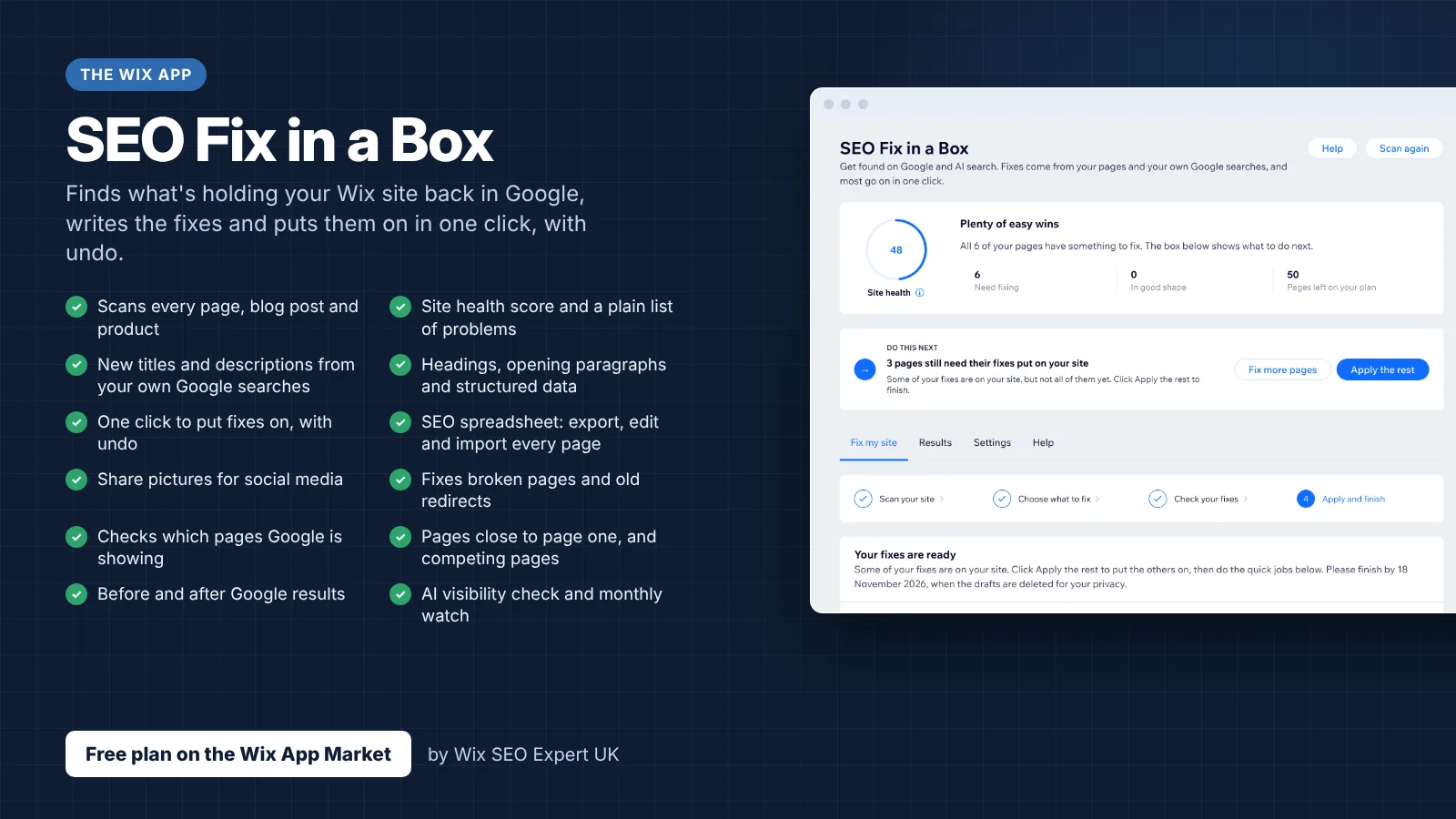
- SEO Fix in a Box: My Wix app. Free to install, it scans your site and shows what needs fixing, and paid plans write the fixes from your own Google searches
Was this lesson useful?
It takes 1 minute to tell me. The course is free and I want to keep it that way, and your feedback shows me what is working and helps other people find it.
This lesson on Google Ads PPC from the Wix Dashboard: complete setup and campaign guide is part of Module 29: SEO & Paid Search (SEM) Integration in The Most Comprehensive Complete Wix SEO Course in the World (2026 Edition). Created by Michael Andrews, a Wix Marketplace Legend Partner with 14 years of hands-on experience, 800 completed Wix SEO projects and 456 verified five-star reviews.