Favicons and logos in Google search results: setup and optimisation on Wix
Module 12: Brand SERP Management & Google Feature Domination | Lesson 152 of 683 | 35 min read
By Michael Andrews, Wix SEO Expert UK
Since 2019 Google has displayed favicons (site icons) next to every organic search result on mobile and desktop. In 2024 Google expanded this further by testing and rolling out site logos alongside brand names in search results. These small visual elements have an outsized impact on click-through rates, brand recognition and perceived trustworthiness. Yet most Wix site owners either use the default Wix favicon, upload a blurry image, or ignore the feature entirely. This lesson covers everything you need to know to get your favicon and logo appearing correctly, prominently and professionally in Google search results.
Why Favicons and Logos Matter for SEO
Google displays your favicon next to every single organic listing your site earns. That means if you rank for 200 keywords, your favicon appears 200 times. A professional, recognisable favicon increases click-through rate by making your listing visually distinct from competitors. Eye-tracking studies show that users scan the left edge of search results where favicons appear, and a well-designed icon creates instant brand recognition that draws the click even when you are not in position one.
The logo feature goes even further. Google now displays a larger site logo next to some search results, typically for sites it recognises as established brands. This logo is pulled from your structured data and Google Business Profile. When your logo appears, it dramatically increases the visual weight of your listing, occupying more pixel space and creating a stronger brand impression than a favicon alone.
How Google Selects and Displays Your Favicon
Google uses a specific hierarchy to find your favicon. It first checks for a favicon declaration in your HTML head using a <link rel="icon"> tag. If multiple sizes are declared, Google prefers the largest one that is at least 48x48 pixels. Google also crawls the /favicon.ico file at your domain root as a fallback. Once Google has crawled your favicon, it caches the image and re-crawls it periodically. Changes to your favicon can take days or weeks to update in search results.
- Google requires a minimum of 48x48 pixels but recommends a multiple of 48px such as 48x48, 96x96 or 144x144
- The favicon must be a square image: Google will crop non-square images unpredictably
- Supported formats are ICO, PNG, SVG and GIF (first frame only for animated GIFs)
- Google will not display favicons that it considers inappropriate, misleading or that violate its guidelines
- If Google cannot find or load your favicon, it displays a generic grey globe icon which damages credibility
- Favicons are displayed at approximately 16x16 pixels in search results but Google indexes the larger source file for quality
Setting Up Your Favicon on Wix
How to upload and configure your favicon on Wix
- Go to your Wix Dashboard and click Settings in the left menu.
- Scroll down to the Brand section or click Website Settings > Favicon.
- Click the current favicon placeholder or the Change Favicon button.
- Upload your favicon image. Use a PNG or SVG file at 512x512 pixels for best quality across all devices. Wix will automatically generate smaller sizes from this master file.
- Ensure the image is square (1:1 aspect ratio). If your logo is not square, create a simplified square version: use the logomark or initials rather than the full wordmark.
- Preview the favicon in the browser tab to confirm it is sharp and recognisable at small sizes.
- Click Save and publish your site to apply the changes.
- Test your live site by opening it in a new tab and checking the browser tab icon. Also test on mobile by adding the site to your home screen.
Designing an Effective Favicon for Search Results
Your favicon needs to work at an extremely small size while remaining instantly recognisable. The most successful favicons in search results use bold colours, simple shapes and high contrast. Think of how Apple uses its apple silhouette, how YouTube uses its red play button, or how Spotify uses its green circles. Each is identifiable even at 16 pixels wide.
- Use your brand colour as the background and a white or contrasting symbol on top for maximum visibility
- If your brand has a distinctive symbol or logomark, use that rather than initials
- If using initials, use a single bold letter in a heavy weight font on a coloured background
- Test your design at 16x16 pixels on screen before uploading to see how it actually appears in browser tabs
- Avoid gradients, thin lines, small text, and photographic imagery that loses detail at small sizes
- Ensure the favicon looks clear on both light and dark backgrounds since browsers and operating systems use both
- Create a version with padding so the icon does not touch the edges of the square canvas
Google Site Logo: How to Get Your Logo in Search Results
Beyond the small favicon, Google has rolled out a larger site logo that appears alongside your site name in search results. This feature uses your Organization or WebSite structured data to identify your official logo. When Google displays your site logo, it appears as a larger, more prominent image next to your brand name above the page title and URL, giving your listing significantly more visual impact.
Google determines your site logo through a combination of signals. The primary signal is the logo property in your WebSite or Organization schema markup. Google also references your Google Business Profile logo, your Open Graph image defaults, and the visual branding on your actual website. Consistency across all these sources is critical. If your schema says one logo but your site displays another, Google may choose neither.
Implementing Logo Schema for Google Search Results on Wix
To tell Google exactly which image to use as your site logo in search results, you need to add WebSite schema with a logo property and Organization schema with a logo property. On Wix, you add this through custom code in your site header.
{
  "@context": "https://schema.org",
  "@type": "Organization",
  "name": "Your Brand Name",
  "url": "https://www.yourdomain.com",
  "logo": {
    "@type": "ImageObject",
    "url": "https://www.yourdomain.com/logo.png",
    "width": 600,
    "height": 60,
    "caption": "Your Brand Name logo"
},
  "image": "https://www.yourdomain.com/logo.png"
}
How to add logo schema on your Wix site
- Upload your logo to your Wix site media library. Use a high-quality PNG with a transparent background at a minimum width of 112 pixels. Google recommends a logo with a 1:1 or landscape aspect ratio.
- Note the full URL of the uploaded logo image. In Wix, right-click the image in your media library and select Copy Image Address.
- Go to Wix Dashboard > Settings > Custom Code (or use the Wix SEO Settings > Advanced section).
- Add a new custom code block in the Head section that loads on All Pages.
- Paste the Organization schema JSON-LD code with your logo URL, brand name and website URL.
- Also add a WebSite schema block if you do not already have one, including the "image" property pointing to your logo.
- Validate the schema using the Google Rich Results Test at search.google.com/test/rich-results.
- Wait for Google to recrawl your pages. You can request indexing of your homepage through Google Search Console to speed this up.
Google Logo Requirements and Guidelines
- The logo must be representative of the organisation: it should be the same logo used on your website header
- Minimum size is 112x112 pixels but higher resolution images render better
- The image must be in PNG, JPEG, SVG or WebP format
- The logo should have a transparent or solid white background for best appearance in search results
- Do not use a generic image, a photograph, or a person's face as your organization logo
- The logo must be safe for all audiences and comply with Google's content policies
- Google may crop your logo to a square display format so ensure the key visual element is centred
- Use the same logo image URL across your Organization schema, Google Business Profile and social media profiles
Getting Your Logo into Google Knowledge Panel
Your Google Knowledge Panel is the information box that appears on the right side of search results when someone searches your brand name. The logo displayed in your Knowledge Panel is a critical brand asset. Google sources this logo from your Organization schema, your Google Business Profile, and Wikidata. If you have claimed your Knowledge Panel through Google, you can suggest changes to the displayed logo directly.
How to get your logo showing in the Knowledge Panel
- Ensure your Google Business Profile has a clear, high-quality logo uploaded as the profile photo.
- Add complete Organization schema to your Wix site with the logo property pointing to the same image file.
- Create or update your Wikidata entry for your business and add the logo image property.
- Claim your Google Knowledge Panel if you have not already: search your brand, click Claim this Knowledge Panel, and verify ownership.
- Once claimed, use the Suggest Edits feature to request your preferred logo if Google is displaying the wrong one.
- Ensure all three sources (schema, GBP, Wikidata) use the same or visually identical logo for consistency.
Troubleshooting Favicon and Logo Issues in Google
Sometimes your favicon or logo does not appear in Google search results despite being correctly configured. This is usually caused by crawling delays, caching, or technical issues that prevent Google from accessing or processing your images.
- Favicon not showing: Check that your favicon URL is accessible (not blocked by robots.txt). Open the URL directly in a browser to confirm it loads.
- Favicon shows generic globe: Google may not have crawled your favicon yet. Request indexing of your homepage in Google Search Console and wait 1-2 weeks.
- Favicon appears blurry: You uploaded an image smaller than 48x48 pixels. Replace it with a 512x512 version and wait for Google to recrawl.
- Logo not appearing in results: Verify your Organization schema is valid using the Rich Results Test. Ensure the logo URL in the schema is publicly accessible and not behind authentication.
- Wrong logo displayed: Check if you have conflicting schema on different pages pointing to different logo files. Standardise to one logo URL across all schema markup.
- Knowledge Panel shows old logo: After updating your logo in GBP and schema, use the Suggest Edits feature in your claimed Knowledge Panel. Changes can take 2-4 weeks to appear.
- Logo appears but is cropped badly: Redesign the logo to work within a square frame. Centre the key visual element and add padding around the edges.
Advanced: Site Name Display in Google Search Results
Google also displays your site name (not just the URL) above search results. This is pulled from your WebSite schema name property, your HTML title tag, your Open Graph site_name meta tag, and the text in your site header. Getting your site name to display correctly ensures users see your brand name rather than a URL or a truncated page title.
{
  "@context": "https://schema.org",
  "@type": "WebSite",
  "name": "Your Brand Name",
  "alternateName": "YBN",
  "url": "https://www.yourdomain.com"
}
The alternateName property is useful if your brand has a well-known abbreviation or short name. For example, if your brand is "Michael Andrews SEO" but people commonly search "MA SEO", include the shorter version as the alternate name. Google may use either version depending on context.
Complete How-To Guide: Favicon and Logo Setup for Google Search Results on Wix
Step-by-step process to get your favicon and logo appearing in Google search results
- Step 1: Design your favicon. Open Canva or Figma and create a 512x512 pixel square canvas. Place your brand's logomark, initial letter or simple symbol on a solid background using your brand colour. Export as PNG with transparency if appropriate.
- Step 2: Test your favicon at small sizes. Shrink the design to 16x16 pixels on screen. If you cannot immediately recognise it, simplify the design further. Remove detail until the icon reads clearly at tiny sizes.
- Step 3: Upload the favicon to Wix. Go to Dashboard > Settings > Favicon. Upload your 512x512 PNG file. Wix generates all required sizes automatically. Save and publish.
- Step 4: Verify the favicon in your browser. Open your live site in a new tab and check the browser tab. Open the site on your phone and add it to your home screen to test the app icon. Clear your browser cache if you see the old icon.
- Step 5: Prepare your logo for schema markup. Your logo should be a high-quality PNG at minimum 112 pixels wide, ideally 600 pixels wide. Use a version with a transparent or white background. Upload it to your Wix media library and copy the full image URL.
- Step 6: Add Organization schema with logo. Go to Wix Dashboard > Settings > Custom Code. Add a new code block in the Head section on All Pages. Paste Organization schema JSON-LD with your name, url, logo (as an ImageObject with url, width, height) and sameAs array linking to all your social profiles.
- Step 7: Add WebSite schema with name. In the same custom code section or as a separate block, add WebSite schema JSON-LD with your site name, URL and any alternate names your brand uses.
- Step 8: Validate all schema. Go to search.google.com/test/rich-results and test your homepage URL. Confirm the Organization and WebSite schema are detected without errors. Fix any warnings about missing fields.
- Step 9: Update your Google Business Profile logo. Go to business.google.com, select your business, and upload your logo as both the profile photo and the logo in the business identity section. Use the same image file you referenced in your schema.
- Step 10: Create or update your Wikidata entry. Go to wikidata.org, search for your brand, and create an item if one does not exist. Add the logo property with the same image. Add your website URL, social profiles and business details.
- Step 11: Ensure Open Graph defaults are set. On Wix, go to Settings > Social Sharing (OG) and upload your logo or brand image as the default sharing image. Add your site name in the og:site_name field.
- Step 12: Request indexing and monitor. In Google Search Console, submit your homepage for indexing. Over the next 1-4 weeks, check your search results for the favicon and logo appearance. Use a mobile device to see the full mobile SERP with favicons. Track any changes in click-through rate in Search Console.
Favicon and Logo Tools
- RealFaviconGenerator: Test your favicon across all platforms and generate the complete set of sizes
- Favicon.io: Generate favicons from text, images or emojis
- Google Rich Results Test: Validate your Organization and WebSite schema markup
- Schema.org Organization: Official documentation for Organization schema including logo property
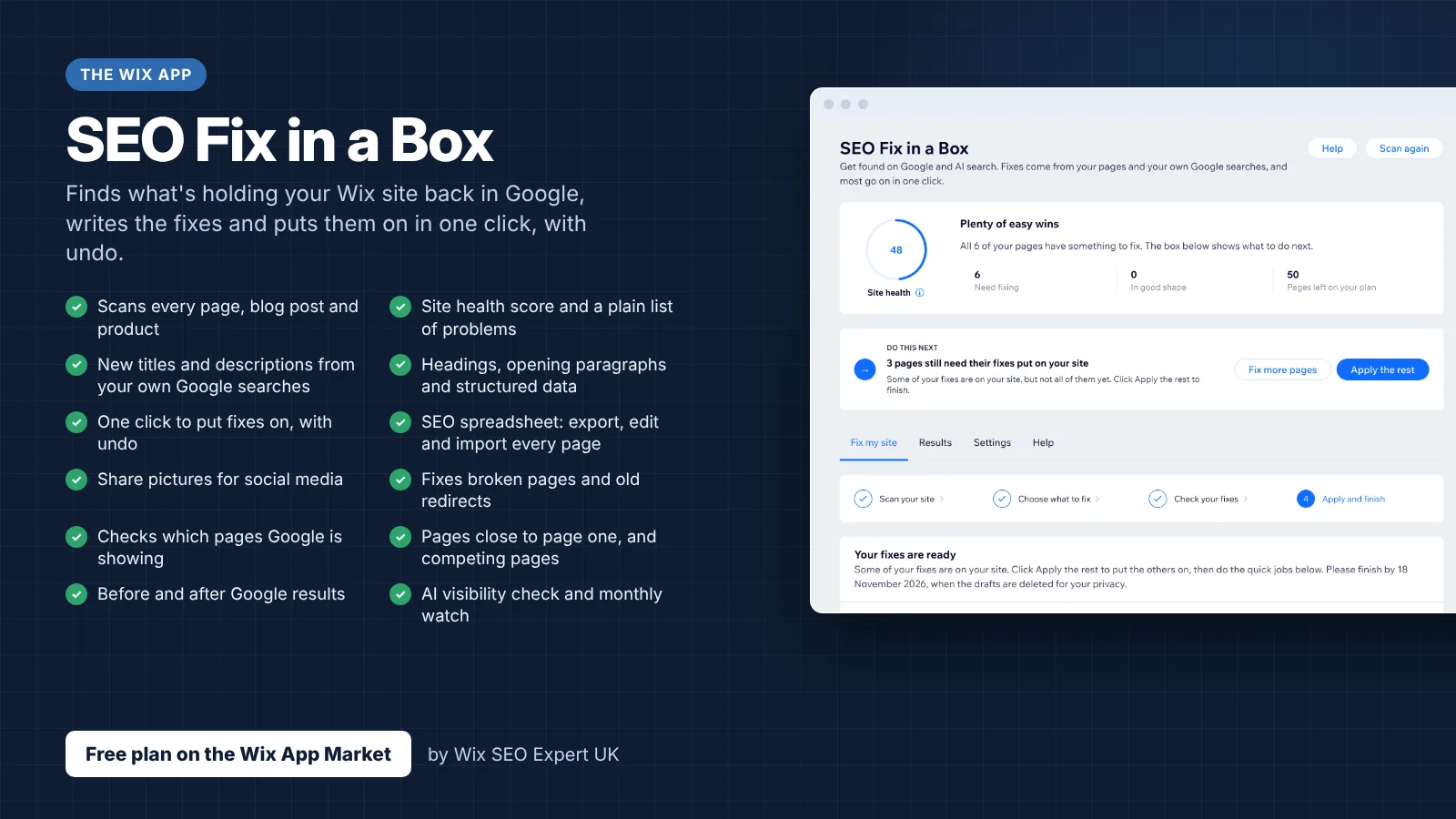
- SEO Fix in a Box: My Wix app. Free to install, it scans your site and shows what needs fixing, and paid plans write the fixes from your own Google searches
Was this lesson useful?
It takes 1 minute to tell me. The course is free and I want to keep it that way, and your feedback shows me what is working and helps other people find it.
This lesson on Favicons and logos in Google search results: setup and optimisation on Wix is part of Module 12: Brand SERP Management & Google Feature Domination in The Most Comprehensive Complete Wix SEO Course in the World (2026 Edition). Created by Michael Andrews, a Wix Marketplace Legend Partner with 14 years of hands-on experience, 800 completed Wix SEO projects and 456 verified five-star reviews.