Custom 404 pages on Wix: turning errors into SEO opportunities
Module 19: Wix-Specific Features SEO Masterclass | Lesson 233 of 683 | 18 min read
By Michael Andrews, Wix SEO Expert UK
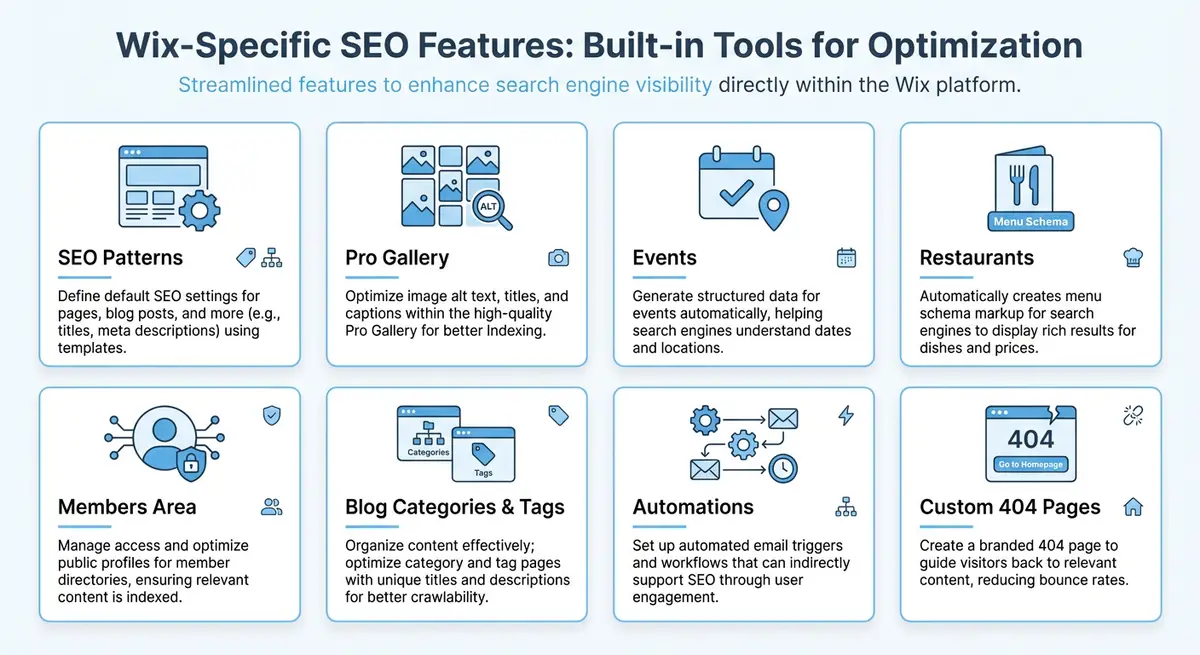
Every website has 404 errors. Pages get deleted, URLs change, external sites link to pages that no longer exist, and visitors mistype addresses. The default Wix 404 page is functional but generic, offering little value to visitors who hit a dead end. A custom 404 page is an opportunity to recover lost visitors, guide them to valuable content, maintain your brand experience, and protect the SEO equity that would otherwise evaporate when someone encounters a broken link. This lesson covers how to design an effective custom 404 page, monitor errors, and implement redirects.
Why Custom 404 Pages Matter for SEO
A 404 error itself is not an SEO penalty. Google has explicitly stated that having 404 pages does not harm your rankings. However, the consequences of 404 errors can harm your SEO indirectly. When visitors hit a 404 page and immediately return to search results (pogo-sticking), it sends negative engagement signals. When external sites link to a page that 404s, the link equity from that backlink is wasted. When internal links point to 404 pages, you create a broken user experience and waste crawl budget on dead-end URLs.
A well-designed custom 404 page mitigates all of these issues. By providing helpful navigation, search functionality, and links to popular content, you keep visitors on your site rather than losing them. By monitoring 404 errors and setting up redirects, you recapture link equity and maintain a clean site architecture. The 404 page is one of the most overlooked SEO opportunities on most Wix sites.
Designing an Effective 404 Page on Wix
Your custom 404 page should accomplish three things: acknowledge the error clearly, maintain your brand identity, and provide multiple pathways to valuable content. The worst 404 pages are blank screens, generic "Page Not Found" text, or confusing error messages that leave visitors stranded. The best 404 pages feel like a helpful guide, redirecting the visitor back into your content ecosystem with minimal friction.
How to create a custom 404 page in Wix
- In the Wix Editor, click on Pages and Scroll down to the 404 Error Page listed under Special Pages.
- Click the 404 page to open it in the editor. You can now customise it like any other page.
- Add a clear headline that acknowledges the error in a friendly, on-brand tone. "This page has wandered off" or "We cannot find what you are looking for" work better than technical jargon.
- Add a brief explanation suggesting why they might have arrived here: the page may have been moved, the URL may be outdated, or there might be a typo in the address.
- Add a prominent search bar so visitors can search for what they were looking for.
- Add links to your most important pages: homepage, popular services or products, blog, contact page.
- Add a list of your top 5-10 most popular or most linked-to pages as quick navigation options.
- Include your standard site navigation header and footer so the 404 page does not feel like a dead end.
- Optionally, add a contact prompt: "Cannot find what you need? Contact us and we will help you find it."
What to Include on Your 404 Page
- Your site logo and branding elements for visual consistency.
- A friendly, non-technical error message that acknowledges the broken link.
- A search bar, which is the single most valuable element on a 404 page because it lets visitors self-serve.
- Links to your homepage, main service or product categories, and contact page.
- A curated list of your most popular or highest-converting pages.
- Recent blog posts or featured content to encourage further browsing.
- Your standard navigation menu and footer to maintain site structure.
- A contact form or email link for visitors who need direct assistance.
Monitoring 404 Errors in Google Search Console
Google Search Console reports 404 errors under the Pages section (formerly Coverage). The "Not found (404)" status shows every URL that Google attempted to crawl but could not find. This is your primary source of truth for identifying broken URLs that need attention. Not every 404 needs fixing. URLs that were intentionally deleted and have no inbound links can be safely left as 404s. Focus your attention on 404 URLs that have external backlinks, significant historical traffic, or are linked from within your own site.
How to audit and prioritise 404 errors
- Open Google Search Console and navigate to Pages (Indexing section).
- Filter for "Not found (404)" status to see all URLs returning 404 errors.
- Export the list of 404 URLs for analysis.
- For each 404 URL, check if it has external backlinks using a tool like Ahrefs, Moz, or Google Search Console Links report.
- Prioritise 404 URLs with backlinks, as these are leaking link equity. Set up 301 redirects for these immediately.
- Check if any 404 URLs are linked from your own pages using a site crawler or the Wix broken link checker. Fix these internal links.
- For 404 URLs with no backlinks and no internal links, confirm they were intentionally deleted and leave them as 404s.
- Schedule this audit monthly to catch new 404 errors before they accumulate.
Setting Up 301 Redirects in Wix
A 301 redirect permanently sends visitors and search engines from an old URL to a new one, transferring the vast majority of the link equity from the old URL to the new destination. In Wix, you can set up redirects through the URL Redirect Manager in your site dashboard. Navigate to SEO Tools and then URL Redirect Manager. Enter the old URL path and the new destination URL, and Wix handles the server-side redirect.
Essential Resources
- Wix App Market: Browse and install SEO apps and integrations for your Wix site
- Wix SEO Help Centre: Official Wix SEO documentation and best practice guides
- Wix SEO Learning Hub: Free SEO courses and tutorials from Wix
- Google Search Console: Monitor indexing, performance and issues for your Wix site
When setting up redirects, always redirect to the most relevant page. If you deleted a blog post about "Summer Photography Tips", redirect it to your most similar current blog post about photography rather than just pointing everything to the homepage. Relevant redirects provide a better user experience and transfer more topical link equity. Avoid redirect chains where URL A redirects to URL B which redirects to URL C. Each redirect in the chain loses a small amount of link equity and adds latency.
Old URL                              Redirect To
/blog/summer-tips-2024         -->    /blog/photography-tips-complete-guide
/services/old-service-name     -->    /services/updated-service-name
/products/discontinued-item    -->    /products/replacement-item
/team/former-employee          -->    /about (or /team if it exists)
/old-landing-page              -->    /new-landing-page
/blog/category/old-category --> /blog/categories/new-category-namePreventing 404 Errors Proactively
- Before deleting any page, check Google Search Console and your analytics to verify the page has no traffic or backlinks. If it does, set up a redirect before deleting.
- When renaming a page or changing its URL slug in Wix, the platform sometimes offers to create an automatic redirect. Always accept this option.
- Use consistent, descriptive URL slugs when creating new pages and avoid changing them once the page is indexed.
- If you restructure your site navigation or move pages to different sections, create redirects for every URL that changes.
- Regularly crawl your own site using a tool like Screaming Frog (free for up to 500 URLs) to identify internal links pointing to 404 pages.
- When linking to external resources from your content, periodically verify those links still work to avoid creating a poor user experience.
Turning 404 Data into Content Strategy
Your 404 error data reveals what visitors expect to find on your site but cannot. If you notice repeated 404 hits for URLs like /services/web-design or /blog/seo-tips-for-beginners, and these pages do not exist yet, that is market demand signalling content you should create. Analyse your 404 logs to identify patterns in what people are searching for or linking to, and use those insights to fill content gaps on your site.
Similarly, if external sites are linking to non-existent pages on your site, reach out to those sites and ask them to update the link to a correct URL. Alternatively, create the page they are linking to if the topic is relevant. This is an easy backlink acquisition strategy: the link already exists, you just need to create the content at the expected URL to capture the equity.
Complete How-To Guide: Creating Custom 404 Pages and Managing Redirects on Wix
This guide takes you from designing a conversion-focused 404 page through auditing your errors in Google Search Console to setting up redirects that recapture lost link equity.
How to build a custom 404 page and manage broken URLs on Wix
- Step 1: In the Wix Editor, click Pages in the left panel and scroll down to find the 404 Error Page listed under Special Pages. Click it to open the page in the editor for customisation.
- Step 2: Replace the default content with a friendly, on-brand headline like "This page has wandered off" or "We could not find what you are looking for". Add a brief explanation suggesting the page may have moved or the URL may be outdated.
- Step 3: Add a prominent search bar element to the 404 page. This is the single most valuable element because it lets visitors find what they were looking for without leaving your site.
- Step 4: Add a section with links to your most important pages: homepage, main services or products, blog, and contact page. Use descriptive link text, not generic "click here".
- Step 5: Add a curated list of your 5-10 most popular or highest-converting pages. Consider adding your most recent blog posts or featured content to encourage browsing.
- Step 6: Ensure your standard site navigation header and footer are present on the 404 page so it does not feel like a dead end. Optionally add a contact prompt: "Cannot find what you need? Contact us."
- Step 7: Open Google Search Console and navigate to Pages in the Indexing section. Filter for "Not found (404)" status to see all URLs returning 404 errors. Export the full list.
- Step 8: For each 404 URL, check if it has external backlinks. Use the Links report in Google Search Console or a tool like Ahrefs. Highlight any 404 URLs with backlinks as high-priority fixes.
- Step 9: Set up 301 redirects for high-priority 404 URLs. In your Wix dashboard, go to SEO Tools, then URL Redirect Manager. Enter the old URL path and the most relevant current page as the destination. Always redirect to content that is topically related to the original page.
- Step 10: Check for internal broken links by searching your own site content for links pointing to 404 pages. Fix these internal links to point to the correct current pages or the redirect destinations.
- Step 11: For 404 URLs with no backlinks and no internal links, confirm they were intentionally deleted. These can safely remain as 404s since they are not leaking any value.
- Step 12: Set a monthly calendar reminder to review new 404 errors in Google Search Console. Export the latest list, cross-reference with backlinks, set up redirects for any valuable URLs, and fix any new internal broken links. This ongoing maintenance prevents 404 errors from accumulating and wasting link equity.
Essential Resources
- Google Search Console: Monitor 404 errors, crawl issues, and identify URLs with backlinks needing redirects
- Wix URL Redirect Manager: Set up 301 redirects for broken URLs directly in your Wix dashboard
- HTTP Status Checker: Verify redirect chains and confirm 301 redirects are working correctly
Was this lesson useful?
It takes 1 minute to tell me. The course is free and I want to keep it that way, and your feedback shows me what is working and helps other people find it.
This lesson on Custom 404 pages on Wix: turning errors into SEO opportunities is part of Module 19: Wix-Specific Features SEO Masterclass in The Most Comprehensive Complete Wix SEO Course in the World (2026 Edition). Created by Michael Andrews, a Wix Marketplace Legend Partner with 14 years of hands-on experience, 800 completed Wix SEO projects and 456 verified five-star reviews.