CTA design, placement and copy that converts visitors on Wix
Module 21: Conversion Rate Optimisation for Organic Traffic on Wix | Lesson 257 of 683 | 22 min read
By Michael Andrews, Wix SEO Expert UK
Your call-to-action buttons are the hinges on which conversions swing. Every element on your Wix page exists to support one goal: getting the visitor to click your CTA. Yet most businesses treat CTAs as afterthoughts, using generic text like "Submit" or "Learn More" and placing buttons wherever there is empty space. This lesson covers the science and craft of CTA design, placement, and copywriting that turns organic visitors into leads and customers.
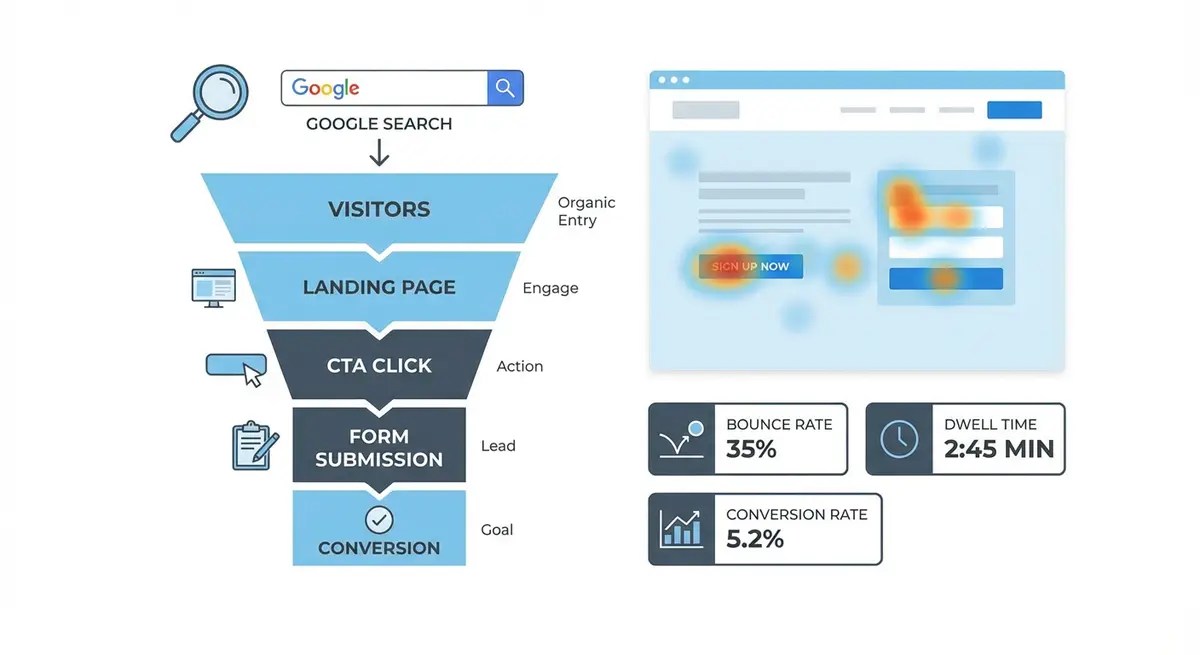
CTA Button Design Principles
An effective CTA button must be visually dominant without being garish. The button colour should contrast sharply with the surrounding page elements. On Wix, use a button colour that does not appear anywhere else on the page so it stands out immediately. The button should be large enough to be noticed at a glance but not so large that it feels aggressive. Rounded corners typically outperform sharp corners because they feel more approachable, though this varies by industry and audience.
- Use high contrast between button colour and background: a bright button on a neutral background outperforms low-contrast combinations
- Minimum button size of 44x44 pixels for mobile tap targets, with generous padding around the text
- Add subtle visual weight through drop shadows or slight gradients to make buttons feel clickable
- Use white space around buttons to prevent visual clutter that diminishes their prominence
- Ensure disabled or secondary CTAs are visually distinct from primary CTAs to maintain clear hierarchy
- Avoid placing buttons directly below ads, banners, or distracting elements that compete for attention
Strategic CTA Placement on Wix Pages
Placement determines whether your CTA is seen at the moment when the visitor is most motivated to act. The above-fold primary CTA should be visible immediately for visitors who arrive ready to convert. For longer content pages, place secondary CTAs at natural decision points: after you have presented a compelling argument, after social proof, and at the bottom of the page. On Wix blog posts, a sticky CTA bar or an inline CTA after the most valuable section of the article consistently outperforms a single CTA at the end.
CTA Copy Formulas That Convert
Generic CTA text like "Submit", "Click Here", or "Learn More" tells the visitor nothing about the value they will receive. Effective CTA copy communicates the specific outcome of clicking. The formula is: Action Verb + Specific Value. "Get My Free SEO Audit" outperforms "Submit". "Start My Free Trial" outperforms "Sign Up". "Download the 2026 Pricing Guide" outperforms "Learn More". The visitor should know exactly what happens when they click.
Writing high-converting CTA copy
- Start with a strong action verb: Get, Start, Download, Claim, Book, Join, Discover
- Add a specific benefit or deliverable: "Free SEO Audit", "Your Custom Quote", "The Complete Guide"
- Use first-person perspective where appropriate: "Get My Free Report" outperforms "Get Your Free Report" in many tests
- Create urgency when genuine: "Book Your Spot" or "Claim Your Discount" implies limited availability
- Test different emotional angles: fear-based ("Stop Losing Customers"), aspiration-based ("Grow Your Revenue"), or curiosity-based ("See Your SEO Score")
Mobile CTA Optimisation on Wix
Mobile CTA optimisation is not just about making buttons bigger. The entire conversion path must be rethought for thumbs, small screens, and distracted attention. Place primary CTAs in the thumb zone: the lower-centre portion of the screen where the thumb naturally rests. Sticky bottom CTAs work exceptionally well on mobile because they remain visible as the user scrolls through content. On Wix mobile editor, you can configure separate CTA positions and sizes for mobile versus desktop views.
Testing CTA Variations
Every CTA decision should be treated as a hypothesis, not a conclusion. What works in one industry or for one audience segment may fail for another. Run systematic A/B tests on CTA colour, size, copy, placement, and surrounding context. Test one variable at a time and track micro-conversions like CTA clicks alongside macro-conversions like form completions and purchases. A CTA that gets more clicks but fewer final conversions may be attracting the wrong audience.
- Test CTA copy: swap benefit-driven text for urgency-driven text and measure the impact
- Test button colour: try your primary brand colour against a high-contrast complementary colour
- Test placement: move the primary CTA above the fold versus below the first content section
- Test supporting text: add a one-line reassurance below the CTA (e.g., "No credit card required")
- Test button shape: try a wider, shorter button versus a narrower, taller button
- Test page-level context: change the headline or social proof section above the CTA to see how it impacts clicks
CTA Strategy by Page Type
Different page types require different CTA strategies. Blog posts should use soft CTAs like newsletter signups or content downloads that match the informational intent. Service pages should use direct CTAs like "Get a Quote" or "Book a Consultation" that match commercial intent. Product pages should use transactional CTAs like "Add to Cart" or "Buy Now" with supporting trust signals. Your Wix homepage should feature a primary CTA that represents your most valuable conversion action, supported by a secondary CTA for visitors who are not yet ready to commit.
CTA Testing and Optimisation Tools
- VWO: Visual A/B testing platform with heatmap and session recording capabilities
- Crazy Egg: Heatmaps, scroll maps, and confetti reports for understanding CTA engagement
- Copy.ai: Generate CTA copy variations for A/B testing using AI
Complete How-To Guide
This step-by-step guide takes you through the entire process of auditing, redesigning, and testing your call-to-action buttons on a Wix website to maximise click-through and conversion rates.
How to design, place, and write CTAs that convert on Wix
- Step 1: Audit every page of your Wix site and document every existing CTA button, noting its text, colour, size, position on the page, and the action it triggers when clicked
- Step 2: Install Hotjar or Microsoft Clarity on your Wix site via Settings > Custom Code and run click heatmaps on your top 5 pages to see which CTAs are being clicked and which are being ignored
- Step 3: Review heatmap data to identify CTAs that receive fewer clicks than expected and note any non-CTA elements that visitors are clicking on, which indicates they expect interactivity
- Step 4: Choose a single high-contrast colour for your primary CTA buttons that does not appear elsewhere on the page, and apply it consistently across your entire Wix site using the site theme settings
- Step 5: Rewrite every CTA using the Action Verb + Specific Value formula, replacing generic text like "Submit" or "Learn More" with benefit-driven copy such as "Get My Free SEO Audit" or "Download the 2026 Pricing Guide"
- Step 6: Add one line of supporting microcopy beneath each primary CTA that addresses the visitor's main objection, such as "No credit card required", "Response within 2 hours", or "Join 2,500+ subscribers"
- Step 7: In the Wix Editor, reposition your primary CTA on each page so it appears within the above-fold viewport on both desktop and mobile, ensuring it is visible without scrolling
- Step 8: Add a secondary CTA at approximately 60% scroll depth on each page, placed directly after your strongest testimonial or most compelling argument
- Step 9: Add a final CTA at the bottom of each page to catch visitors who read the entire content before making a decision
- Step 10: Switch to the Wix Mobile Editor and configure a compact sticky CTA bar (no taller than 60 pixels) that remains visible as mobile users scroll, positioned in the natural thumb zone at the bottom of the screen
- Step 11: Ensure all CTA buttons have a minimum tap target of 44x44 pixels on mobile with adequate padding, and verify they do not overlap with other interactive elements
- Step 12: Set up an A/B test for your highest-traffic page, testing one CTA variable at a time: start with copy, then colour, then placement in subsequent tests
- Step 13: Configure GA4 event tracking for each CTA by setting up click events and monitoring both micro-conversions (CTA clicks) and macro-conversions (form completions or purchases) to ensure clicks translate to actual results
- Step 14: Run each test for a minimum of 14 days or until you reach at least 1,000 visitors per variation, then implement the winning version and move on to the next test
Was this lesson useful?
It takes 1 minute to tell me. The course is free and I want to keep it that way, and your feedback shows me what is working and helps other people find it.
This lesson on CTA design, placement and copy that converts visitors on Wix is part of Module 21: Conversion Rate Optimisation for Organic Traffic on Wix in The Most Comprehensive Complete Wix SEO Course in the World (2026 Edition). Created by Michael Andrews, a Wix Marketplace Legend Partner with 14 years of hands-on experience, 800 completed Wix SEO projects and 456 verified five-star reviews.