Crawl budget optimisation techniques specific to Wix
Module 8: Crawl Budget, Log Files & Advanced Site Health on Wix | Lesson 106 of 683 | 25 min read
By Michael Andrews, Wix SEO Expert UK
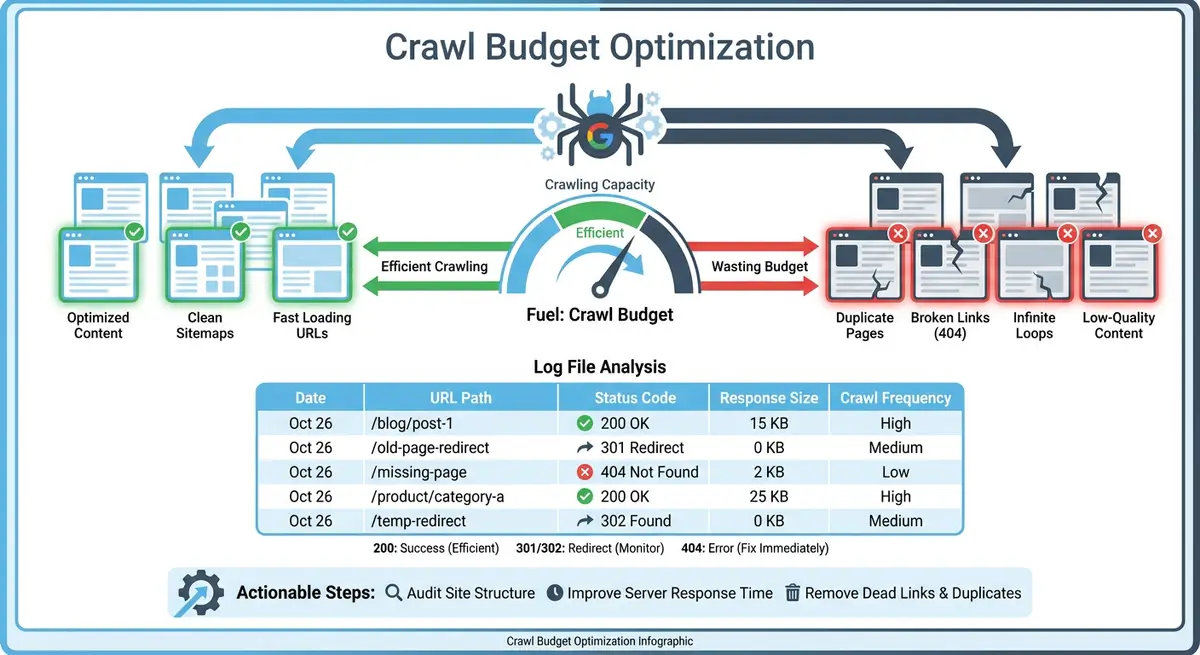
Once you have diagnosed your crawl budget situation and understand your bot traffic data, it is time to take action. Wix provides several tools for controlling what Googlebot crawls and prioritising your most important content. This lesson covers every practical crawl budget optimisation technique available on the Wix platform, from robots.txt configuration to internal linking strategy.
Editing robots.txt on Wix
The robots.txt file tells search engine bots which parts of your site they should and should not crawl. On Wix, you can edit robots.txt directly from the SEO Tools section of your dashboard. Use this to block Googlebot from crawling low-value URL patterns like blog tag archives, filter combinations, member profile pages or app-generated URLs. Be cautious: blocking the wrong paths can prevent important pages from being crawled and indexed. Always test changes by checking which URLs would be affected before saving.
Managing Your Wix XML Sitemap
Your XML sitemap is the most direct signal to Googlebot about which pages you consider important. Wix automatically generates and maintains your sitemap, but you have control over what gets included. Remove low-value pages from your sitemap by setting them to noindex, which Wix will automatically exclude from the sitemap. For large sites, ensure your sitemap only contains pages you actively want indexed. A bloated sitemap dilutes the signal to Google about which pages truly matter.
Blocking Low-Value Pages From Crawling
- Blog tag archive pages: if you have many tags with only 1-2 posts each, block the tag archive pattern in robots.txt or noindex the tag pages.
- Store filter URLs: product filtering creates parameterised URLs. Block filter URL patterns to prevent Googlebot from crawling thousands of near-duplicate pages.
- Member profile pages: if your Wix Members area creates public profile URLs, block these from crawling unless member profiles contain unique, valuable content.
- Wix app-generated pages: some apps create their own page structures. If these pages have no SEO value, block them via robots.txt.
- Duplicate language versions: if you use Wix Multilingual but some languages have minimal content, consider whether all language versions need to be crawlable.
Reducing Dynamic Page Crawl Waste
Wix dynamic pages connected to CMS collections are powerful but can create crawl waste if not managed properly. A database collection with 500 items connected to a dynamic item page creates 500 individual URLs. If most of those items are similar or low-value, Googlebot wastes budget crawling them. Audit your dynamic pages and consider whether every item in every collection needs its own indexable URL. For collections where individual items add little unique value, consider using a single listing page instead of individual dynamic item pages.
Internal Linking to Boost Crawl Priority
Internal links are the strongest signal to Googlebot about which pages on your site are most important. Pages linked from your main navigation, homepage and multiple content pages get crawled more frequently than orphaned pages buried deep in your site. Review your internal linking structure and ensure your highest-value pages receive the most internal links. Add contextual links from blog posts to service pages, from category pages to top products, and from the homepage to your most important landing pages.
Monitoring Crawl Budget Improvements
After implementing optimisations, monitor the impact through Google Search Console Crawl Stats and Wix Bot Traffic reports. Key metrics to track include: total crawl requests per day, the percentage of crawls going to important pages versus low-value pages, the ratio of 200 responses to non-200 responses, and the time it takes for new content to appear as indexed in GSC. Improvements typically become visible within 2-4 weeks of implementing changes.
Essential Tools for This Lesson
- Wix robots.txt Editor: Edit your Wix robots.txt file to control which URL patterns search engine bots can crawl
- Google Search Console Crawl Stats: Monitor total crawl requests, response times and crawl trends after implementing optimisations
Complete How-To Guide: Optimising Crawl Budget on Your Wix Site
This step-by-step guide walks you through every practical crawl budget optimisation technique available on Wix, from blocking low-value pages to strengthening internal linking for your most important content.
How to optimise crawl budget on your Wix site
- Step 1: Open Google Search Console and navigate to Settings > Crawl Stats. Record your current baseline metrics: total crawl requests per day, average response time, and the percentage breakdown of status codes. Screenshot this data for comparison after optimisation.
- Step 2: Navigate to your Wix Dashboard > SEO Tools > robots.txt Editor. Review your current robots.txt file. Make note of any existing rules before adding new ones. If the file only contains default Wix rules, you will be adding new Disallow directives.
- Step 3: Identify low-value URL patterns to block. Based on your earlier crawl budget diagnosis, add Disallow rules for patterns like /blog/tag/ (if tag pages have thin content), /members/ (if member profiles are not SEO-valuable), and any app-generated URL patterns that do not serve search traffic.
- Step 4: Add each Disallow rule on a new line under the appropriate User-agent directive. For example, under User-agent: * add Disallow: /blog/tag/ to block all blog tag archive pages from all crawlers. Save the file and verify it at yoursite.com/robots.txt.
- Step 5: Open your Wix sitemap at yoursite.com/sitemap.xml and review all included URLs. Identify pages that should not be in the sitemap because they have no SEO value. For each page you want to remove, go to the Wix Editor, open that page's SEO settings and set it to noindex. Wix will automatically remove noindexed pages from the sitemap.
- Step 6: Review your Wix CMS collections by going to Dashboard > CMS. For each collection connected to dynamic pages, check how many items exist. If a collection has more than 100 items and many are similar or low-value, consider whether all items need individual dynamic pages or whether a filtered listing page would serve users better.
- Step 7: For dynamic page collections where individual items are low-value, remove the dynamic item page template and instead use a single dynamic listing page that displays all items. This reduces hundreds of crawlable URLs to a single page while keeping the content accessible to users.
- Step 8: Audit your Wix Stores filter URLs by browsing a product category page and clicking through different filter combinations. If each combination creates a unique URL, add a Disallow rule in robots.txt for the filter URL pattern to prevent Googlebot from crawling thousands of filtered variations.
- Step 9: Review your internal linking structure starting from the homepage. Click through your site and note how many clicks it takes to reach your most important pages. Any page requiring more than three clicks from the homepage should be linked more prominently to improve crawl priority.
- Step 10: Add contextual internal links to your top 10 most important pages. For each page, add at least 3-5 internal links from relevant blog posts, related service pages and category pages. Use descriptive anchor text that includes the target page's primary keyword.
- Step 11: Update your main navigation to include direct links to your highest-priority pages. Pages in the main navigation receive the most crawl attention because they are linked from every page on your site.
- Step 12: After implementing all changes, wait 14 days for Googlebot to process your optimisations. During this period, continue publishing content normally and avoid making additional structural changes that could confuse the data.
- Step 13: After 14 days, return to Google Search Console Crawl Stats and Wix Bot Traffic reports. Compare your new metrics against the baseline from Step 1. Look for an increase in crawl requests to important pages, a decrease in crawls to low-value pages, and a higher 200 response rate.
- Step 14: Set up an ongoing monthly crawl budget review. On the same day each month, check your crawl stats, bot traffic reports and indexed page count. Track these metrics in a spreadsheet to identify trends and catch any new crawl budget issues before they impact your SEO performance.
How to Optimise Crawl Budget on Your Wix Site
Crawl budget optimisation ensures Googlebot spends its limited crawl capacity on your most valuable pages. Follow these steps to direct crawler attention to the content that matters most.
How to improve crawl efficiency for your Wix site
- Step 1: Log in to your Wix Dashboard and navigate to Marketing & SEO > SEO Tools > Site Inspection. Run a full inspection to identify your current indexation status and discover any non-indexed pages.
- Step 2: Go to Google Search Console > Settings > Crawl Stats. Review the average crawl requests per day. Note the date range and compare total crawl requests against total indexed pages to estimate your crawl efficiency.
- Step 3: In Google Search Console, navigate to Pages and identify pages that are Crawled but not indexed. These pages are consuming crawl budget without contributing to your search visibility.
- Step 4: Review all pages tagged as Crawled but not indexed. For thin or duplicate pages, add a noindex meta tag via Wix page SEO settings. For valuable pages, improve their content to at least 500 words before requesting re-indexing.
- Step 5: Navigate to Marketing & SEO > SEO Tools in your Wix Dashboard and open the sitemap settings. Ensure the sitemap includes only pages you want indexed. Remove any low-value pages from the sitemap by applying a noindex tag in their SEO settings.
- Step 6: Check the Wix blog tag and category pages. In Marketing & SEO > Blog > Tags, review whether tag and category pages have thin content. If they have fewer than 3 posts, add a noindex tag to prevent them consuming crawl budget.
- Step 7: Review your internal linking structure. Pages with no internal links pointing to them receive very infrequent crawls. Add contextual links from high-authority pages to important but under-linked pages to increase their crawl frequency.
- Step 8: Remove or noindex any duplicate pages on your site. Common duplicates on Wix include print-friendly versions, parameter-based URLs from filters, and template pages used for design but not for content.
- Step 9: Check the robots.txt file for your Wix site at yourdomain.com/robots.txt. Ensure it does not accidentally block Googlebot from accessing important pages, stylesheets, or scripts needed for rendering.
- Step 10: Update your XML sitemap submission in Google Search Console. Navigate to Sitemaps, remove any outdated sitemap URLs, and verify the current sitemap URL resolves correctly and reflects your live pages.
- Step 11: Set internal link priorities. Your most important pages (service pages, top products, cornerstone content) should be linked from your homepage and main navigation to maximise their crawl frequency.
- Step 12: After implementing all crawl optimisations, wait 14 days then revisit Google Search Console Crawl Stats. Your crawl requests to important pages should increase and requests to low-value pages should decrease.
Was this lesson useful?
It takes 1 minute to tell me. The course is free and I want to keep it that way, and your feedback shows me what is working and helps other people find it.
This lesson on Crawl budget optimisation techniques specific to Wix is part of Module 8: Crawl Budget, Log Files & Advanced Site Health on Wix in The Most Comprehensive Complete Wix SEO Course in the World (2026 Edition). Created by Michael Andrews, a Wix Marketplace Legend Partner with 14 years of hands-on experience, 800 completed Wix SEO projects and 456 verified five-star reviews.